
Copilot Studio reaches a significant milestone with the general availability of the GitHub Copilot harness, a new orchestration engine designed for agents with complex reasoning. This article details each new feature — harness, skills, memory, governance, real-time channels — with concrete points of attention for teams deploying agents in production.
GitHub Copilot harness in general availability: what really changes
The GitHub Copilot harness is now generally available in Copilot Studio. Unlike the standard harness which follows predefined execution paths, the GitHub Copilot harness sits between the AI model and the agent to dynamically orchestrate model calls, context selection, and invocation of available tools.
Concretely, the agent plans its steps, reevaluates its approach at each iteration, and adapts its execution path based on the objective and available inputs — a behavior called recursive. It's no longer a static decision tree, but reasoning in a loop.
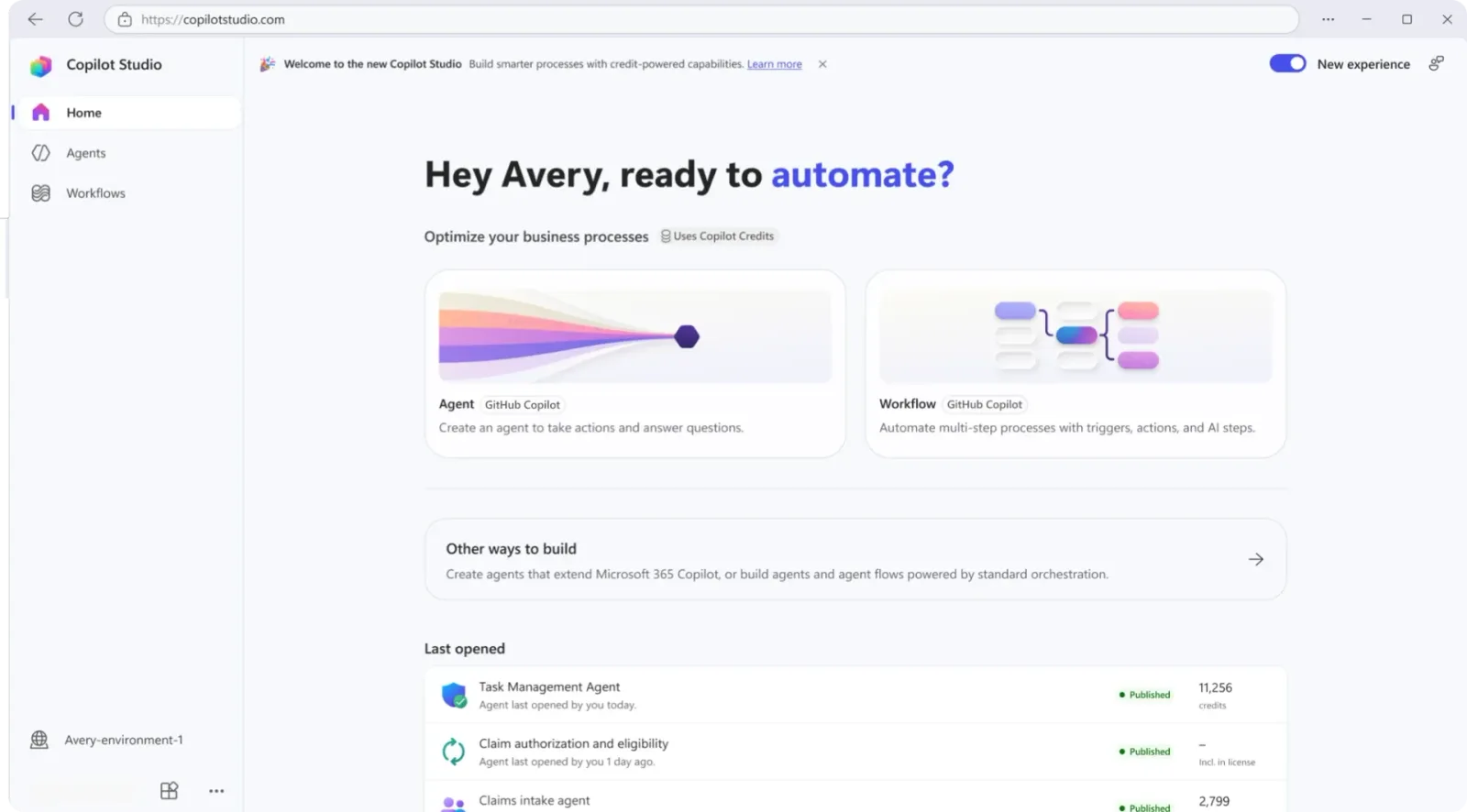
The harness also natively supports creation and editing of Word, Excel, PowerPoint, and PDF files, with each task executing in a secure sandbox managed by Copilot Studio.
Typical use case
A payable accounts agent can read invoices, match them against purchase orders, collect missing information, and route exceptions to an approver — all without a predefined workflow.
The standard harness remains available in parallel. The choice between the two depends on the scenario: complex multi-step reasoning → GitHub Copilot harness; structured and predictable workflow → standard harness. A selection white paper is available on Tech Community.
Skills, connected agents, workflows, and MCP servers: extending capabilities
Agents based on the GitHub Copilot harness benefit from four new extension vectors:
-
Skills: packaged instructions as modular and reusable capabilities. You write or import a skill, add it to multiple agents, and share it with your team. No more rebuilding the same logic for each new agent.
-
Connected agents (preview): a main agent can delegate requests to specialized agents. This modular architecture lets you create a single entry point that orchestrates distinct business specialists.
-
Workflows and MCP servers as tools (GA): workflows give agents access to deterministic multi-step automations; MCP servers (Model Context Protocol) connect them to external services and systems.
-
Windows 365 for Agents MCP server (GA): agents can now interact with a Windows 365 Cloud PC to manipulate desktop applications, browsers, and user interfaces — a real breakthrough for hybrid RPA scenarios.
Architecture to plan
The combination of connected agents + skills creates inter-agent dependencies. Explicitly document which agents call which specialists before going into production, or you'll make debugging difficult in case of cascading failures.
Work IQ, persistent memory, and files: richer context
An agent is only useful if it has the right context at the right time. Three preview features address this need:
Work IQ in Copilot Studio enables agents to access organizational context: emails, calendar events, files, Microsoft Teams messages, and information about people. It's also possible to connect an agent to Foundry IQ to leverage a knowledge base already built in Microsoft AI Foundry.
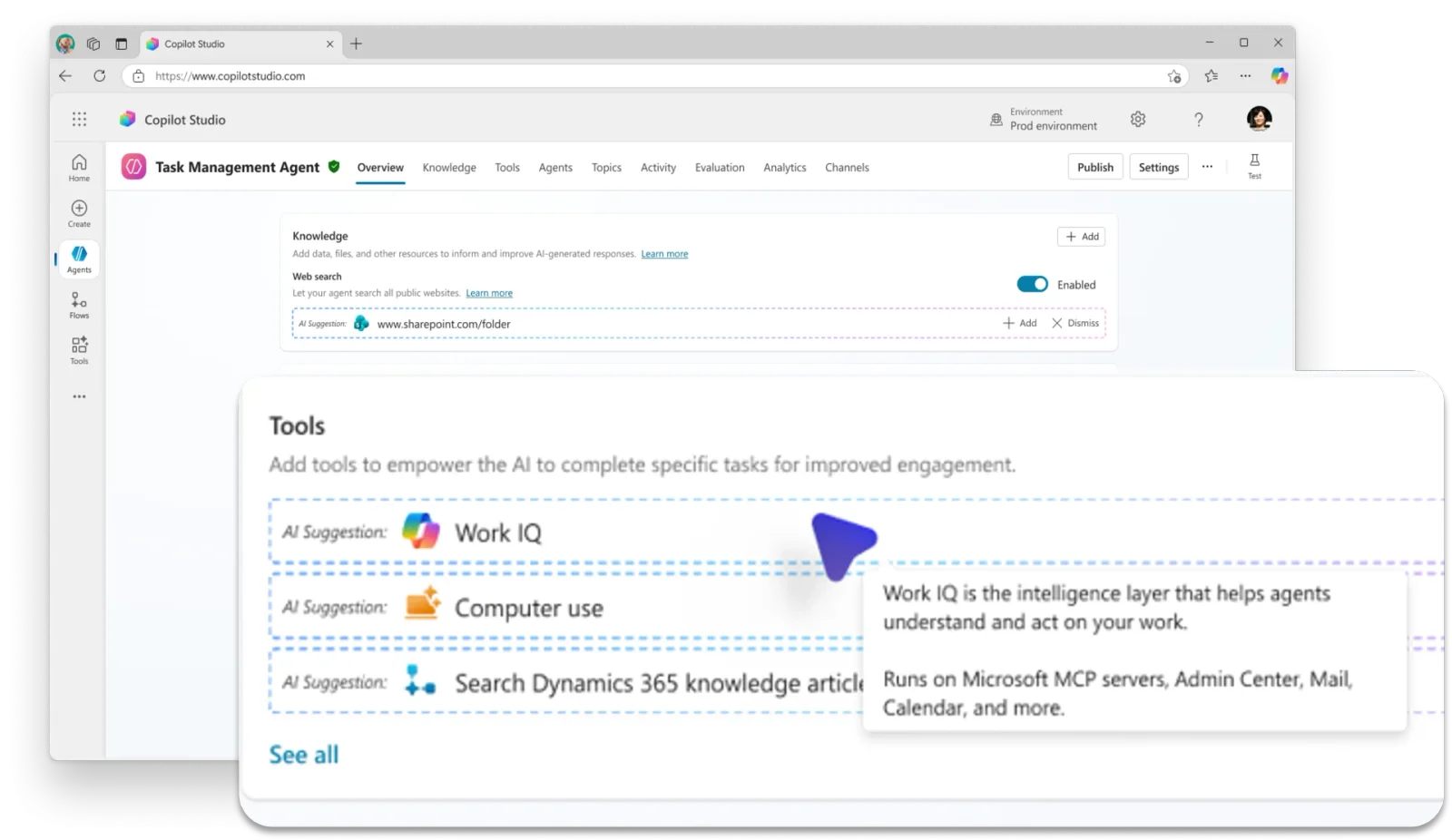
Memory (preview) allows an agent to retain relevant information between conversations with a given user. Preferences, habits, past context: the agent reuses them in subsequent exchanges without the user having to re-explain everything.
Attachments and files (preview): users can now submit files for analysis directly in the conversation. The agent reasons about the document content to accomplish a larger task, and the user can also view files that the agent generates during the exchange.
Impact on design
Work IQ and Memory are preview features — verify regional availability and compliance constraints before enabling them in a context where sensitive data circulates (HR, legal, finance).
Agent governance: Entra identity, MCP certification, and telemetry
The operational maturity of an agent platform is measured by its ability to integrate into existing security practices. Three concrete developments:
Microsoft Entra identity per agent (GA since July 2026)
Since July 2026, Copilot Studio automatically creates a Microsoft Entra Agent ID for each new agent. Each agent has its own identity in Microsoft Entra ID, allowing you to apply access controls and identity policies at the agent level — not just at the Copilot Studio application level.
MCP server certification
For agents that rely on MCP servers, it's now possible to submit an MCP server for Microsoft certification. This certification attests that a server has been evaluated against Microsoft criteria for reliability, security, compliance, and responsible operation — an additional trust signal for administrators.
Per-environment telemetry to Application Insights (preview)
Administrators can now export Copilot Studio telemetry to Application Insights via the Microsoft Power Platform admin center. Available data enables you to:
- Validate agent executions
- Monitor tool invocations
- Configure operational alerts
- Build custom dashboards
Implementation: enabling and querying agent telemetry via PowerShell
Telemetry export configuration is done from the Power Platform admin center, but you can automate verification of the Application Insights connection and query traces via the API.
Required module: Az.ApplicationInsights (Az PowerShell)
Minimum permission: Application Insights Component Contributor on the target Application Insights resource + System Administrator role in the relevant Power Platform environment.
Prerequisites: Az PowerShell installed (Install-Module -Name Az -Scope CurrentUser -Repository PSGallery -Force), Application Insights configured in the Power Platform admin center.
1# ============================================================2# Verification of Copilot Studio telemetry connection3# to Application Insights4# Module: Az.ApplicationInsights (included in Az)5# Permission: Application Insights Component Contributor6# ============================================================7 8# 1. Azure authentication9Connect-AzAccount10 11# 2. Parameters to adapt to your environment12$resourceGroupName = "rg-copilot-monitoring"13$appInsightsName = "appi-copilot-studio-prod"14$subscriptionId = "xxxxxxxx-xxxx-xxxx-xxxx-xxxxxxxxxxxx"15 16# 3. Select target subscription17Set-AzContext -SubscriptionId $subscriptionId18 19# 4. Retrieve the Application Insights resource20$appInsights = Get-AzApplicationInsights `21 -ResourceGroupName $resourceGroupName `22 -Name $appInsightsName23 24if ($null -eq $appInsights) {25 Write-Error "Application Insights resource not found. Check the name and resource group."26 exit 127}28 29Write-Host "Application Insights found: $($appInsights.Name)" -ForegroundColor Green30Write-Host "Instrumentation Key : $($appInsights.InstrumentationKey)"31Write-Host "Connection String : $($appInsights.ConnectionString)"32 33# 5. Query agent execution traces via the REST API34# (data appears in Application Insights under 'traces' and 'customEvents')35# KQL query for the last 100 agent executions36$kqlQuery = @"37traces38| where timestamp > ago(24h)39| where customDimensions has "AgentRunId"40| project timestamp, message, severityLevel,41 agentRunId = tostring(customDimensions["AgentRunId"]),42 toolName = tostring(customDimensions["ToolName"]),43 status = tostring(customDimensions["Status"])44| order by timestamp desc45| take 10046"@47 48Write-Host """\nKQL query to run in Log Analytics / Application Insights:" -ForegroundColor Cyan49Write-Host $kqlQuery50 51# 6. Export query to a file for integration into an Azure Monitor workbook52$outputPath = "./CopilotStudio_AgentRuns_Query.kql"53$kqlQuery | Out-File -FilePath $outputPath -Encoding utf854Write-Host """\nQuery exported to: $outputPath" -ForegroundColor GreenPropagation delay
Telemetry from Copilot Studio can take up to a few minutes to appear in Application Insights after an agent execution. For real-time alerts, configure a trigger delay of at least 5 minutes on your Azure Monitor rules.
Real-time agents: new channels, GPT-5 Chat, and monitoring
Real-time agents expand their scope across three axes:

-
Digital messaging channels (preview): previously limited to voice, real-time agents can now be deployed on digital messaging channels. A single agent configuration covers both modes, avoiding the need to maintain two separate agents.
-
GPT-5 Chat for voice (preview): this model uses a text-based voice architecture — speech-to-text conversion, response generation, text-to-speech synthesis — and enables advanced customization with neural voice synthesis, as well as greater deployment flexibility.
-
Monitoring via Application Insights in Azure Monitor: real-time agents can now be supervised with Application Insights, providing visibility into performance and facilitating diagnosis of anomalies.
New available models: Claude Sonnet 5 and GPT-5.5 Chat
Two additional models are now generally available as primary models in Copilot Studio:
| Model | Availability | Recommended usage |
|---|---|---|
| Claude Sonnet 5 | GA | Complex reasoning, long document analysis |
| GPT-5.5 Chat | GA | Structured conversations, mixed text/action scenarios |
| GPT-5 Chat | Preview | Real-time voice agents with neural synthesis |
Model selection per agent is configured directly in the Copilot Studio authoring interface. Choose the model based on the type of reasoning required and associated consumption cost — models are not equivalent in terms of Copilot messages consumed.
Troubleshooting common errors
Verify that your Power Platform environment is in a region compatible with the GitHub Copilot harness. Check the harnesses documentation for the list of supported regions. If the option doesn't appear in the UI, verify that your tenant has an active Copilot Studio license and that the Power Platform administrator hasn't restricted access to preview features.
Work IQ requires that appropriate Microsoft Graph permissions be consented for the agent identity (Microsoft Entra Agent ID). Verify in the Microsoft Entra portal that the Agent ID has permissions Mail.Read, Calendars.Read, and Files.Read.All according to the enabled sources. Admin consent may be required.
- Confirm that export is enabled in the Power Platform admin center (Settings > Environments > your environment > Agent telemetry). 2. Verify that the Application Insights connection string is correctly configured. 3. Wait at least 5 to 10 minutes after the first agent execution. 4. In Application Insights, query the
tracestable rather thanrequests— Copilot Studio data arrives there as traces andcustomEvents.
MCP servers must be accessible from the Copilot Studio network (outbound Microsoft). Verify firewall rules and possible connection timeouts. For on-premises hosted MCP servers, connectivity goes through a Power Platform on-premises data gateway — ensure it's up to date and operational.
What to do right now
The August 2026 updates to Copilot Studio form a coherent set that moves the platform from a conversational agent creation tool to a true intelligent automation platform. Here are priority actions based on your profile:
-
If you're developing agents: evaluate the GitHub Copilot harness on an existing multi-step use case. Compare behavior with the standard harness via the selection white paper. Test Claude Sonnet 5 and GPT-5.5 Chat to identify the best quality/cost ratio for your scenario.
-
If you administer governance: enable telemetry export to Application Insights for all your production environments. Verify that Entra Agent IDs created since July 2026 are properly listed and that a conditional access policy is applied to them.
-
If you're preparing voice agents: plan a test of multi-channel deployment (voice + digital messaging) with the same agent configuration — it's the best way to evaluate consistency of responses between the two modes.
Follow new features as they roll out on the What's new in Microsoft Copilot Studio page.