Introduction
Microsoft has taken an important step in managing Microsoft Intune enrollments by introducing a new control setting. This feature addresses a recurring issue for IT administrators: managing unwanted automatic enrollments when adding work or school accounts on Windows devices.
This new option, currently in Public Preview, allows you to decouple device registration in Microsoft Entra ID from automatic enrollment in Mobile Device Management (MDM).
Technical Context
This feature relies on the Microsoft Graph parameter isMdmEnrollmentDuringRegistrationDisabled to control MDM enrollment when adding accounts.
Issues Resolved by This Feature
Unwanted Enrollments in BYOD Environments
In Bring Your Own Device (BYOD) scenarios, administrators frequently encountered unwanted enrollments. Users adding their work account to their personal device were being offered complete MDM management enrollment, when only Entra ID registration (device registration) was necessary.
Limitations of Previous Solutions
Until now, the only solution was to block personal device enrollment via platform restrictions. This approach had major drawbacks:
- Limiting Intune enrollment to Autopilot scenarios only
- Restriction to Hybrid PC configurations
- Need to use Device Enrollment Manager accounts
These constraints significantly reduced deployment flexibility and complicated hybrid IT environment management.
How the New Setting Works
Operating Principle
The "Disable MDM enrollment when adding a work or school account on Windows" setting allows you to:
- Maintain device registration in Microsoft Entra ID
- Block automatic MDM enrollment when the account is added
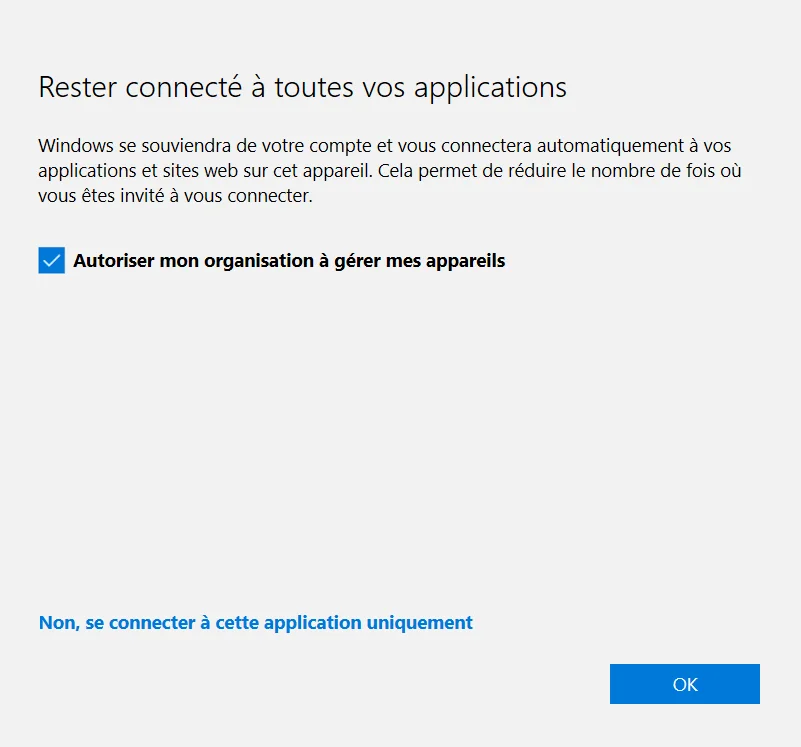
- Eliminate the display of the "Allow my organization to manage my device" popup
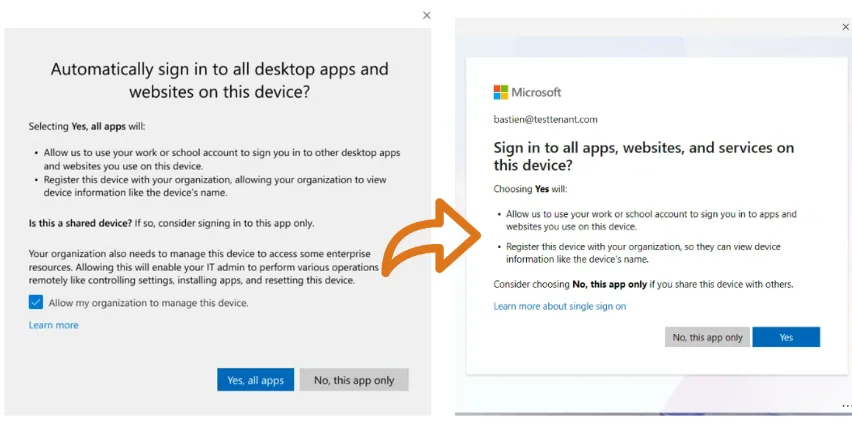
Strategic Advantage
This separation allows a granular approach to device management, particularly useful in mixed environments where not all devices require complete MDM management.
Scope of Application
The new setting has the following characteristics:
- Target: Users configured for MDM auto-enrollment
- Scope: Entra registered and Workplace joined devices
- Context: Account addition flow via Edge browser or native applications (Teams, Outlook)
Alternative Enrollment Methods
Important
This setting is not an absolute block on MDM enrollment. Users still have other means to enroll their devices.
Users can still proceed with enrollment via:
- Windows Settings (if eligible for auto-enrollment)
- Conditional Access prompts requiring MDM enrollment
- Standard manual enrollment flows
Setting Configuration
PowerShell Method with the PS365 Module
Installing the PS365 Module
1Install-Module PS365 -Scope CurrentUserConnecting to Microsoft Graph
1Connect-MgGraph -Scopes 'Policy.ReadWrite.MobilityManagement'Enabling the Setting
1Set-IntuneAutoMDMEnrollmentPolicy -State enabledConfiguration via Intune Console
For a graphical approach, proceed as follows:
Accessing the Configuration
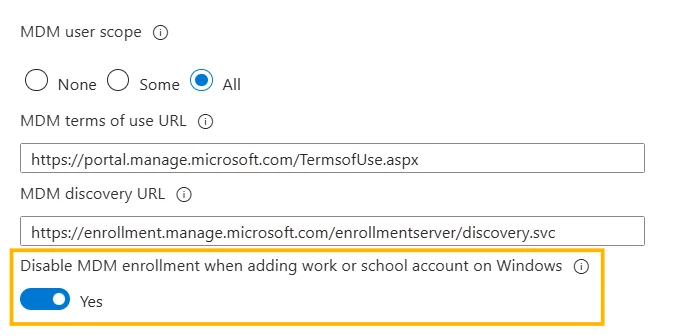
Navigate to Intune Admin Center > Devices > Enrollment > Automatic Enrollment
Enabling the Setting
Locate the option "Disable MDM enrollment when adding work or school account on Windows" and select "Yes"
Impact on Device Management Strategy
Benefits for Administrators
This feature provides several strategic advantages:
- Granular Control: Clear separation between registration and enrollment
- Ticket Reduction: Fewer accidental enrollments to manage
- BYOD Flexibility: Better management of personal devices
- Compliance: Respect for company policies without technical constraints
Implementation Considerations
Recommendation
Test this feature in a pilot environment before full deployment, particularly in organizations with complex enrollment flows.
Administrators should evaluate:
- The impact on existing enrollment processes
- User training for new workflows
- Adjustment of conditional access policies
- Documentation of alternative enrollment procedures
Useful Links
- Official Microsoft Documentation on Intune Automatic Enrollment
- PS365 PowerShell Module on PowerShell Gallery
- Intune Platform Restrictions Guide
- Azure AD Conditional Access Policies
Glossary
BYOD (Bring Your Own Device): Practice of using personal devices in a professional context.
Entra ID: Microsoft's identity and access service, formerly Azure Active Directory.
MDM (Mobile Device Management): Centralized management solution for mobile devices and computers.
Workplace Joined: Status of a device registered in Azure AD without being domain-joined.
Auto-enrollment: Automatic enrollment process for devices in an MDM solution when certain user actions occur.