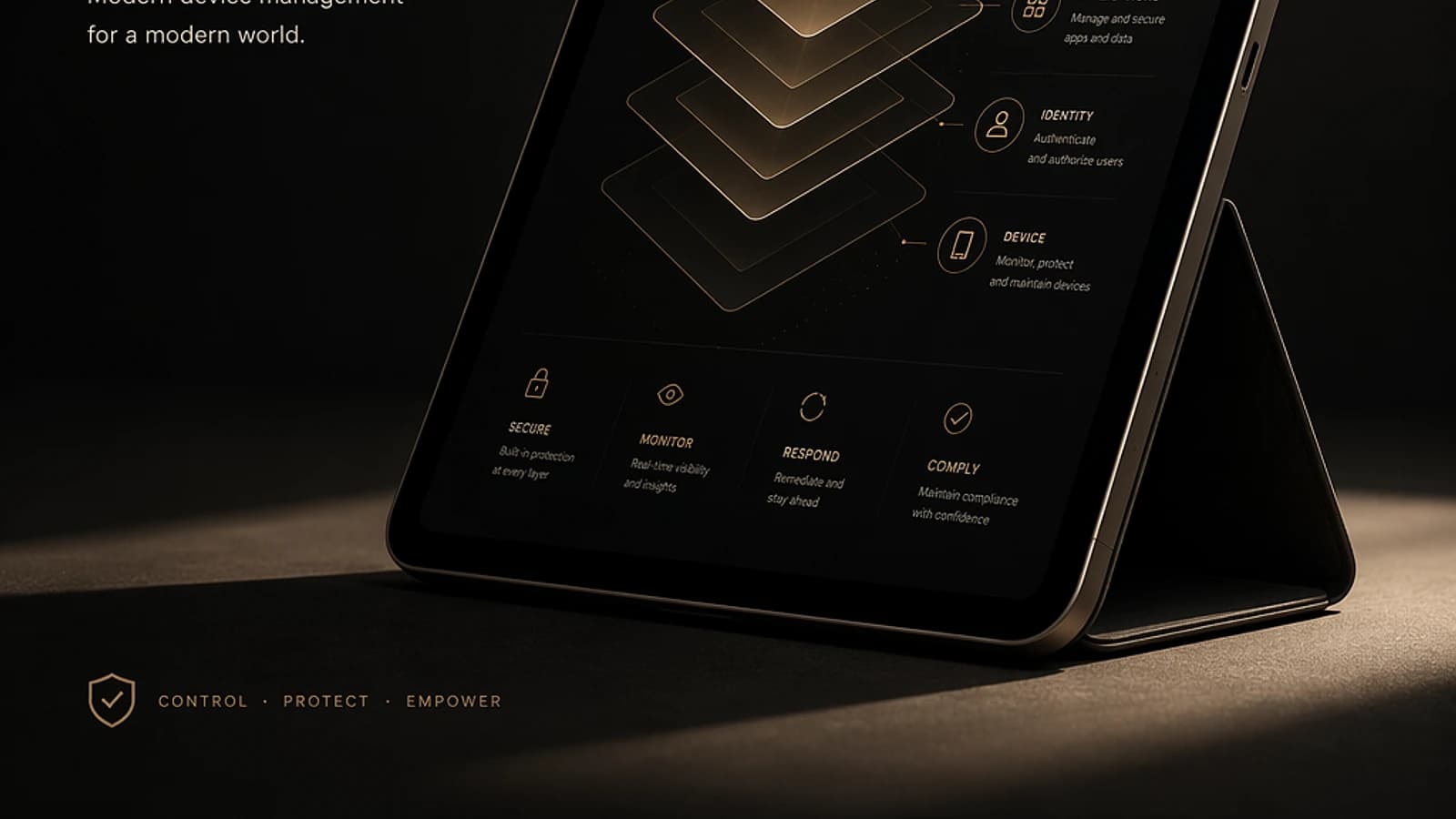
Introduction
Microsoft Intune is a device management solution that plays a central role in Microsoft 365. It enables system administrators to manage devices, users, their access and compliance, whether they are cloud-native or hybrid. This article will guide you step by step through understanding its essential features, installation and initial configuration.
What is Microsoft Intune?
Microsoft Intune is a Mobile Device Management (MDM) and Mobile Application Management (MAM) solution. In simple terms, it allows organizations to:
- Manage Windows, macOS, iOS and Android devices.
- Ensure the security of enterprise applications and data.
- Apply compliance policies.
- Provide a consistent user experience by integrating Microsoft Entra ID.
Access to Essential Portals
To work with Microsoft Intune, you will need to navigate through several administrative portals:
- Microsoft 365 Admin Center: Centralized management of licenses and users.
- Microsoft Intune Admin Center: Configuration of devices and applications.
- Microsoft Entra ID: Identity and access management.
Good to Know
Microsoft plans to unify these portals in the future for an improved administrative experience.
Initial Configuration of Microsoft Intune
Basic Intune configuration requires several fundamental steps. Here is a detailed tutorial to get started:
Configure Microsoft Entra ID for Device Management
Navigate to Microsoft Entra ID and access the Devices section. Configure the following settings:
- Allow users to register their devices: choose between "All", "Selected" or "None".
- Maximum number of devices per user: Set this limit (20 is recommended).
- Multi-Factor Authentication (MFA): Enable this option to secure device registration.
Enable Intune in Microsoft 365
Access Microsoft 365 Admin Center and enable Intune:
1# Example command to execute on PowerShell2Connect-MSGraph3Set-MsolCompanySettings -IntuneLicenseEnabled:$trueAssociate a Device with Microsoft Entra ID
On the client device (Windows 11), go to Settings > Accounts > Work or school access > Connect. Choose Azure AD Join and follow the steps to register the device.
[IMAGE:index:https://example.com/intune_join.png:Adding a device to Entra ID]
Device Types and Possible Configurations
In Intune, devices can be configured according to their connection model:
- Entra ID Join: Devices fully managed by the Cloud.
- Hybrid Join: Devices connected to local Active Directory with cloud synchronization.
- Registered Devices: Essential for BYOD (Bring Your Own Device) scenarios.
Common Configurations
Once a device is added to Intune, several configurations can be implemented:
Configuration Profile Management
Create profiles to restrict or customize device options.
1# Example to block access to gaming options2New-IntuneConfigurationPolicy -Name "OsloSettings" -Platform "Windows" -DeviceRestrictions @{3 GamingOptions = "Blocked"4}Compliance Policies
Ensure that devices meet your security standards.
- BitLocker Requirement
- Secure Boot Activation
- Windows Update Verification
Attention
Non-compliant devices may be removed or subject to access restrictions.
Application Deployment via Intune
Microsoft Intune makes it easy to deploy applications to managed devices. Here is an example procedure for adding an application.
Add an Application from the Store
Navigate to Applications > Add an application in Intune. Select an application, for example Zoom, and follow the instructions.
Configure Deployment Groups
Assign the application to a group of users or devices. Use dynamic groups for automated management:
1# Create a dynamic group for devices2New-AzureADGroup -DisplayName "IT Devices" -MailEnabled $false -SecurityEnabled $true -GroupType "DynamicMembership"[IMAGE:index:https://example.com/intune_apps.png:Example of application deployment]
Comparison Table: Intune Management vs Other Platforms
| Feature | Intune | Other MDM Solutions |
|---|---|---|
| Azure AD Integration | Native | Optional |
| Multi-platform Management | Windows, Android, iOS, Linux | Varies |
| Conditional Access | Full Support | Partial |
Conclusion
By mastering the features of Microsoft Intune, you can streamline device management and strengthen your organization's security. Be sure to take advantage of its advanced configuration options and tight integrations with other Microsoft 365 tools. If you have any questions, please feel free to ask in the comments section.