Introduction
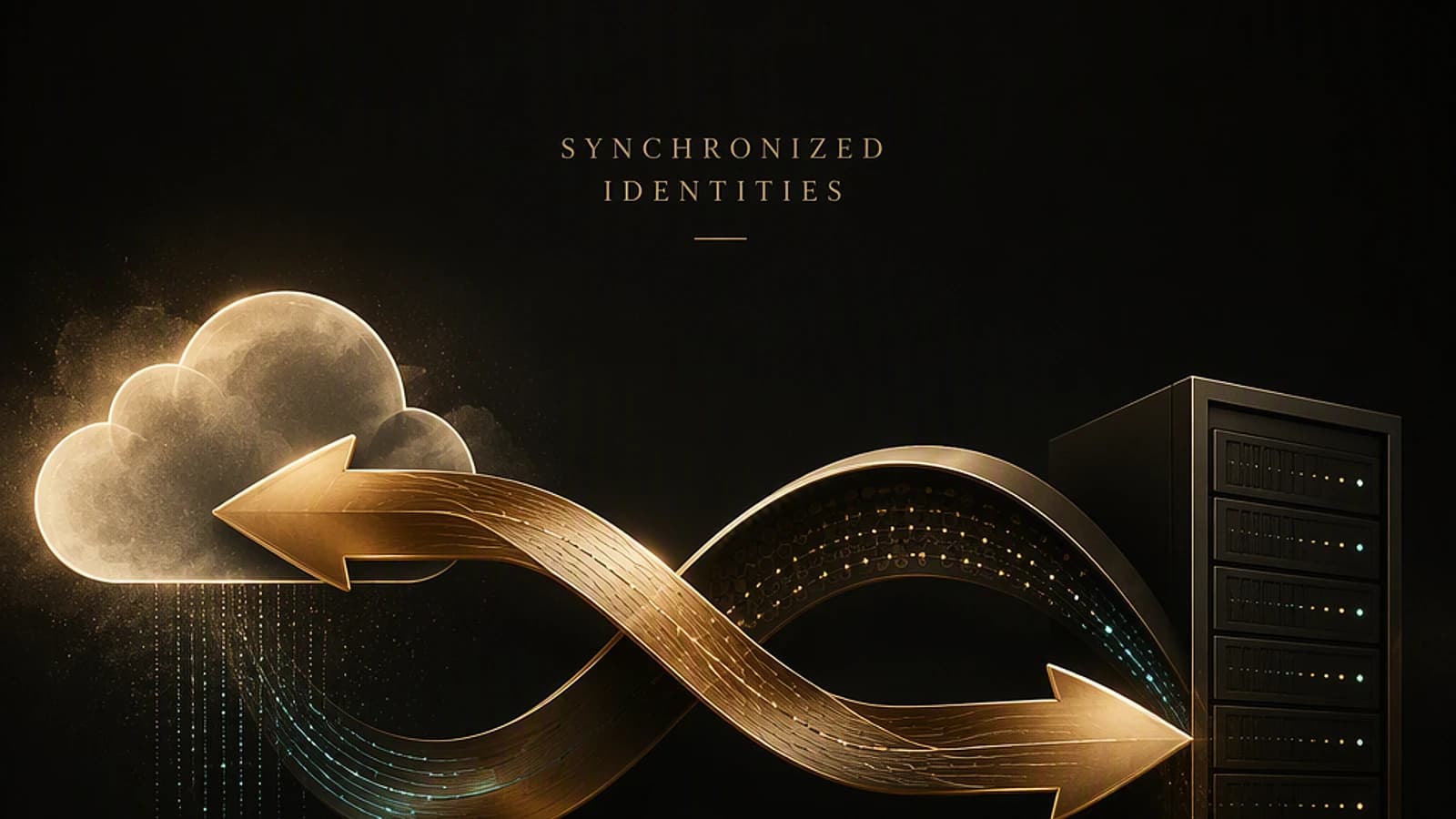
Microsoft Entra Cloud Sync just received an update that changes its position versus Microsoft Entra Connect (formerly Azure AD Connect). Until now, this agent-based tool was perceived as a lightweight but limited alternative for synchronizing Active Directory identities to Entra ID. The newly announced capabilities — bidirectional synchronization, Exchange Hybrid writeback, protection against accidental deletion — close a significant part of the functional gap with Entra Connect.
What follows details agent installation, the three available synchronization scenarios, new configuration parameters, and critical points to know before switching a production environment.
Context
Since July 1st, Microsoft explicitly encourages administrators to evaluate a migration to Entra Cloud Sync. The signal is clear: Entra Connect is not yet announcing end-of-life, but the product trajectory now favors the cloud agent.
Cloud Sync versus Entra Connect: What has changed
Entra ID Cloud Sync relies on a provisioning agent installed on a domain member server, without requiring a dedicated synchronization server like Entra Connect. Concretely, the agent queries Active Directory and pushes objects to Entra ID via the cloud service, which reduces dependency on a static on-premises infrastructure.
Historical limitations centered on:
- Absence of reverse synchronization (Entra ID to AD);
- Absence of writeback for Exchange Hybrid;
- Absence of native protection against accidental mass deletions;
- Less mature hybrid device management.
The August 2026 update addresses each of these points, with public preview status for certain scenarios.
Installing the provisioning agent
The agent is deployed from the Microsoft Entra portal, in the Entra ID > Cloud Sync module. Two entry points exist: the Manage tab or directly the Agents tab in Cloud Sync, via the Download on-premises agent button.
Download and install the agent
From the Agents tab, click Download on-premises agent, accept the license, then launch the installation. The process typically takes a few minutes.
Authenticate the global administrator account
The configuration wizard (Provisioning Agent Wizard) first requires authentication with an Entra ID Global Administrator account.
Authenticate the local administrator account
The next step requires credentials for a local Active Directory domain administrator account, necessary to establish the LDAP connection.
Finalize and verify status
Once the wizard is complete, the server appears in the portal's Agents tab. The initial status is inactive as long as no configuration is associated with the agent.
Prerequisites to verify
The agent requires a Windows domain member server with outbound connectivity to Azure. Verify system and network prerequisites in the official documentation before any production deployment: Microsoft Learn – What is Entra Cloud Sync.
Three synchronization scenarios, including two new ones
Creating a new configuration (Configuration > New configuration) now offers three synchronization directions, compared to just one previously:
| Scenario | Direction | Status |
|---|---|---|
| AD to Entra ID | Local Active Directory → Entra ID | General availability |
| Entra ID to AD | Entra ID → Local Active Directory | New |
| Exchange Online to AD | Exchange Online attributes → Local Active Directory | Public preview |
The classic AD to Entra ID scenario remains the most common. It uses password hash synchronization by default and automatically detects the Active Directory domain name. Creating the configuration establishes the connection within minutes, before opening the detailed configuration page.
The reverse Entra ID to AD scenario allows changes made on the cloud side to be pushed back to the local directory — a useful use case for organizations that manage certain attributes directly in Entra ID while keeping Active Directory as the authentication repository.
The Exchange Online to AD scenario, in public preview, targets Exchange Hybrid environments: it synchronizes certain mailbox attributes from Exchange Online to local Active Directory.
Attribute mapping, scoping filters, and expression builder
The configuration page groups several options to address before launching the first synchronization:
- Attribute mapping: mapping of Active Directory attributes to Entra ID attributes, available for users, groups, and contacts.
- Scoping filters: by default, all objects are synchronized. It is possible to restrict by security group or organizational unit (OU), which requires entering the corresponding LDAP path.
- Expression builder: allows adding additional attribute transformation rules to synchronized attributes.
Best practice
Any changes in these screens must be explicitly saved. Unsaved changes are not applied to the next synchronization.
New parameters in the Properties tab
The Properties > Basics tab of the configuration exposes several parameters absent from previous versions of Cloud Sync:
- Enable device sync: activates synchronization of devices joined in hybrid mode (hybrid join) with Active Directory. This mechanism maintains a link with AD for devices, an approach considered outdated compared to native management via Intune.
- Exchange Hybrid writeback notifications: allows designating an administrator or mailbox responsible for notifications related to Exchange Hybrid writeback.
- Prevent accidental deletion: protection threshold preventing involuntary mass deletion of objects during synchronization, a feature that already existed in Entra Connect but was missing from Cloud Sync.
Once these parameters are adjusted and saved, the final step is to go through Review and enable to activate the configuration.
Reversibility
In case of incorrect configuration, it is possible to delete and recreate the entire configuration without destructive impact on already-synchronized objects. This is a clear operational advantage over complex Entra Connect reconfiguration.
Activation, synchronization delay, and licenses
After activation, the first provisioning cycle can take between 10 and 20 minutes, depending on the volume of users and groups to synchronize. Progress can be verified from the Configurations tab (connector health status) and the Agents tab (agent status).
Two operational points to anticipate:
- Synchronized objects arrive without a license in Entra ID. License assignment (Microsoft 365, Entra ID P1/P2, etc.) remains a separate manual or automated step, via the portal or license assignment groups.
- For accounts whose source of authority remains Active Directory, user properties are not directly modifiable in Entra ID. Any modification must go through the local directory — a classic friction point of any hybrid identity model, independent of the synchronization tool used.
Key points to remember
- Entra Cloud Sync gains three synchronization scenarios: AD to Entra ID (GA), Entra ID to AD (new), and Exchange Online to AD (public preview).
- The new parameters device sync, Exchange Hybrid writeback notifications, and prevent accidental deletion close the functional gap with Entra Connect.
- Configuration remains reversible: deletion and recreation without loss of already-synchronized objects.
- Synchronized objects require separate license assignment, and the source of authority determines where attributes can be modified.
- Microsoft's timeline, with the incentive to migrate from July 1st, suggests a gradual shift toward Cloud Sync as the reference tool for new hybrid deployments.
To deepen understanding of hybrid synchronization mechanisms and associated Entra ID roles, official documentation remains the reference: Microsoft Learn – What is Microsoft Entra Connect.