
Upgrading Microsoft Entra Connect (formerly Azure AD Connect) is not just about clicking "Next" in a wizard: if poorly planned, it can interrupt synchronization between your local Active Directory and Microsoft Entra ID for several hours on large directories. This article is intended for system administrators managing a hybrid identity infrastructure who need to plan a manual upgrade outside the automatic update cycle.
Why a manual upgrade is sometimes essential
Microsoft Entra Connect includes an Auto Upgrade mechanism that automatically deploys critical patches and important security updates. Beyond these cases, no updates are pushed automatically — it is up to the administrator to trigger manual installation to benefit from bug fixes, performance and scalability improvements that Microsoft does not consider critical.
Each new version fixes security, reliability (serviceability) and performance issues. The Microsoft Learn documentation on Microsoft Entra Connect version history lists the details of each build.
Version Retirement Policy
Since March 15, 2023, versions of Microsoft Entra Connect Sync 2.x are retired 12 months after a newer version is released. Once this period is exceeded, the installed version is no longer supported and may stop working. Plan your upgrades accordingly rather than waiting for expiration.
Prerequisites before starting the upgrade
Before touching the production server, verify the following points:
- A valid Global Administrator account for Microsoft Entra ID for the installation program's authentication step.
- Local administrator access on the server hosting Microsoft Entra Connect.
- A recent and functional backup of the server (system image or application backup), verified before starting.
- TLS 1.2 enabled on both client and server side (see below).
- A sufficient maintenance window if your directory exceeds 50,000 Active Directory objects, as the full synchronization following the upgrade can take several hours.
Export the existing Microsoft Entra Connect configuration
Before any upgrade, export the active configuration. This JSON file allows you to precisely document the server state before the intervention and serves as a reference in case of unexpected behavior after the update.
Connect to the Microsoft Entra Connect server
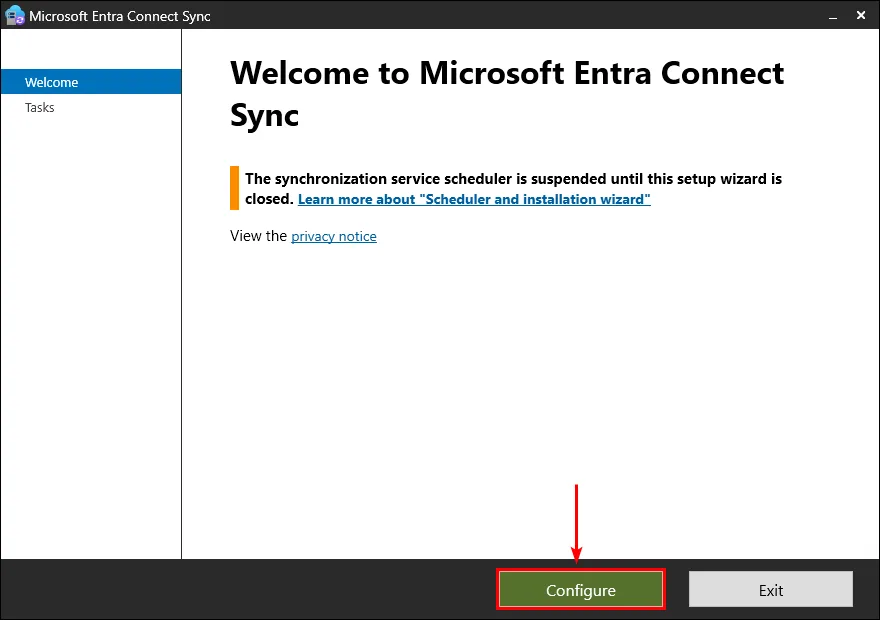
Log in to the server running Microsoft Entra Connect, then launch Microsoft Entra Connect Sync from the Start menu.
Access the configuration
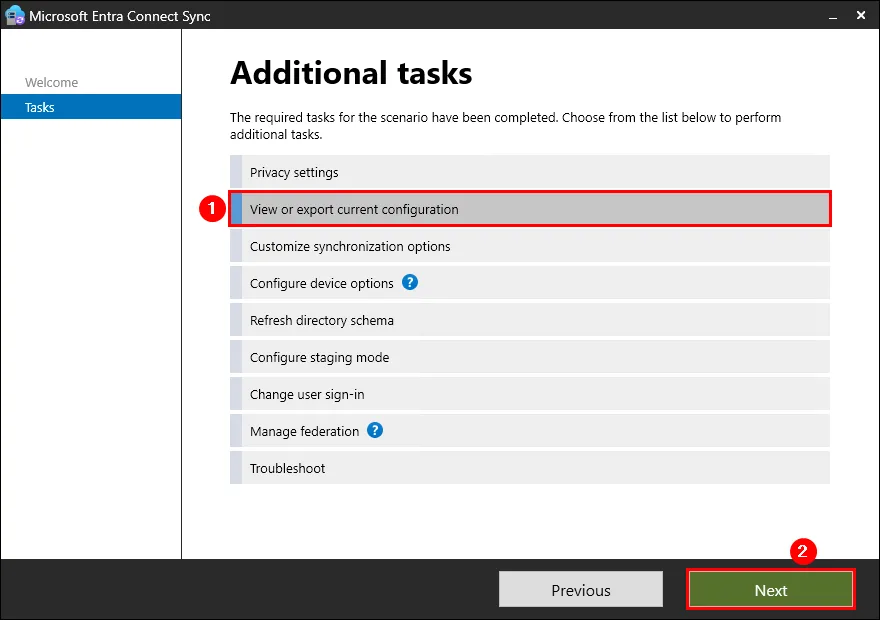
Click Configure, then select View or export current configuration.
Launch the export
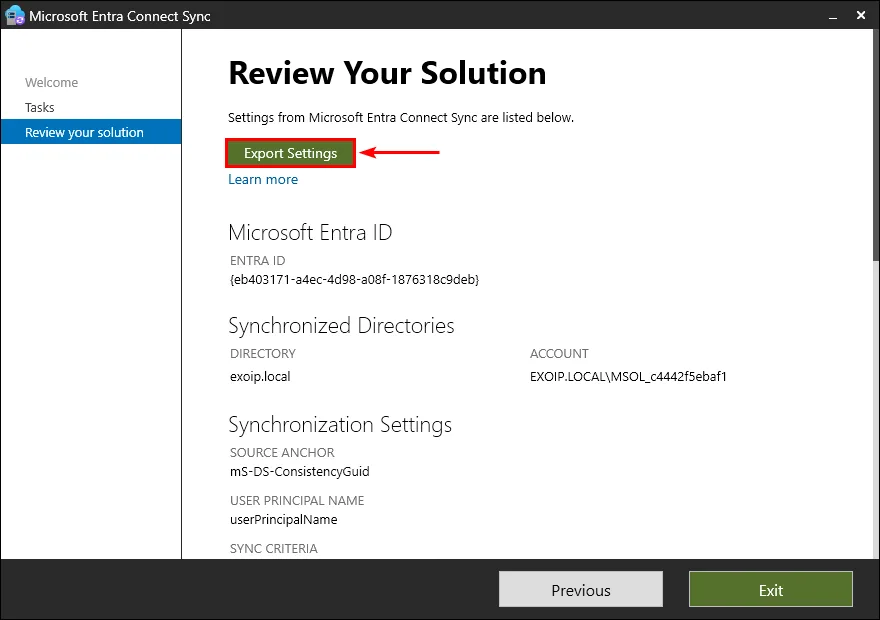
Click Next, then Export Settings.
Save the file outside the server
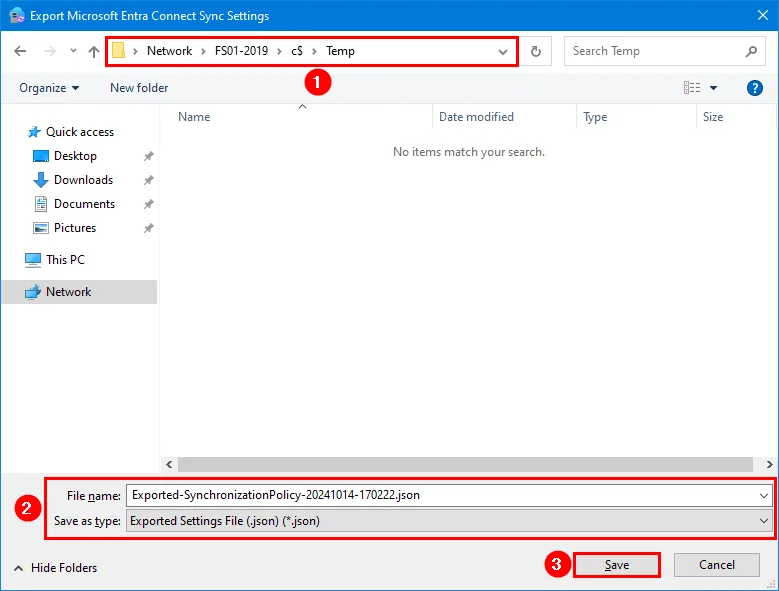
Save the generated .json file to another server on the network, separate from the Microsoft Entra Connect server. This ensures that the configuration remains accessible even if there is a problem on the original server.
Verify the currently installed version
Before launching the upgrade, note the version in place so you can compare afterward. Two equivalent methods exist.
| Method | Location | Result obtained |
|---|---|---|
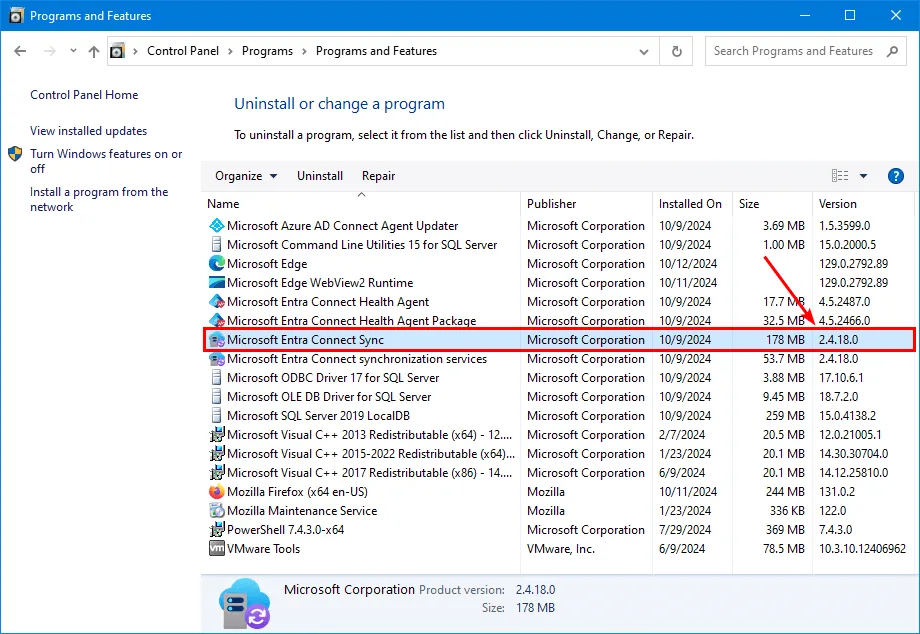
| Control Panel | Programs and Features | Version number displayed directly, for example 2.4.18.0 |
| PowerShell (ADSync module) | Get-ADSyncGlobalSettingsParameter | Value of the Microsoft.Synchronize.ServerConfigurationVersion parameter |
| Synchronization Service Manager | Menu Help > About | Version displayed in the "About" dialog |
Via Control Panel: open Control Panel, select Programs and Features, then note the version of the Microsoft Entra Connect Sync application. In the example below, the installed version is 2.4.18.0.
Via PowerShell, run a Windows PowerShell console as administrator, then launch:
1Import-Module ADSync2(Get-ADSyncGlobalSettingsParameter | Where-Object { $_.Name -eq 'Microsoft.Synchronize.ServerConfigurationVersion'}).ValueThe ADSync module is installed automatically with Microsoft Entra Connect — there is nothing to download separately from the PowerShell Gallery.
Enable TLS 1.2 on the server before installation
Recent versions of the Microsoft Entra Connect installer require that TLS 1.2 be properly configured on the server. If not, setup stops immediately with the following message:
Incorrect version of TLS — TLS 1.2 is not configured on this server. This installation requires TLS 1.2, but it was not enabled on the server.
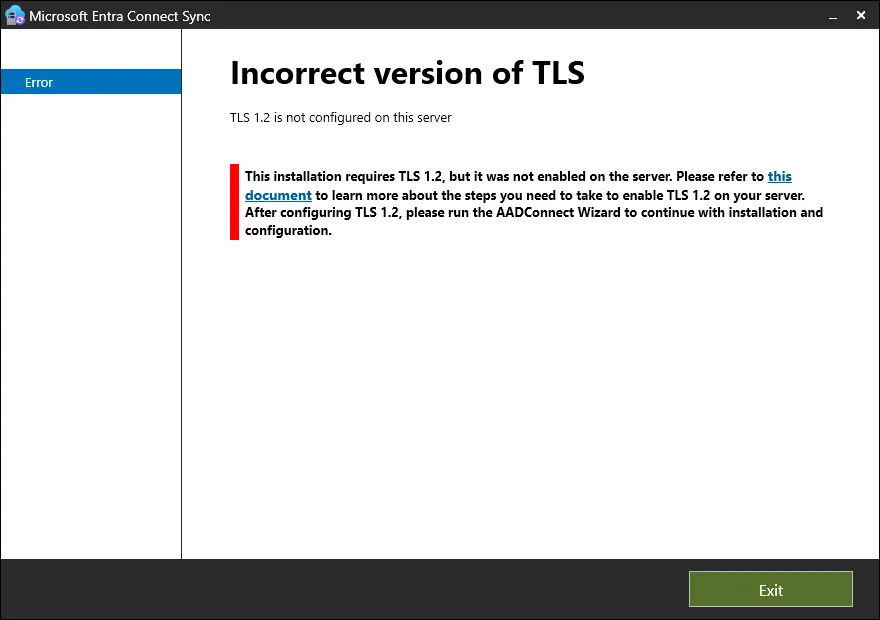
Microsoft Learn documentation details the TLS enforcement requirements for Microsoft Entra Connect. In practice, the fastest way is to run the following script in a PowerShell ISE console launched as administrator, directly on the Microsoft Entra Connect server:
1If (-Not (Test-Path 'HKLM:\SOFTWARE\WOW6432Node\Microsoft\.NETFramework\v4.0.30319')) {2 New-Item 'HKLM:\SOFTWARE\WOW6432Node\Microsoft\.NETFramework\v4.0.30319' -Force | Out-Null3}4New-ItemProperty -Path 'HKLM:\SOFTWARE\WOW6432Node\Microsoft\.NETFramework\v4.0.30319' -Name 'SystemDefaultTlsVersions' -Value '1' -PropertyType 'DWord' -Force | Out-Null5New-ItemProperty -Path 'HKLM:\SOFTWARE\WOW6432Node\Microsoft\.NETFramework\v4.0.30319' -Name 'SchUseStrongCrypto' -Value '1' -PropertyType 'DWord' -Force | Out-Null6 7If (-Not (Test-Path 'HKLM:\SOFTWARE\Microsoft\.NETFramework\v4.0.30319')) {8 New-Item 'HKLM:\SOFTWARE\Microsoft\.NETFramework\v4.0.30319' -Force | Out-Null9}10New-ItemProperty -Path 'HKLM:\SOFTWARE\Microsoft\.NETFramework\v4.0.30319' -Name 'SystemDefaultTlsVersions' -Value '1' -PropertyType 'DWord' -Force | Out-Null11New-ItemProperty -Path 'HKLM:\SOFTWARE\Microsoft\.NETFramework\v4.0.30319' -Name 'SchUseStrongCrypto' -Value '1' -PropertyType 'DWord' -Force | Out-Null12 13If (-Not (Test-Path 'HKLM:\SYSTEM\CurrentControlSet\Control\SecurityProviders\SCHANNEL\Protocols\TLS 1.2\Server')) {14 New-Item 'HKLM:\SYSTEM\CurrentControlSet\Control\SecurityProviders\SCHANNEL\Protocols\TLS 1.2\Server' -Force | Out-Null15}16New-ItemProperty -Path 'HKLM:\SYSTEM\CurrentControlSet\Control\SecurityProviders\SCHANNEL\Protocols\TLS 1.2\Server' -Name 'Enabled' -Value '1' -PropertyType 'DWord' -Force | Out-Null17New-ItemProperty -Path 'HKLM:\SYSTEM\CurrentControlSet\Control\SecurityProviders\SCHANNEL\Protocols\TLS 1.2\Server' -Name 'DisabledByDefault' -Value '0' -PropertyType 'DWord' -Force | Out-Null18 19If (-Not (Test-Path 'HKLM:\SYSTEM\CurrentControlSet\Control\SecurityProviders\SCHANNEL\Protocols\TLS 1.2\Client')) {20 New-Item 'HKLM:\SYSTEM\CurrentControlSet\Control\SecurityProviders\SCHANNEL\Protocols\TLS 1.2\Client' -Force | Out-Null21}22New-ItemProperty -Path 'HKLM:\SYSTEM\CurrentControlSet\Control\SecurityProviders\SCHANNEL\Protocols\TLS 1.2\Client' -Name 'Enabled' -Value '1' -PropertyType 'DWord' -Force | Out-Null23New-ItemProperty -Path 'HKLM:\SYSTEM\CurrentControlSet\Control\SecurityProviders\SCHANNEL\Protocols\TLS 1.2\Client' -Name 'DisabledByDefault' -Value '0' -PropertyType 'DWord' -Force | Out-Null24 25Write-Host 'TLS 1.2 has been enabled. You must restart the Windows Server for the changes to take effect.' -ForegroundColor Cyan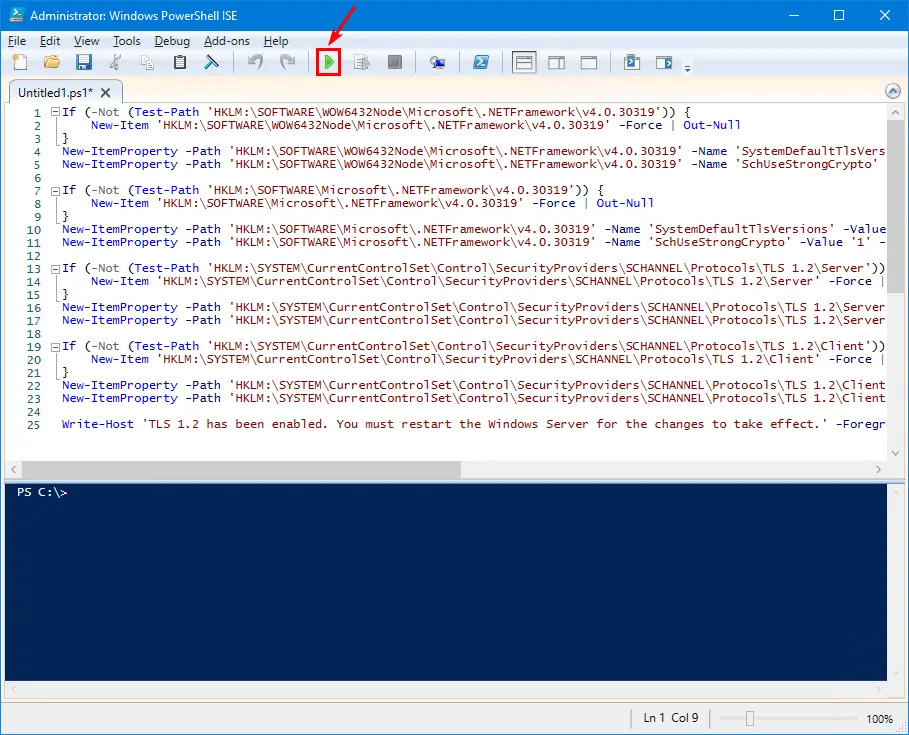
Mandatory Restart
This script modifies system registry keys (SCHANNEL, .NET Framework). Changes are not applied live: a complete Windows server restart is required before relaunching the Microsoft Entra Connect setup. Plan this restart within your maintenance window, as it interrupts synchronization during the reboot.
Proceed with the Microsoft Entra Connect upgrade
Once TLS 1.2 is enabled and the server has been restarted, you can launch the installation.
Download the installer
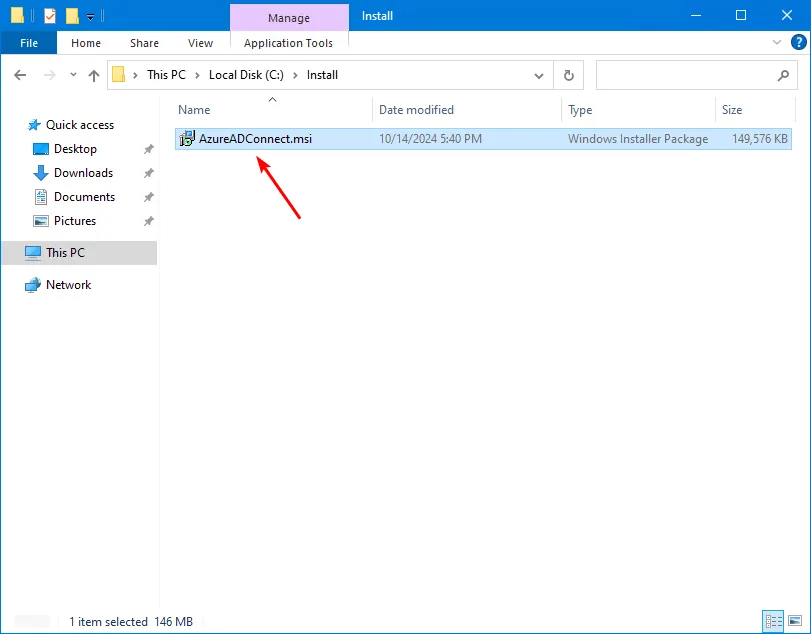
Download the latest version of Microsoft Entra Connect and save the AzureADConnect.msi file in a local folder, for example C:\Install.
Launch the installer
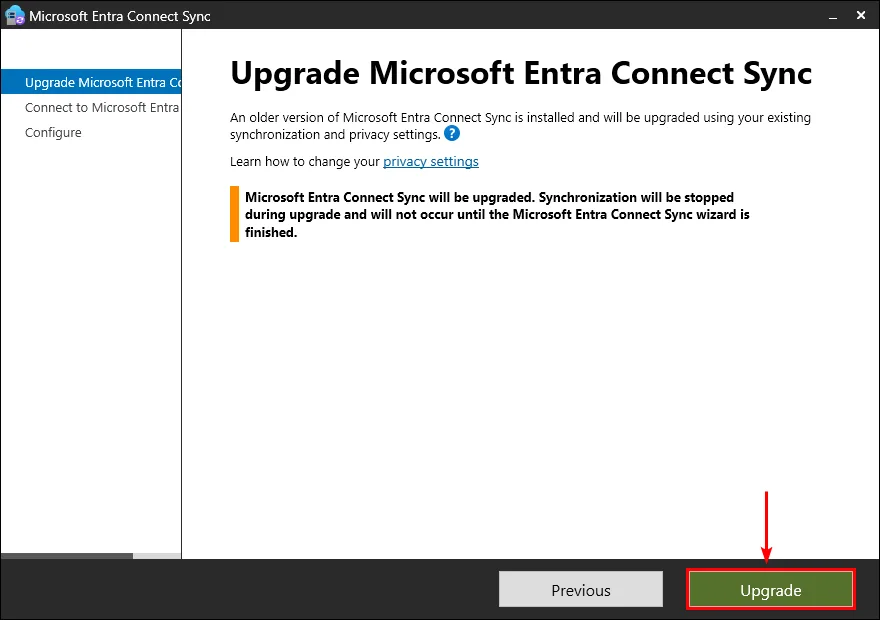
Run AzureADConnect.msi and let setup extract its files. The welcome screen automatically detects that an earlier version is installed and offers an upgrade.
Confirm the upgrade
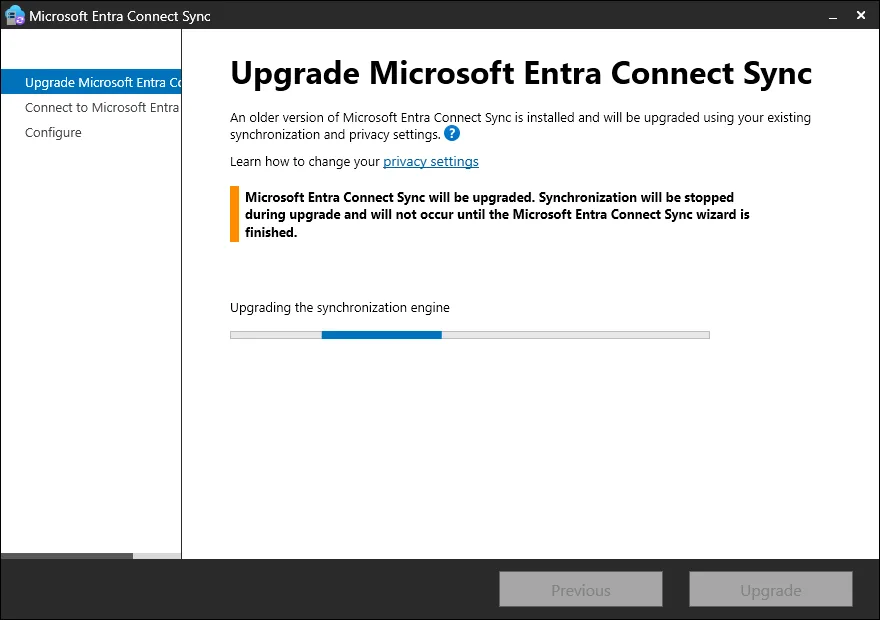
Click Upgrade. The synchronization engine is then updated; synchronization is interrupted for the duration of this operation.
Authenticate with a Global Administrator account
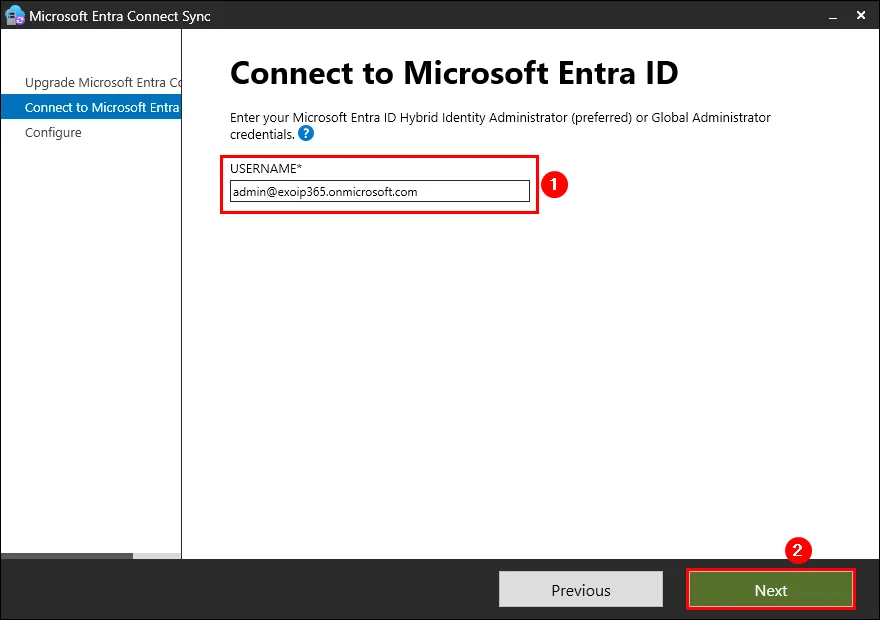
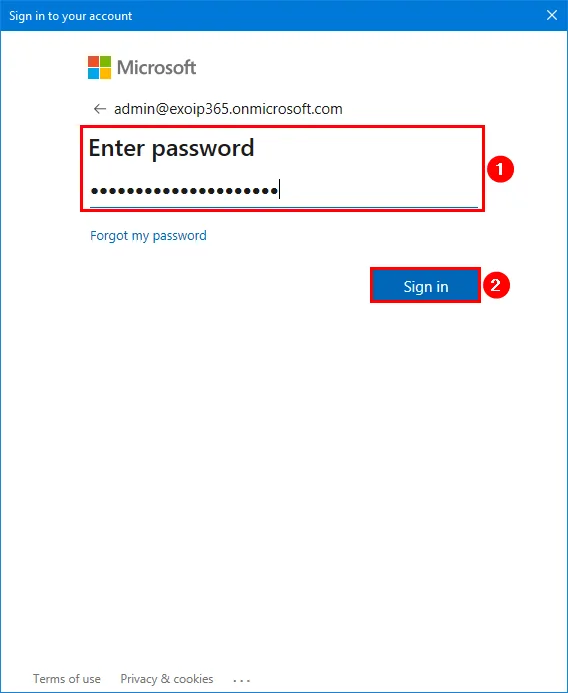
Enter the credentials of a Microsoft Entra ID Global Administrator account, click Next, enter the password, then click Sign in.
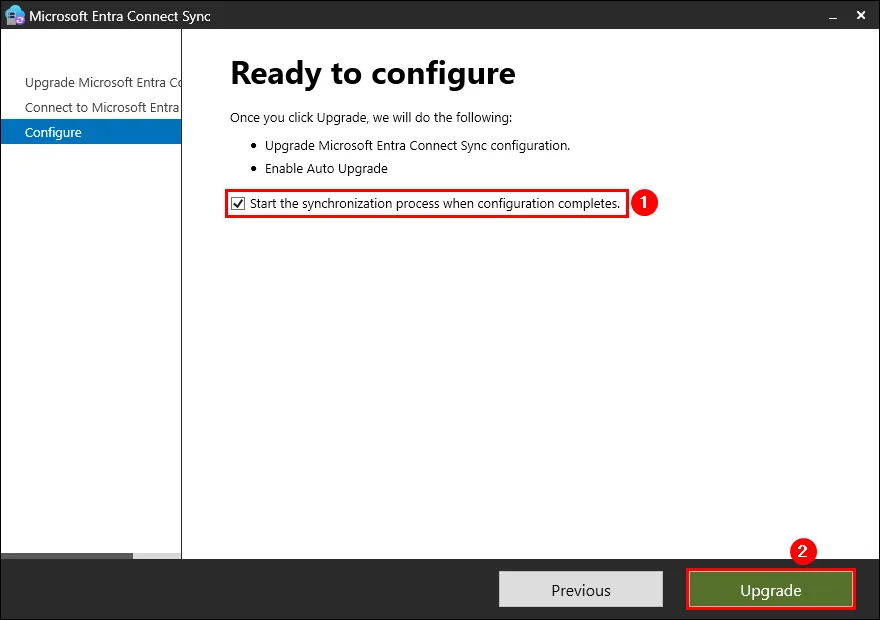
Start synchronization when configuration is complete
Check the Start the synchronization process when configuration completes checkbox, then click Upgrade.
Close the wizard
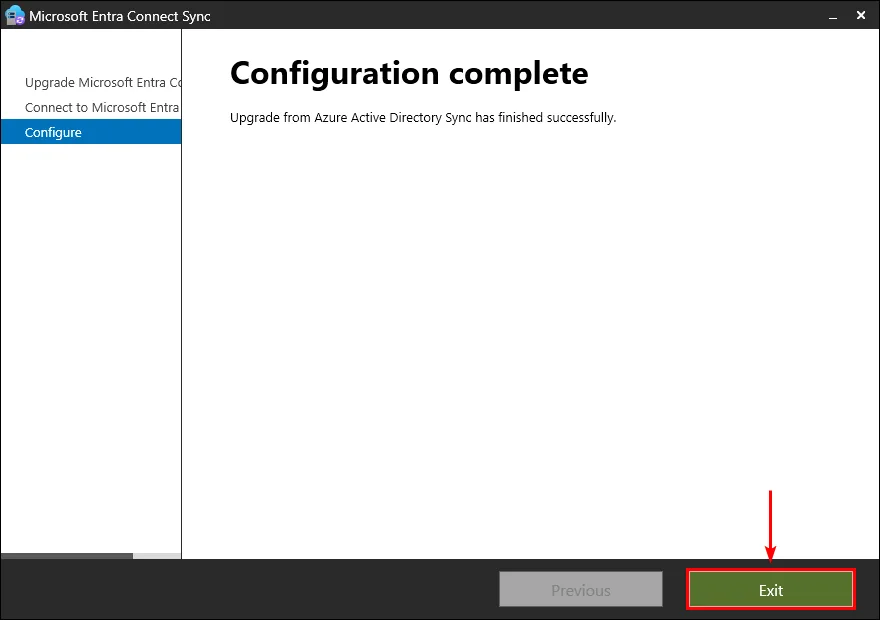
Once the success message is displayed, click Exit.
Check synchronization status
Open Microsoft Entra Connect Synchronization Service Manager and verify that the last synchronization cycle displays a status of success.
Impact on Synchronization
Upgrading systematically triggers a full synchronization (full sync) between the local Active Directory and Microsoft Entra ID. On a directory with more than 50,000 AD objects, this operation can take several hours. Plan the upgrade outside business hours or during a weekend to avoid any impact on users.
Verify the version after upgrade
Confirm that the installation has resulted in the expected version before considering the operation complete.
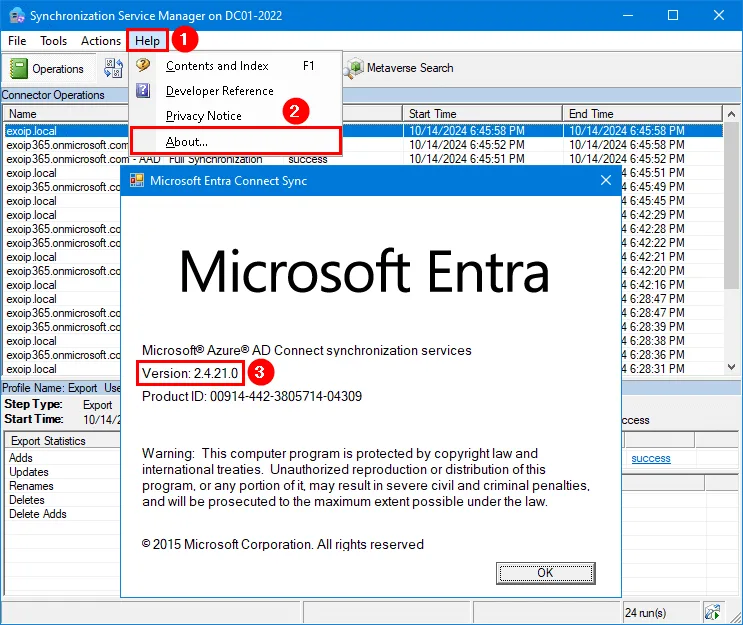
In Synchronization Service Manager: click the Start button, search for Synchronization, open the Synchronization Service application, then go to Help > About. In our example, the version displayed after upgrade is 2.4.21.0, compared to 2.4.18.0 before the operation.
In PowerShell, the same command as before allows you to confirm the build number:
1Import-Module ADSync2(Get-ADSyncGlobalSettingsParameter | Where-Object { $_.Name -eq 'Microsoft.Synchronize.ServerConfigurationVersion'}).ValueTroubleshooting common errors
- "Incorrect version of TLS" message: the server does not meet the TLS 1.2 requirements of setup. Run the activation script above, restart the server, then relaunch AzureADConnect.msi.
- Authentication failure with the Global Administrator account: verify that no Conditional Access policy is blocking interactive login from this server, and that the account is not subject to an MFA requirement incompatible with the wizard's authentication flow.
- ADSync service does not restart after upgrade: check its status with
Get-Service ADSync, then restart it if necessary withRestart-Service ADSync. - Objects no longer appear synchronized after upgrade: open the Operations tab in Synchronization Service Manager to identify runs with errors and review the details of each step in the cycle.
Implementation: post-upgrade verification script
The following script automates the verification of the three critical points mentioned in this article: the installed version, the state of TLS 1.2, and the state of the synchronization scheduler. It does not modify anything by default; the -DryRun parameter is only for displaying recommended actions.
- Required module:
ADSync, automatically installed with Microsoft Entra Connect (no separate installation viaInstall-Module). - Minimum permission: membership in the Local Administrators group of the Microsoft Entra Connect server. No Microsoft Entra ID role is required for these local reads.
- Output produced: a console report indicating the version of the synchronization engine, the state of TLS 1.2 on client and server side, as well as the state of the scheduler (
SyncCycleEnabled, effective interval, staging mode).
1# Post-upgrade verification script for Microsoft Entra Connect2# To be run as local administrator on the Microsoft Entra Connect server3 4param(5 [switch]$DryRun6)7 8Import-Module ADSync -ErrorAction Stop9 10Write-Host "=== Microsoft Entra Connect Verification Report ===" -ForegroundColor Cyan11 12# 1. Current version of the synchronization engine13$version = (Get-ADSyncGlobalSettingsParameter | Where-Object { $_.Name -eq 'Microsoft.Synchronize.ServerConfigurationVersion' }).Value14Write-Host "Microsoft Entra Connect Sync Version: $version"15 16# 2. Verification of TLS 1.2 on the server (client and server)17$tlsServerPath = 'HKLM:\SYSTEM\CurrentControlSet\Control\SecurityProviders\SCHANNEL\Protocols\TLS 1.2\Server'18$tlsClientPath = 'HKLM:\SYSTEM\CurrentControlSet\Control\SecurityProviders\SCHANNEL\Protocols\TLS 1.2\Client'19 20$tlsServerEnabled = (Test-Path $tlsServerPath) -and ((Get-ItemProperty -Path $tlsServerPath -Name 'Enabled' -ErrorAction SilentlyContinue).Enabled -eq 1)21$tlsClientEnabled = (Test-Path $tlsClientPath) -and ((Get-ItemProperty -Path $tlsClientPath -Name 'Enabled' -ErrorAction SilentlyContinue).Enabled -eq 1)22 23if (-not ($tlsServerEnabled -and $tlsClientEnabled)) {24 Write-Warning "TLS 1.2 is not properly enabled on this server."25 if ($DryRun) {26 Write-Host "[DryRun] The script recommends enabling TLS 1.2 before any upgrade (no changes applied)." -ForegroundColor Yellow27 } else {28 Write-Host "Run the TLS 1.2 activation script and restart the server before relaunching AzureADConnect.msi." -ForegroundColor Yellow29 }30} else {31 Write-Host "TLS 1.2 is enabled on client and server side." -ForegroundColor Green32}33 34# 3. State of the synchronization scheduler35$scheduler = Get-ADSyncScheduler36Write-Host "Synchronization cycle active: $($scheduler.SyncCycleEnabled)"37Write-Host "Effective interval: $($scheduler.CurrentlyEffectiveSyncCycleInterval)"38Write-Host "Staging mode enabled: $($scheduler.StagingModeEnabled)"39 40if ($scheduler.StagingModeEnabled -eq $true) {41 Write-Warning "Staging mode is enabled: this server does not export any changes to Microsoft Entra ID or to the local Active Directory."42}Frequent Pitfall After Upgrade
After an upgrade, it sometimes happens that staging mode remains enabled on a server where it should not be (typical of architectures with a standby server). In this mode, no changes are actually written to Microsoft Entra ID or to Active Directory, even if synchronization appears to be running normally. The script above explicitly flags this.
Key Points to Remember
- Auto Upgrade only covers critical patches: to benefit from performance and scalability improvements, manual upgrade remains necessary.
- Microsoft Entra Connect Sync 2.x versions are retired 12 months after a newer version is released (policy in effect since March 15, 2023): never leave a server at end of support.
- Always export the configuration in JSON format before any intervention, and verify that your server backup is functional.
- TLS 1.2 must be enabled and the server restarted before launching AzureADConnect.msi, otherwise setup will be blocked immediately.
- On directories exceeding 50,000 AD objects, plan the maintenance window accordingly: the full post-upgrade synchronization can take several hours.
- Always verify the installed version afterward, either via Synchronization Service Manager or the
Get-ADSyncGlobalSettingsParametercmdlet.
If your organization manages multiple Active Directory forests or a standby server in staging mode, add this verification script to your post-deployment checklist to immediately detect any configuration drift.