
Introduction
Endpoint Privilege Management (EPM) is a powerful tool integrated into Microsoft Intune allowing administrators to delegate certain actions to users without granting them super-administrator rights. Until now, this worked well for elevation scenarios involving files such as executables, scripts, or installers.
However, many Windows system parameters, including network configuration settings or time synchronization settings, could not be managed through this elevation mode. With recent developments detected in EPM components, Microsoft appears to be addressing this gap. Let's explore these new features in detail.
EPM Updates: System Settings Elevation
When inspecting EPM-related files in a test environment, several intriguing constants appeared in the EPM agent folder:
- EnableNetworkSettings
- EnableTimeSync
- EnableElevationRuleSystemSettingsEnrichment
These parameters suggest that Microsoft is working on specific scenarios related to network settings and time synchronization.
Additional Context in Rules
Unlike classic EPM rules that primarily rely on files or scripts, system settings require additional context, such as understanding what specific action the user is attempting to perform on Windows. This rule enrichment allows targeting system actions without requiring global elevation, thereby strengthening security.
Good to Know
The new parameters offered by EPM enrich workflows without compromising the security framework. Granular administration becomes more intuitive.
EpmElevate.exe: The System Settings Assistance Tool
A new crucial executable file was discovered in the EPM agent directory:
1C:\Program Files\Microsoft EPM Agent\EPMService\EpmElevate.exe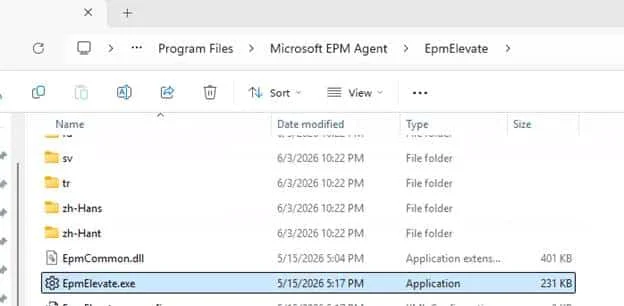
Available Windows and Commands
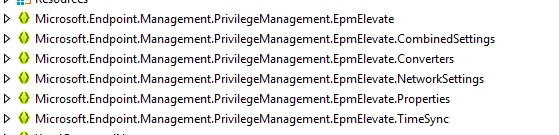
The binary structure shows that it handles three types of windows:
- NetworkSettings.MainWindow: Responsible for network configuration.
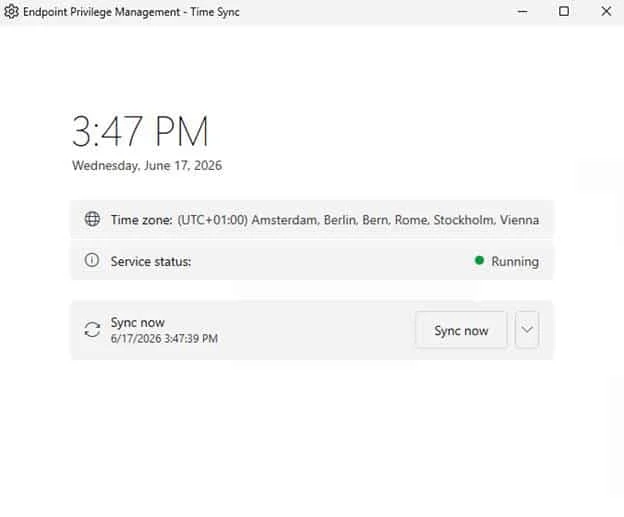
- TimeSync.MainWindow: Manages time synchronization.
- CombinedSettings.CombinedSettingsWindow: Combines the functions of the two previous modules.
Command-line parameters allow selecting these experiences:
1EpmElevate.exe -SystemSettings NetworkSettings2EpmElevate.exe -SystemSettings TimeSync3EpmElevate.exe -SystemSettings NetworkSettings TimeSyncThe latter command opens the combined window titled: Endpoint Privilege Management – System Settings.
Claims Validation
Direct execution of the EpmElevate.exe file, without launching it via EPM, causes an access denied error. The file performs claims verification before starting any action.
Here are the main required claims:
MEMEPM_RULE_IDMEMEPM_POLICY_IDMEMEPM_INITIATING_PROCESS
The EPM agent must obligatorily launch the process with valid tokens and contexts, preventing any manual workaround.
Warning
Direct manipulations of EpmElevate.exe without context approved by EPM do not allow modifying settings. Any elevation must follow the policies configured in Intune.
Configuring a System Rule via Intune
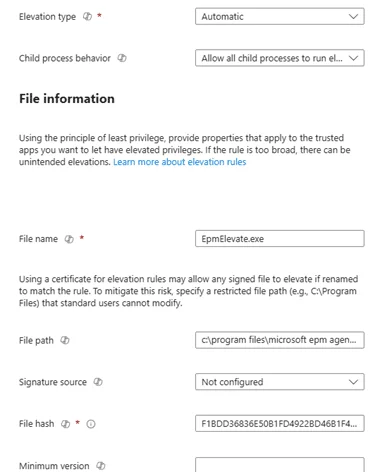
To take advantage of these new features, you will need to configure rules in Intune that authorize specific scenarios such as network settings or time synchronization.
Access Microsoft Intune
Sign in to the Microsoft Endpoint Manager Admin Center portal.
Configure an EPM Rule
Add a new EPM rule in Intune. Include authorized actions such as NetworkSettings and TimeSync. Make sure to assign these rules to users or groups.
Test the Features
Verify the configured rules by simulating a user action on a target device. Observe the logs generated by the EPM agent to confirm the application of the rules.
Network Settings: A Dedicated User Interface
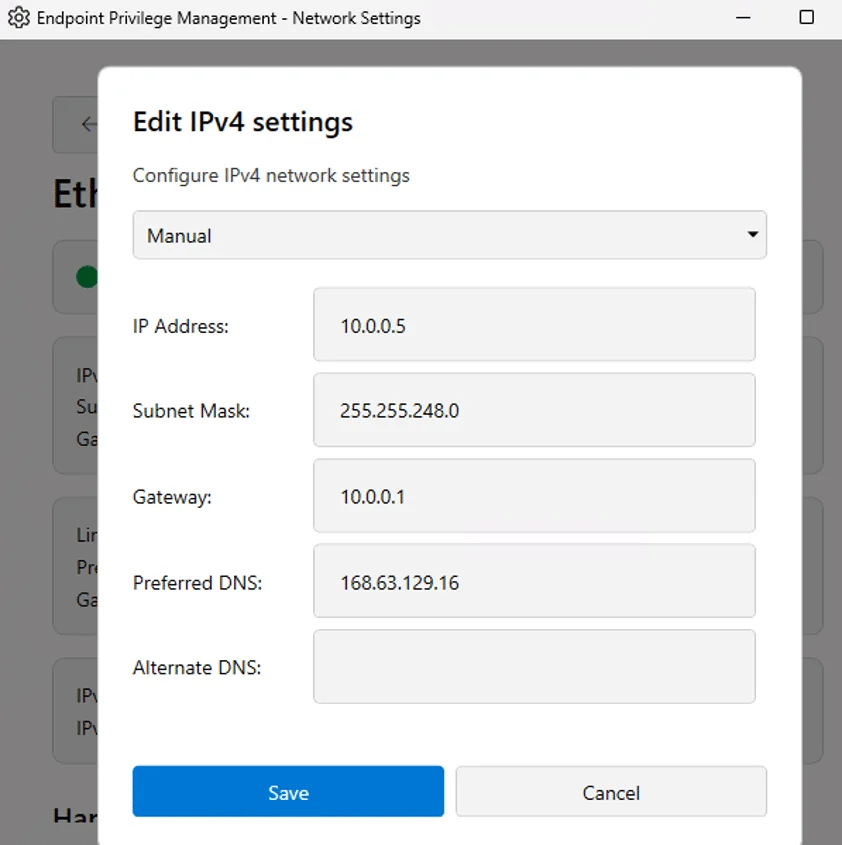
The NetworkSettings.MainWindow window directly manages configurations related to selected network adapters.

Once an adapter is selected, here is the type of interface offered:
Time Synchronization: Focus on NTP
The TimeSync.MainWindow module allows configuring NTP (Network Time Protocol) servers for precise synchronization without manual clock modification.
What's Still Missing
Although the infrastructure appears to be in place, the final user experience will likely depend on the Company Portal application. A panel in Company Portal could facilitate access to settings without having to manually manipulate command arguments or executables.
This could still be under development or hidden by Microsoft's flighting system.
Conclusion
Microsoft appears to be steering EPM toward a more granular and secure model for managing Windows settings. The first examples around network configurations and time synchronization are promising and show the intention to administer specific actions without compromising overall security.
Tip
Anticipate upcoming developments by monitoring Intune and Company Portal updates. These improvements will enable even more efficient management of user privileges.