Introduction
Managing agendas and meeting notes is essential to ensure productive exchanges. Until recently, tools like Word or OneNote were the preferred choices. However, with the arrival of Microsoft Loop, a more dynamic solution integrated into Microsoft Teams is now available. This article explores how to leverage this feature to optimize your meetings.
Add an Agenda to a Teams Meeting
To add an agenda to your meetings directly in Teams, follow the steps below:
Meeting Planning
When planning a meeting in your Teams calendar, click on Add an agenda located at the bottom of the window.
Creating Collaborative Content
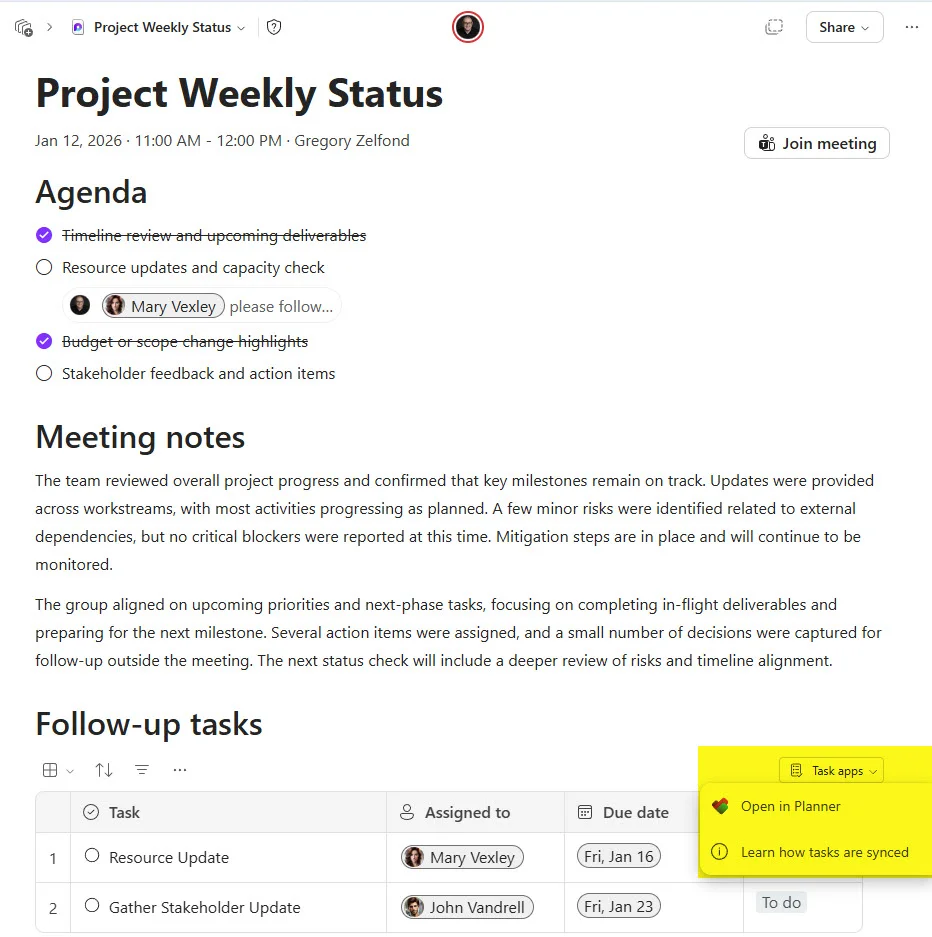
A Loop page will be automatically added to the body of the invitation. This page includes three sections:
- Agenda: a checklist for key points to address.
- Meeting Notes: a space to enter ideas or bullet points.
- Follow-up Tasks: simplified task management through the dedicated component.
Fill in the agenda before the meeting according to your specific needs.
Accessing the Agenda During the Meeting
During the meeting, you can access agenda items and notes directly through the Notes tab at the top of the Teams window.
- Add new items to the agenda during discussion.
- Note important points or decisions in the Meeting Notes section.
- Assign responsibilities in the Follow-up Tasks section.
Accessing Notes After the Meeting
Once the meeting is complete, two options allow you to access the notes:
Option 1: Chat Section in Teams
To find the notes, proceed as follows:
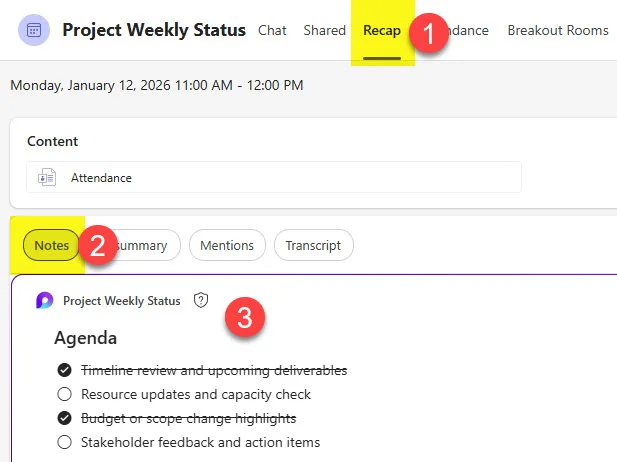
- In the Teams application, go to the Chat section on the left.
- Find the meeting and click on it.
- Select the Summary tab, then Notes to view the Agenda, Meeting Notes, and Tasks sections.
Option 2: Meetings Tab in Loop
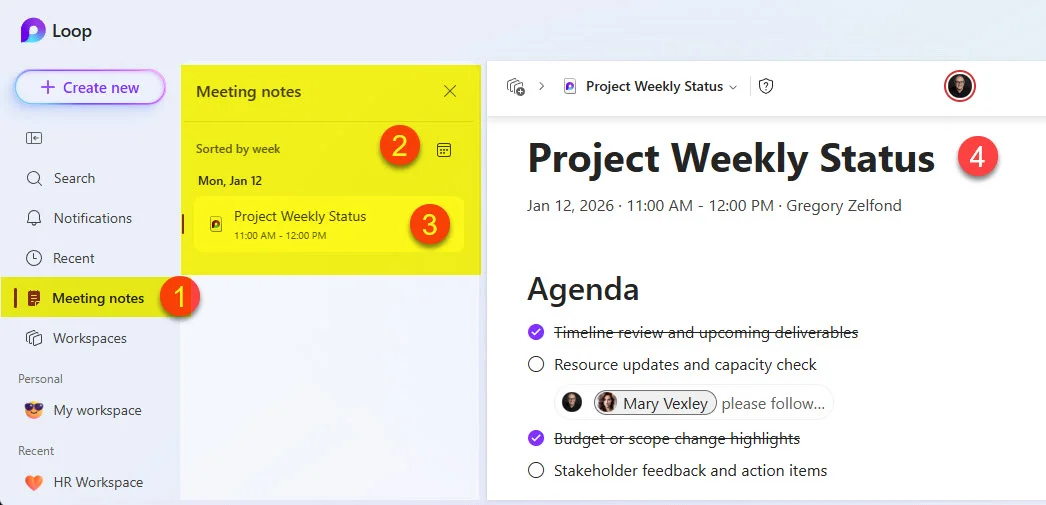
Since notes are integrated into Loop, you can also access them directly in the application:
- Open the Loop application.
- Click on Meeting Notes.
- Filter by week or meeting date to find the corresponding information.
Where Are Meeting Notes Stored?
The location of notes depends on where the meeting was scheduled:
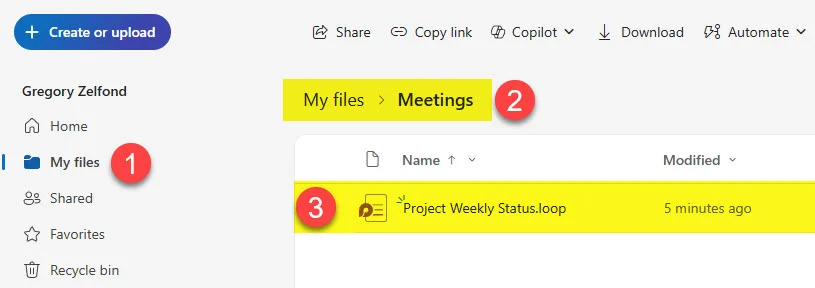
- Meetings Outside Teams/Channel: Notes are stored in your OneDrive in the Meetings folder located under My files.
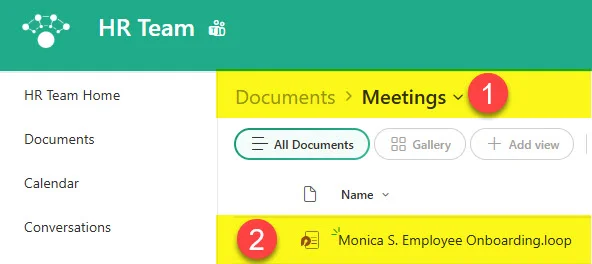
- Meetings Scheduled in a Team/Channel: Notes are saved to the associated SharePoint site, in the Documents library under the Meetings folder.
Good to Know
Loop is designed to facilitate real-time collaboration, offering seamless integration into the Microsoft 365 ecosystem.
Conclusion
The native integration of Loop into Microsoft Teams revolutionizes the way IT professionals manage meetings. By centralizing agendas, notes, and task follow-up, it improves collaboration and ensures better productivity. Explore these features to optimize your meeting management practices.