
Introduction
Inactive user accounts in Active Directory represent far more than simple administrative disorder. They constitute a major security vulnerability, complicate access audits and create unnecessary burden on directory infrastructure. Former employees, departed contractors and abandoned project accounts accumulate gradually, forming fertile ground for security breaches and regulatory non-compliance.
Precise detection of these dormant accounts often proves delicate. IT administrators generally rely on LastLogonDate or lastLogonTimestamp attributes, which however present significant limitations due to replication delays that can reach 14 days. This imprecision makes audits unreliable.
Why Identify Inactive Active Directory Users
Dormant accounts in your Active Directory infrastructure generate several concrete problems:
- Increased security risks: Inactive accounts remain active by default, offering potential attack vectors
- Compliance audit complexity: Access reviews become laborious with hundreds of ghost accounts
- Administrative overload: Management becomes unnecessarily burdensome, consuming precious resources
- License issues: Service or unnecessary user accounts generate superfluous costs
- Governance violations: Non-compliance with security policies and compliance frameworks
Governance tip
A quarterly review of inactive accounts is a good practice for maintaining a healthy and secure Active Directory infrastructure.
Limitations of Native Active Directory Tools
Graphical tools provided by Microsoft do not effectively identify inactive users based on their true last logon. The lastLogon attribute provides the most accurate information, but querying it requires accessing each domain controller individually.
To overcome this limitation, a PowerShell approach emerges as the optimal solution. It allows querying all domain controllers, comparing returned values and accurately determining the actual last logon of each user.
PowerShell Script to Detect Inactive Users
Main Script Features
A PowerShell script dedicated to identifying dormant users offers the following functionality:
- Retrieval of all inactive users by querying each domain controller
- Comparison of
lastLogonattributes to determine actual last logon - Detailed export to formatted CSV report
- Identification based on configurable inactivity period
- Generation of separate reports for enabled and disabled accounts
- Detection of accounts never used since creation
- Targeted retrieval of dormant accounts in specific organizational units (OUs)
- Automatic installation of Active Directory PowerShell module if absent
- Compatibility with Windows Task Scheduler
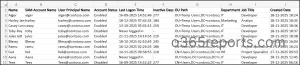
The generated report contains critical information: username, account status, last logon, number of inactive days, OU path, department, job title and account creation date.
Methods for Running the PowerShell Script
Interactive Script Execution
Download the PowerShell script
Obtain the GetADInactiveUsers.ps1 script and save it on your administration workstation.
Open PowerShell as Administrator
Launch Windows PowerShell with administrator privileges on a machine with the Active Directory module.
Navigate to the Script Directory
Change the current directory to the location where the script was saved.
Execute the Interactive Script
To identify all users inactive for 90 days, execute the following command:
1.\GetADInactiveUsers.ps1 -InactiveDays 90The script will guide you through the execution steps and generate a detailed report.
System Requirements
This script requires Windows Server or Windows Professional/Enterprise edition supporting RSAT and the Active Directory PowerShell module. Home editions are not compatible.
Automatic Script Scheduling
For continuous monitoring without manual intervention, integrate the script into Windows Task Scheduler:
Open Task Scheduler
Launch Task Scheduler on your administration server.
Create a New Task
Create a scheduled task with the required execution (for example, weekly or monthly).
Configure the Execution Action
In the Actions section, set the program to run and use the -Unattended parameter to suppress interactive prompts:
1.\GetADInactiveUsers.ps1 -UnattendedThe -Unattended parameter makes the script compatible with scheduled execution without user intervention.
Configure Account Permissions
Ensure that the service account used by Task Scheduler has the following permissions:
- Read Active Directory data on all domain controllers
- Right to log on as a scheduled task
Verify Report Generation
The CSV report will be automatically generated and saved in the script's current execution directory.
Generating Targeted Inactive User Reports
The script includes native filters allowing you to generate specific reports according to your operational needs.
Identify Active but Inactive Users
Enabled accounts dormant for a long time constitute a direct vulnerability. They retain full access to organizational resources while no longer being used.
1.\GetADInactiveUsers.ps1 -InactiveDays 90 -EnabledUsersOnlyThis command exports all enabled accounts inactive for 90 days. Administrators can then disable these accounts or review their access permissions.
To refine further, exclude accounts that have never logged in:
1.\GetADInactiveUsers.ps1 -InactiveDays 90 -EnabledUsersOnly -ExcludeNeverLoggedInUsersThis approach focuses on previously active accounts now dormant, excluding provisioning errors.
Identify Disabled Users Eligible for Deletion
Many organizations follow a gradual cleanup policy: inactive accounts are first disabled, then deleted after an additional period.
1.\GetADInactiveUsers.ps1 -InactiveDays 180 -DisabledUsersOnlyThis command retrieves all disabled accounts with no recorded access for 180 days, ideal candidates for permanent deletion.
Spot Never-Used Accounts
Accounts that have never generated authentication often reveal provisioning errors or abandoned projects:
1.\GetADInactiveUsers.ps1 -NeverLoggedInUsersOnlyThe report will list all accounts whose lastLogon attribute has never been set.
Good to know
This report includes newly created accounts that have not yet had the opportunity to connect. Always verify the creation date before deleting an account.
Analyze Inactive Users by Organizational Unit
In large organizations, users are typically grouped by OU (department, location, function). OU-based analysis enables targeted cleanup:
1.\GetADInactiveUsers.ps1 -InactiveDays 90 -OU "OU=Sales,OU=Users,DC=contoso,DC=com"Replace the OU's Distinguished Name (DN) with the one corresponding to your infrastructure. The script automatically includes nested child OUs.
Combine Multiple Filtering Criteria
For more granular reporting, combine available parameters:
1.\GetADInactiveUsers.ps1 -InactiveDays 90 -OU "OU=Sales,OU=Users,DC=contoso,DC=com" -EnabledUsersOnly -ExcludeNeverLoggedInUsersThis command extracts only enabled accounts, inactive for 90 days, in the Sales OU, excluding never-used accounts.
Combineable parameters include:
-InactiveDays: Number of inactive days-OU: Distinguished name of the organizational unit-EnabledUsersOnly: Filter on enabled accounts only-DisabledUsersOnly: Filter on disabled accounts only-NeverLoggedInUsersOnly: Display only never-used accounts-ExcludeNeverLoggedInUsers: Exclude accounts that have never logged in
Comparison Table of Detection Methods
| Approach | Accuracy | Active Directory Replication | Complexity |
|---|---|---|---|
| LastLogonDate (GUI) | Medium | Affected by delays (14 days) | Very low |
| lastLogonTimestamp | Medium | Affected by delays (14 days) | Low |
| lastLogon with PowerShell | Very high | Not affected | Medium |
| Optimized automated script | Very high | Not affected | Low |
Best Practices for Managing Inactive Accounts
Important
Never permanently delete an inactive account without complete audit. Some service or application accounts must remain active even if they show little access.
To optimize the management of inactive users:
- Establish an inactivity policy: Define a clear threshold (for example 90 days) triggering actions
- Implement a progressive process: Disable first, delete after an additional period
- Perform regular reviews: Schedule monthly or quarterly audits
- Document deletions: Keep a history of deleted accounts for compliance
- Exclude critical accounts: Configure the script to ignore service or administrator accounts
- Notify managers: Warn managers before disabling accounts of their teams
- Archive data: Retain reports for regulatory traceability
Integration with Active Directory Security
Detecting inactive users integrates into a comprehensive security strategy. In addition:
- See our guides on securing Active Directory
- Examine access audits supplemented with inactivity data
- Synchronize your results with identity management tools (Entra ID for hybrid environments)
- Combine with permission audits to identify overactive or misconfigured accounts
Conclusion
Proactive management of inactive users in Active Directory is an essential component of organizational security posture. Using an automated PowerShell script eliminates imprecisions of native tools and enables reliable identification based on the true last logon of each user.
By implementing the approaches detailed in this guide—interactive or scheduled execution, granular filtering, and progressive cleanup process—you will significantly reduce your attack surface and improve regulatory compliance.
Do not wait for your dormant accounts to become a liability: implement a monthly review starting today.