
Introduction: Why Revisit Hierarchy Management in Entra ID
In any enterprise Microsoft 365 environment, faithful modeling of managerial hierarchies in Microsoft Entra ID (formerly Azure Active Directory) is a fundamental prerequisite for many scenarios: automated provisioning, approval workflows, conditional access policies based on organizational role, or HR dashboards. Yet extracting this data reliably and efficiently via the API remains an exercise that hides several subtleties.
This article replaces historical approaches based on the Azure AD PowerShell module (now deprecated) and the Get-User cmdlet from Exchange Online. We will explore in depth how to leverage Microsoft Graph API via the Microsoft.Graph module for PowerShell to produce a structured report of managers and their direct reports.
Essential Prerequisite
The relevance of this report depends entirely on the quality of data in Entra ID. The manager attribute must be correctly populated for each user account, either via synchronization from an on-premises Active Directory (Azure AD Connect / Entra Connect) or via a provisioning API (SCIM, HR-driven provisioning from Workday or SAP SuccessFactors).
Architecture of the Microsoft Graph API Approach
Understanding the Data Model for Hierarchy in Entra ID
In the Entra ID object schema, the manager/direct reports relationship is modeled as follows:
- Each
userobject has a navigation propertymanagerthat points to another object of typedirectoryObject. - The inverse collection
directReportslists all users whosemanagerproperty points to the current user. - These properties are not returned by default in standard GET requests on the
/usersendpoint: they require an expansion operation ($expand) or a dedicated call.
The relevant Microsoft Graph endpoints are:
GET /users/{id}/manager— returns a user's managerGET /users/{id}/directReports— returns the list of direct reportsGET /users?$expand=manager— returns users with their manager in a single request
Required Microsoft Graph Permissions
To execute the scripts presented in this article, the service principal or user account must have the following permissions:
User.Read.All(Application or Delegated) — reading user profilesDirectory.Read.All(Application or Delegated) — reading directory relationships, including managerial hierarchy
Recommended Authentication
For administration scripts executed in non-interactive mode (scheduled tasks, CI/CD pipelines), prioritize an App Registration with Application-type permissions and an X.509 certificate for authentication, rather than interactive user credentials.
First Approach: Individual Iteration Over Each Account
The most intuitive method consists of retrieving all licensed user accounts, then calling the Get-MgUserDirectReport cmdlet for each one. Here is the complete implementation:
1# Connect to Microsoft Graph with necessary scopes2Connect-MgGraph -Scopes "User.Read.All", "Directory.Read.All"3 4[array]$ManagersWithReports = @()5 6# Retrieve licensed member accounts with server-side filter7[array]$Users = Get-MgUser `8 -Filter "assignedLicenses/`$count ne 0 and userType eq 'Member'" `9 -ConsistencyLevel Eventual `10 -CountVariable Count `11 -All `12 -PageSize 50013 14Write-Host "Total licensed users found: $Count"15 16ForEach ($User in $Users) {17 $Reports = Get-MgUserDirectReport -UserId $User.Id -ErrorAction SilentlyContinue18 if ($Reports) {19 $ManagersWithReports += [PSCustomObject]@{20 DisplayName = $User.DisplayName21 UserPrincipalName = $User.UserPrincipalName22 DirectReports = $Reports.Count23 }24 }25}26 27$ManagersWithReports | Sort-Object DirectReports -Descending | Format-Table DisplayName, DirectReportsExample output:
1DisplayName DirectReports2----------- -------------3Kim Akers (She/Her) 174James Ryan 115Brian Weakliam (Operations) 36Paul Robichaux (Office 365 for IT Pros) 17René Artois 18Chris Bishop 19Tony Redmond 110Andy Ruth (Project Director) 1Performance Issue
This approach generates N+1 API calls (one to retrieve users, then one per user for their direct reports). On a tenant with 10,000 accounts, this represents up to 10,001 HTTP requests to Microsoft Graph, which significantly impacts execution time and can trigger throttling mechanisms (HTTP 429). This method is acceptable only for organizations with fewer than 500 users.
Optimized Approach: Single Pass with Property Expansion
Principle of $expand on the Manager Property
Microsoft Graph supports the $expand operation to resolve navigation properties in a single request. Rather than calling the manager endpoint separately for each user, we can instruct Graph to populate the Manager property when retrieving users:
1# Single pass with Manager property expansion2[array]$Users = Get-MgUser `3 -Filter "userType eq 'Member'" `4 -ExpandProperty Manager `5 -Select "Id, displayName, Manager, assignedLicenses" `6 -All `7 -PageSize 500 | Where-Object { $_.AssignedLicenses.Count -ne 0 }Why This Two-Step Filter?
There is a known limitation of Microsoft Graph API: the /users endpoint does not support the combination of a complex filter on collection properties (such as assignedLicenses/$count ne 0) with an $expand operation on a navigation property. This constraint generates a 400 Bad Request error.
The adopted strategy is therefore as follows:
- Server-side filter:
userType eq 'Member'— eliminates all guest accounts (Guest), which often represent the largest volume in tenants with strong external collaboration. - Client-side filter:
Where-Object { $_.AssignedLicenses.Count -ne 0 }— eliminates member accounts without licenses (service accounts, disabled accounts, etc.).
This strategy minimizes the volume of data transferred from Graph while working around the API limitation.
Structure of the Returned Manager Object
After expansion, the Manager property of each user object contains:
1$Users[0].Manager | Format-List2 3DeletedDateTime :4Id : d36b323a-32c3-4ca5-a4a5-2f7b4fbef31c5AdditionalProperties : {[@odata.type, #microsoft.graph.user],6 [accountEnabled, True],7 [businessPhones, System.Object[]],8 [city, NYC]…}The AdditionalProperties field contains a dictionary of additional properties of the manager account. To access the display name of the manager, for example:
1$ManagerDisplayName = $Users[0].Manager.AdditionalProperties['displayName']2$ManagerUPN = $Users[0].Manager.AdditionalProperties['userPrincipalName']3$ManagerDepartment = $Users[0].Manager.AdditionalProperties['department']Complete Report Generation Script
Here is the complete production script, with error handling, CSV export and structured display:
1#Requires -Modules Microsoft.Graph.Users2 3<#4.SYNOPSIS5 Generates a report of managers and their direct reports from Entra ID.6.DESCRIPTION7 Uses Microsoft Graph API (single pass with $expand) to extract8 hierarchical relationships of licensed member accounts.9.NOTES10 Required permissions: User.Read.All, Directory.Read.All11 Version: 2.0 | Date: 202512#>13 14# --- Connect to Microsoft Graph ---15Connect-MgGraph -Scopes "User.Read.All", "Directory.Read.All" -NoWelcome16 17Write-Host "Retrieving member users with manager expansion..." -ForegroundColor Cyan18 19# --- Single pass: server-side filtering + manager expansion ---20[array]$AllUsers = Get-MgUser `21 -Filter "userType eq 'Member'" `22 -ExpandProperty Manager `23 -Select "Id, displayName, userPrincipalName, department, jobTitle, Manager, assignedLicenses" `24 -All `25 -PageSize 500 | Where-Object { $_.AssignedLicenses.Count -ne 0 }26 27Write-Host "Licensed users found: $($AllUsers.Count)" -ForegroundColor Green28 29# --- Building the managers hash table ---30$ManagerReport = @{}31 32ForEach ($User in $AllUsers) {33 if ($null -ne $User.Manager) {34 $ManagerId = $User.Manager.Id35 $ManagerDisplayName = $User.Manager.AdditionalProperties['displayName']36 $ManagerUPN = $User.Manager.AdditionalProperties['userPrincipalName']37 38 if (-not $ManagerReport.ContainsKey($ManagerId)) {39 $ManagerReport[$ManagerId] = [PSCustomObject]@{40 ManagerId = $ManagerId41 ManagerName = $ManagerDisplayName42 ManagerUPN = $ManagerUPN43 DirectReportsCount = 044 DirectReports = [System.Collections.Generic.List[string]]::new()45 }46 }47 $ManagerReport[$ManagerId].DirectReportsCount++48 $ManagerReport[$ManagerId].DirectReports.Add($User.DisplayName)49 }50}51 52# --- Formatting and displaying the report ---53$ReportOutput = $ManagerReport.Values | Sort-Object DirectReportsCount -Descending54 55$ReportOutput | Format-Table ManagerName, ManagerUPN, DirectReportsCount -AutoSize56 57# --- CSV Export ---58$CsvPath = ".\ManagersReport_$(Get-Date -Format 'yyyyMMdd_HHmmss').csv"59$ReportOutput | Select-Object ManagerName, ManagerUPN, DirectReportsCount,60 @{N='DirectReportsList'; E={ $_.DirectReports -join '; ' }} | Export-Csv -Path $CsvPath -NoTypeInformation -Encoding UTF861 62Write-Host "Report exported: $CsvPath" -ForegroundColor Green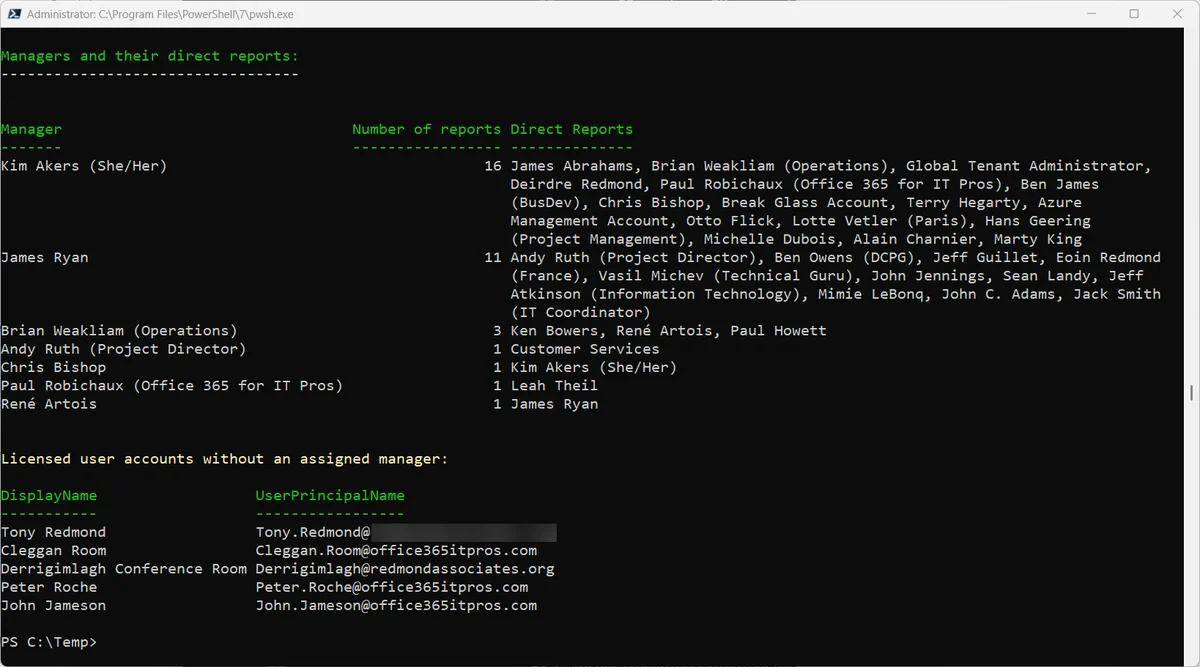
Optimization for Large Tenants
For organizations with more than 50,000 accounts, consider using Microsoft Graph SDK with batch requests ($batch) to parallelize calls, or export data via Microsoft Entra ID Governance and Access Reviews which natively expose hierarchical data.
Comparison of Available Approaches
| Approach | Module/Tool | API Calls | Performance | Status |
|---|---|---|---|---|
| Get-AzureADUserDirectReports | AzureAD PowerShell | N+1 | Low | Deprecated |
| Get-User (Exchange Online) | ExchangeOnlineManagement | N+1 | Low | Functional |
| Get-MgUserDirectReport (iterative) | Microsoft.Graph | N+1 | Low | Functional |
| Get-MgUser -ExpandProperty Manager | Microsoft.Graph | Single pass | High | Recommended |
Going Further: Native Graph API Query (REST)
For integration scenarios with third-party systems (Logic Apps, Azure Functions, Power Automate), here is the equivalent of the PowerShell query as a direct REST call:
1GET https://graph.microsoft.com/v1.0/users2 ?$filter=userType eq 'Member'3 &$expand=manager($select=id,displayName,userPrincipalName)4 &$select=id,displayName,userPrincipalName,department,assignedLicenses5 &$top=9996 &$count=true7ConsistencyLevel: eventualAnd its PowerShell equivalent via Invoke-MgGraphRequest for full control over the request:
1$Uri = "https://graph.microsoft.com/v1.0/users" +2 "?`$filter=userType eq 'Member'" +3 "&`$expand=manager(`$select=id,displayName,userPrincipalName)" +4 "&`$select=id,displayName,userPrincipalName,assignedLicenses" +5 "&`$top=999&`$count=true"6 7$Headers = @{ "ConsistencyLevel" = "eventual" }8 9$Response = Invoke-MgGraphRequest -Uri $Uri -Headers $Headers -Method GET10$Users = $Response.value11 12# Manual pagination if necessary13while ($Response.'@odata.nextLink') {14 $Response = Invoke-MgGraphRequest -Uri $Response.'@odata.nextLink' -Method GET15 $Users += $Response.value16}ConsistencyLevel: eventual
The ConsistencyLevel: eventual header is mandatory when using $count or advanced filter operators like $count ne 0 on collection properties. Without this header, Graph returns a 400 error. This header indicates to the API that you accept slight replication latency of data between service nodes.
Best Practices for Maintaining Hierarchical Data Quality
A managers/direct reports report is only relevant if source data is reliable. Here are architectural recommendations for maintaining quality:
- Synchronization from on-premises AD: if you use Microsoft Entra Connect Sync, verify that the
managerattribute is included in synchronization rules (AD schemamanagerattribute corresponds tomanagerin Entra ID). - HR-driven provisioning: with Entra ID Provisioning connected to Workday or SAP SuccessFactors, explicitly map the
managerattribute in the provisioning configuration. - Regular audits: schedule monthly script execution to detect accounts without a manager (
$_.Manager -eq $null) that signal missing data. - Access Reviews: configure Microsoft Entra Access Reviews so managers periodically validate access for their direct reports — this process also forces updates to hierarchical relationships.
Accounts Without Manager
Users whose manager property is null will not be included in anyone's direct reports. In automated workflows (e.g., offboarding, alert escalation), absence of a manager can block critical processes. Implement proactive alerting on licensed accounts without an assigned manager.
References and Additional Resources
- Microsoft Graph API — List users (official documentation)
- Microsoft Graph API — Get manager
- Microsoft Graph API — List directReports
- Microsoft.Graph PowerShell Module — Get-MgUser Reference
- Complete Script on GitHub — Office 365 for IT Pros
- Original Article — Office365itpros.com
- Entra Connect Sync — Synchronized Attributes
- HR-driven Provisioning — Workday to Entra ID