
Introduction
Microsoft 365 groups are powerful collaboration tools that enable users to work across services such as shared mailboxes, calendars, and SharePoint sites. However, ineffective management can lead to empty groups without owners, inactive groups consuming unnecessary licenses, or even accidental deletion of critical groups.
To address these challenges, we developed an advanced PowerShell script. It simplifies Microsoft 365 group management by offering 19 management actions, including bulk operations through a CSV file. In this article, we'll detail the script's features and how you can use it effectively to manage your groups.
Comparison of Available Management Options
Management via Microsoft 365 Admin Center
The Microsoft 365 admin center provides a user interface for managing groups by navigating to Teams and groups → Active Teams and groups. While intuitive for organizations with few groups, this method has several limitations:
- No support for bulk operations. You must add members one by one.
- You must navigate between various sections, such as the Billing section, to manage licenses associated with groups.
- Advanced features, such as creating groups assignable to roles, are unavailable.
Management via Entra Admin Center
The Entra admin center also allows group management by navigating to Entra ID → Groups → Overview. The main advantage here is the ability to configure groups assignable to roles. However, this option also has its limitations:
- Absence of group-based license management.
- Not suitable for bulk management, which can be limiting at scale.
Management via PowerShell
PowerShell offers unparalleled flexibility for managing groups at scale through cmdlets such as:
1New-MgGroup, Update-MgGroup, Set-MgGroupLicenseHowever, its use requires technical expertise, making the approach intimidating for administrators unfamiliar with it. Each action requires a deep understanding of the parameters to use.
Why choose a standardized script?
A single script automating these processes ensures simplified and uniform management while reducing risks associated with manual errors.
PowerShell Script Details and Features
The script offers:
- 19 actions available for managing Microsoft 365 groups.
- 7 individual actions configurable via prompts.
- 12 bulk actions requiring a CSV input file.
- Support for certificate-based authentication (CBA).
- Functionality for accounts with multi-factor authentication (MFA).
- Automation via Task Scheduler or Azure Automation.
- Log automatically exported to CSV for each execution.
Getting Started with the Script
Method 1: Interactive Execution
Use this method to launch the script with an interactive interface. The steps:
1./M365GroupManagement.ps1The script will display an interactive menu where you can select an action, provide the necessary inputs, and execute tasks directly. After each execution, a CSV log file is generated to facilitate operation tracking.
Method 2: Direct Execution for a Single Action
To perform a specific action, execute the script with the -Action parameter:
1./M365GroupManagement.ps1 -Action 5If the action requires a CSV input file, add the path via:
1./M365GroupManagement.ps1 -Action 8 -InputCSVFilePath <FilePath>Method 3: Multi-Action Mode
To perform multiple operations in the same session, enable the mode:
1./M365GroupManagement.ps1 -MultipleActionsModeTip
Use "MultipleActions" mode to efficiently automate heavy processes.
Method 4: Certificate-Based Execution
For complete automation without user interaction, configure certificate-based authentication. Ensure the following permissions are assigned in Microsoft Graph API:
- User.Read.All
- Group.ReadWrite.All
- Organization.Read.All
- RoleManagement.ReadWrite.Directory
Then execute:
1./M365GroupManagement.ps1 -TenantId "<TenantId>" -ClientId "<ClientId>" -CertificateThumbprint "<Thumbprint>"This approach is ideal for scheduled tasks via Task Scheduler or Azure Automation.
Usage Example: Add Licenses to a Group
To assign a license to a group:
1./M365GroupManagement.ps1 -Action 3A prompt will ask for the group's email and the friendly name of the license (for example, Microsoft Copilot Studio Viral Trial).

The log file will indicate the status of each task executed.
Warning
Make sure to avoid duplicate license assignments (direct and group-based), as this can result in unnecessary costs.
Automation for Bulk Operations
For tasks involving multiple groups or users, create a CSV file. Example for adding multiple users to multiple groups:
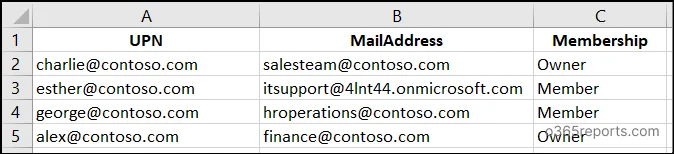
Execute the script with the file as input:
1./M365GroupManagement.ps1 -Action 11 -InputCSVFilePath "<InputCSVFilePath>"
Log Export
Bulk processing generates a specific CSV file containing results for each row of the input file.
Conclusion
With this script, administrators can streamline Microsoft 365 group management, reduce manual effort, and improve operational efficiency. Whether managing licenses, removing users, or structuring groups, this script provides you with the necessary flexibility.
Adopt this solution and simplify your operations today.