Microsoft has added a tenant-wide lock for accessing Microsoft Teams meeting transcripts via Microsoft Graph. Any application or AI agent already having the appropriate Graph permissions (OnlineMeetingTranscript.Read.All, CallTranscripts.Read.All, OnlineMeetingTranscript.Read.Chat) can now be blocked from access if this new setting, called Transcript API Access, is not enabled at the tenant level. If your meeting summarization, action extraction, or compliance integrations rely on Teams transcripts, this change deserves immediate attention.
Setting Disabled by Default
Transcript API Access is disabled by default on all tenants. Without administrator action, applications that were already retrieving transcripts via Graph will stop working.
Why Microsoft is Adding an Additional Control Layer
Until now, the Graph permissions model was sufficient: an administrator granted tenant-wide consent on transcript scopes, and the application could retrieve data without further verification. This approach had a structural problem: to prevent an application from reading transcripts, you had to identify each application involved and manually revoke its permissions one by one.
Teams meeting transcripts are among the most sensitive data exposed by Microsoft Graph. They reconstruct an entire discussion and, if speaker attribution is enabled, reveal who said what. With the multiplication of AI agents and third-party applications consuming this stream, application-by-application management no longer scales once you exceed a handful of connected tools.
Transcript API Access therefore introduces centralized control in the Teams admin center. It does not replace the existing Graph permissions model: it adds an upstream layer. Concretely, an application must now meet two cumulative conditions to read a transcript:
- have the appropriate Graph permission, granted through administrator consent;
- have Transcript API Access enabled at the tenant level.
| Aspect | Behavior before enforcement | Current behavior |
|---|---|---|
| Apps/agents with valid Graph permissions | Transcript retrieval possible once permissions are granted | Additionally requires Transcript API Access activation |
| Transcript API Access and Speaker Attribution settings | Not available | Available and applied at tenant level |
| Action required from administrator | No additional configuration | Enable Transcript API Access to prevent any disruption |
What Happens if Transcript API Access Remains Disabled?
Any application already querying the transcript API via Graph will see its requests fail. Depending on the client application, the errors returned may take the form of a 403 Forbidden, a message Graph API access to transcripts is disabled for this tenant, or a code GraphAccessToTranscriptsDisabled.

What this setting does not affect
The enforcement does not modify transcript generation, meeting recordings, or the native transcript experience in Teams. It only blocks access via Microsoft Graph as long as the setting is not enabled.
Enabling Transcript API Access and Speaker Attribution
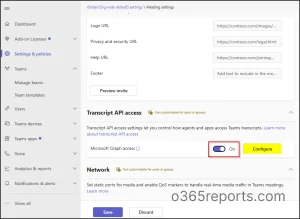
The Teams admin center exposes two distinct settings under Settings & policies > Transcript API access:
- Microsoft Graph access: authorizes applications and agents with appropriate Graph permissions to retrieve transcripts. Enable it if your organization uses AI assistants, automation tools, or any application that depends on transcript data.
- Include speaker attribution (optional): allows identification of who spoke each portion of the transcript. This setting exposes additional identity information; reserve it for business, compliance, or investigation scenarios that genuinely require it.
Configuration via Teams Admin Center
Sign in to Teams admin center
Open the Microsoft Teams admin center with an account that has Teams admin rights.
Locate the setting
Navigate to Settings & policies > Transcript API access.
Enable Graph access
In the Transcript API access section, toggle Microsoft Graph access to enabled to open access to authorized applications and agents across the organization.
Enable speaker attribution (optional)
Click Configure, then enable Include speaker attribution only if your applications require speaker identity.
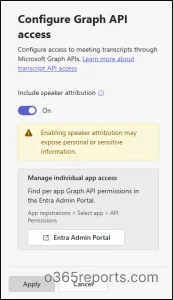
Once these settings are enabled, any application with the required Graph permissions can again retrieve Teams meeting transcripts.
Configuration via PowerShell
For script-managed or large-scale deployments, the Teams PowerShell module exposes the same parameters. First connect to the Microsoft Teams PowerShell module, then enable Graph access to transcripts:
1Set-CsTeamsMeetingConfiguration -Identity Global -EnableGraphTranscriptAccess $trueIf your applications require speaker identity, also enable attribution:
1Set-CsTeamsMeetingConfiguration -Identity Global -EnableAttributedTranscript $trueThen verify the effective state of both settings:
1Get-CsTeamsMeetingConfiguration | Select EnableGraphTranscriptAccess, EnableAttributedTranscriptsThis command returns the current state of Transcript API Access and speaker attribution for the organization.
Two conditions, not one
Enabling Transcript API Access grants no automatic access. Each application must additionally explicitly hold the corresponding Graph permissions, reviewed and granted through administrator consent.
Managing Access for Individual Applications
Once the tenant setting is enabled, any application with the necessary Graph permissions regains access to transcripts. If an application or AI agent should no longer have access, revocation is done at the Graph permissions level in Microsoft Entra ID, not in the Teams admin center.
Blocking an Application via Microsoft Entra ID
Open Entra admin center
Sign in to the Microsoft Entra admin center.
Access app registrations
Navigate to Entra ID > App registrations > All applications, then search for and select the application or agent to audit.
Review API permissions
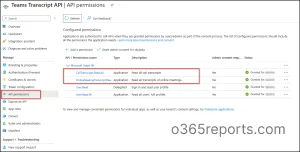
Open API permissions in the Manage section, and locate permissions related to transcripts:
- OnlineMeetingTranscript.Read.All — read transcripts from all organization online meetings.
- CallTranscripts.Read.All — read organization call transcripts.
Remove the permission if necessary
If the application no longer needs this access, select the relevant permission and click Remove permission.
Tenant setting takes priority
This revocation applies only to the application being processed. The tenant setting Transcript API Access remains prioritized: if disabled, no application, regardless of its permissions, can access transcripts.
Revoke Permissions in Bulk with Microsoft Graph PowerShell
For auditing or cleanup across multiple applications, using Microsoft Graph PowerShell avoids processing each registration manually. The process unfolds in two stages: export the inventory of affected applications, then revoke the retained permissions.
Step 1 — Export applications with transcript permissions
1Connect-MgGraph -Scopes "Application.Read.All"2$graphSP = Get-MgServicePrincipal -Filter "appId eq '00000003-0000-0000-c000-000000000000'"3$roles = $graphSP.AppRoles | Where-Object Value -in @(4 "OnlineMeetingTranscript.Read.All",5 "CallTranscripts.Read.All",6 "OnlineMeetingTranscript.Read.Chat")7$result = foreach ($role in $roles) {8 Get-MgServicePrincipalAppRoleAssignedTo -ServicePrincipalId $graphSP.Id -All |9 Where-Object AppRoleId -eq $role.Id |10 Select-Object @{N="AppDisplayName";E={$_.PrincipalDisplayName}},11 @{N="AppServicePrincipalId";E={$_.PrincipalId}},12 @{N="Permission";E={$role.Value}},13 @{N="AssignmentId";E={$_.Id}}14}15$result | Group-Object AppDisplayName, AppServicePrincipalId | ForEach-Object {16 [PSCustomObject]@{17 AppDisplayName = $_.Group[0].AppDisplayName18 AppServicePrincipalId = $_.Group[0].AppServicePrincipalId19 Permissions = ($_.Group.Permission -join ", ")20 AssignmentIds = ($_.Group.AssignmentId -join ", ")21 }22} | Sort-Object AppDisplayName | Export-Csv "<Output File Path>" -NoTypeInformationThe resulting CSV file lists each application that has received a transcript-related permission, with its assignment identifiers. This list enables you to decide, application by application, which ones to keep and which to revoke.
Step 2 — Revoke retained permissions
Before running the revocation script, filter the exported CSV to keep only applications to be processed, then sign in with write scopes:
1Connect-MgGraph -Scopes "Application.Read.All","AppRoleAssignment.ReadWrite.All"Then execute the revocation from the filtered file:
1$graphSP = Get-MgServicePrincipal -Filter "appId eq '00000003-0000-0000-c000-000000000000'"2Import-Csv "<Input CSV>" | ForEach-Object {3 $ids = $_.AssignmentIds -split ",\s*"4 $permissions = $_.Permissions -split ",\s*"5 for ($i = 0; $i -lt $ids.Count; $i++) {6 Remove-MgServicePrincipalAppRoleAssignedTo `7 -ServicePrincipalId $graphSP.Id `8 -AppRoleAssignmentId $ids[$i]9 Write-Host "Removed $($permissions[$i]) from $($_.AppDisplayName)"10 }11}Once this script runs, targeted applications permanently lose their Graph permissions related to transcripts. This action is immediate: plan a validation window before launching it in production on a large batch of applications.
Key Takeaways
- Transcript API Access is disabled by default: verify its state before any user complaint about an AI integration or meeting summarization feature that stops working.
- The setting acts as an additional layer, on top of existing Graph permissions (OnlineMeetingTranscript.Read.All, CallTranscripts.Read.All, OnlineMeetingTranscript.Read.Chat) — it does not replace them.
- Activation is controlled either from the Teams admin center (Settings & policies > Transcript API access), or via Set-CsTeamsMeetingConfiguration.
- Include speaker attribution should remain disabled by default: enable it only for an identified business or compliance need.
- Cleanup of application permissions is always managed in Microsoft Entra ID, application by application or in bulk via Microsoft Graph PowerShell.
Next concrete step: run the CSV export of applications with transcript permissions, cross-check it against your approved applications inventory, then enable Transcript API Access once this review is complete.