Introduction
System administrators and cloud engineers working with Microsoft 365, it is important to understand how to manage interactions between internal and external users via Microsoft Teams. This article examines the removeAllAccessForUser API in Microsoft Graph, intended to remove access to a chat for a user—but presents disturbing limitations.
Warning
The removeAllAccessForUser API can be misleading. It does not block access to an external chat but only removes the visibility of existing messages for a user in a specific tenant.
Identifying an External Chat
To effectively manipulate an external chat, three pieces of information are needed:
- Chat ID: Only accessible via
Get-MgUserChatin application mode with theChat.Read.Allpermission. - User ID: Available through the
Get-MgUsercommand. - Tenant ID: Obtainable via
Get-MgOrganization.
Here is a PowerShell example to identify external chats:
1$tenantId = (Get-MgOrganization).Id2$Chats = Get-MgUserChat -UserId $UserId -all -Filter "tenantid ne '$tenantId'"3$Chats | Format-Table Id, CreatedDateTime4 5# Example output6Id CreatedDateTime7-- ---------------819:chat-example_1@unq.gbl.spaces 29/04/2026 16:15:21919:chat-example_2@unq.gbl.spaces 10/01/2025 16:32:49Searching for External Chats in Audit Logs
Another method to identify external chats is to search for relevant events in Microsoft Teams audit logs:
1$StartDate = (Get-Date).AddDays(-60)2$EndDate = Get-Date3[array]$Domains = Get-AcceptedDomain | Select-Object -ExpandProperty DomainName4$Records = Search-UnifiedAuditLog -StartDate $StartDate -EndDate $EndDate -Operations "MemberAdded" -RecordType "MicrosoftTeams"5 6ForEach ($Rec in $Records) {7 $AuditData = $Rec.AuditData | ConvertFrom-Json8 If ($AuditData.CommunicationType -eq "OneOnOne") {9 $ForeignDomain = $AuditData.ParticipantInfo.ParticipatingDomains | Where-Object {$_ -notin $Domains}10 $ForeignTenantId = $AuditData.ParticipantInfo.ParticipatingTenantIds | Where-Object {$_ -ne $AuditData.OrganizationId}11 $ReportLine = [PSCustomObject][Ordered]@{12 TimeStamp = Get-Date ($AuditData.CreationTime) -format 'dd-MMM-yyyy HH:mm'13 ChatThreadId = $AuditData.ChatThreadId14 ForeignDomain = $ForeignDomain15 }16 Write-Host $ReportLine17 }18}Good to Know
Filtering audit logs makes it easier to list external chats. This is useful for targeting suspicious interactions to analyze or remove.
Remove User Access to an External Chat
Once the chat is identified, use the Remove-MgChatAccessForUser command or its equivalent via Graph API. Here are the steps:
Configure variables
Set user and tenant metadata in an associative array:
1$UserInfo = @{}2$UserData = @{}3$UserData.Add("id", $UserId)4$UserData.Add("tenantId", $TenantId)5$UserInfo.Add("user", $UserData)Use PowerShell or Graph API
Option 1: Use PowerShell directly:
1Remove-MgChatAccessForUser -ChatId $ChatId -BodyParameter $UserInfo -ErrorAction StopOption 2: Create a manual API request:
1$Uri = "https://graph.microsoft.com/V1.0/chats/$ChatId/removeAllAccessForUser"2Invoke-MgGraphRequest -Method POST -Uri $Uri -Body $UserInfoKnown Limitations
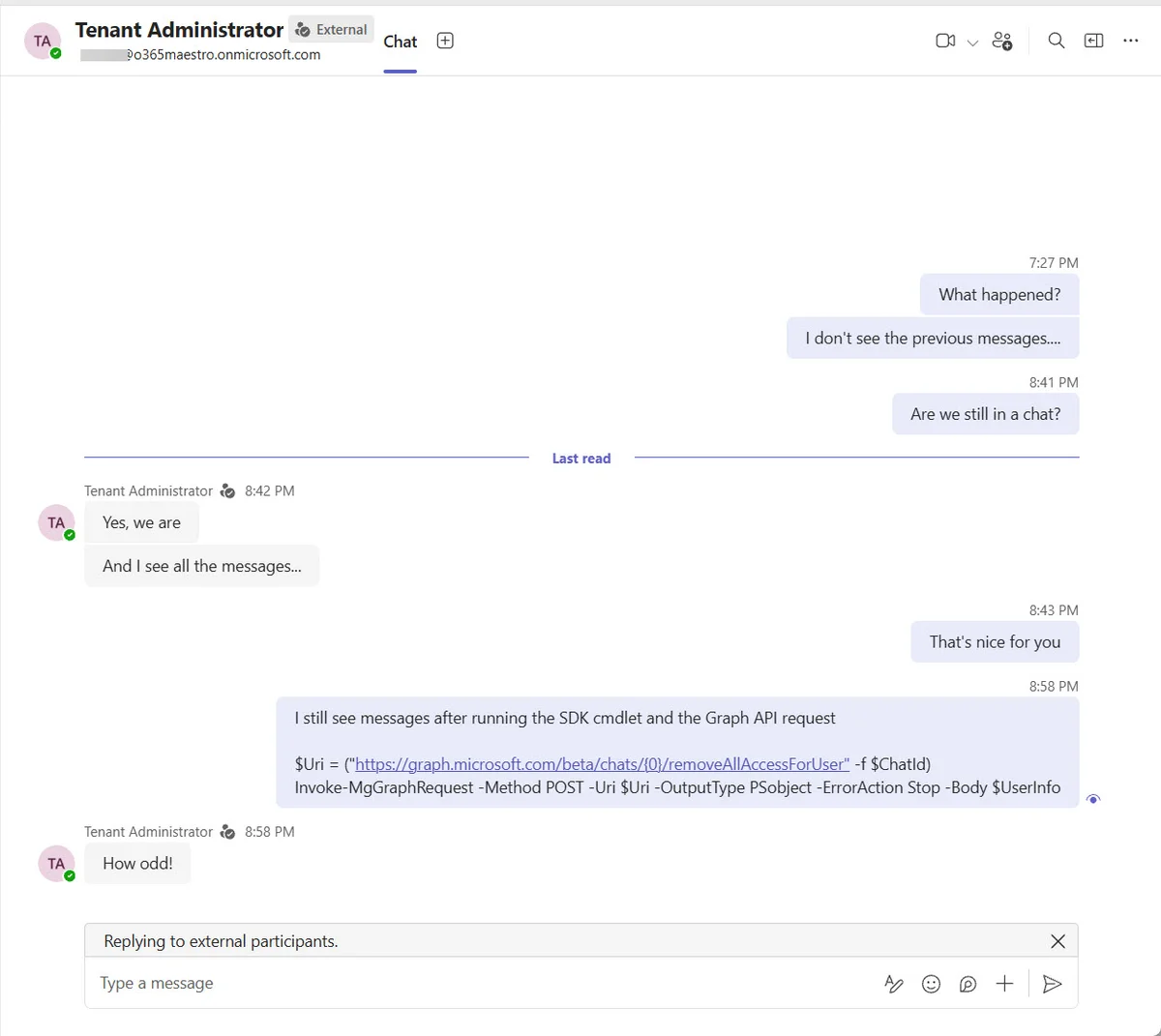
- The API only removes the visibility of messages before the command execution time.
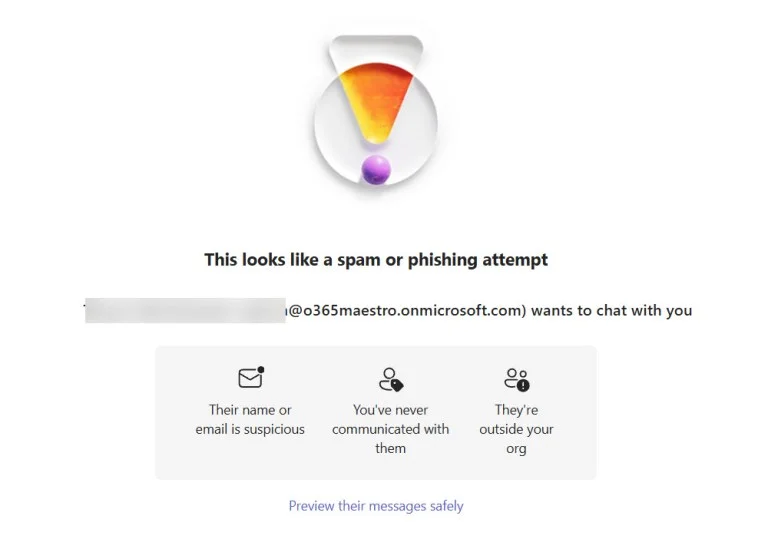
- External chats remain active, allowing future exchanges.
Important
Deletion does not deactivate the chat. External users retain full access.
Recommendations
To better control interactions, administrators should:
- Configure an "Allow List" to restrict authorized tenants for Teams collaboration.
- Regularly audit logs to detect suspicious activity.
- Educate users on the risks of external interactions.
You can learn more about using the Microsoft Graph API in the official Microsoft Graph documentation: https://learn.microsoft.com/graph/api/resources/chats.
Conclusion
While the removeAllAccessForUser API seems useful in theory, it offers limited scope in critical incident response scenarios. Understanding these limitations is essential for effectively managing external collaborations.