
During offboarding or role changes, revoking licenses and access is not enough: Teams meetings organized by the departing user continue to exist under an inactive organizer. Managing this scenario manually is time-consuming and error-prone, especially for recurring series. This article is intended for Exchange Online and Teams administrators who want to automate this transfer reliably and auditably.
Why organizer transfer is a blind spot in offboarding
When a user leaves the organization, their recurring meetings continue to appear in participants' calendars. Without intervention, no one can modify settings, add or remove participants, or update the Teams link. The organizer remains nominally the owner while their account is disabled or deleted.
Microsoft filled this gap by introducing the Invoke-ChangeMeetingOrganizer cmdlet in Exchange Online PowerShell. It allows you to transfer the ownership of a Teams meeting from one user to another without having to manually cancel and recreate each meeting.
However, this cmdlet has no native discovery mechanism: it transfers a meeting whose identifier you provide to it, but does not itself search for which meetings are eligible. This is precisely what the script described in this article fills in.
The trap of recurring meetings with Get-MgUserDefaultCalendarEvent
The majority of calendar transfer scripts available rely on Get-MgUserEvent or Get-MgUserDefaultCalendarEvent with a date filter. This approach has a critical gap for recurring series.
A weekly series created two years ago will not be returned by a filter targeting events created in the last 90 days, even if it has future occurrences in that window. Result: active meetings slip through the cracks.
Watch out for recurring series
A date filter applied to Get-MgUserEvent targets the creation or start date of the series, not its future occurrences. Ongoing recurring meetings can therefore be silently ignored.
The script presented here uses Get-MgUserCalendarView instead, which returns actual occurrences in a given time window, then groups results by SeriesMasterId to identify complete series. Each series is processed only once, even if it contains dozens of occurrences in the period.
Prerequisites before running the script
Before running the script, verify the following points:
- Exchange Online Role:
Organization ManagementorRecipient Management. Both roles grant the necessary rights toInvoke-ChangeMeetingOrganizer. - New organizer: must have a user mailbox in the same Exchange Online tenant.
- Supported mailbox types: user mailboxes only. Shared, room, and group mailboxes are automatically excluded.
- PowerShell Modules: Exchange Online Management and Microsoft Graph Calendar. The script installs them automatically if missing.
Two authentication methods available
The script offers two execution methods depending on the operational context.
Method 1: Delegated authentication (interactive)
This method is suitable for one-time executions with an admin account. It requires that the Microsoft Graph application has the delegated permission Calendars.Read.Shared.
1.\ChangeMeetingOrganizer.ps1 -CurrentOrganizer <CurrentOrganizer> -NewOrganizer <NewOrganizer> -TransferLimited scope in delegated mode
In delegated authentication, the script can only read calendars accessible to the connected account: mailboxes with Full Access or explicitly shared calendars. To cover the entire tenant, use method 2.
Method 2: Certificate authentication (non-interactive)
This method is recommended for scheduled executions or large-scale transfers. It does not depend on the connected administrator's calendar permissions and covers all mailboxes in the tenant.
First register an application in Microsoft Entra and configure the following application permissions:
- Microsoft Graph:
Calendars.ReadandUser.Read.All - Office 365 Exchange Online:
Exchange.ManageAsApp
1.\ChangeMeetingOrganizer.ps1 `2 -CurrentOrganizer <CurrentOrganizer> `3 -NewOrganizer <NewOrganizer> `4 -Transfer `5 -TenantId <TenantId> `6 -ClientId <ClientId> `7 -CertificateThumbprint <CertificateThumbprint> `8 -Organization <DomainName>Authentication can rely on a certificate from a certificate authority (CA) or a self-signed certificate.
Advanced script capabilities
Bulk transfer via CSV file
To process multiple users in a single execution, prepare a CSV file with two columns: CurrentOrganizer and NewOrganizer. Each row corresponds to a current organizer / new organizer pair in UPN format.
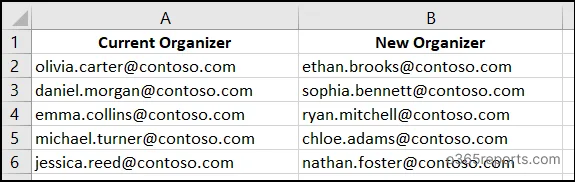
1.\ChangeMeetingOrganizer.ps1 `2 -CurrentOrganizer <CurrentOrganizer> `3 -NewOrganizer <NewOrganizer> `4 -TenantId <TenantID> `5 -ClientId <ClientID> `6 -CertificateThumbprint <CertificateThumbprint> `7 -Organization <DomainName> `8 -TransferWhen the -CurrentOrganizer parameter receives the path of the CSV file, the script iterates through each pair and performs transfers in sequence.
Custom time window with -DaysAhead
By default, the script discovers meetings whose next occurrence falls within 365 days following execution. For annual meetings or long-term milestones, this delay may be insufficient.
The -DaysAhead parameter allows you to extend this window. For example, -DaysAhead 730 covers the next two years:
1.\ChangeMeetingOrganizer.ps1 `2 -CurrentOrganizer <CurrentOrganizer> `3 -NewOrganizer <NewOrganizer> `4 -Transfer `5 -DaysAhead 730Excluding imminent meetings with -MinimumLeadHours
Transferring a meeting that starts within the hour can trigger unexpected notifications to participants. The -MinimumLeadHours parameter allows you to ignore meetings whose start is too close. Excluded meetings are logged with a Skipped status in the CSV report for later processing.
1.\ChangeMeetingOrganizer.ps1 `2 -CurrentOrganizer <CurrentOrganizer> `3 -NewOrganizer <NewOrganizer> `4 -Transfer `5 -MinimumLeadHours 24Include personal appointments
By default, the script ignores events without participants (personal appointments, focus blocks). To include them during a full mailbox migration, use -IncludeAppointmentsWithoutAttendees:
1.\ChangeMeetingOrganizer.ps1 `2 -CurrentOrganizer <CurrentOrganizer> `3 -NewOrganizer <NewOrganizer> `4 -Transfer `5 -IncludeAppointmentsWithoutAttendeesCombining filters
Parameters are cumulative. To transfer only meetings starting at least 24 hours from now and whose next occurrence falls within the next 500 days:
1.\ChangeMeetingOrganizer.ps1 `2 -CurrentOrganizer <CurrentOrganizer> `3 -NewOrganizer <NewOrganizer> `4 -Transfer `5 -MinimumLeadHours 24 `6 -DaysAhead 500Report mode and generated outputs
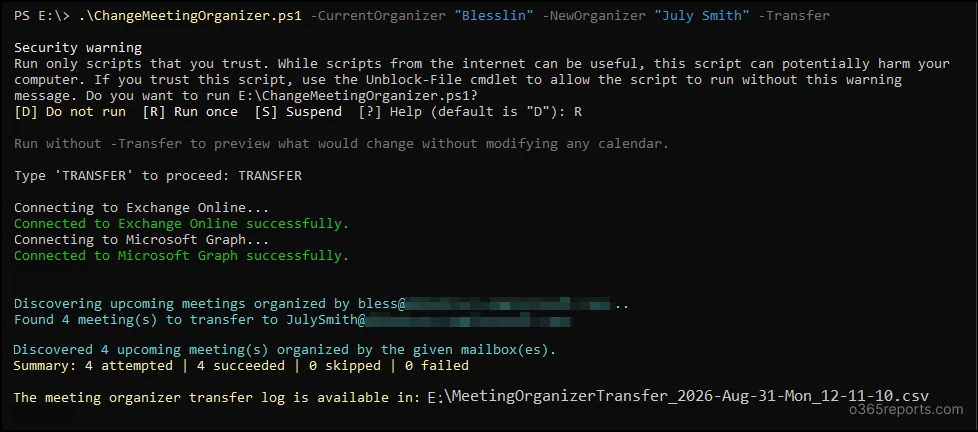
The script operates in report mode by default: it analyzes calendars and identifies eligible meetings without performing any transfers. This mode allows you to validate the scope before any action.
Adding the -Transfer parameter triggers actual transfers. The script then asks you to enter TRANSFER to confirm the operation.
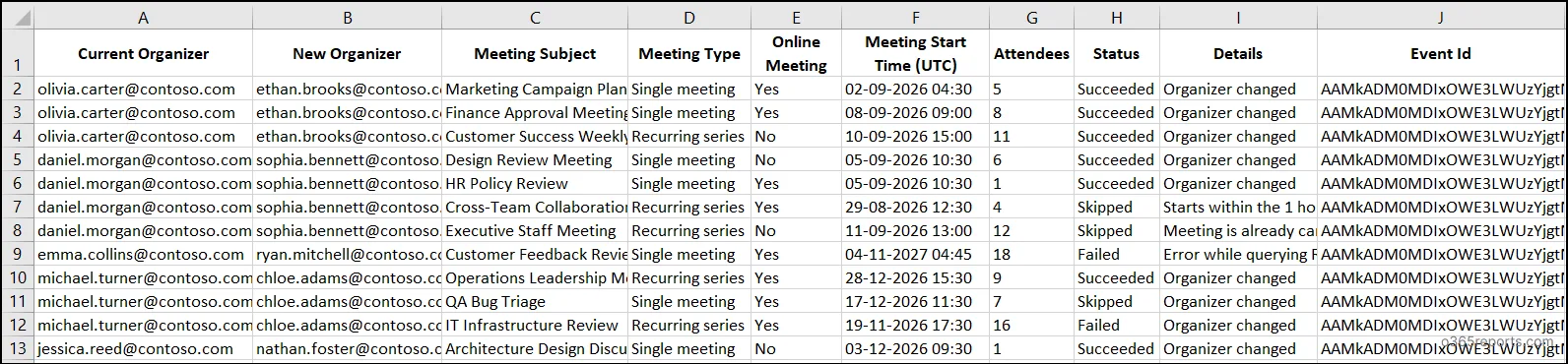
With each execution, a CSV report is generated with details of each meeting processed:
- Current and new organizer
- Subject and meeting type
- Presence of a Teams link (online meeting)
- Start time in UTC
- List of participants
- Status:
Success,SkippedorFailed - Reason for failure if applicable
- Event identifier
Recurring Teams meetings: limitation to know
For recurring series associated with an online Teams meeting, the transfer updates the organizer in the Exchange calendar, but does not change the ownership of the underlying Teams meeting. The new organizer must update the series with new Teams settings to take full control.
Scheduling with Windows Task Scheduler
For environments where new meetings can regularly appear under an old organizer, a scheduled execution avoids recurring manual checks.
Configure a task in Windows Task Scheduler with the -Unattended parameter, which removes all interactive prompts and enables silent background execution:
1.\ChangeMeetingOrganizer.ps1 `2 -CurrentOrganizer <CurrentOrganizer> `3 -NewOrganizer <NewOrganizer> `4 -TenantId <TenantID> `5 -ClientId <ClientID> `6 -CertificateThumbprint <CertificateThumbprint> `7 -Organization <DomainName> `8 -Transfer `9 -UnattendedLocation of reports in scheduled mode
When the script is executed via Task Scheduler, CSV reports are saved to C:\Windows\System32. Plan a custom output location if this directory does not match your log management policy.
What you need to remember before Monday morning
The ChangeMeetingOrganizer.ps1 script fills in the gaps of Invoke-ChangeMeetingOrganizer used alone: it ensures discovery of eligible meetings, correctly handles recurring series via Get-MgUserCalendarView and SeriesMasterId, and produces an actionable audit report.
To get started effectively:
- Always start with an execution without
-Transferto validate the detected scope. - Use method 2 (certificate) as soon as you need to cover more than a handful of mailboxes or automate the process.
- Integrate the
-MinimumLeadHours 24parameter into your offboarding procedures to avoid last-minute notifications. - If your organization manages annual or multi-year meetings, adjust
-DaysAheadaccordingly, the default value of 365 days may be insufficient.
If managing identities and access during user transitions is a recurring topic in your environment, combining this script with an automated offboarding procedure in Microsoft Entra provides more complete coverage of the account lifecycle.