Introduction
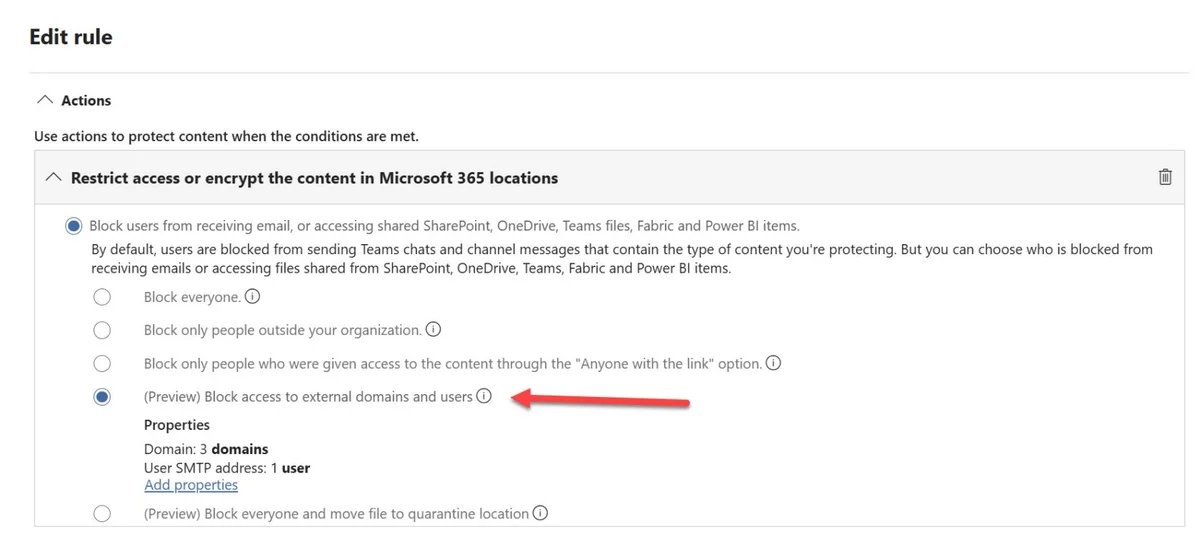
With the continuous evolution of Microsoft Purview Data Loss Prevention (DLP) features, it is now possible to block file sharing in SharePoint Online and OneDrive for Business with specific external domains or users. This capability, currently in preview, offers granular control to protect your sensitive data.
This guide details the configuration of a DLP rule to restrict sharing based on specific domains or external email addresses. We will also cover prerequisites, implications of inclusion and exclusion lists, and precise steps to implement this protection.
Prerequisites for Configuration
Before enabling a DLP rule to block sharing with external domains or users:
- You must have sufficient rights, such as the Compliance Administrator role or equivalent delegation.
- Enable the option "shared with people outside the organization" in the DLP rule condition.
- Identify content to protect via:
- A sensitivity label,
- A specific sensitive information type (SIT),
- Or a trainable classifier.
- (Optional) Use a retention label to further refine your rule.
Refer to the Microsoft Purview Portal
To configure DLP rules, log in to the Microsoft Purview compliance portal. You will find all necessary options under Data Loss Prevention Policies.
Steps to Configure the DLP Rule
Create a New DLP Policy
- Access the Microsoft Purview Compliance Portal.
- Navigate to: Data Loss Prevention Policies > Create a Policy.
- Give your policy a name and select applicable locations (SharePoint Online and OneDrive for Business).
Configure Rule Conditions
- Add the condition: "Content shared with people outside the organization".
- Define criteria to identify sensitive content, for example:
1Set-DlpComplianceRule -Identity "BlockSharingDLP" -ContentContainsSensitiveType "Confidential" -AccessScope ExternalThis script uses a "Confidential" sensitivity label to restrict external sharing.
Define Exclusion and Inclusion Lists
- Add domains to block via an "IS" or "Deny" list.
- Configure inclusion lists if needed: use "IS NOT" or "Allow".
Tip
A single DLP rule cannot have both an exclusion (deny) and inclusion (allow) list. If you need both, create two separate rules.
PowerShell example to configure an exclusion list:
1Set-DlpComplianceRule -Identity "BlockSharingDLP" -BlockedDomains "gmail.com", "yahoo.com"Note that tenant-internal domains cannot be included in these lists.
Apply and Test the Policy
- Enable the policy once all conditions are defined.
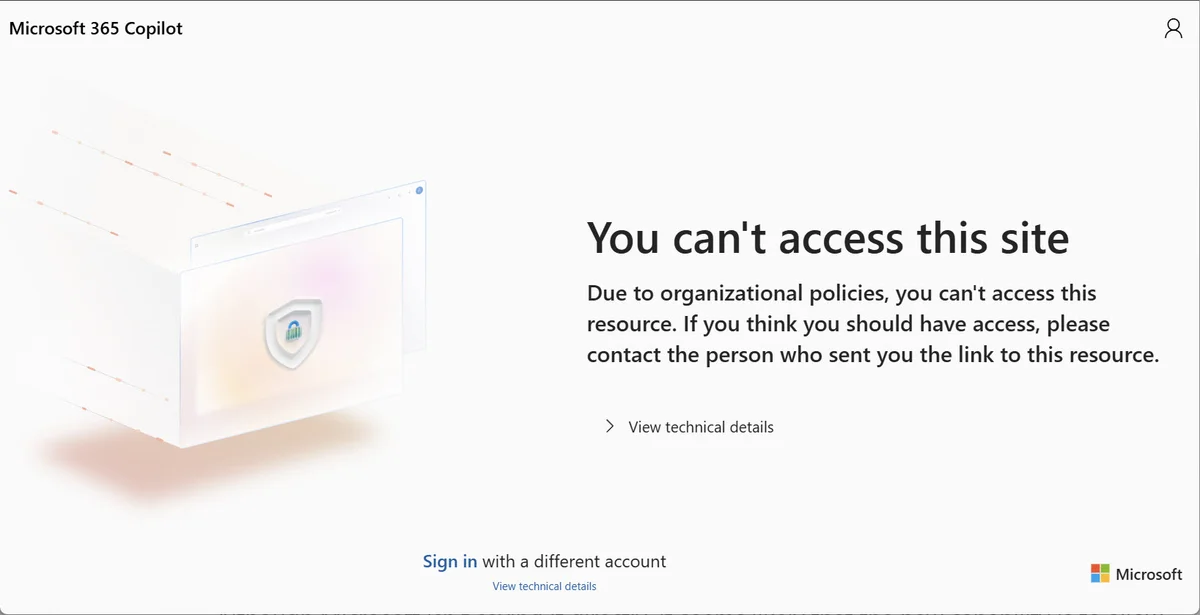
- Test the rule by sharing a file with a blocked domain. If the rule works correctly, the recipient should see an error similar to the one below:
- To monitor performance, consult DLP logs in the compliance portal.
Typical Use Cases
Here are some concrete scenarios where this feature can be useful:
- Prevent former partners from accessing your data.
- Limit sharing with domains of an acquired or recently sold company.
- Block public domains like Gmail or Yahoo while allowing specific exceptions.
- Regulate access for regulated projects by allowing only designated users.
Troubleshooting Common Errors
Error: DLP Rule Not Applied to Files
Possible Cause:
- Files do not contain content matching defined criteria (sensitivity label, SIT, etc.).
- The DLP policy is not applied to the correct location (verify SharePoint and OneDrive).
Solution: Adjust the rule conditions or verify configured locations.
Error: Blocks Not Applied Correctly
Possible Cause:
- Conflict between inclusion and exclusion lists.
Solution: Ensure there is no overlap between these lists.
Tenant-Wide Impact
DLP rules can disrupt essential sharing if misconfigured. Always test your configurations in a limited environment before applying them globally.
Conclusion
Configuring DLP rules to block sharing in SharePoint and OneDrive significantly strengthens the security of your organization's sensitive data. Although this feature requires careful configuration, it offers essential flexibility to meet various business needs. For detailed information, consult the official Microsoft documentation.