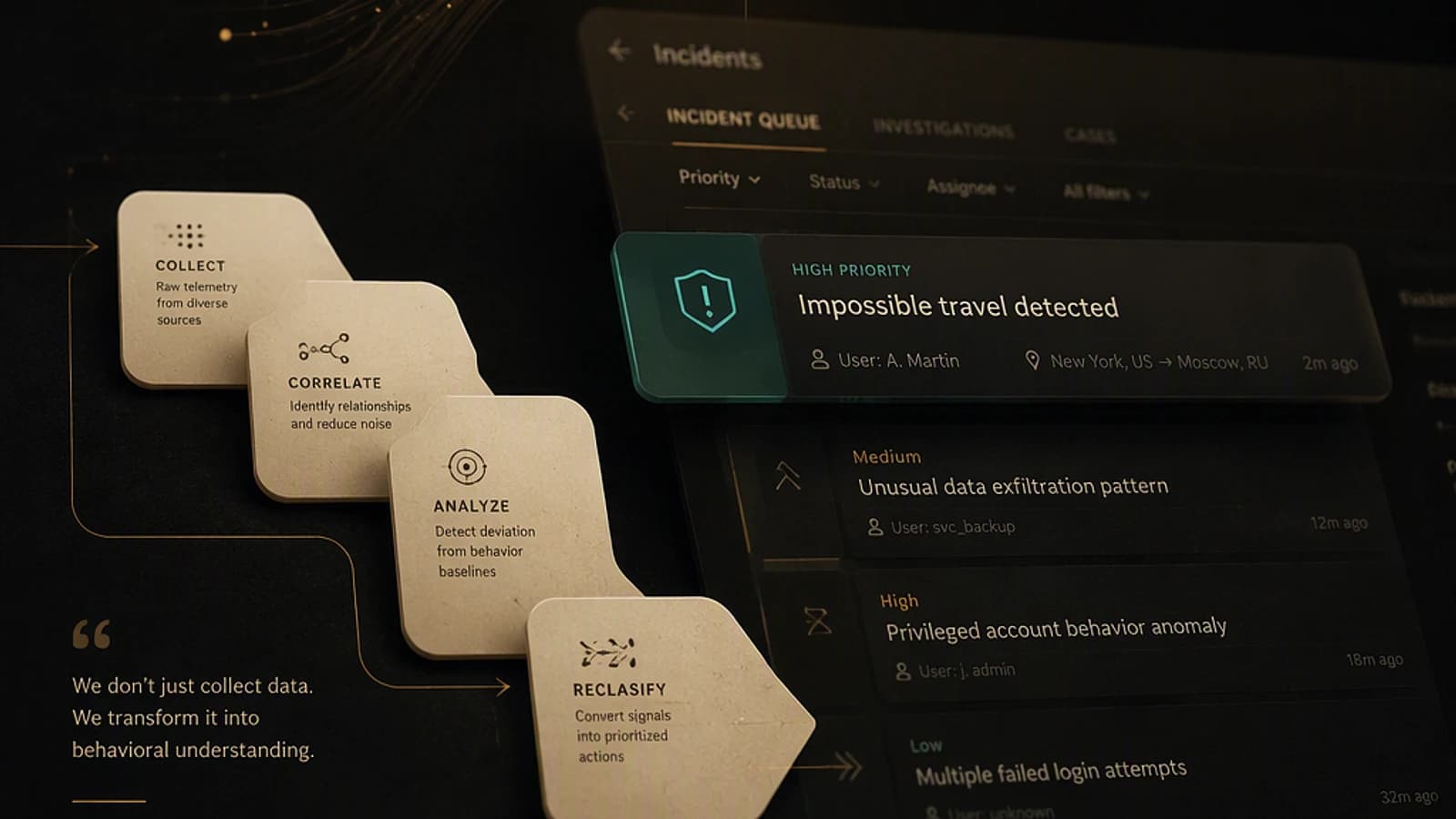
Microsoft Defender XDR is changing how data loss prevention (DLP, Data Loss Prevention) alerts from Microsoft Purview are handled in the incident queue. Starting October 12, a built-in tuning rule will automatically reclassify these alerts as "behaviors" rather than standard alerts. For administrators managing their SOC from the Defender XDR portal, this change directly modifies the volume and visibility of DLP signals on a daily basis.
What changes on October 12
Microsoft communicated this change via the message center under the identifier MC1465771. It introduces a new built-in tuning rule named Set-As-Behavior - Data Loss Prevention (DLP) Alerts, enabled by default.
Microsoft's stated objective is twofold:
- Reduce the volume of alerts displayed in Microsoft Defender XDR, a recurring pain point for SOC teams overwhelmed by low-priority signals.
- Preserve the complete DLP investigation data, now accessible via Advanced Hunting and the Microsoft Purview portal.
Concreetely, DLP alerts do not disappear: they change status and exposure channel.
Change enabled by default
The rule Set-As-Behavior - Data Loss Prevention (DLP) Alerts automatically applies to all affected tenants starting October 12, with no action required. If your SOC playbooks or automations depend on the presence of DLP alerts in the Defender XDR incident queue, test the impact before the switch.
Behaviors vs alerts: what actually changes
In Microsoft Defender XDR's unified detection model, a behavior is an enriched signal that remains accessible for investigation but no longer systematically generates an incident visible in the main queue. This is the mechanism already used for other low-criticality or high-volume detection categories.
Applied to DLP alerts, this mechanism means that:
- DLP events no longer automatically surface in the Defender XDR incident queue.
- Signals remain queryable in the BehaviorInfo and BehaviorEntities tables via Advanced Hunting.
- DLP alerts continue to appear normally in the Microsoft Purview portal, with no loss of data on the compliance side.
This decoupling between "visibility in Defender XDR" and "availability of raw data" is the central logic to retain: nothing is deleted, but the default entry point changes.
Where to find DLP signals after the switch
| Location | Before October 12 | After October 12 |
|---|---|---|
| Defender XDR incident queue | DLP alerts visible by default | DLP alerts absent by default (rule enabled) |
| Advanced Hunting | Standard AlertInfo table | BehaviorInfo and BehaviorEntities tables |
| Microsoft Purview portal | DLP alerts available | DLP alerts always available, no change |
| Automations / SOAR connected to incidents | Trigger on DLP alerts | No trigger while rule remains active |
This table highlights the main area of concern: any third-party integration (SIEM, SOAR, Logic Apps, Power Automate) consuming the Defender XDR incident queue for its DLP rules must be reviewed before October 12.
Keep DLP alerts in the incident queue
If your organization prefers to retain the historical behavior — DLP alerts visible and actionable directly in the Defender XDR incident queue — the tuning rule can be manually disabled.
Open alert tuning settings
In the Microsoft Defender portal, go to Settings > Microsoft Defender XDR > Alert tuning.
Locate the built-in rule
Search for the rule named Set-As-Behavior - Data Loss Prevention (DLP) Alerts in the list of tuning rules.
Disable the rule
Toggle the rule to Disabled. New DLP alerts will resume appearing as standard alerts in the incident queue.
Document the decision
Record this choice in your security governance documentation: this rule is subject to re-evaluation by Microsoft during future platform updates, so you need to be able to trace why it was disabled.
Tenant-wide impact
This rule applies at the full tenant level, not per workload or RBAC scope. Disabling it potentially reintroduces a significant volume of alerts in the incident queue shared by all SOC teams. Assess the impact on your triage SLAs before switching to production.
Implementation: audit DLP signals after the switch
Whether you leave the rule enabled or not, it is useful to verify that DLP data remains exploitable. Two complementary angles: the Advanced Hunting query on the Defender XDR side, and native extraction on the Microsoft Purview side via PowerShell.
Advanced Hunting query (KQL)
This query interrogates the BehaviorInfo and BehaviorEntities tables to find DLP signals transformed into behaviors. Adapt the filter column names based on the schema displayed in the Schema tab of Advanced Hunting on your tenant, as this schema may evolve.
1BehaviorInfo2| where ServiceSource has "Data Loss Prevention" or Categories has "Dlp"3| project Timestamp, BehaviorId, Title, Categories, ServiceSource, Severity4| join kind=inner (5 BehaviorEntities6 | project BehaviorId, EntityType, AccountUpn, DeviceName7) on BehaviorId8| order by Timestamp descThis query allows you to confirm that DLP signals continue to surface in Advanced Hunting after the switch, even if they no longer appear in the incident queue.
DLP incident extraction on the Microsoft Purview side (PowerShell)
This script uses the ExchangeOnlineManagement module (which includes the connection to the Microsoft Purview compliance center) to extract DLP incidents directly from the source, independent of their status in Defender XDR.
Prerequisites:
ExchangeOnlineManagementmodule version 3.x or higher.- Compliance Administrator or View-Only DLP Compliance Management role (principle of least privilege: favor the read-only role if no corrective action is necessary).
1# Module installation if necessary2Install-Module -Name ExchangeOnlineManagement -Scope CurrentUser -Force3 4# Connection to the Microsoft Purview compliance center5Connect-IPPSSession -UserPrincipalName "admin@contoso.com"6 7# Definition of the analysis window (last 7 days)8$dateStart = (Get-Date).AddDays(-7)9$dateEnd = Get-Date10 11# Retrieval of the detailed DLP incident report12$dlpIncidents = Get-DlpIncidentDetailReport -StartDate $dateStart -EndDate $dateEnd13 14# Quick verification display15$dlpIncidents |16 Select-Object IncidentReceivedTime, PolicyName, RuleName, Severity, Workload |17 Sort-Object IncidentReceivedTime -Descending |18 Format-Table -AutoSize19 20# CSV export for archival and audit evidence21$exportPath = "C:\Reports\DLP_Incidents_$(Get-Date -Format 'yyyyMMdd').csv"22$dlpIncidents | Export-Csv -Path $exportPath -NoTypeInformation -Encoding UTF823 24Write-Host "Report exported to $exportPath" -ForegroundColor GreenThis script produces a consolidated table on screen as well as a timestamped CSV file, usable to prove that DLP coverage remains intact on the compliance side, independent of the tuning rule status in Defender XDR.
Troubleshooting: common errors
- The tuning rule does not appear in the list: verify that you have the Security Administrator role or equivalent in Microsoft Defender XDR; access to
Settings > Microsoft Defender XDR > Alert tuningrequires security administration permissions. Connect-IPPSSessionfails with an authentication error: confirm that theExchangeOnlineManagementmodule is up to date and that modern authentication (MFA) is correctly configured for the user account.- No results in BehaviorInfo despite active DLP policies: the propagation delay of signals to Advanced Hunting can reach several hours after a DLP event; rerun the query after a reasonable delay before concluding there is data loss.
Get-DlpIncidentDetailReportreturns an empty dataset: verify that the-StartDate/-EndDatewindow covers a period when DLP rules were triggered, and that the assigned role includes access to DLP reports.
Key takeaways
This change does not delete any data: it simply redistributes where and how DLP alerts are exposed by default in the Microsoft Defender XDR and Microsoft Purview ecosystem. Three concrete actions before October 12:
- Audit your automations connected to the Defender XDR incident queue to verify that none depend exclusively on DLP alerts.
- Decide in advance whether your organization retains the default behavior (behaviors, low noise) or disables the rule Set-As-Behavior - Data Loss Prevention (DLP) Alerts to keep DLP alerts visible in the incident queue.
- Implement backup monitoring via Advanced Hunting or PowerShell extraction on the Purview side, to never depend on a single visibility channel for your DLP signals.
If your SOC processes a high volume of low-priority DLP alerts, leaving the rule enabled mechanically reduces triage load. Conversely, if DLP alerts are critical in your incident response workflows, manual disabling remains the safest approach.