
Why default access to the Entra portal is a real risk
A standard user account can open entra.microsoft.com and view the list of users, groups, devices, and organizational structure — without any restrictions configured by default. In case of account compromise, an attacker immediately has a map of the environment: tenant size, assigned roles, high-privilege groups, device compliance posture.
This information directly feeds targeted phishing attacks, privilege escalation attempts, and identity spoofing. Restricting access to the Microsoft Entra portal for non-administrator users is therefore a basic hardening measure, not an option.
What a user can see without restriction
With default permissions, an authenticated user can access the following from the Entra portal:
- General directory information: total number of users, groups, devices, tenant configuration.
- User profiles: email addresses, department, assigned roles, group memberships — data exploitable for spear-phishing.
- Groups: membership structure, identification of high-privilege groups and potential privilege escalation paths.
- Devices: join type (Azure AD join, hybrid join), Intune compliance status, registered devices — useful for targeting less protected endpoints.
Restriction ≠ Complete protection
None of the methods presented here alone blocks all access vectors. The combination of multiple layers, particularly a conditional access policy, is essential for comprehensive protection.
The four available methods
Needs vary by organization: some users must access the portal to activate Privileged Identity Management (PIM) roles, others have no legitimate reason to access it. The table below summarizes the four approaches and their protection scope.
| Method | Scope | Main Limitation |
|---|---|---|
| Entra user setting | Entra portal interface only | Does not prevent access via PIM or direct links |
| Intune configuration policy | Managed browsers on managed devices | PowerShell and Graph API remain accessible |
| PowerShell assignment restriction | PowerShell modules (Graph Command Line Tools) | Must be combined with other methods |
| Conditional access policy | All entry points (portal, API, PowerShell) | More complex configuration, exclusions to manage |
Method 1: User setting in the Entra portal
This is the quickest approach to implement. It acts directly on the access setting for the Entra admin center interface.
Access user settings
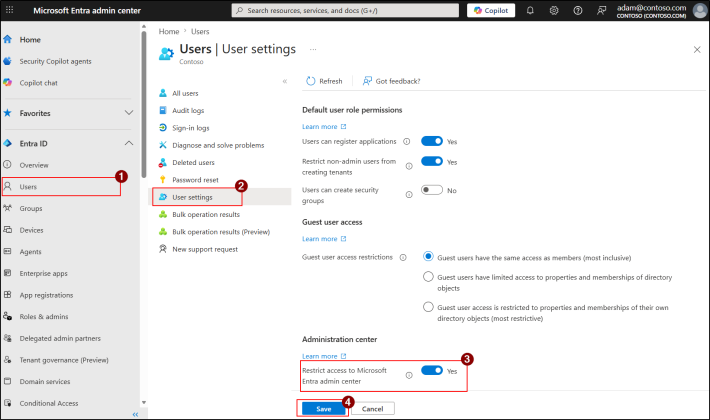
Open the Microsoft Entra admin center and navigate to Entra ID → Users → User settings.
Enable access restriction
In the Administration center section, toggle the Restrict access to Microsoft Entra admin center switch to enabled, then click Save.
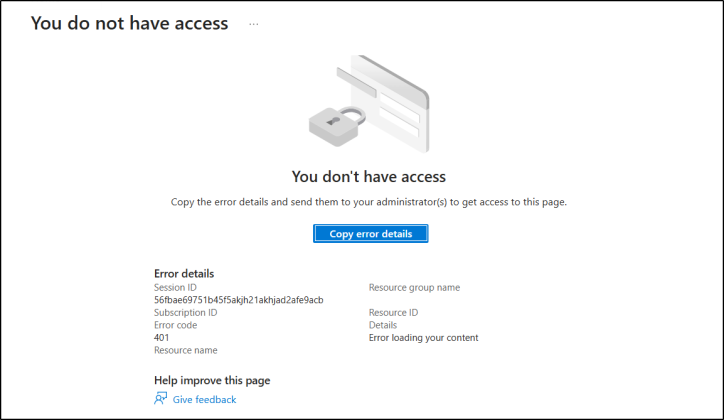
Once applied, non-administrator users who attempt to open the portal receive a blocking message.
Limitation of this approach
This setting only blocks the web interface of the admin center. Some Entra pages, such as Privileged Identity Management, remain accessible via direct links. This is a visibility restriction, not a complete security control.
Method 2: URL blocking via an Intune policy
Microsoft Intune allows blocking specific URLs in managed browsers on managed devices through a configuration profile. This approach is more granular: it can cover not only the Entra portal, but also other Microsoft 365 admin portals.
Create a configuration profile
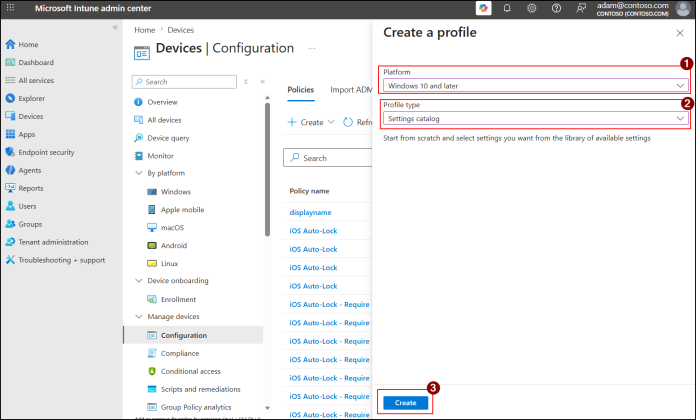
Open the Intune admin center, navigate to Devices → Configuration, then click + Create → New Policy.
In the Create a profile pane, select the target platform and choose Settings catalog as the profile type, then click Create.
Configure the blocklist
In the Basics section, enter the policy name and description, then click Next.
In Configuration settings, click + Add settings to open the settings selector. Search for blocklist and select the relevant browsers. For each, enable Block access to a list of URLs and toggle the switch to Enabled.
Enter the following URL in the blocking field:
1https://entra.microsoft.com/Assign the policy
In the Assignments section, use Add groups to select the target user and device groups. Review the summary, then click Create.
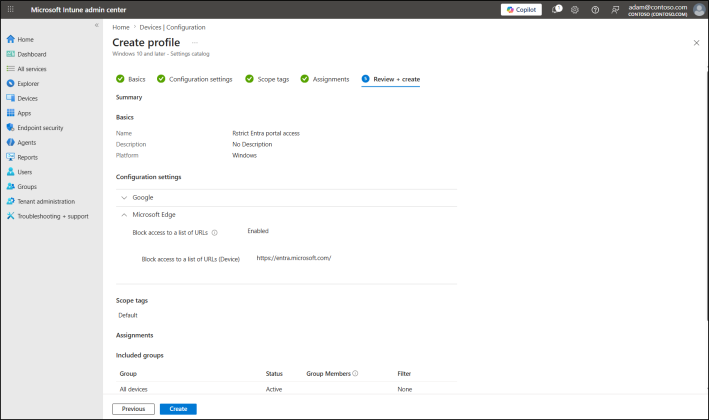
On managed devices, targeted users see the page blocked by the organizational policy.
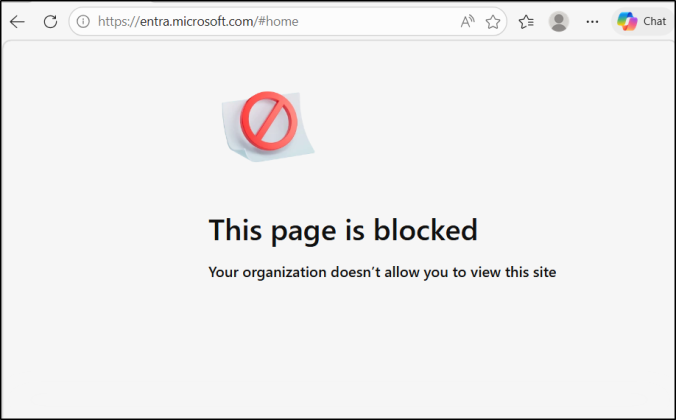
Scope limited to managed devices
This method only covers browsers on devices enrolled in Intune. It does not block access via PowerShell or Microsoft Graph API.
Method 3: Restrict PowerShell access for non-administrators
Even when portal access is blocked, a user can query the directory through PowerShell modules connected to Microsoft Graph. Controlling who can use these tools is therefore a distinct and complementary protection layer.
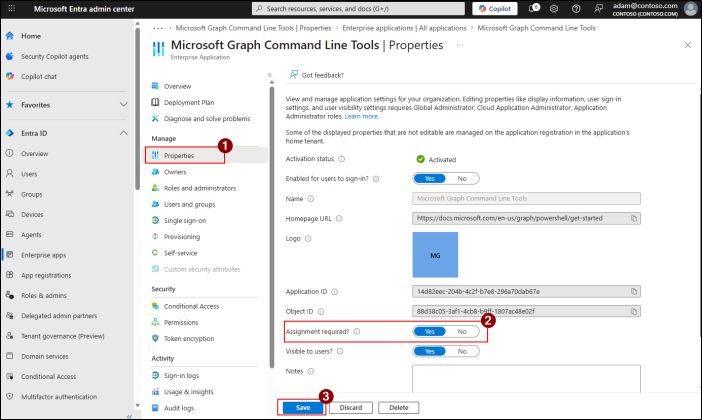
The approach consists of enabling mandatory assignment on the Microsoft Graph Command Line Tools enterprise application, then adding only authorized users to it.
Enable mandatory assignment
In the Entra admin center, navigate to Enterprise apps, search for Microsoft Graph Command Line Tools, and select it.
Under Manage → Properties, toggle Assignment required? to Yes, then click Save.
Assign authorized users
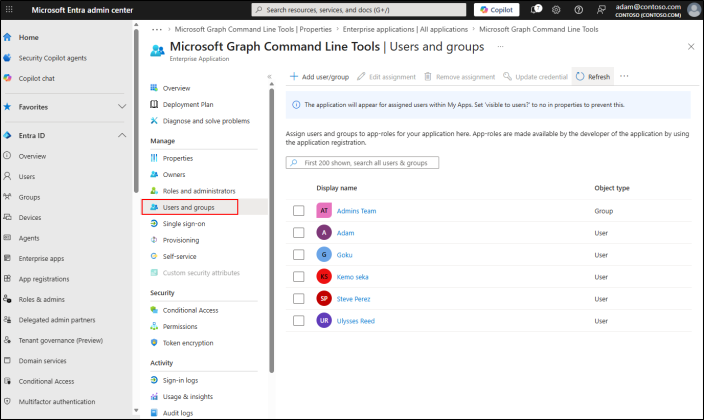
Still in the application, go to Users and groups and click + Add user/group.
On the Add Assignment page, select the users or groups authorized to use PowerShell tools, then click Assign.
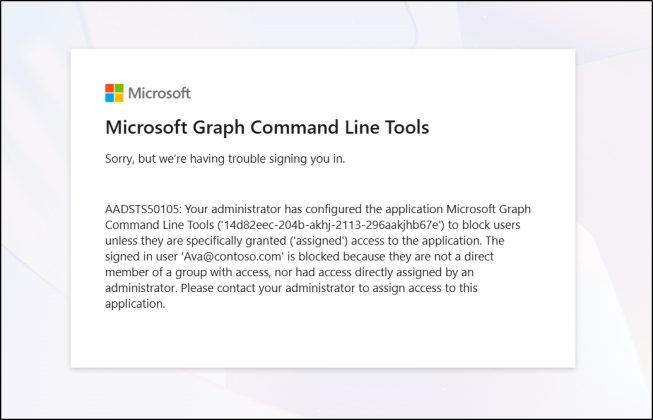
Any unassigned user who attempts to log in via PowerShell receives error 50105, indicating that access is denied due to lack of assignment to the enterprise application.
Extend restriction to other modules
Apply the same mandatory assignment logic to other PowerShell-related enterprise applications, such as PnP PowerShell and related modules, to reduce alternative access vectors.
Method 4: Complete blocking via conditional access policy
Conditional access is the only approach capable of blocking all entry points simultaneously: web portal, PowerShell, Microsoft Graph API, and other cloud applications related to Entra. It is the recommended method for comprehensive protection.
Create the policy
In the Entra admin center, navigate to Entra ID → Conditional Access, then click + Create new policy and give it an explicit name.
Configure target users and resources
Under Assignments:
- Users or agents (Preview): include all affected users. Explicitly exclude accounts with active PIM roles or other legitimate access needs.
- Target Resources: under Include, select Select resource, then search for and select Microsoft Admin Portals.
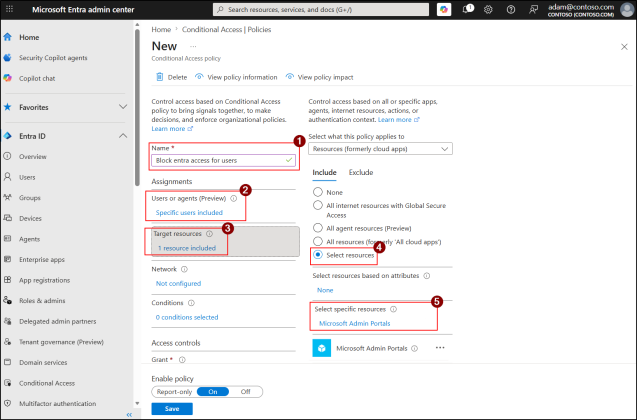
To also block access to APIs and cloud applications related to Entra, add Windows Azure Active Directory to the target resources.
Configure access control and enable the policy
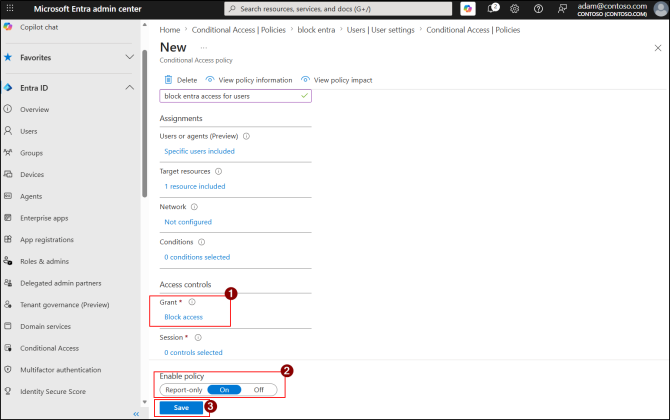
Under Access controls → Grant, select Block access, then click Select.
Toggle Enable policy to On and click Create.
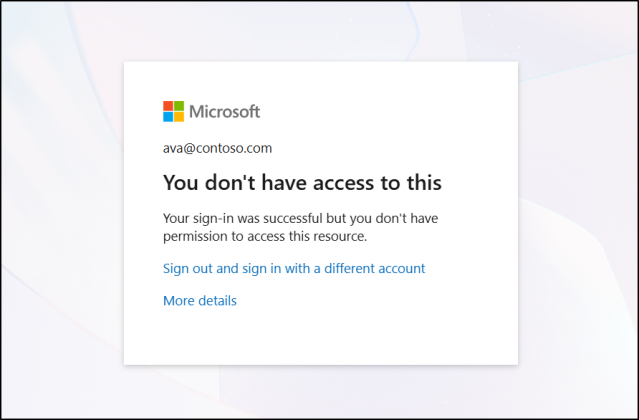
Users included in the policy receive the message "You don't have access to this" regardless of the access method used. Excluded users continue to access resources normally.
Test in report mode before enabling
Before toggling Enable policy to On, first enable the policy in Report-only mode to evaluate the actual impact on users and avoid accidentally blocking administrator accounts or automated processes.
Key takeaways
- The Microsoft Entra portal is accessible to all users by default: sensitive directory information is visible there without restriction.
- The Entra user setting is the quickest to deploy, but only covers the web interface of the portal.
- Intune configuration policies allow URL blocking on managed devices, without affecting PowerShell or API access.
- Assignment restriction on Microsoft Graph Command Line Tools closes the PowerShell vector, but must be combined with other methods.
- A conditional access policy targeting Microsoft Admin Portals is the only approach that covers all entry points simultaneously.
- No single method offers complete protection in isolation: a layered approach is the best practice.