
Microsoft quietly integrated in March 2026 a native backup and restore feature directly into Entra ID. For administrators managing large-scale environments, this is a paradigm shift: goodbye to homegrown scripts or third-party tools to capture the state of your Conditional Access policies or dynamic groups. This article is aimed at cloud engineers and Entra ID administrators who want to understand the exact scope of the feature, its limitations, and how to implement it in a controlled manner.
What Entra Backup and Recovery Covers
Entra Backup and Recovery is a Microsoft-managed feature that takes a daily snapshot — at 00:00 UTC — of several types of objects and configurations in your Entra ID tenant. Retention is fixed at 7 days, with no option to extend it. The backup remains in the same geographic region as your tenant.
The objects covered by the backup are as follows:
- Applications
- Authentication Method Policy
- Authorization Policy
- Conditional Access Policies
- Groups — with an important limitation: changes to owners and modifications to dynamic group rules are not included in the scope
- Named Location Policies
- Organization
- Service Principals, App Role Assignments, OAuth2 Permission Grants
- Users (including Agent ID) — note: changes to manager and sponsor are not covered
Limited Scope
Changes to group owners, dynamic group rules, user manager/sponsor attributes, and hybrid Active Directory environments are not within the scope of this feature.
Prerequisites and Permissions
Before enabling or using Entra Backup and Recovery, verify the following conditions:
Required License:
- Microsoft Entra ID P1 or P2
Tenant Type:
- Workforce tenant only. External ID and Azure AD B2C tenants are not supported.
Required Entra ID Roles (two new dedicated roles):
Microsoft Entra Backup Administrator— to create difference reports and launch restoresMicrosoft Entra Backup Reader— to view backups and reports in read-only mode
Principle of Least Privilege
Assign the Microsoft Entra Backup Reader role to your analysts and compliance teams. Reserve Microsoft Entra Backup Administrator for authorized administrators only who can trigger a restore.
To verify that your tenant meets the requirements, you can query Microsoft Graph directly from PowerShell:
1# Required module: Microsoft.Graph.Authentication (>= 2.x)2# Install-Module Microsoft.Graph.Authentication -Scope CurrentUser3# Required permission: Organization.Read.All4 5Connect-MgGraph -Scopes "Organization.Read.All"6 7$org = Get-MgOrganization8Write-Host "Tenant : $($org.DisplayName)"9Write-Host "Type : $($org.TenantType)"The TenantType value should return AAD for a Workforce tenant. If you get B2C or CIAM, the feature is not available.
Navigating the Backup and Recovery Interface
The feature is accessible from the Entra admin center portal:
Access the Entra portal
Open the portal at entra.microsoft.com with an account that has the Microsoft Entra Backup Administrator or Microsoft Entra Backup Reader role.
Navigate to Backup and Recovery
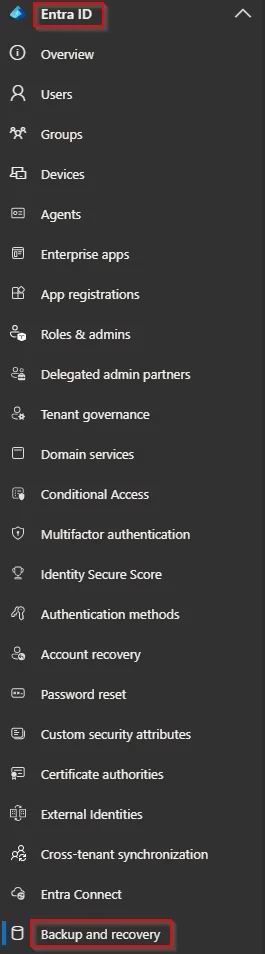
In the left panel, expand Entra ID, then click on Backup and recovery.
Explore the Three Available Menus
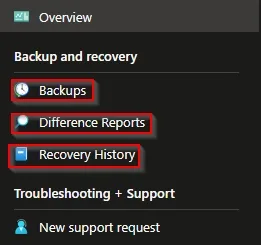
From the main page, three sections are available:
- Backups: list of 7 daily snapshots available for restore
- Difference Reports: generation and viewing of difference reports between two states
- Recovery History: tracking of all in-progress and completed restores
Creating a Difference Report
The difference report is the cornerstone of the feature: it compares the current state of your tenant with a previous snapshot and lists all modified or deleted objects that are recoverable.
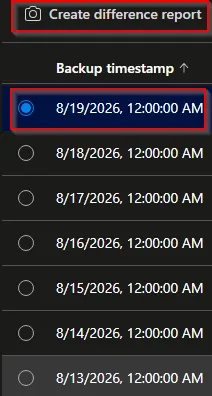
Select a Reference Snapshot
In the Backups section, select one of the 7 available snapshots, then click on Create difference report.
Choose Object Types to Analyze
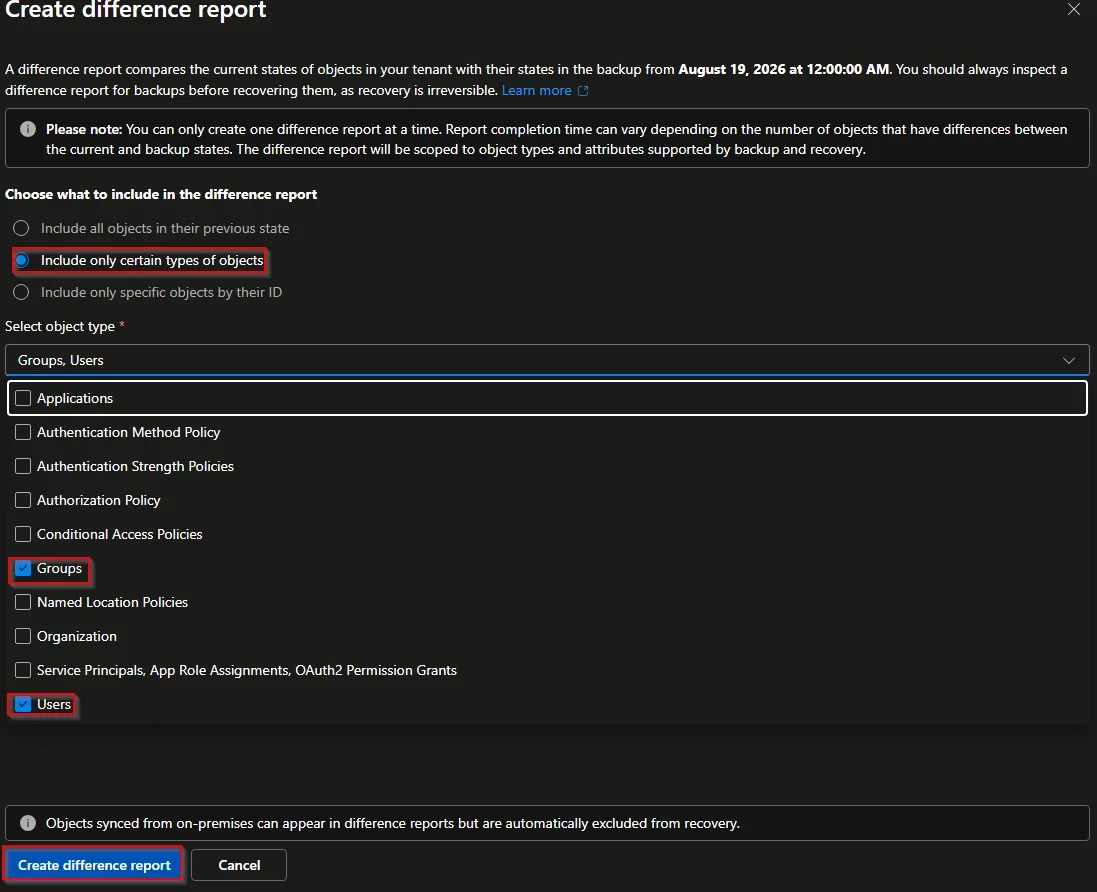
Select the categories of objects to include in the report (for example: Groups and Users), then click on Create difference report.
One Report at a Time
You can only generate one difference report simultaneously. The generation time depends on the number of objects in your tenant — anticipate this delay if you are in an incident context.
Track Report Generation
Navigate to Difference Reports to monitor progress. The report transitions from Generating to Completed once finished.
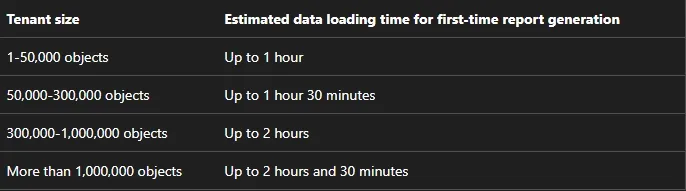
Analyze Detected Changes
Open the generated report. You will see the list of objects modified, deleted, or created between the snapshot and the current state, with the action type associated with each object.

Restoring an Object or All Changes
Once the difference report is open, two levels of restore granularity are available.
Targeted Restoration of a Single Object
Select the object to restore in the report (for example, a specific user or group), then click on Recover this object.
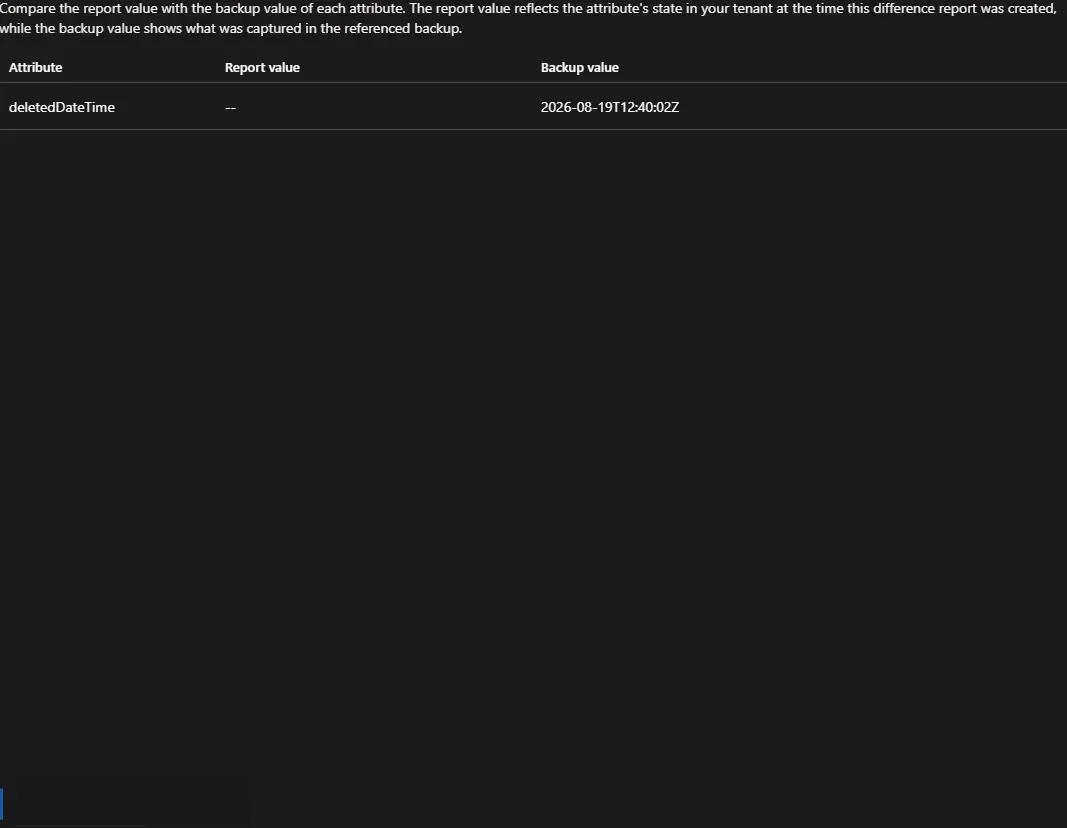
The restore is nearly instantaneous. You can track its status in Recovery History.

Bulk Restore of All Changes
If the incident is large-scale (bulk deletion or modification), you can restore all modified objects from the report by clicking on Recover at the report level.
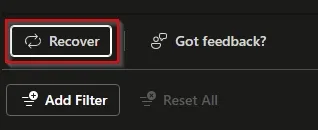
Tenant-Wide Impact Operation
Bulk restore overwrites the current state of all objects included in the report. Before launching a global restore, generate and review the entire difference report to avoid unwanted side effects.
Implementation: Programmatic Verification via Microsoft Graph
Microsoft Graph exposes the endpoints of the Backup and Recovery feature. The following script illustrates how to list available snapshots and export the status of existing difference reports — useful for integrating this information into a monitoring dashboard or automating a post-incident check.
1# Required module: Microsoft.Graph.Beta (>= 2.x)2# Install-Module Microsoft.Graph.Beta -Scope CurrentUser3#4# Required permission (application or delegated):5# - BackupRestore.Read.All (read backups and reports)6# - Minimum Entra role: Microsoft Entra Backup Reader7#8# Output: list of available snapshots and difference reports9 10Connect-MgGraph -Scopes "BackupRestore.Read.All"11 12# Retrieve the list of available backup snapshots13Write-Host "`n=== Available Snapshots ==="14$backups = Invoke-MgGraphRequest -Method GET `15 -Uri "https://graph.microsoft.com/beta/solutions/backupRestore/directoryBackups" `16 -OutputType PSObject17 18foreach ($snapshot in $backups.value) {19 Write-Host "ID : $($snapshot.id)"20 Write-Host "Status : $($snapshot.status)"21 Write-Host "Date : $($snapshot.createdDateTime)"22 Write-Host "---"23}24 25# Retrieve the status of existing difference reports26Write-Host "`n=== Difference Reports ==="27$reports = Invoke-MgGraphRequest -Method GET `28 -Uri "https://graph.microsoft.com/beta/solutions/backupRestore/restorePoints" `29 -OutputType PSObject30 31foreach ($report in $reports.value) {32 Write-Host "ID : $($report.id)"33 Write-Host "Status : $($report.status)"34 Write-Host "Start : $($report.createdDateTime)"35 Write-Host "---"36}API in Beta Version
The endpoints used above are under /beta and may evolve. Test them in a non-production environment before automating in production. Consult the Microsoft Graph documentation to track their progress toward /v1.0.
Entra Backup and Recovery versus Soft Delete
The two mechanisms coexist and address different use cases. Choosing the right tool for the situation saves time during an incident.
| Criterion | Soft Delete | Entra Backup and Recovery |
|---|---|---|
| Supported objects | Users, groups, CA policies | Users, groups, applications, SP, CA policies, Named Locations, Auth Method Policy, Organization |
| Retention | 30 days | 7 days |
| Restore configuration changes | No — deletion only | Yes — deletions and modifications |
| Bulk restore | No — object by object | Yes — tenant-wide on selected scope |
| Difference report | No | Yes |
| Management | Self-service in portal | Dedicated Backup Administrator/Reader roles |
| Required license | Depends on object (sometimes free) | Entra ID P1 or P2 |
Accessing the Soft Delete Trash
For simple cases — a user or Conditional Access policy accidentally deleted — the Soft Delete trash remains the fastest option. For Conditional Access policies:
- Go to
entra.microsoft.com - Navigate to Entra ID → Conditional Access
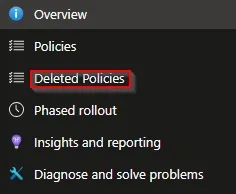
- Click on Deleted Policies in the main menu
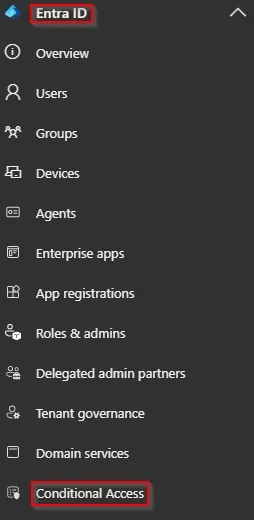
The same Deleted option is available for Groups and Users.
Troubleshooting Common Errors
The Backup and Recovery section does not appear in the portal
- Verify that your account has the
Microsoft Entra Backup AdministratororMicrosoft Entra Backup Readerrole. - Verify that your tenant is a Workforce tenant (not External ID or B2C).
- Verify that the Entra ID P1 or P2 license is properly assigned.
The difference report is stuck in Generating state
- Only one report can be generated at a time. If a report is in progress, wait for it to complete before creating a new one.
- Generation time increases proportionally with the number of objects in the tenant — several tens of minutes are possible on large-scale tenants.
The Recover this object option is grayed out
- Your account has only the
Microsoft Entra Backup Readerrole. TheMicrosoft Entra Backup Administratorrole is required to trigger a restore.
The restored object does not reflect the expected state
- Attributes outside the scope (manager, sponsor, group owners, dynamic rules) are not restored. Manually verify these attributes after the restore.
What to Do Now
Entra Backup and Recovery is a welcome native feature, but it has operational limitations that must be anticipated before an incident:
- Assign the dedicated roles (
Microsoft Entra Backup AdministratorandMicrosoft Entra Backup Reader) according to the principle of least privilege — don't give the first one to everyone. - Generate a baseline difference report now to validate that the feature is active in your tenant and familiarize yourself with the interface before you need it in an emergency.
- Supplement with an external backup solution: the backup remains in your tenant, in the same geographic region. A scenario of corruption at the tenant level or deletion of the tenant itself is not covered. Third-party tools or regular exports via Microsoft Graph to external storage remain recommended.
- Document the 7-day limit in your disaster recovery plan: an incident not detected within the week cannot be restored via this feature.
- If your organization has a hybrid Active Directory, note that support is not yet available — monitor the Microsoft 365 roadmap for a possible extension.