
With over 30 million Microsoft 365 Copilot licenses sold according to Microsoft's Q4 FY26 results, the question is no longer "if" your users will adopt Copilot, but "what state is your tenant in when they do". Poorly managed permissions, abandoned sites, unlabeled files: each of these blind spots becomes a data leak vector as soon as AI starts exploring your content. This article is aimed at SharePoint and Microsoft 365 administrators who want to lay the correct technical foundations before enabling Copilot in production.
Licenses: What to Buy First
Before any deployment, acquire at least a few Microsoft 365 Copilot licenses for testing and tenant preparation. It's not just a budget question: the presence of a single Copilot license in the tenant unlocks a set of SharePoint Advanced Management (SAM) features that are otherwise inaccessible, namely data access governance reporting.
Also review your existing license mix. Office 365 E5 and Microsoft 365 E5 references offer a concrete advantage for Copilot deployments:
- Auto-label policies
- Default labels for document libraries
- Extended audit retention
- DLP (Data Loss Prevention) for Microsoft Teams
If your users are on E3 or lower licenses, anticipate the impact on available compliance capabilities: some of the most effective controls against leaks via Copilot require E5.
Good to Know
SharePoint Advanced Management is included with any active Microsoft 365 Copilot license in the tenant. No need to buy SAM separately if you deploy Copilot.
SharePoint Online Cleanup: Absolute Priority
AI does not distinguish between a reference document and an obsolete 2019 draft. If Copilot finds a file via Microsoft Search or semantic index and the user has access to it, it will exploit it to generate its responses. The quality of Copilot responses is therefore directly correlated to the quality of your document assets.
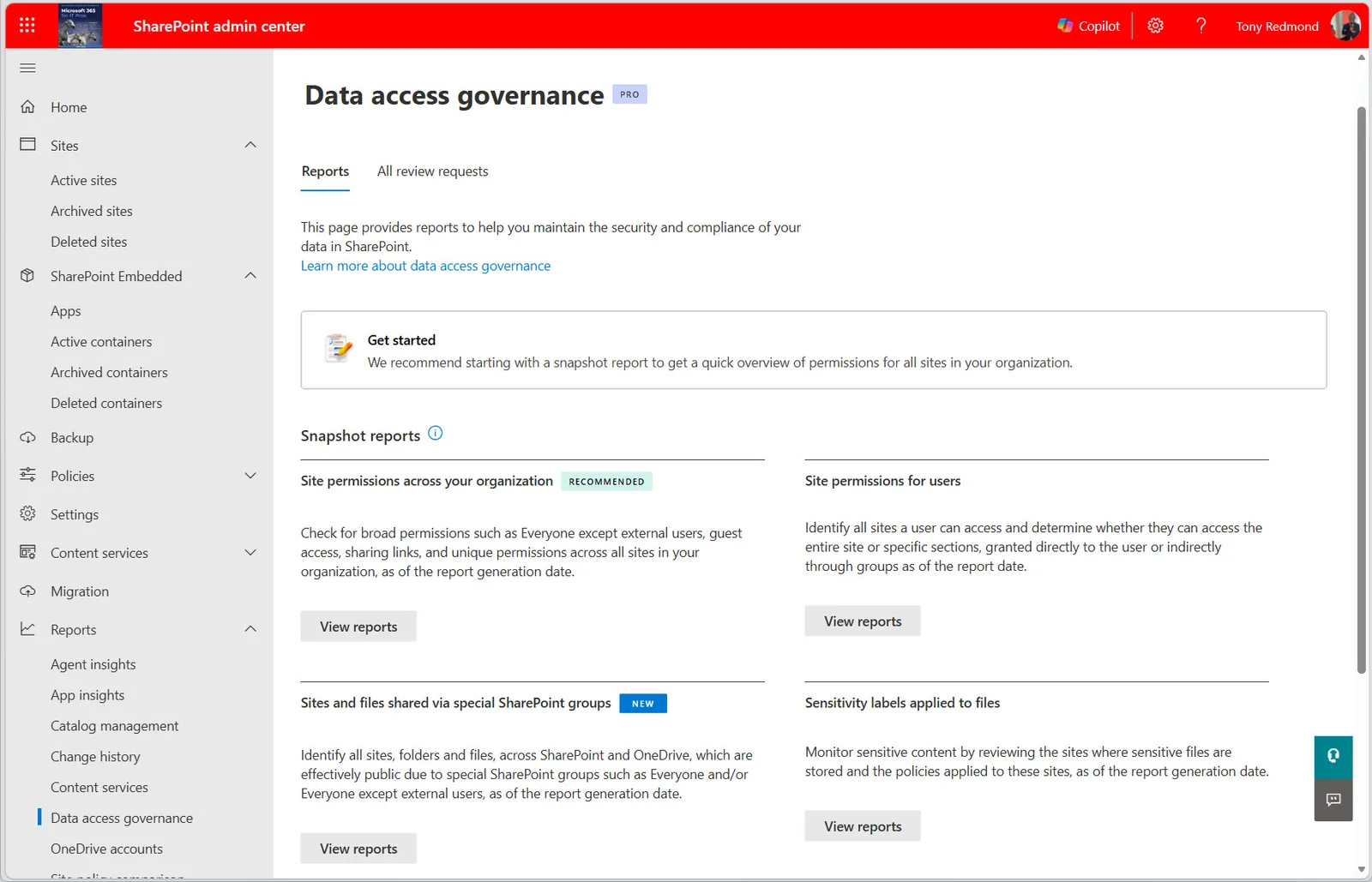
Data Access Governance Reports
Start by enabling and exploiting the data access governance reports available in the SharePoint admin center. These reports identify:
- Sites with excessive sharing (oversharing)
- Libraries accessible via "Anyone" links
- Orphaned permissions or inherited from inactive groups
Anonymous Sharing Links
Anyone links (anonymous sharing) are particularly dangerous in a Copilot context: any content accessible via this type of link is potentially exploitable by AI for any user in the tenant. Reduce their usage to the bare minimum, ideally by disabling them at the tenant level or restricting them to specific domains.
1# Required module: Microsoft.Online.SharePoint.PowerShell2# Minimum permission: SharePoint Administrator3# Install the module if missing:4# Install-Module -Name Microsoft.Online.SharePoint.PowerShell -Scope CurrentUser5 6# Connect to the SharePoint admin center7Connect-SPOService -Url "https://your-tenant-admin.sharepoint.com"8 9# Disable Anyone links at the tenant level10Set-SPOTenant -SharingCapability ExternalUserSharingOnly11 12# Verify the result13(Get-SPOTenant).SharingCapability14# Expected value: ExternalUserSharingOnlyTenant-wide Impact
Modifying SharingCapability at the tenant level immediately affects all sites. Test first on a pilot site with Set-SPOSite -Identity <url> -SharingCapability ExternalUserSharingOnly before applying globally.
Site Architecture: Regain Control
Since the arrival of Microsoft 365 Groups in 2015 and Microsoft Teams in 2017, the proliferation of SharePoint sites has become uncontrollable in most tenants. Each new Teams team generated a SharePoint site, many of which became inactive within months.
Restricted Content Discovery
Enable the Restricted Content Discovery (RCD) feature on sites containing confidential or sensitive information. RCD prevents Copilot from indexing and returning content from these sites, even if the user technically has access to it.
1# Required module: Microsoft.Online.SharePoint.PowerShell2# Minimum permission: SharePoint Administrator3 4# Enable Restricted Content Discovery on a specific site5Set-SPOSite -Identity "https://your-tenant.sharepoint.com/sites/confidential" `6 -RestrictContentOrgWideSearch $true7 8# Verify the status9(Get-SPOSite -Identity "https://your-tenant.sharepoint.com/sites/confidential").RestrictContentOrgWideSearch10# Expected value: TrueAuthoritative Sites
Identify and mark authoritative sites — those containing your official references, validated procedures, and up-to-date documentation. Copilot prioritizes content from these sites in its responses, which improves output reliability for users.
Archiving with Microsoft 365 Archive
Microsoft 365 Archive allows you to move inactive sites to cheaper "cold" storage while maintaining their accessibility for eDiscovery and Purview solutions. Crucial point: Copilot cannot access archived content, making it a powerful lever to isolate historical data from AI that you must retain but don't wish to expose.
In preview at the time of writing, a new capability also allows you to amend retention policies and labels to move files to Microsoft 365 Archive before the end of their retention period.
Tip
Archiving is also effective against third-party AI connectors like Microsoft 365 connectors for Claude or ChatGPT: archived content remains inaccessible to them.
Labeling and Classification: Automate at Scale
With millions of files in a typical tenant, manual labeling is illusory. E5 licenses allow you to deploy auto-label policies to apply retention and confidentiality labels without user intervention.
Action items:
- Configure default labels on document libraries to ensure every new file deposited receives a minimum label.
- Use trainable classifiers to automatically detect specific file types: invoices, sales proposals, contracts. These classifiers are available exclusively with E5.
- Ensure labeling covers existing content retroactively via auto-labeling policies in simulation mode before activation.
1# Required module: ExchangeOnlineManagement (for Purview/Compliance cmdlets)2# Minimum permission: Compliance Administrator3# Install-Module -Name ExchangeOnlineManagement -Scope CurrentUser4 5Connect-IPPSSession -UserPrincipalName admin@your-tenant.onmicrosoft.com6 7# List existing auto-labeling policies8Get-AutoSensitivityLabelPolicy | Select-Object Name, Mode, ApplySensitivityLabel9 10# Simulation mode (TestWithoutNotifications): no labeling applied11# Active mode: Enforce12# Review the simulation report before switching to Enforce modeData Loss Prevention: Block Copilot in the Right Place
DLP (Data Loss Prevention) is the other pillar of Copilot security. Microsoft has significantly extended DLP conditions and actions to cover Copilot scenarios. Here's what you can block today:
| DLP Control | What is Blocked | Recommended Priority |
|---|---|---|
| Files with specific confidentiality labels | Copilot cannot read or cite these files | High |
| External emails in prompts | Copilot cannot include emails sent outside tenant | Medium |
| Web searches in Copilot | Disables Copilot's access to public web | Per policy |
| Prompts containing sensitive information types | Blocks prompts including bank card numbers, IBAN, etc. | High |
If you must prioritize, start with two controls that offer the best risk/disruption ratio:
- Protection of labeled files: prevents Copilot from returning confidential or higher-classified content.
- Sensitive prompt filtering: blocks user prompts that might accidentally contain personal or financial data.
1# Verify existing DLP policies targeting Copilot2# Required module: ExchangeOnlineManagement3# Minimum permission: Compliance Administrator4 5Connect-IPPSSession -UserPrincipalName admin@your-tenant.onmicrosoft.com6 7# List active DLP policies and their locations8Get-DlpCompliancePolicy | Select-Object Name, Mode, ExchangeLocation, TeamsLocation |9 Where-Object { $_.Mode -eq 'Enable' }10 11# List rules for a specific policy12Get-DlpComplianceRule -Policy "Your-Policy-Name" |13 Select-Object Name, Disabled, ContentContainsSensitiveInformationImplementation: Copilot Readiness Audit Script
The following script produces a quick status report on the axes covered in this article: anonymous sharing, Restricted Content Discovery, and active DLP policies. It is designed read-only — no modifications are applied.
Prerequisites:
Microsoft.Online.SharePoint.PowerShellmodule (version 16.0 or higher)ExchangeOnlineManagementmodule (version 3.x)- Minimum role: SharePoint Administrator + Compliance Administrator (or Global Reader for the audit part)
1# ============================================================2# Script: Copilot Readiness Audit for Microsoft 365 Tenant3# Read-only — no modifications applied4# ============================================================5 6param(7 [Parameter(Mandatory)]8 [string]$TenantAdminUrl, # Ex: https://contoso-admin.sharepoint.com9 [Parameter(Mandatory)]10 [string]$AdminUPN # Ex: admin@contoso.onmicrosoft.com11)12 13# --- 1. Connect to services ---14Write-Host "[1/4] Connecting to SharePoint Online..." -ForegroundColor Cyan15Connect-SPOService -Url $TenantAdminUrl16 17Write-Host "[2/4] Connecting to Purview Compliance..." -ForegroundColor Cyan18Connect-IPPSSession -UserPrincipalName $AdminUPN19 20# --- 2. Verify anonymous sharing at tenant level ---21Write-Host "[3/4] Verifying sharing configuration..." -ForegroundColor Cyan22$tenantConfig = Get-SPOTenant23$sharingLevel = $tenantConfig.SharingCapability24 25Write-Host "`n=== ANONYMOUS SHARING (TENANT) ===" -ForegroundColor Yellow26if ($sharingLevel -eq 'ExternalUserAndGuestSharing') {27 Write-Warning "RISK: Anyone links are enabled at tenant level. Current value: $sharingLevel"28} else {29 Write-Host "OK: Sharing configured to '$sharingLevel'" -ForegroundColor Green30}31 32# --- 3. Sites without Restricted Content Discovery ---33Write-Host "`n=== SITES WITHOUT RESTRICTED CONTENT DISCOVERY ===" -ForegroundColor Yellow34$allSites = Get-SPOSite -Limit All -IncludePersonalSite $false35$sitesWithoutRCD = $allSites | Where-Object { $_.RestrictContentOrgWideSearch -eq $false }36 37Write-Host "Sites without RCD: $($sitesWithoutRCD.Count) / $($allSites.Count)"38$sitesWithoutRCD | Select-Object Url, Title | Format-Table -AutoSize39 40# --- 4. Active DLP policies ---41Write-Host "`n=== ACTIVE DLP POLICIES ===" -ForegroundColor Yellow42Get-DlpCompliancePolicy |43 Where-Object { $_.Mode -eq 'Enable' } |44 Select-Object Name, Mode |45 Format-Table -AutoSize46 47Write-Host "`n[4/4] Audit complete." -ForegroundColor GreenExpected output: the script displays the tenant sharing level, the number of sites without RCD, and the list of active DLP policies. No data is modified.
Troubleshooting Common Errors
Verify that your account is actually SharePoint Administrator in the Microsoft 365 admin center (not just a member of a site's SharePoint Administrators group). Tenant-wide cmdlets require this Entra ID role, not a site-level permission.
Ensure that the ExchangeOnlineManagement module is version 3.x minimum (Get-Module ExchangeOnlineManagement -ListAvailable). Version 2.x does not support modern authentication for Purview endpoints. Update with Update-Module ExchangeOnlineManagement.
RCD parameter propagation can take up to 24 hours to be reflected in the search index. Verify the status with (Get-SPOSite -Identity <url>).RestrictContentOrgWideSearch immediately after, then wait before testing via Copilot.
DLP policies for Copilot use a specific location. Check with Get-DlpCompliancePolicy | Select-Object Name, *Copilot* or go directly to the Microsoft Purview portal under Data Loss Prevention > Policies by filtering on "Microsoft Copilot" location.
What You Do Monday
Here are the priority actions, in order of impact:
- Buy a few Copilot licenses to unlock SharePoint Advanced Management and start testing in real conditions.
- Launch data access governance reports in the SharePoint admin center — they typically reveal surprises in the first 10 minutes.
- Audit Anyone links at tenant and site level; disable them where not justified.
- Enable Restricted Content Discovery on all sites containing HR, financial, or legal data.
- Deploy at least two DLP rules: protection of files labeled Confidential and filtering of prompts with sensitive information types.
- Build your automatic labeling plan in simulation mode before any activation.
If your organization is on E3, focus on steps 1-4 initially — they don't require E5. If you're on E5, trainable classifiers and auto-label policies will allow you to retroactively cover your existing document assets, which often represents most of the risk.