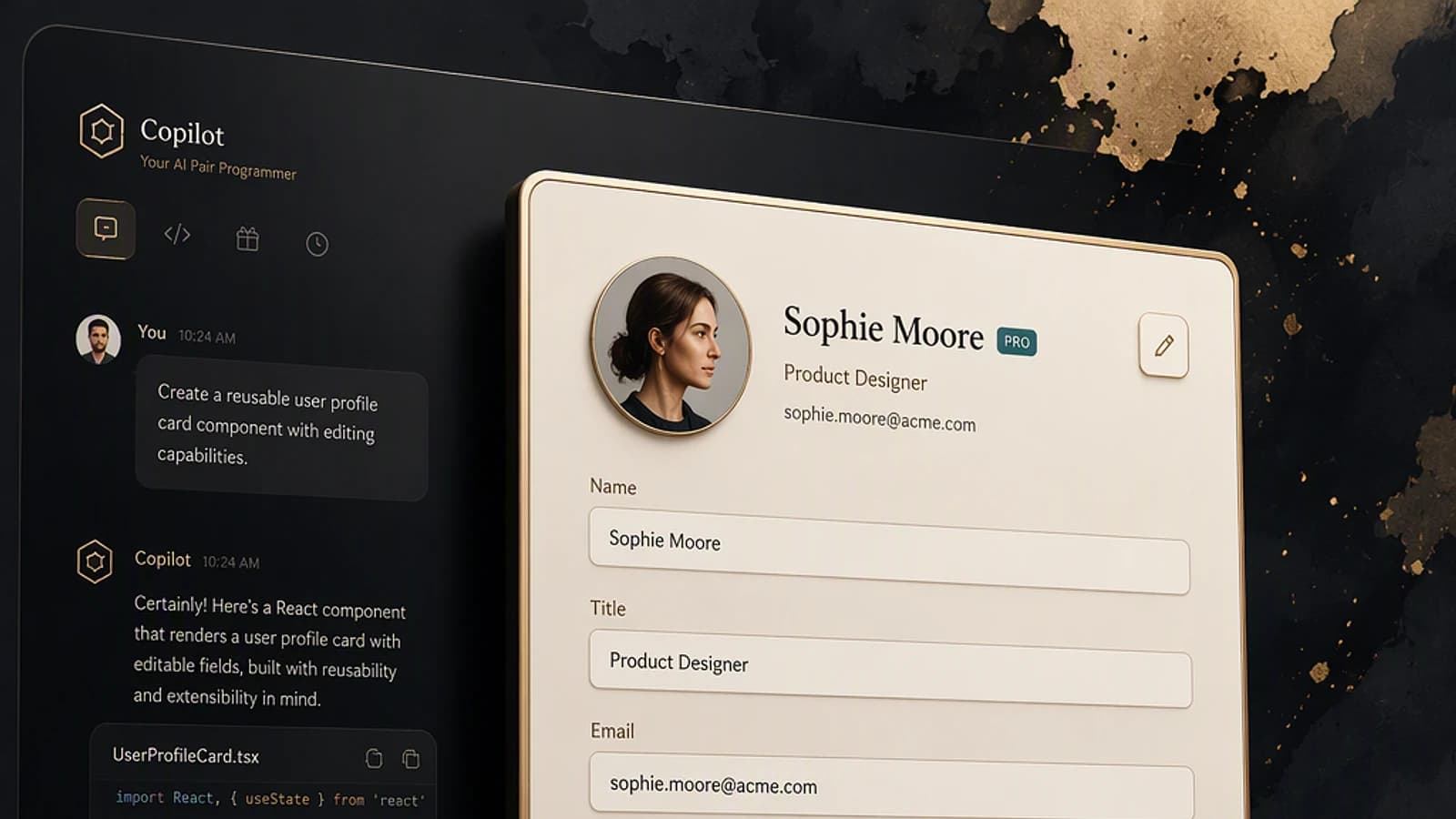
Copilot responds in text, but text is no longer sufficient when you need to fill a form, filter a table, or launch a training video. Microsoft announces SharePoint Copilot Apps, an extension of the SharePoint Framework (SPFX) that allows you to build complete, operational user interfaces directly within the Copilot canvas. This article is aimed at Microsoft 365 administrators and SPFX developers who want to understand how this feature works—still in preview phase—and prepare for it concretely.
What is SharePoint Copilot Apps
SharePoint Copilot Apps is a new type of component for the SharePoint Framework, the extensibility layer already used daily by tens of millions of Microsoft 365 users to create web parts, extensions, and custom solutions.
Until now, this extensibility stopped at SharePoint and Teams. With this innovation, the same development logic extends to the Copilot canvas: an agent can now respond not with a simple text block, but with a fully interactive React component (or any other modern JavaScript framework)—buttons, forms, cards, charts, filters.
Three principles structure this extension:
- Automatic hosting within the customer tenant: code executes inside the tenant, with no calls to an external application hosted by a third party.
- Automatic single sign-on (SSO): the component inherits the user's identity context, with no additional configuration.
- Standard web tooling: no proprietary development model—React, Angular, or any other commonly used JavaScript library works.
Provisional Name
The name "SharePoint Copilot Apps" is the one used at the time of the announcement. Microsoft indicates it may change before general availability (GA).
How Agent, Copilot, and SPFX Work Together
The model relies on three layers that work together:
- The agent analyzes the user's request and decides on the response to provide.
- Copilot hosts the conversation and displays the result to the end user.
- The SharePoint Copilot App component carries the business logic: it displays data, manages clicks, fills forms, and can connect to external systems via APIs secured by Microsoft Entra ID or Microsoft Graph.
This business logic remains entirely on the developer's side: nothing forces the user to leave Copilot to accomplish an action, whereas before it was often necessary to switch to the corresponding SharePoint or Teams application.
Prerequisites Before Getting Started
Before manipulating anything, verify the following points:
- License: users who will test the experience must have an active Microsoft 365 Copilot license.
- SPFX development environment: Node.js in a compatible version, the Yeoman generator
@microsoft/sharepointand Gulp installed locally. - SharePoint Framework version: the feature comes with version 1.24 of SPFX. An update to your build environment will be necessary as soon as it becomes available.
- Administration rights: a SharePoint Administrator or Global Administrator role is required to deploy a package to the app catalog (App Catalog) of the tenant.
- Front-end knowledge: a foundation in React, Angular, or any other modern JavaScript framework, since the development model remains identical to that of classic SPFX web parts.
- Access to Microsoft 365 agents / Copilot Studio to associate a component with an existing or newly created agent.
Preview Feature
At the time of announcement, SharePoint Copilot Apps is not yet available in production. The steps below describe the expected course of the public preview; some implementation details (exact CLI generator options, final name of the component type) will be clarified in the official documentation at launch.
Classic Web Part or Copilot App: What Changes
| Criterion | Classic SPFX Web Part | SharePoint Copilot App |
|---|---|---|
| Display Surface | SharePoint, Teams | SharePoint, Teams, Copilot canvas |
| Development Model | React / Angular / JS via SPFX | Identical (React / Angular / JS via SPFX) |
| Hosting | Within the customer tenant | Within the customer tenant |
| Authentication | Automatic SSO | Automatic SSO |
| Natural Language Control | No | Yes, via the Copilot orchestrator |
| Dedicated Full-Screen Mode | Not native | Activatable by the developer |
The same React component can, depending on cases, be hosted as a classic web part or as a Copilot App: it is the host that changes, not the application logic.
Build and Deploy Your First Copilot App
Update Your Environment to SPFX 1.24
As soon as version 1.24 of the SharePoint Framework is released, update your global Yeoman generator installation and your project dependencies. This version introduces the new component type dedicated to the Copilot canvas.
Generate a New SPFX Project
Launch the usual generator:
1yo @microsoft/sharepointAnswer the generator's questions (solution name, desired JavaScript framework). Once the new component type becomes available in production, it will appear in the list of choices offered, alongside existing types (Web Part, Extension, Library).
Develop the User Experience
Build your component like a classic SPFX web part: forms, filterable lists, charts, calls to external APIs via Microsoft Graph or APIs secured by Entra ID. The business logic lives entirely in this component.
Plan for Full-Screen Mode
If your UX benefits from wider display space (embedded video player, detailed table, documents), add a toggle option for full-screen mode in your component. Copilot constrains display width by default inline; it is up to the developer to expose an extended experience when relevant.
Deploy the Package to the App Catalog
Compile and package your solution, then deploy the .sppkg file to the app catalog of your tenant, exactly as for a standard SPFX web part. No external hosting infrastructure is necessary: code executes within the customer's tenant.
Associate the Component with an Agent
Configure your agent (via Copilot Studio or the Microsoft 365 agents mechanism) to invoke your SharePoint Copilot App component in response to certain user intentions, in addition to or instead of a classic text response.
Test in the Copilot Canvas
Open Copilot, select your agent, and ask the targeted question. The call goes to the agent's back-end, which returns both a text response and the component's UX, rendered directly in the conversation.
Verify That Your Copilot App Works Correctly
Once deployment is complete, several signals confirm that everything is working as expected:
- The agent's response displays both a summary text and a fully interactive interface block (buttons, filters, lists) below the conversation.
- A full-screen icon or option appears if you implemented it, and activating it opens a noticeably wider canvas.
- A question phrased in natural language (for example, asking to filter content by duration or category) automatically triggers a visual update of the component, without the user needing to manually click on filters—it is the orchestrator that translates the intention into a UX state change.
- Calls to external systems (Graph API, Entra ID-secured APIs) return real data without additional login prompts, proof that automatic SSO works.
Use Cases to Anticipate
Microsoft presents three major families of scenarios for this new type of component:
| Agent Category | Usage Examples |
|---|---|
| Line of Business Agents | Business data, financial dashboards, stock quotes, cafeteria menu, weather, travel reservations, expense reports |
| Corporate Communication Agents | Personalized news, ongoing tasks, personal dashboards, HR information, onboarding, visual Q&A |
| Management and Governance Agents | SharePoint site creation, Power Platform settings configuration, administration options exposed via UX rather than text |
In the demonstration presented by Microsoft, an onboarding agent displayed the task list for a new employee, with a focus on remaining security trainings. Switching to full-screen mode revealed an embedded video player and documents, where the inline view was limited to a list. A natural language request like "which trainings can I complete in the half hour I have left" automatically applied a filter on the duration displayed on screen.
Announced Timeline
- The public preview of SharePoint Copilot Apps is planned with the release of version SharePoint Framework 1.24, initially announced for late June but more likely early July.
- General availability (GA) is scheduled for autumn 2026, rather at the beginning of the season than at the end of the calendar year.
- Documentation, tutorials, and code samples will be published at the launch of the preview.
These deadlines were communicated verbally by the product team and may change; follow the official SharePoint Framework documentation on Microsoft Learn for confirmation of dates.
If You Encounter Problems
- The component does not display in Copilot: verify that the
.sppkgpackage is properly deployed and approved in the app catalog of the tenant, and that the agent correctly references the component identifier. An unapproved SPFX solution remains invisible to Copilot, exactly as for SharePoint. - Error or access refusal when calling an external API: check the Microsoft Graph permissions or the Entra ID application associated with your SPFX solution. Automatic SSO does not eliminate the need for prior administrator consent on necessary delegated permissions.
- The new component type does not appear in the SPFX generator: ensure you have updated to version 1.24 (or later) and that your tenant is properly registered for the relevant public preview program. As long as this version is not generally deployed, behavior may differ from tenant to tenant.
Key Takeaways
SharePoint Copilot Apps does not replace existing SPFX web parts: it extends their reach to the Copilot canvas, reusing the same development model, the same hosting within the tenant, and the same single sign-on. If your organization has already invested in the SharePoint Framework, those investments become directly usable in Copilot experiences, without rewriting from scratch.
While awaiting the opening of the public preview with SPFX 1.24, the most useful thing is to prepare your development environment, identify business scenarios that would benefit from rich UX rather than a text response, and follow official Microsoft channels for the arrival of documentation and code samples.