New Outlook is generally available, but that status does not guarantee it can replace processes built around classic Outlook. To decide who can switch, test each user group’s dependencies rather than comparing only the interfaces.
General availability does not mean a mandatory switch
Microsoft says new Outlook for Windows has been generally available since August 1, 2024. Yet, as of September 29, 2026, the enterprise migration described by Microsoft Learn remains in an opt-in phase: the new client is not enabled by default in this scenario, and users can return to classic Outlook.
Microsoft then describes a phase in which new Outlook will become the default experience while still allowing users to switch back, followed by a final transition. No date has been announced for the final transition. Microsoft plans to give at least 12 months’ notice before the phase in which switching back is no longer possible and will support existing classic Outlook installations until at least 2029. That support milestone is not a retirement date.
A supported client does not automatically replace your integrations
As Tony Redmond points out in his analysis of general availability, product status must be distinguished from feature parity with classic Outlook. Start with people who are already comfortable using Outlook on the web, then expand the pilot based on workflows you have actually validated.
Compare workflows, not just features
The main breaking point is extensibility. Classic Outlook supports VBA macros, COM add-ins and integrations based on the Outlook Object Model or MAPI. New Outlook does not support COM add-ins, but it does accept existing Outlook web add-ins, as the Microsoft Learn overview of the new client explains. An inventory should therefore link every add-in in use to its business process and any potential web replacement; our guide to adapting add-ins to the Outlook ribbon takes this work further.
| Workflow to check | Classic Outlook | New Outlook | Decisive test |
|---|---|---|---|
| VBA and COM add-ins | Supported | Not supported | Find a web add-in or retain the classic client |
| PST files | Established local use | Partial support | Open the required archives and test routine operations |
| Rules and Quick Steps | Customisable workflows | Partial coverage depending on the feature | Reproduce every critical rule or sequence of actions |
| Offline work | Local cache is central to the workflow | Some operations available | Disconnect from the network and complete an entire scenario |
| Shared mailboxes and delegation | Established delegation workflows | Some capabilities remain partial | Test calendars, delegated sending, folders and archives |
| Word–Outlook mail merge | Integration used for mail merge | Does not replace this workflow | Keep classic Outlook if this integration is essential |
Partial does not mean static. The Microsoft release notes indicate that, since August 21, 2026, Focused and Other mail views have been available offline. Since August 7, 2026, rules have supported, among other things, messages that mention the user or come from outside the organisation. This proves neither that all existing rules are carried over nor that every offline task has reached parity: check the pilot’s specific tasks.
The new client also offers capabilities worth assessing in their own right: snoozing messages, recurring cleanup with Sweep, an undo-send delay, search filters, work hours and location, and interactions with Microsoft Teams and Microsoft To Do. Undo send and recalling a message address two different situations: the first acts before a message is actually sent, while the second attempts to act on a message that has already been sent in supported scenarios. Copilot features also warrant a separate test; our article on Copilot summaries in new Outlook explores a related governance issue.
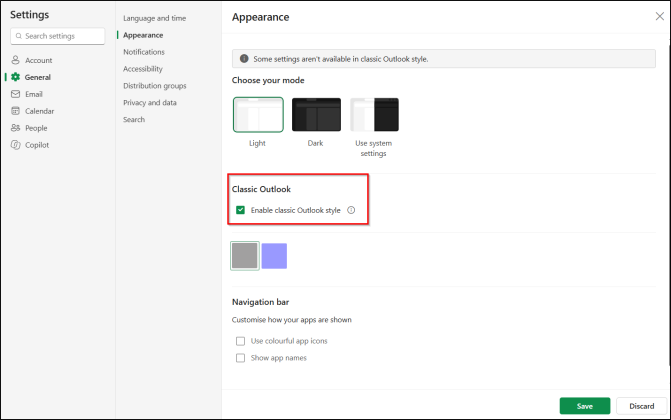
New Outlook offers an appearance closer to the classic client under Settings → General → Appearance → Outlook Classic. This setting changes the appearance, not support for macros, COM add-ins or PST-based workflows.
Check licences and prerequisites before the first pilot
For a Microsoft 365 work or school address in desktop Outlook, whether classic or new, Microsoft Learn specifies that at least one added account must have a licence that includes desktop apps, such as Microsoft 365 Business Standard or Premium. Microsoft 365 Business Basic alone is insufficient; an account with that licence can, however, be added as a secondary account if another added account has the required entitlement.
The Microsoft Learn deployment documentation also says to check that Outlook on the web is enabled for the affected mailboxes. For operating systems, it specifies Windows 10 version 2004 or later, or a supported version of Windows Server 2022; Windows Server 2016 and 2019 are not supported. Check these conditions before attributing a failure to a functional difference between clients.
Prerequisites to record for each pilot participant
- A desktop app licence assigned to at least one added account.
- A compatible Windows version and Outlook on the web enabled for the mailbox being tested.
- A list of essential COM add-ins, macros, PST files and rules.
- Any need for delegation, Word–Outlook mail merge or offline work.
Implementation
A reproducible first check is to locate PST files in the Windows profile of the person being tested. The script below is read-only: it scans that profile without following directory junctions, writes a CSV to the session’s temporary folder and records directories it could not read. It identifies neither the PST files actually open in Outlook nor those stored elsewhere; supplement its results by speaking with the user.
Prerequisites: PowerShell on Windows; no additional module, so no installation. Minimum permission: read access to the folders scanned in the profile under the user’s account; no Microsoft 365 role or Graph consent. Output: the path to a CSV containing the PST files found, their size in bytes and read errors. The audit is local and changes no settings: it has no propagation delay.
In Windows Explorer, search for *.pst files in the profile of the person being tested. Record the locations found and ask which files are actually used in day-to-day work; a visual search does not replace this last check.
A result of zero PST files means only that no accessible file was found within the scanned scope. Review the Erreur rows, then search separately for archives kept outside the profile or on a share. The CSV contains potentially sensitive paths: treat it as an internal inventory document.
Validate the migration with complete scenarios
Consider a support team that handles a shared mailbox, uses a COM add-in and consults PST archives. Receiving an email in the new client does not validate the team’s migration: you must also verify the add-in’s action or its replacement, sending with the expected permissions, and access to the necessary archive. Conversely, someone who works mainly in Outlook on the web is a pilot candidate less dependent on classic-client features.
Establish a baseline in classic Outlook
For each business role, record the action, account used, expected outcome and dependencies: shared mailbox, delegated calendar, rule, PST file, add-in or Word–Outlook mail merge.
Repeat the actions in new Outlook
Test with the same mailbox and appropriate permissions. For offline mode, first complete a connected session, disconnect from the network, then check the messages and views the person actually needs. Distinguish a working web replacement from a COM add-in that is simply absent.
Document the outcome and rollback
For each discrepancy, record the account, scenario, exact action and its frequency. While the enterprise scenario remains in the opt-in phase, retain classic Outlook for people whose critical dependency has no tested solution.
The cited sources do not establish a specific propagation time for a service configuration change. If you change a prerequisite, do not declare the pilot successful based solely on administrative confirmation: verify the effect using the affected mailbox and client.
Checks after the pilot
- Opening the mailbox and completing essential actions, not just signing in successfully.
- Delegation and sending tests for the affected shared mailboxes.
- Rules, archives and offline scenarios checked one by one.
- Discrepancies traced to an identifiable cause, with a decision to retain or switch clients for each user profile.
Troubleshoot without confusing prerequisites with functional gaps
| Symptom | Likely cause | Resolution |
|---|---|---|
| The work account cannot use desktop Outlook | No added account has a licence that includes desktop apps | Check the licences of all added accounts before investigating a client fault |
| New Outlook does not work for a pilot mailbox | Outlook on the web is disabled or the operating system is unsupported | Check both prerequisites for the affected mailbox and device |
| An automation disappears after the switch | Dependency on VBA or a COM add-in | Identify and test a web replacement; otherwise retain classic Outlook |
| An expected archive cannot be found | PST outside the scanned profile, inaccessible folder or unsupported operation | Read the CSV errors and manually test the required file and operation |
| A rule or offline task behaves differently from classic Outlook | Partial coverage of the feature being tested | Repeat the exact scenario and consult the release notes before deciding |
Frequently asked questions
Is Microsoft 365 Business Basic enough for new desktop Outlook?
No, not as the only licence across the added accounts: at least one must include desktop apps. A Business Basic account can be secondary if another added account has the required licence.
Can users still return to classic Outlook?
Yes, during the opt-in phase described for enterprises as of September 29, 2026. Microsoft has not announced a date for the final transition after which switching back will no longer be possible.
Does mail merge in new Outlook replace Word–Outlook mail merge?
No. Sending individual copies in new Outlook should not be treated as equivalent to Word’s mail merge integration with classic Outlook. Microsoft recommends keeping the classic client alongside the new one when this workflow is needed.
Does support until 2029 establish a retirement date?
No. Microsoft says it will support existing classic installations until at least 2029, without presenting that milestone as a final retirement date.
Decide by user profile before expanding deployment
First group users by their dependencies, then run a pilot with people whose workflows are straightforward and testable. If a group still depends on a COM add-in, a PST archive or Word–Outlook mail merge without a validated solution, retain classic Outlook for that group and reassess its situation based on release notes, not a change in appearance.
Further reading
- Microsoft Learn — migration stages for new Outlook — to track the phases and notice commitments.
- Microsoft Learn — licensing for new Outlook for Windows — to check the entitlements of added accounts.
- Microsoft Learn — new Outlook release notes — to reassess offline scenarios and rules.
- Practical365 — analysis of general availability — to distinguish support from feature parity.