New Outlook now displays two pre-filled Copilot prompts, one in the morning and another at the end of the day, to summarize inbox activity. Problem for IT teams: to date, no Outlook setting or PowerShell cmdlet allows you to disable them, neither on the user side nor at the tenant level. This article is for Exchange Online and Microsoft 365 administrators managing the migration to new Outlook and must contend with Copilot's growing omnipresence in Office applications.
Context: A Transition to New Outlook Already Under Tension
Migration to new Outlook has generated mixed feedback for several months. A so-called "classic" style, intended to bring the interface closer to the legacy client, was recently proposed to ease adoption, but it remains imperfect: the folder menu, for example, still needs work.
The most cited friction point remains the lack of support for COM add-ins in the new Outlook. Many organizations still depend on legacy add-ins and are unsure how to transition to official modern add-in presentation for Outlook on Microsoft Learn.
This context matters because Microsoft is moving toward an announced end-of-support deadline for the classic Outlook client around 2029. The classic client could, however, survive as an access client for Exchange Server SE, since the new Outlook does not support on-premises servers.
Two New Copilot Prompts: Morning Briefing and End-of-Day Summary
In extended use, new Outlook performs its primary role well: handling mail quickly. It is in this generally satisfactory context that Copilot now invites itself proactively, with two proposals:
- A morning briefing, which summarizes what happened during the user's absence.
- An end-of-day summary, which recaps the last eight hours of activity.
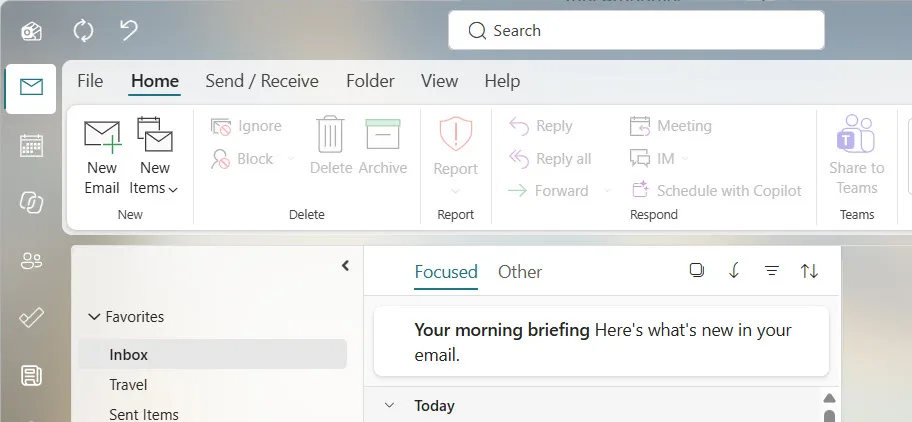
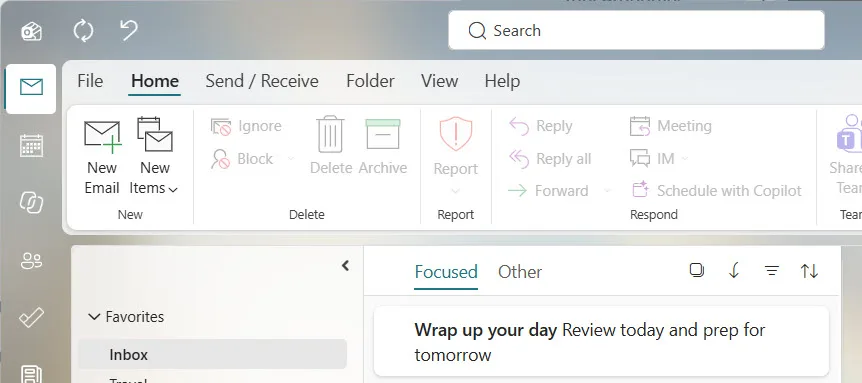
Both options open Copilot with a pre-filled prompt. The user can modify this prompt or ask follow-up questions to refine the result, but the initial prompt is always displayed, without any prior voluntary action.
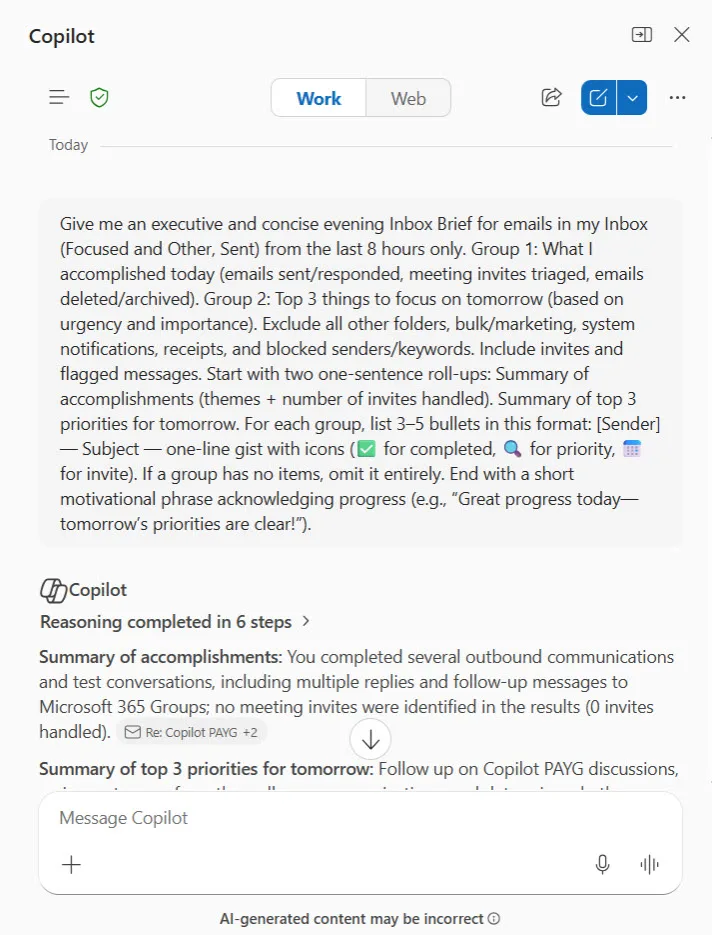
For a user who practices an "inbox at zero" approach (immediate processing, systematic deletion or filing of messages), the result can be disappointing. Copilot, for example, returned the following remark during testing:
Note: The available email results for the past week were surprisingly sparse and did not include the broader Inbox activity that I'd expect from your mailbox. The search returned only a few sent messages plus a Planner digest email, so this brief is incomplete compared to your normal inbox volume.
In other words, Copilot itself signals that its summary is incomplete, due to lack of material — without the user having requested this summary in the first place.
Why the Absence of a Toggle Poses a Governance Problem
The summarization capability is not the issue: it is exactly the type of task where generative AI excels. The real problem is the lack of control. Without an option to disable these prompts, a useful feature for some becomes an unwanted interruption for others — and directly affects the perception of new Outlook among users most reluctant to migrate.
To date, no setting in Outlook preferences nor any known Exchange Online cmdlet allows you to turn off these two prompts, whether at the user level or tenant level.
| Feature | User Control Identified | Tenant Control Identified | Operational Impact |
|---|---|---|---|
| Copilot Morning Briefing | No Outlook setting | No known PowerShell cmdlet | Pre-filled prompt when opening client |
| Copilot End-of-Day Summary | No Outlook setting | No known PowerShell cmdlet | Can summarize content deemed incomplete by Copilot itself |
| Classic COM Add-ins | Not supported | Migration to modern add-ins recommended | Functional blocker for certain business flows |
No off button, for now
No setting in the Outlook portal or Exchange Online Management cmdlet currently allows you to disable the morning briefing or evening summary. Check the Message Center before promising a fix to your users.
Implementation: Documenting the Current State While Awaiting Native Control
In the absence of a documented toggle, two actions remain within reach of an Exchange Online / Microsoft 365 administrator: verify whether a setting has already been quietly introduced in OWA policies, and track actual Copilot adoption in Outlook to substantiate the topic with IT leadership.
Required modules: Microsoft.Graph (Install-Module Microsoft.Graph -Scope CurrentUser) and Exchange Online Management module (Install-Module ExchangeOnlineManagement -Scope CurrentUser).
Minimum permission: Reports.Read.All (delegated) for the Copilot usage report, and the Exchange role Recipient Views or Global Reader is sufficient to query OWA policies in read-only mode.
Output produced: a CSV export listing Copilot usage by user, and a quick verification of existing properties of an OWA policy.
Check if a Copilot-related property already exists in OWA policies
This command queries an existing OWA policy and filters its properties to identify any parameter containing the word "Copilot", in case Microsoft introduced a setting without immediate documentation.
1# Connection to Exchange Online (requires Global Reader or Recipient Views role)2Connect-ExchangeOnline3 4# Retrieve the default OWA policy and search for Copilot-related properties5Get-OwaMailboxPolicy -Identity "OwaMailboxPolicy-Default" |6 Select-Object -Property * |7 Get-Member -MemberType NoteProperty |8 Where-Object { $_.Name -like "*Copilot*" }If the command returns nothing, this confirms that no usable setting exists yet on the Exchange Online side for this specific feature.
Connect to Microsoft Graph and query the Copilot usage report
The "Copilot usage user detail" report allows you to measure actual adoption of Copilot in Outlook, useful for substantiating user frustration.
1# Connection with the minimal scope needed to read reports2Connect-MgGraph -Scopes "Reports.Read.All"3 4# Call the beta getCopilotUsageUserDetail endpoint for the past 7 days5$response = Invoke-MgGraphRequest -Method GET `6 -Uri "https://graph.microsoft.com/beta/reports/getCopilotUsageUserDetail(period='D7')"7 8# Export the raw result for later analysis9$response | ConvertTo-Json -Depth 5 | Out-File -FilePath ".\copilot-usage-D7.json"Monitor the Message Center for a future disable option
This query filters Message Center posts containing the word "Copilot" to quickly detect the arrival of a future toggle.
1# Requires the ServiceMessage.Read.All scope2Connect-MgGraph -Scopes "ServiceMessage.Read.All"3 4Get-MgServiceAnnouncementMessage -Filter "contains(title,'Copilot') and contains(title,'Outlook')" |5 Select-Object Title, LastModifiedDateTime, Id |6 Sort-Object LastModifiedDateTime -DescendingSubstantiate Before Escalating
An export of the Copilot usage report over several weeks helps distinguish isolated annoyance from a real adoption problem at tenant scale, before escalating the issue through the Outlook Feedback channel or Microsoft 365 UserVoice program.
Troubleshooting: Common Errors When Collecting Data
Authorization_RequestDeniedonInvoke-MgGraphRequest: the account used forConnect-MgGraphdoes not have theReports.Read.Allscope. Reconnect by explicitly specifying this scope, or have an administrator consent if the scope is blocked by an application policy.- Usernames masked in the report (
User_x): by default, Microsoft 365 anonymizes identities in usage reports. The setting changes in the Microsoft 365 admin center, under organization settings dedicated to reports, by disabling data privacy display. Get-OwaMailboxPolicyreturns an authorization error: the role assigned to the account does not cover OWA policy reading. Check membership in an Exchange role including the View-Only Configuration management role.- No data in the Copilot report despite confirmed use: the propagation delay of Microsoft 365 usage reports can reach 48 hours; rerun the query with
period='D30'to widen the observation window.
What You Need to Know Before the 2029 Deadline
These two Copilot prompts illustrate an underlying trend: Microsoft continues to insert Copilot into every available corner of Office applications, sometimes without giving administrators the expected governance levers. Until a native control policy is documented, the best approach consists of:
- Documenting the current absence of a toggle to anticipate user questions.
- Implementing periodic monitoring of the Copilot usage report to substantiate actual adoption.
- Monitoring the Microsoft 365 Message Center to detect the arrival of a future disable parameter.
- Prioritizing migration of critical COM add-ins to the modern model, independent of the Copilot topic, before the classic client end-of-support deadline.
If your organization plans a large-scale deployment of the new Outlook before the classic client reaches end of support, integrate this point into your change management communication: it is better to warn users that Copilot will invite itself automatically, rather than let surprise generate avoidable support tickets.