
Introduction
Managing lists in SharePoint has evolved significantly over the years. Initially limited to classic tabular formats, the list functionality now allows you to create organized views in the form of Kanban boards thanks to the "Board View". This method is ideal for efficiently structuring data according to specific columns, called Buckets. In this article, we will explain how to create a SharePoint list directly configured with the Kanban view, and we will cover its customization options.
Prerequisites and advantages of the Kanban view
The Kanban view in SharePoint offers several key advantages:
- Visual organization of data based on defined categories.
- Simplified interaction thanks to an easy-to-manipulate "Bucket" format.
- Flexibility to collaborate on various types of projects, such as risk registers or task pipelines.
Before you start, make sure you have administrative rights on the SharePoint site where you want to create this list.
How to create a list with the Kanban view
Here are the detailed steps to set up a list with a Kanban view directly in SharePoint:
Access list creation
From your SharePoint site home, click New then select List from the dropdown menu.
Create a list with the Kanban view
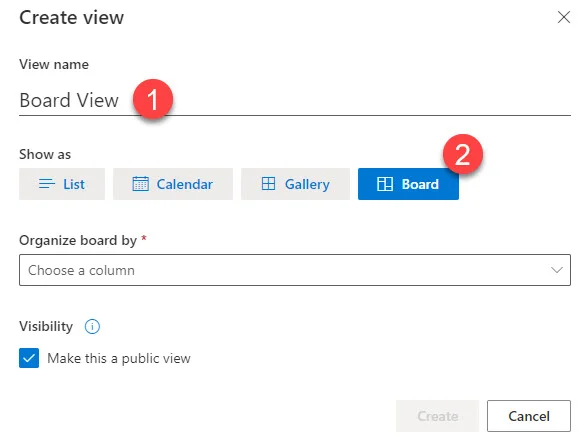
In the options provided, choose Board (board view). Give your list a name and click Create.
Analyze the data created by default
Once the list is created, you will notice that it contains predefined test data. Click on the All items view to display this data in its tabular format.
Configure the Buckets
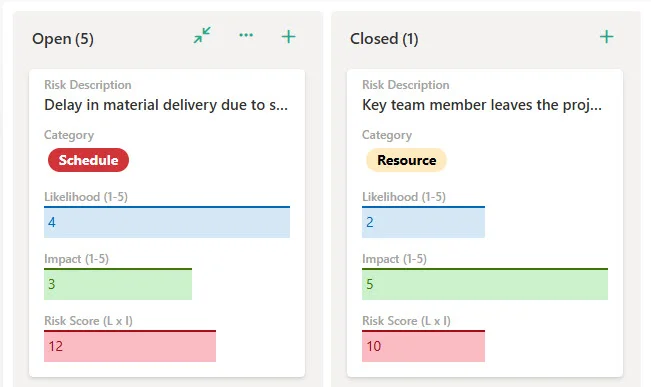
Switch to the Board view then click Add a new Bucket. In the case of a risk register, for example, define your categories as different risk levels.
Customize columns and cards
Return to the All items view and rename the "board choice" column to a relevant title (such as "Risk Category"). Add other columns to define additional metadata, such as Assigned to, Due date, etc.
Adapt card display
In the Board view, click Customize card to choose which fields are displayed. This allows you to make your information more readable and adapted to your project.
Particularities of the Kanban view
Good to know
The Kanban view is enabled by default when creating a list with the "Board" option. You can change the default view if necessary.
- When you create a list this way, two views will be automatically generated: All items (tabular view) and Board.
- The "board choice" column cannot be renamed until you have added a few Bucket names.
Conclusion
The combination of SharePoint lists and the Kanban view provides a powerful solution for organizing and managing collaborative data. Whether it's for complex projects or simple tracking, this method improves visibility and productivity.