Copilot indexes whatever permissions allow, including forgotten or poorly protected sites. Restricted Content Discovery (RCD) lets you remove a site from the scope of Copilot and organization-wide search, without touching its permissions. This guide covers step-by-step activation, propagation times, PowerShell automation and the link with the retirement of Restricted SharePoint Search, set for January 31, 2027.
What RCD hides, and what it leaves intact
RCD removes a SharePoint site's content from Copilot results and organization-wide search. The site's permissions stay the same: anyone who has access can still open it and view its files.
Observed effects on a restricted site:
- The Copilot button and related features, such as agent creation, disappear from the site.
- Copilot and organization-wide search (hub search, the SharePoint home page, Office.com) no longer surface its content.
- Search within the site, at site or library level, keeps working.
- The site displays the Restricted label on the page.
The Microsoft Learn documentation specifies one point: if RCD is enabled, Copilot in SharePoint and AI actions do not appear on the site, regardless of other settings.
RCD is not an access control
RCD locks nothing down. It only tells Copilot and search to look elsewhere. If people must not access the content, fix the site's permissions. Our guide Governance strategies to secure Microsoft 365 Copilot details this defense-in-depth logic.
Two scope limits apply. RCD works site by site: there is no tenant-level switch. It does not cover OneDrive, only SharePoint sites.
Prerequisites: Copilot license and SharePoint admin access
The feature is not free, but no specific purchase is needed. According to Microsoft Learn, RCD can be configured when the organization has a Copilot license and SharePoint Advanced Management (SAM) is available. SAM is included as soon as at least one Microsoft 365 Copilot license is assigned: no separate SAM purchase.
Before restricting a first site
- At least one Microsoft 365 Copilot license assigned in the tenant
- An account with SharePoint administration rights
- The list of sites concerned: sensitive, obsolete or under permissions review
- An identified business owner for each site, who will approve Copilot's disappearance
- A written decision on the duration of the restriction, since RCD is a temporary control
To place RCD within a complete approach, see the technical checklist for preparing a tenant for Copilot.
The timeline that forces the move to RCD
Restricted SharePoint Search is being retired, and RCD takes its place for restriction scenarios. The dates below come from the Microsoft Learn documentation, the message center and the retirement schedule.
March 2026
RCD delegation in public preview
According to Tony Redmond (Office 365 for IT Pros), delegation to site administrators moves to public preview (MC1259825).
July 31, 2026
New activations of Restricted SharePoint Search blocked
Microsoft Learn states that any new activation has been blocked since this date.
November 1, 2026
End of the KnowledgeAgentScope preview cmdlets
The KnowledgeAgentScope preview cmdlets and similar ones are no longer honored. You must use the Site AI and RCD settings.
January 31, 2027
Retirement of Restricted SharePoint Search
Retirement date of the feature. Tenants that use it must have moved their sites to RCD before this deadline.
Tenants that rely on Restricted SharePoint Search will find the migration approach in our article Migrating from Restricted SharePoint Search to Restricted Content Discovery.
Step by step: restrict a site from the portal
The procedure takes less than five minutes per site. It is performed in the SharePoint admin center.
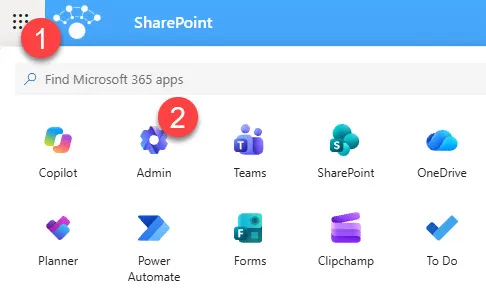
Open the Microsoft 365 admin center
Sign in to the Microsoft 365 Admin Center with your admin account.
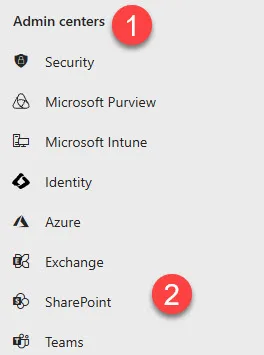
Go to the SharePoint admin center
In the Admin centers section, select SharePoint Admin Center.
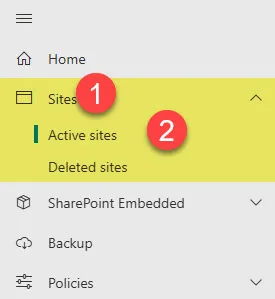
Display active sites
Expand Sites, then click Active sites.
Open the site to restrict
Click the site name, then open the Settings tab.
Enable the restriction and save
Select the On option under the restriction setting, then click Save.
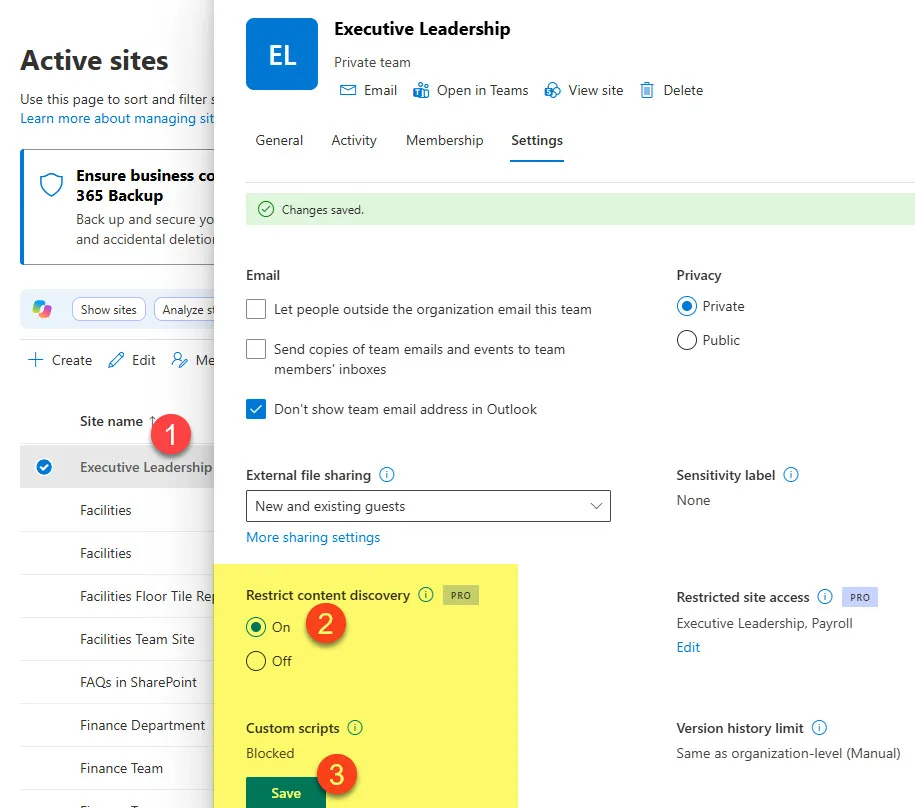
The setting label has changed
According to Microsoft Learn, the option is now called Restrict content from Microsoft Copilot in the site's Settings tab, no longer Restrict content discovery. Some screenshots in circulation still show the old label: it is the same setting.
Propagation, visible effects and verification
RCD is not instantaneous. The content stays in the search index, with a propagation indicator. For sites with more than 500,000 items, full processing can take more than a week.
Once the restriction is active, the site displays the Restricted label.
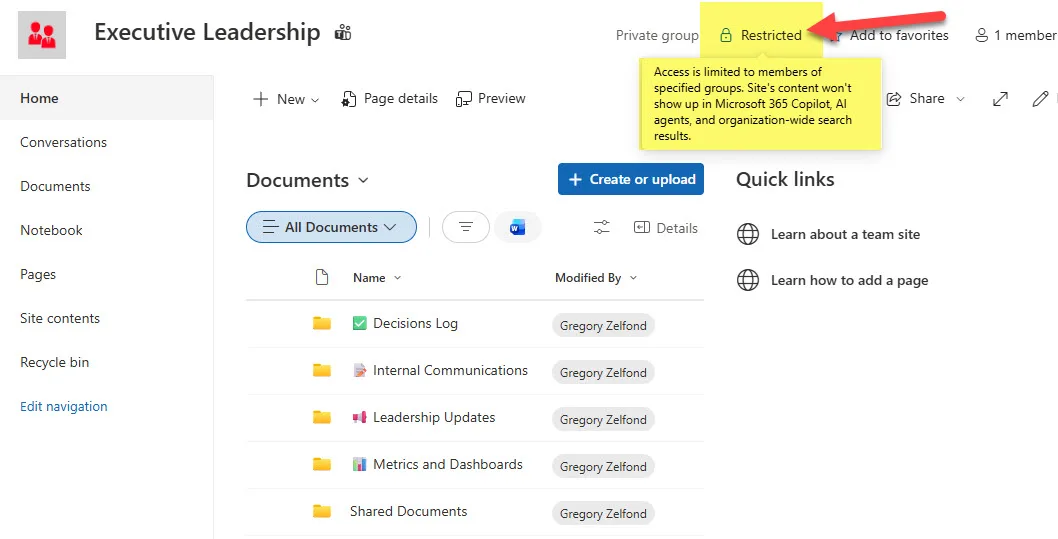
Three useful points for your acceptance tests:
- Microsoft Purview features, including eDiscovery and auto-labeling, keep working.
- RCD does not affect experiences that work on content already open, for example summarizing a document the user is viewing.
- Changes to the setting by a site administrator are logged in the Purview audit log.
Reliable verification combines three checks: the Restricted label on the page, the absence of the Copilot button on the site, then, once propagation is complete, a search test from Office.com on a term specific to the site.
Implementation: automate with PowerShell and the catalog
Beyond a few sites, the portal becomes tedious. Four approaches exist, depending on scale and the level of delegation you want.
| Approach | Scale | Point of attention |
|---|---|---|
| SharePoint admin center | One site at a time | Label Restrict content from Microsoft Copilot |
| Set-SPOSite in PowerShell | List of sites | Plan for a simulation mode and a log |
| Catalog management (Reports > Catalog management) | Up to 20,000 sites | The added group is a snapshot |
| Delegation to site administrators | Decentralized | Justification required, Purview audit |
Batch restriction script
The script below applies or removes RCD on a list of sites. It relies on the documented command Set-SPOSite -Identity <url> -RestrictContentOrgWideSearch $true, and $false to remove the restriction.
- Required module:
Install-Module Microsoft.Online.SharePoint.PowerShell - Permissions: an account with SharePoint administration rights
- Output: one line per site indicating the action performed or simulated
1# Applique ou retire Restricted Content Discovery sur une liste de sites2param(3 [Parameter(Mandatory)][string]$AdminUrl, # ex. https://contoso-admin.sharepoint.com4 [Parameter(Mandatory)][string[]]$SiteUrls, # URL des sites à traiter5 [switch]$Remove, # retire la restriction au lieu de l'appliquer6 [switch]$DryRun # simulation : aucune écriture7)8 9# Connexion au centre d'administration SharePoint10Connect-SPOService -Url $AdminUrl11 12# $true active RCD, $false le retire13$valeur = -not $Remove.IsPresent14 15foreach ($url in $SiteUrls) {16 if ($DryRun) {17 Write-Host "[Simulation] $url -> RestrictContentOrgWideSearch = $valeur"18 continue19 }20 try {21 Set-SPOSite -Identity $url -RestrictContentOrgWideSearch $valeur -ErrorAction Stop22 Write-Host "[OK] $url -> RestrictContentOrgWideSearch = $valeur"23 }24 catch {25 Write-Warning "[Échec] $url : $($_.Exception.Message)"26 }27}Always do a first run with -DryRun, review the list, then run without simulation.
Apply RCD to groups of sites
Catalog management in SharePoint Advanced Management (Reports > Catalog management) applies RCD to groups of sites in bulk, up to 20,000 sites. The added group is, however, a snapshot: sites added to the group afterwards are not restricted until you remove and re-add the group.
Catalog pitfall: a changing group is not re-evaluated
If your site groups change regularly, schedule a periodic check. Without one, a site recently attached to the group remains visible to Copilot, even though you believe it is protected.
Delegate to site administrators
Delegation is enabled with the following command.
1# Autorise les administrateurs de site à gérer la restriction de découvrabilité2Set-SPOTenant -DelegateRestrictedContentDiscoverabilityManagement $trueA site administrator who changes the setting must provide a justification, and the change is logged in the Purview audit log. Tenant-wide PowerShell reports are available via Start-SPORestrictedContentDiscoverabilityReport. Contrary to what some guides suggest, delegation is no longer PowerShell-only: the site interface exists too. Tony Redmond indicated in January 2026 that general availability was pushed to later in 2026; check the current status in message center MC1259825.
A temporary control to use sparingly
Microsoft presents RCD as a temporary governance control, to be used selectively. Excessive use reduces the completeness and relevance of answers from Copilot and organization-wide search.
Illustrative scenario: an organization deploys Copilot in phases. It first restricts the human resources site and an unreviewed archive site while it audits their permissions. It then removes the restriction site by site, once permissions are fixed.
Strengths
- Site permissions unchanged
- Quick to set up, no architecture overhaul
- Compatible with Purview: eDiscovery and auto-labeling continue
- Reversible with a single setting
Limitations
- Slow propagation on very large sites
- No effect on actual access security
- Reduces answer relevance if used extensively
- No tenant-level restriction and no OneDrive coverage
For the logical next step, notably remediating oversharing, refer to the approach described in the recommended pages below.
Frequently asked questions
Do I need to buy SharePoint Advanced Management to use RCD?
No. According to the Microsoft Learn documentation, SAM is included as soon as at least one Microsoft 365 Copilot license is assigned in the organization. No separate SAM purchase is needed.
Does RCD prevent a user from opening the site's files?
No. Permissions do not change: anyone who has access can still open the site and its files. RCD only removes the content from Copilot and organization-wide search. To block access, you must fix the permissions.
Does search inside the site keep working?
Yes. Search at site or library level stays operational. Only organization-wide experiences, such as Copilot, Office.com or hub search, no longer display the site's content.
How long does it take for the restriction to take effect?
The delay depends on the site size. For sites with more than 500,000 items, full processing can take more than a week. The content stays in the index, with a propagation indicator.
What happens to Restricted SharePoint Search?
Any new activation has been blocked since July 31, 2026, and the retirement of the feature is set for January 31, 2027. The sites concerned must be handled with RCD before that date.
Where to start
The fastest approach is to handle the sites already covered by Restricted SharePoint Search first, since their deadline is set for January 31, 2027.
Next actions
- List the sites protected by Restricted SharePoint Search and those to restrict first
- Enable RCD on a pilot site from the portal, then validate the Restricted label and the absence of the Copilot button
- Run the script with
-DryRun, then apply the restriction in batch - Evaluate catalog management if more than a few dozen sites are concerned
- Set a review date to remove RCD once permissions are fixed
If your organization deploys Copilot in phases, enable RCD on sensitive sites before opening up licenses. If it already has Copilot without having audited its permissions, start with obsolete or heavily shared sites. Our roundup of Copilot news in SharePoint for August 2026 complements this work.
Further reading
- Restrict discovery of SharePoint sites and content (Microsoft Learn): reference documentation on prerequisites, PowerShell, delegation, propagation times, auditing and the FAQ.
- Catalog management in SharePoint Advanced Management: applying RCD to many sites via catalog groups, and snapshot pitfalls.
- Site Administrators Can Enable RCD to Block Copilot Access (Office 365 for IT Pros): expert analysis of delegation to site administrators and its timeline.
- Get ready for Microsoft Copilot with SharePoint Advanced Management: RCD within a broader approach, with identification of at-risk sites, access restriction and oversharing remediation.