
For many organizations, Group Policy Objects (GPOs) remain the backbone of Windows configuration. But once devices join Azure — or rather Microsoft Entra ID — without a local Active Directory domain, GPOs no longer apply. This guide is for systems administrators and cloud engineers who must drive this transition in production, with a reproducible method and concrete tools.
Three scenarios, three distinct paths
The first mistake is treating GPO → Intune migration as a single, uniform project. Microsoft Intune is designed to manage devices whether they're on the corporate network or not, whereas GPOs assume a device joined to the domain and reachable by a domain controller. The logical starting point is therefore to segment your fleet by junction type.
Scenario 1 — Cloud-native devices (Microsoft Entra joined)
For any new Microsoft Entra joined device (formerly Azure AD joined), start with a clean slate. Build a cloud-first configuration rather than reproducing GPO history. The recommended sequence:
- Apply Microsoft Intune security baselines as a foundation.
- Add validated business settings (OneDrive Known Folder Move, Microsoft Edge, BitLocker encryption).
- Don't reproduce legacy settings without validating their current relevance.
Scenario 2 — Selective transition of existing settings
If certain behaviors must be preserved (regulatory constraints, line-of-business software), evaluate and rationalize existing GPOs, then recreate in Intune only the settings that are truly necessary and supported. This is deliberate replatforming, not cloning.
Scenario 3 — GPO + Intune coexistence (hybrid)
Hybrid Microsoft Entra joined devices can simultaneously receive both GPO and Intune settings — this is the typical case for co-managed environments with Windows Autopatch or co-management ConfigMgr. This coexistence can last a long time, but it requires rigorous coordination of targeting to avoid conflicts.
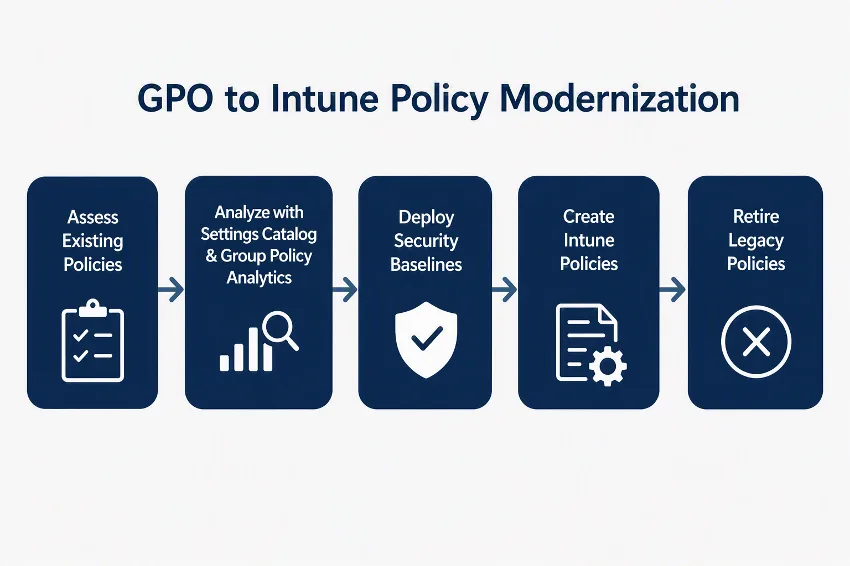
Evaluate and rationalize before touching anything
The classic pitfall is rushing into Intune with existing GPOs without questioning their relevance. Most mature environments accumulate obsolete, duplicate, undocumented GPOs, or those applied to overly broad OUs. Migrating this technical debt to Intune perpetuates it.
Audit actions to conduct before the transition
- Export all GPOs from the Group Policy Management Console (GPMC) in XML format.
- Run
Gpresulton representative devices to identify GPOs actually being applied. - Delete or archive unused, redundant, or inherited GPOs before any transition decision.
- Categorize required settings: security, update management, device restrictions, application control, legacy dependencies.
- Document device populations and business requirements associated with each policy.
The following script generates an HTML report of all domain GPOs via GPMC:
1# Prerequisites: GroupPolicy module (installed with RSAT on Windows)2# Minimum role: read access on all domain GPOs3# Output: HTML file per GPO in C:\GPO_Export4 5Import-Module GroupPolicy6 7$OutputPath = "C:\GPO_Export"8New-Item -ItemType Directory -Path $OutputPath -Force | Out-Null9 10$Domain = (Get-ADDomain).DNSRoot11$AllGPOs = Get-GPO -All -Domain $Domain12 13foreach ($GPO in $AllGPOs) {14 $SafeName = $GPO.DisplayName -replace '[\\/:*?"<>|]', '_'15 $ReportPath = Join-Path $OutputPath "$SafeName.html"16 Get-GPOReport -Guid $GPO.Id -ReportType HTML -Path $ReportPath -Domain $Domain17 Write-Host "Exported: $($GPO.DisplayName) -> $ReportPath"18}19 20Write-Host "Export complete. $($AllGPOs.Count) GPO(s) exported to $OutputPath"To identify GPOs that don't apply to any object (failing WMI filter, overly restrictive security, empty OU):
1# Output: list of GPOs with no active links or targeting 0 objects2$Domain = (Get-ADDomain).DNSRoot3$AllGPOs = Get-GPO -All -Domain $Domain4 5foreach ($GPO in $AllGPOs) {6 $Links = (Get-GPOReport -Guid $GPO.Id -ReportType Xml -Domain $Domain) -as [xml]7 $LinkCount = ($Links.GPO.LinksTo | Measure-Object).Count8 if ($LinkCount -eq 0) {9 Write-Output "[NO LINKS] $($GPO.DisplayName) | Created: $($GPO.CreationTime) | Modified: $($GPO.ModificationTime)"10 }11}Group Policy Analytics: a decision-support tool, not a magic wand
Group Policy Analytics is natively integrated into Microsoft Intune (accessible from Devices > Configuration > Group Policy Analytics). It imports your GPOs exported in XML format and generates a matching report with Intune's Settings Catalog (MDM).
Important Limitation
Group Policy Analytics matches reflect the state of mapping at the tool's last update. Settings recently added to the Settings Catalog may not appear as supported when they actually are. Always validate critical settings directly in Microsoft Learn documentation.
What the tool concretely produces
- List of GPO settings with a documented MDM equivalent.
- Highlighting of obsolete or cloud-native context-inappropriate settings.
- Identification of GPOs better retired than migrated.
- Working basis for discussion with security and business teams.
Use this report as one input source among others, complementing your manual audit and validation on pilot devices.
Rebuild, don't copy: the cloud-first logic
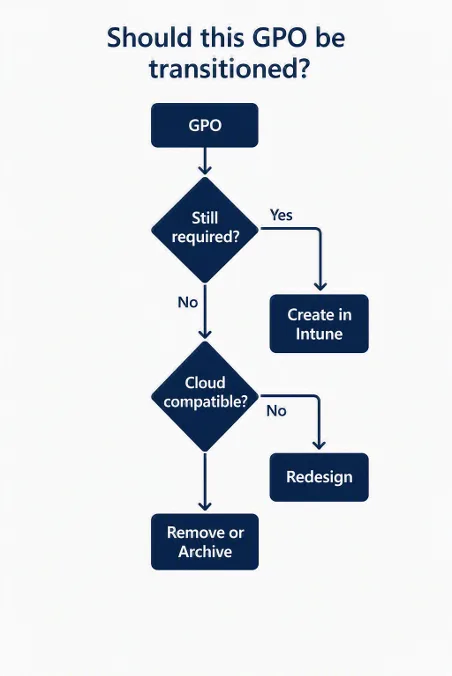
A successful GPO → Intune migration is not a line-by-line transposition. For each setting or group of settings identified in the audit, apply the following decision grid:
| Situation | Recommended Action | Intune Tool |
|---|---|---|
| Obsolete or unnecessary setting | Remove | N/A |
| Supported and necessary setting | Recreate in Intune | Settings Catalog |
| Legacy dependency (network drive, printer) | Redefine as cloud solution | OneDrive, Universal Print |
| Third-party ADMX setting supported | Import ADMX template | Administrative Templates |
| No MDM equivalent available | Keep in GPO (hybrid) or script | Remediations / Scripts |
Start with security baselines as foundation
Security baselines in Intune are collections of settings recommended by Microsoft for Windows, Microsoft Edge, and Microsoft Defender for Endpoint. They provide the most consistent starting point for replacing security GPOs.
Best Practice
Don't apply a security baseline without reviewing it with your security teams. Some settings may block existing business flows or conflict with third-party configurations.
Recommended deployment sequence:
- Identify overlaps with existing GPOs before any deployment.
- Pilot on a representative group (IT + volunteer business users).
- Monitor conflict reports in Intune (
Devices > Monitor > Policy Conflicts). - Complete with configuration profiles only for documented requirements not covered by the baseline.
Implementation
Prerequisites
- Module:
Microsoft.Graph.DeviceManagement(Microsoft Graph PowerShell SDK) - Installation:
Install-Module Microsoft.Graph -Scope CurrentUser - Minimum Permission:
DeviceManagementConfiguration.ReadWrite.All - Minimum Intune Role: Intune Policy and Profile Manager
The script below imports a GPO XML file exported from GPMC to Group Policy Analytics in Intune, then retrieves the compatibility report:
1# Connect to Microsoft Graph with required scope2Connect-MgGraph -Scopes "DeviceManagementConfiguration.ReadWrite.All" -NoWelcome3 4# Path to XML file exported from GPMC5$GPOXmlPath = "C:\GPO_Export\MyGPO.xml"6 7if (-not (Test-Path $GPOXmlPath)) {8 Write-Error "XML file not found: $GPOXmlPath"9 exit 110}11 12# Read and encode XML file in Base64 (format expected by API)13$GPOContent = Get-Content -Path $GPOXmlPath -Raw -Encoding UTF814$GPOBase64 = [Convert]::ToBase64String([System.Text.Encoding]::UTF8.GetBytes($GPOContent))15 16# Build request body17$Body = @{18 displayName = [System.IO.Path]::GetFileNameWithoutExtension($GPOXmlPath)19 groupPolicyObjectFile = @{20 ouDistinguishedName = ""21 content = $GPOBase6422 }23} | ConvertTo-Json -Depth 524 25# Upload to Group Policy Analytics26$UploadUri = "https://graph.microsoft.com/beta/deviceManagement/groupPolicyMigrationReports/createMigrationReport"27$Response = Invoke-MgGraphRequest -Method POST -Uri $UploadUri -Body $Body -ContentType "application/json"28 29Write-Host "Import launched. Report ID: $($Response.id)"30 31# Wait for report generation (typical delay: 30 to 90 seconds)32Start-Sleep -Seconds 6033 34# Retrieve migration report35$ReportUri = "https://graph.microsoft.com/beta/deviceManagement/groupPolicyMigrationReports"36$MigReports = Invoke-MgGraphRequest -Method GET -Uri $ReportUri37$LatestReport = $MigReports.value | Sort-Object createdDateTime -Descending | Select-Object -First 138 39Write-Host "Report: $($LatestReport.displayName)"40Write-Host "Migratable settings: $($LatestReport.migrationReadiness)"To list existing configuration profiles in Intune and check for conflicts:
1# Retrieves all configuration profiles and their deployment status2$ProfilesUri = "https://graph.microsoft.com/beta/deviceManagement/deviceConfigurations"3$Profiles = Invoke-MgGraphRequest -Method GET -Uri $ProfilesUri4 5$Profiles.value | ForEach-Object {6 $Profile = $_7 $AssignUri = "https://graph.microsoft.com/beta/deviceManagement/deviceConfigurations/$($Profile.id)/deviceStatuses"8 $Statuses = Invoke-MgGraphRequest -Method GET -Uri $AssignUri9 $ConflictCount = ($Statuses.value | Where-Object { $_.status -eq 'conflict' }).Count10 11 [PSCustomObject]@{12 Name = $Profile.displayName13 Type = $Profile.'@odata.type'14 Conflicts = $ConflictCount15 LastModified = $Profile.lastModifiedDateTime16 }17} | Format-Table -AutoSizeCoordinate GPO and Intune during the hybrid period
A frequently misunderstood point: GPOWinsOverMDM is not a universal priority switch. This setting (defined via the MDMWinsOverGP CSP or its inverse) applies only to settings exposed by the Windows Policy CSP with a corresponding Group Policy mapping. It doesn't govern settings delivered via other CSPs like Defender or Windows Update — which have their own precedence or merge behaviors.
Risk of Unpredictable Configuration
Using GPOWinsOverMDM as a general coexistence strategy produces inconsistent and hard-to-debug results. The best approach is to avoid configuring the same setting from both management planes simultaneously.
Targeting strategy to avoid conflicts
On Group Policy side:
- Use security group filtering to exclude Intune pilot devices from relevant GPOs.
- Validate with WMI filters if necessary (with caution — they impact GPO processing performance).
- Document each GPO with its owner, target population, and planned review date.
On Intune side:
- Target via dynamic Microsoft Entra groups (e.g.,
device.managementType -eq "MDM"). - Use assignment filters for granular targeting without multiplying groups.
- Document the authoritative management plan for each policy area (security, updates, restrictions).
Concrete example: keep Windows Update GPOs in place for most hybrid devices, exclude a pilot group from this GPO, and assign them the equivalent Intune profile. After validation, gradually expand the scope.
Decommission GPOs progressively: the retirement checklist
Irreversible Operation
Never delete a GPO without first disabling and archiving it. Accidentally deleting a GPO applied to thousands of devices can have immediate production impact.
For each GPO to be retired:
- Exclude the pilot population from the GPO and assign them the equivalent Intune configuration.
- Verify effective configuration with
Gpresult /H report.html /Fand Intune deployment reports. - Extend targeting in controlled stages (10% → 30% → 100%).
- Disable the GPO (don't delete) after full validation.
- Archive the exported XML file before final deletion.
- Keep GPOs still needed for hybrid devices with an identified owner and planned review date.
1# Disabling a GPO (reversible operation, recommended before deletion)2# Minimum role: Group Policy Creator Owner or Domain Admin3# Module: GroupPolicy (RSAT)4 5$GPOName = "Your-GPO-Name"6 7# Preliminary verification8$GPO = Get-GPO -Name $GPOName -ErrorAction Stop9Write-Host "GPO found: $($GPO.DisplayName) | Current status: $($GPO.GpoStatus)"10 11# Disable both user and computer settings12$GPO | Set-GPO -Status AllSettingsDisabled13Write-Host "GPO '$GPOName' disabled. Verify impact before deletion."14 15# Archive export16$ArchivePath = "C:\GPO_Archive\$($GPOName -replace '[\\/:*?"<>|]', '_')_$(Get-Date -Format 'yyyyMMdd').xml"17Get-GPOReport -Name $GPOName -ReportType Xml -Path $ArchivePath18Write-Host "XML archive: $ArchivePath"Troubleshooting common errors
Verify that the Intune Management Extension (IME) service is running on the device (services.msc → Microsoft Intune Management Extension). Check the log file %ProgramData%\Microsoft\IntuneManagementExtension\Logs\IntuneManagementExtension.log. Ensure the device is properly enrolled in Intune (dsregcmd /status → MDMUrl populated).
Use Gpresult /H report.html /F to see applied GPOs, and the Intune conflict report (Devices > Monitor > Policy Conflicts). Identify which management plane is authoritative for that setting and remove the configuration from the other. Don't rely on GPOWinsOverMDM to resolve the conflict.
The tool's mapping is not exhaustive and may lag the Settings Catalog. Manually search for the setting in Devices > Configuration > Create profile > Settings Catalog using exact GPO name terms. Check Microsoft Learn documentation on Settings Catalog for recent additions.
Verify the user account has the Intune Administrator role or custom role assignment including DeviceManagementConfiguration.ReadWrite.All. Confirm admin consent has been granted for this scope in Microsoft Entra ID (Enterprise applications > Microsoft Graph PowerShell > Permissions).
What you do Monday morning
GPO → Intune migration is not a switchover project but a process of progressive rationalization. Here are the first concrete actions:
- Launch GPO audit: export all your GPOs via GPMC and run the script identifying GPOs with no active links.
- Import into Group Policy Analytics the GPOs from the most active areas (security, updates) to get an initial MDM compatibility snapshot.
- Identify your first cloud-native population (new devices, replacement devices) and build their Intune configuration based on security baselines.
- Define an owner and authoritative policy zone for each major category (security, updates, restrictions) before touching targeting.
- Assemble a pilot group of about ten representative devices and validate each profile before any broad deployment.
If your organization maintains hybrid devices for several more years, GPO + Intune coexistence is an operational reality — the issue isn't getting out fast, but getting out cleanly, zone by zone, with clear documentation of responsibilities.