
A hotpatched device that silently fails continues to appear compliant in your dashboards, while carrying a known vulnerability. This guide is for Intune administrators managing Windows 11 24H2 fleets who want to close this exposure window without waiting for a manual patch cycle.
Windows Hotpatching and Its Silent Flaw
The Windows Hotpatch program allows eligible devices to receive security updates without a full system restart. The goal is simple: reduce one of the biggest patch deployment delays in modern environments—restart cycles.
The problem is that hotpatching is not foolproof. When a hotpatch fails to apply properly, or a device drifts out of the expected baseline, the endpoint remains silently exposed until an administrator notices and intervenes manually.
The EnableHotpatchAutoRemediation setting, exposed through the Windows Configuration Service Provider (CSP), closes this gap. Once enabled, Windows automatically detects when a hotpatch-enrolled device falls out of compliance and triggers the necessary remediation steps to bring it up to date, without waiting for the next scheduled patch cycle.
Why go through Intune instead of local configuration
Applying this setting device by device guarantees nothing at fleet scale. Enforcing it via Microsoft Intune ensures identical remediation behavior across all hotpatch endpoints, regardless of individual IT team vigilance.

How This Setting Changes Vulnerability Exposure
Attackers exploit the window between vulnerability disclosure and effective patch deployment. Hotpatching was designed to shrink this window, but only if the update mechanism itself remains functional.
Without automatic remediation:
- a failed hotpatch leaves the device vulnerable with no automatic retry, prolonging exposure to a known CVE
- administrators must manually identify drifting devices, delaying fixes by days or weeks
- endpoints intolerant of frequent restarts (production servers, educational workstations) become long-term targets
- patch compliance reporting becomes unreliable, as silent hotpatch failures go undetected
With the setting enforced via Intune:
- devices that drift from hotpatch compliance are automatically corrected without manual intervention
- the gap between disclosure and patch deployment shrinks uniformly across the fleet
- restart-sensitive endpoints remain protected without operational continuity breaks
- security teams gain predictable, auditable remediation behavior
This configuration aligns with defense-in-depth, endpoint hardening, and Zero Trust principles.
Governance: Why Centralize This Control in Intune
Without centralized governance, a setting like this can drift across devices and create exploitable blind spots. Managing Enable Hotpatch Auto Remediation via Intune brings multiple governance benefits:
- centralized deployment across all managed Windows endpoints
- consistent configuration aligned with organizational security baselines
- clear visibility into deployment and compliance status
- accountability and ownership defined through scope tags and role-based administration
- auditable policy lifecycle, from creation to validation
The Windows CSP Setting
This setting is exposed by the System Configuration Service Provider (CSP), within Windows configuration policy.
| Feature | Detail |
|---|---|
| Scope | Device only — no user-level application |
| Supported editions | Pro, Enterprise, Education, IoT Enterprise / IoT Enterprise LTSC |
| Required operating system | Windows 11, version 24H2 with KB5063878 [10.0.26100.4946] or later |
| Effect on non-hotpatched device | None — the policy only impacts devices enrolled in the Windows Hotpatch program |
Technically, the CSP defines the following properties:
| Property | Value or Description |
|---|---|
| Format | int |
| Access type | Add, Delete, Get, Replace |
| Default value | 0 |
| Value 0 (default) | Automatic remediation disabled |
| Value 1 | Automatic remediation enabled |
For hybrid environments still driving part of the fleet via Group Policy, this CSP maps to the following GPO setting:
| GPO Parameter | Value |
|---|---|
| Name | EnableHotpatchAutoRemediation |
| Location | Computer Configuration |
Build prerequisite to verify before pilot
This setting requires Windows 11, version 24H2 with cumulative patch KB5063878 [10.0.26100.4946] or later. On earlier builds, the parameter shows "Not applicable" in Intune reports — this is not a deployment error, just a version incompatibility.
Considerations Before Deployment
- this setting has no effect on devices not enrolled in the Windows Hotpatch program: target it only on eligible hardware
- automatic remediation may trigger an additional servicing cycle: monitor update frequency and network impact on the pilot group
- correlate remediation events with your existing patch compliance dashboards to avoid alert duplicates
- favor progressive deployment: pilot on a restricted group before expanding to production
Configuring EnableHotpatchAutoRemediation via Settings Catalog
Create the configuration profile
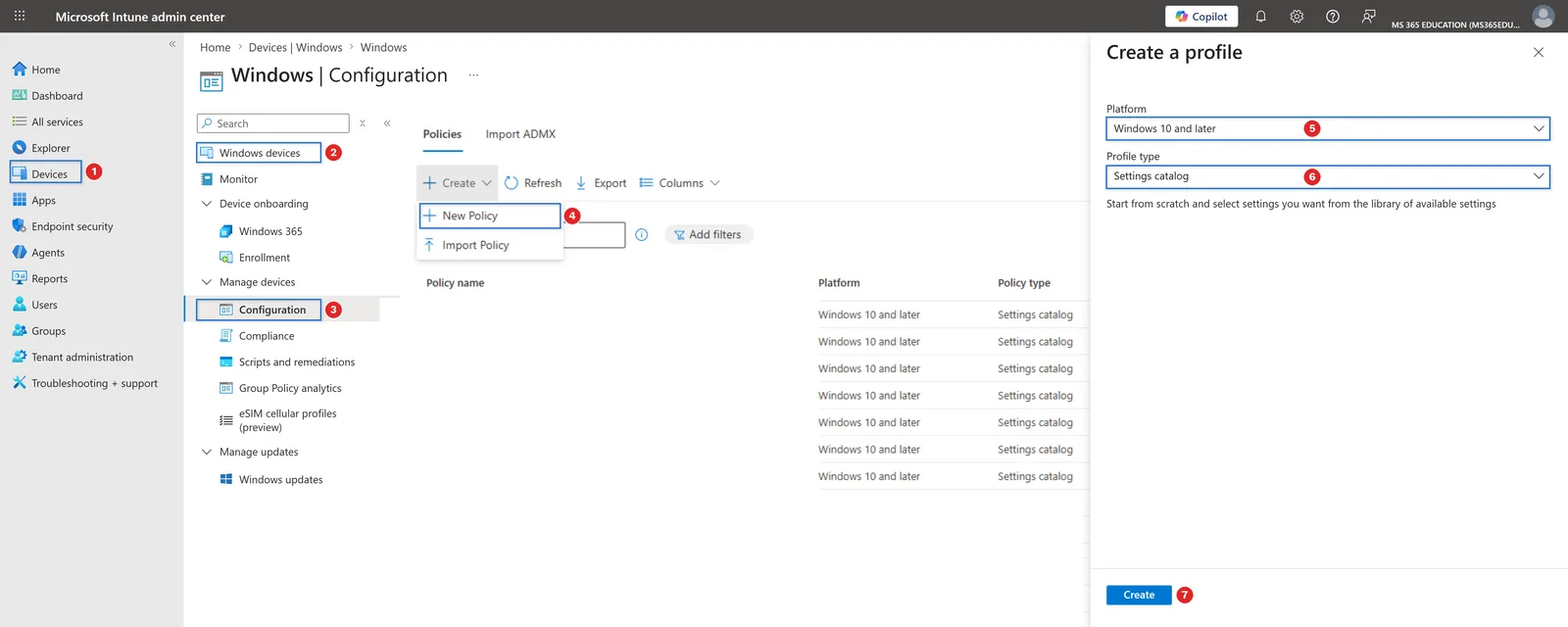
In the Microsoft Intune admin center, go to Devices › Windows › Configuration, then click + Create policy. In the "Create a profile" pane, select Platform: Windows 10 and later and Profile type: Settings catalog, then click Create.
Fill in the profile name and description
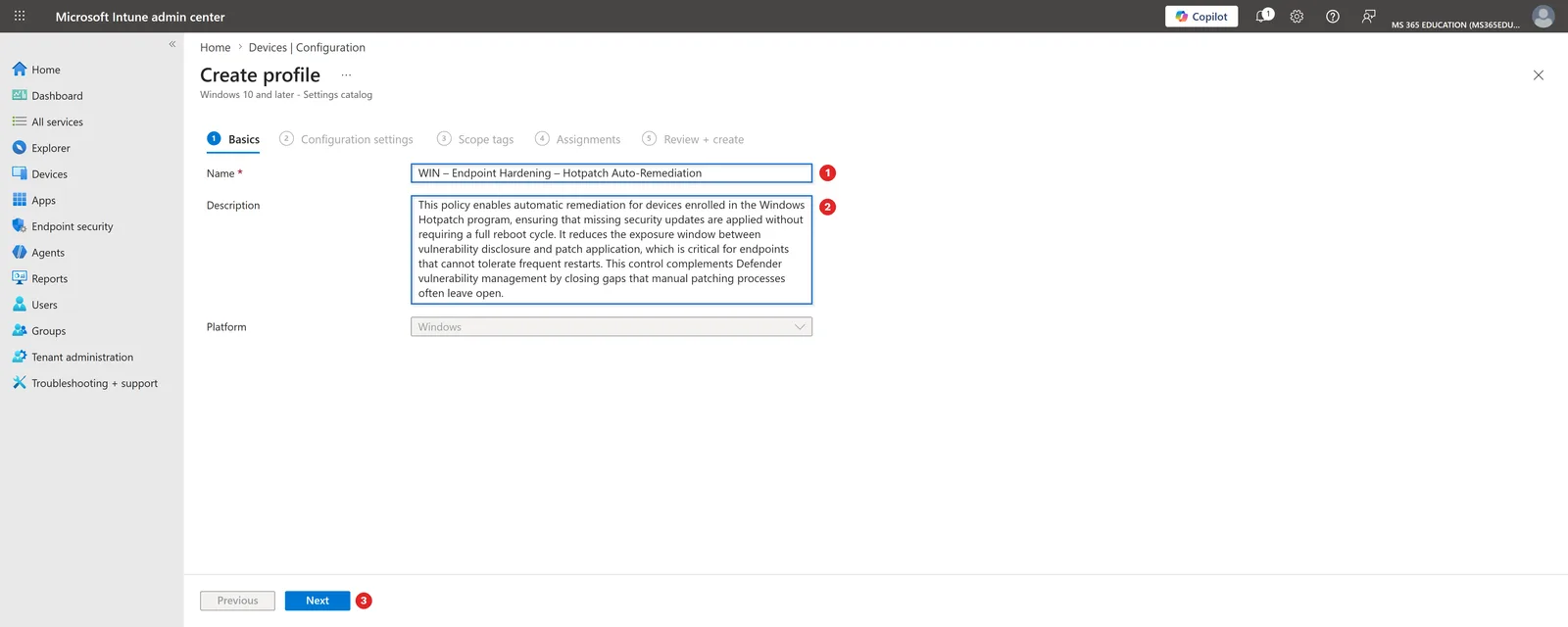
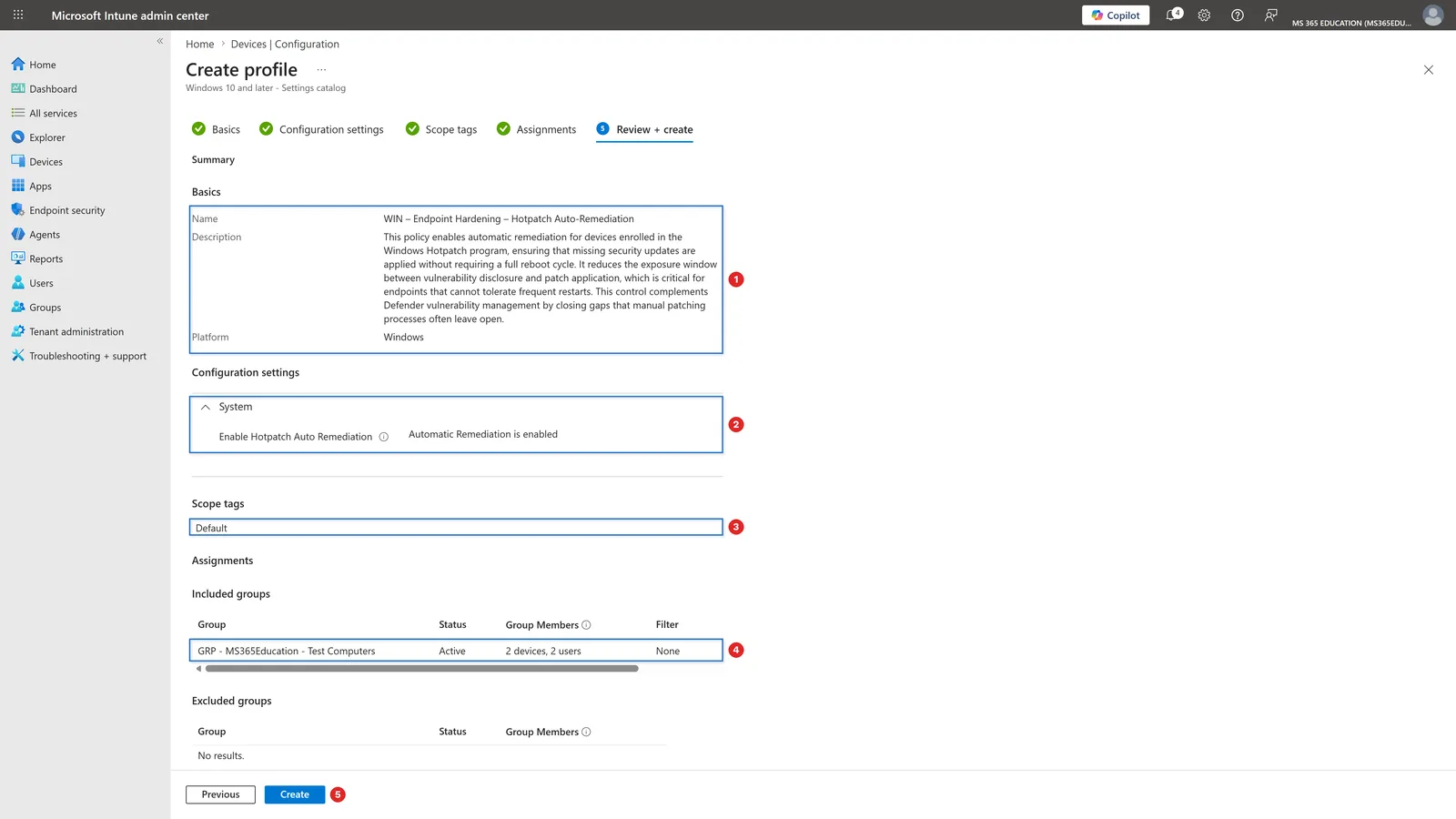
Give the profile an explicit name (for example "WIN – Endpoint Hardening – Hotpatch Auto-Remediation") and a description clarifying its objective. The Platform field is already pre-filled on Windows. Click Next.
Select the setting in the Settings picker
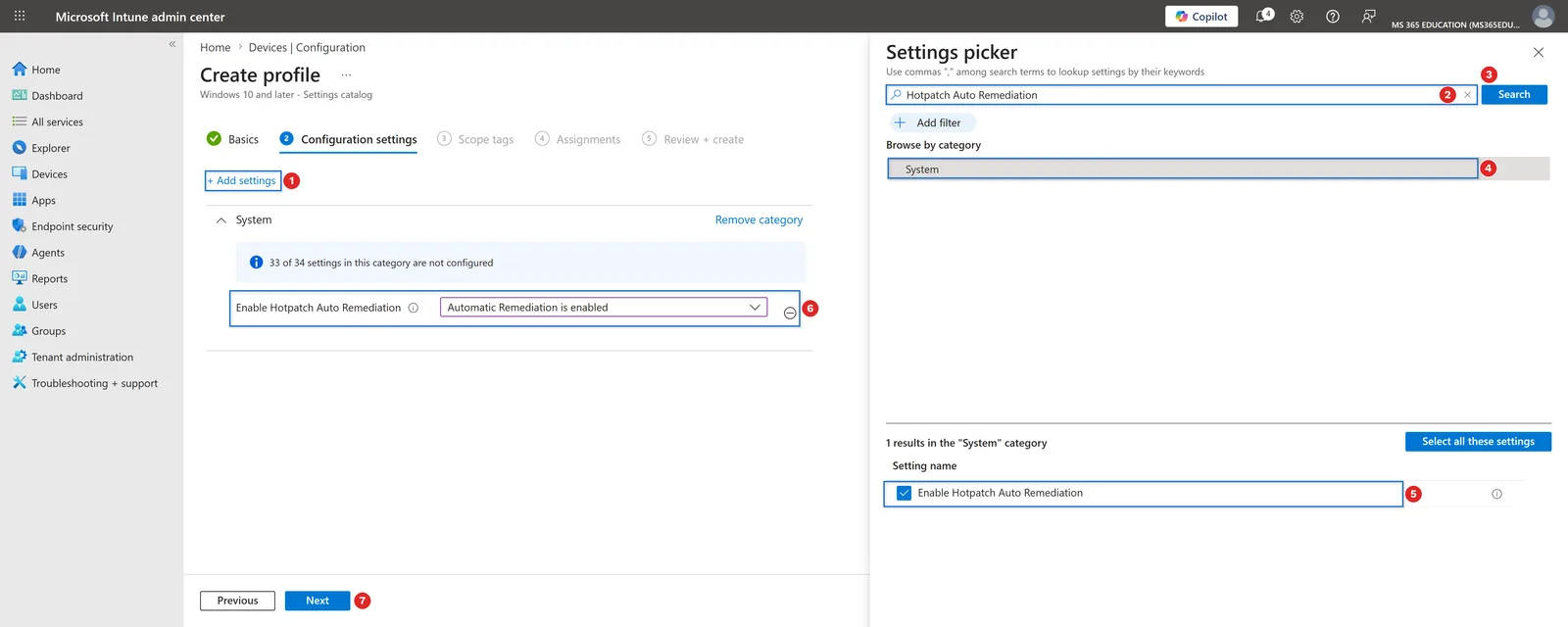
Click Add settings, type Hotpatch Auto Remediation in the search field, then Search. In the results, select the System category and choose Enable Hotpatch Auto Remediation. Once the setting is added to the profile, replace its default value with Enabled (1).
Configure scope tags (optional)
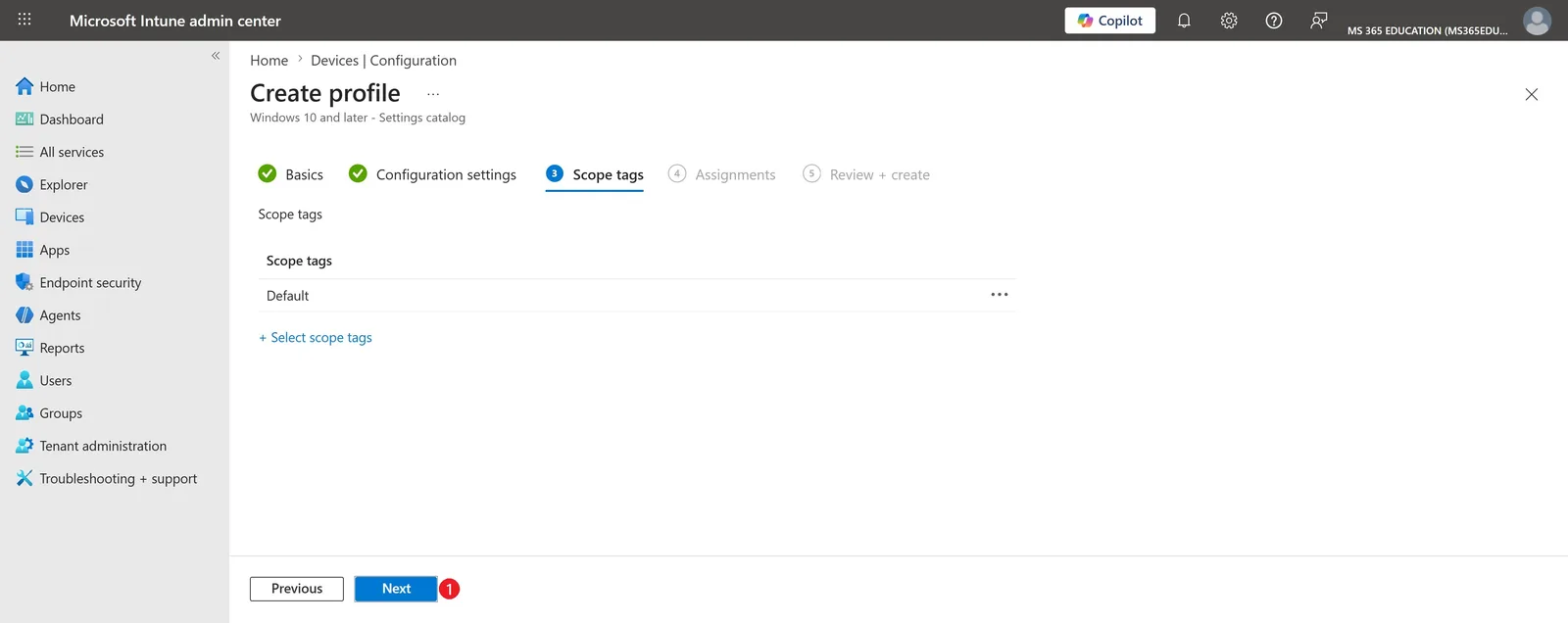
Keep the Default scope tag if you have no administration separation to enforce. Use custom scope tags if you need to restrict profile visibility to specific IT teams or regions.
Define assignments
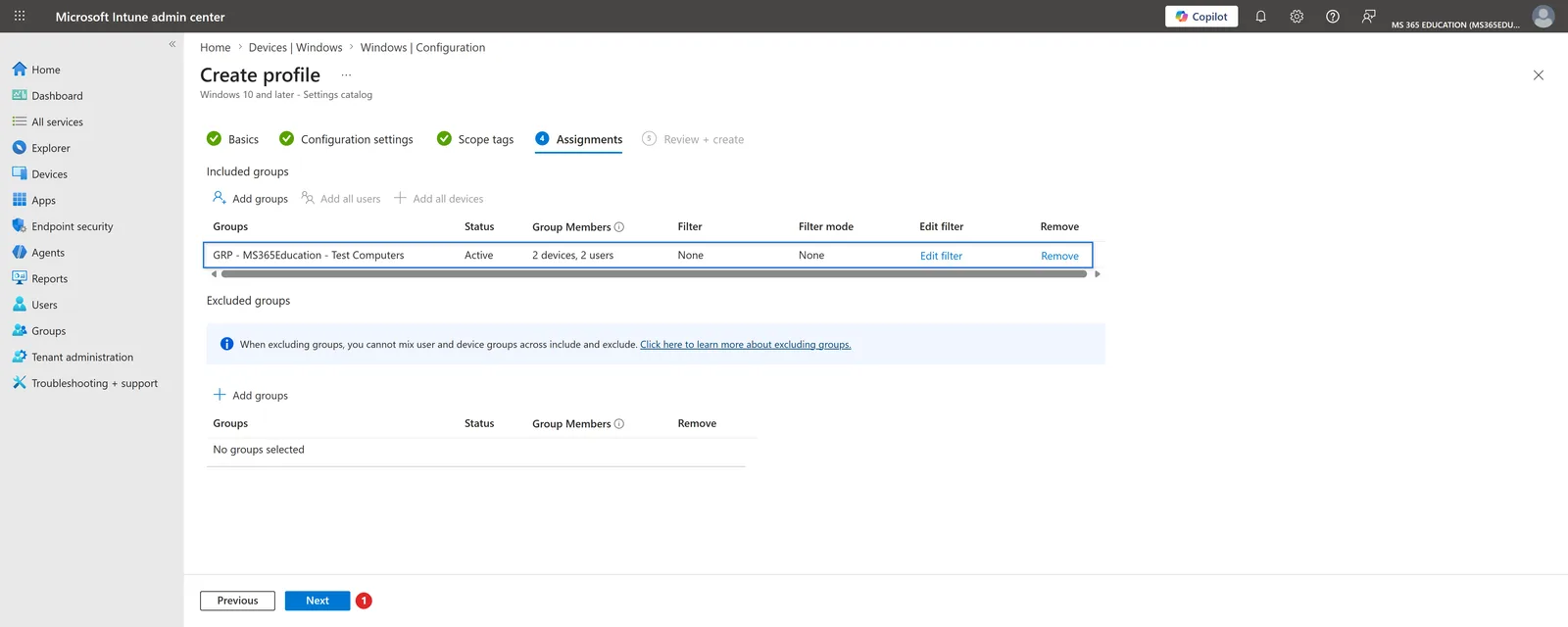
In the Assignments tab, click Add groups under Included groups and target a pilot group rather than "All devices". Verify that the group appears in Active status and that no undesired assignment filters are applied.
Review and create the profile
In the Review + Create screen, validate the name, the Enable Hotpatch Auto Remediation = Enabled (1) setting under System, the scope tag, and the assigned group. Click Create to finalize the deployment.
Watch out for assignment scope
Assigning this profile to the "All devices" group immediately applies automatic remediation behavior to your entire fleet. Always test on a restricted pilot group, validate behavior through at least one complete servicing cycle, then gradually expand the assignment.
Verifying Deployment in the Intune Portal
Intune can take up to 8 hours to automatically deliver a configuration profile, but the actual delay is often much shorter. To speed up propagation:
- trigger a manual sync from the Company Portal on the target device
- or launch a sync directly from the Microsoft Intune admin center on the device card
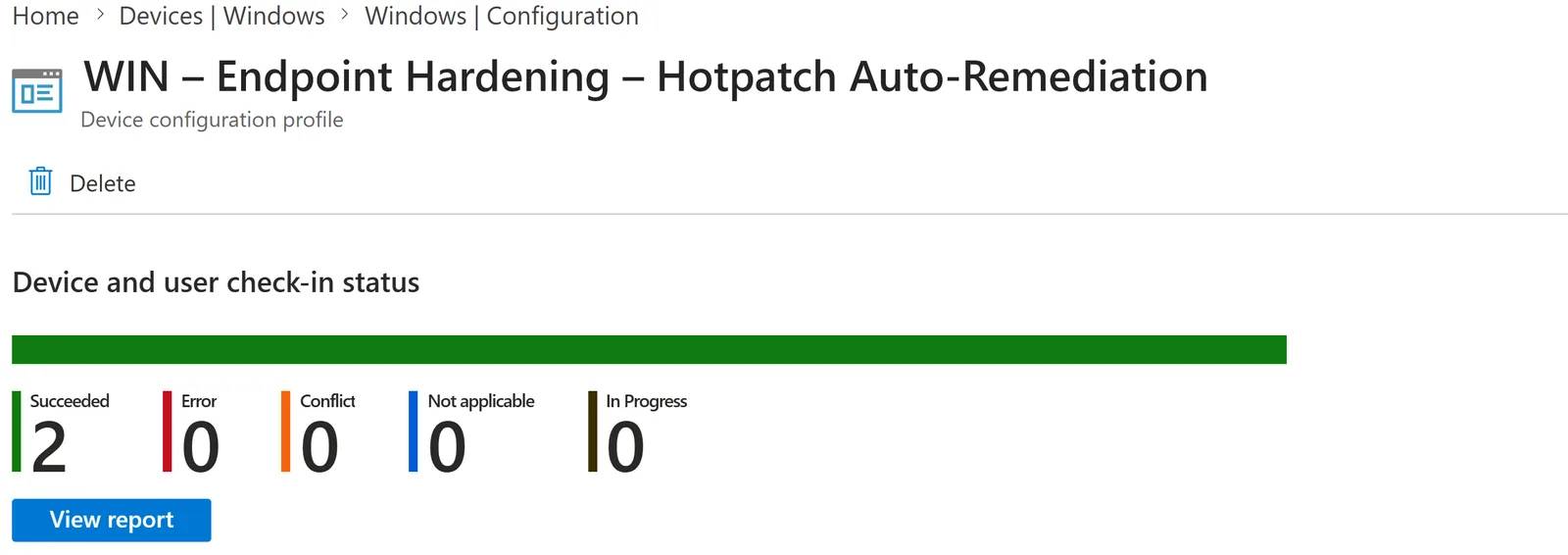
The portal displays four statuses for each targeted device: Succeeded (policy is applied), In progress (processing), Error (failure requiring investigation), and Not applicable (device does not meet prerequisites, typically a build earlier than 24H2).
Client-Side Verification: Event Viewer and Registry
The "Succeeded" status in the portal is not always enough to convince a security team. Windows logs Intune policy processing locally, allowing verification independent of the portal.
On the target device, open Event Viewer and navigate to Applications and Services Logs > Microsoft > Windows > DeviceManagement-Enterprise-Diagnostics-Provider > Admin. Filter the current log and search for Event ID 813 or Event ID 814, which indicate successful processing of Intune configuration policies.
You can automate this check with PowerShell:
1# Search for the last 10 Intune policy processing events (ID 813 = success, 814 = success with detail)2Get-WinEvent -LogName "Microsoft-Windows-DeviceManagement-Enterprise-Diagnostics-Provider/Admin" |3 Where-Object { $_.Id -eq 813 -or $_.Id -eq 814 } |4 Select-Object TimeCreated, Id, Message -First 10 |5 Format-ListFor direct confirmation of the applied value, query the local registry:
1# Read the effective CSP System value on the device2Get-ItemProperty -Path "HKLM:\SOFTWARE\Microsoft\PolicyManager\current\device\System" -Name "EnableHotpatchAutoRemediation" -ErrorAction SilentlyContinueThe value should be 1. Remember that this setting only produces observable behavior on devices actually enrolled in the Windows Hotpatch program — on a non-enrolled device, the value applies correctly, but no remediation activity triggers until enrollment is active.
Troubleshooting Common Errors
- Persistent "Not applicable" status: verify the Windows build with
winverorGet-ComputerInfoand confirm the presence of KB5063878 or later. Also check the edition (Pro, Enterprise, Education, IoT Enterprise) — other editions do not report this parameter. - "Error" status: consult the MDM diagnostic report on the device (
mdmdiagnosticstool.exe) to identify a CSP source conflict, such as another Group Policy or Intune profile writing to the same key. - Registry key missing after "Succeeded": local propagation delay may exceed portal refresh. Force a new sync and wait a full MDM cycle before considering the device failed.
- Device compliant but no remediation observed: verify the enrollment status in the Windows Hotpatch program itself, independent of this setting — the policy only takes effect on devices already hotpatched.
Implementation: Monitor and Report Behavior Across the Fleet
The following two scripts complement the manual verification described above. The first is a detection script to deploy in Intune > Remediations; it requires no modules and runs natively with the Intune agent's SYSTEM context.
1# Detection script for Intune Remediations2# Recommended execution context: SYSTEM (default for Intune detection scripts)3# Output: code 0 = compliant, code 1 = non-compliant (triggers associated remediation script)4 5$registryPath = "HKLM:\SOFTWARE\Microsoft\PolicyManager\current\device\System"6$valueName = "EnableHotpatchAutoRemediation"7 8try {9 $value = Get-ItemPropertyValue -Path $registryPath -Name $valueName -ErrorAction Stop10 if ($value -eq 1) {11 Write-Output "Compliant: EnableHotpatchAutoRemediation = 1"12 exit 013 }14 else {15 Write-Output "Non-compliant: current value = $value"16 exit 117 }18}19catch {20 Write-Output "Non-compliant: registry key missing (policy not yet applied or device out of scope)"21 exit 122}The second script queries Microsoft Graph to produce a fleet-wide deployment summary without using the portal. Required module: Microsoft.Graph.Authentication (Install-Module Microsoft.Graph.Authentication -Scope CurrentUser). Minimum permission: DeviceManagementConfiguration.Read.All, read-only.
1# Connect with minimum required read-only scope2Connect-MgGraph -Scopes "DeviceManagementConfiguration.Read.All"3 4# Exact name of the Settings Catalog profile to monitor5$profileName = "WIN - Endpoint Hardening - Hotpatch Auto-Remediation"6 7# Retrieve the list of configuration profiles (Settings Catalog)8$profiles = Invoke-MgGraphRequest -Method GET -Uri "https://graph.microsoft.com/beta/deviceManagement/configurationPolicies"9 10# Filter by profile name on the client side11$targetProfile = $profiles.value | Where-Object { $_.name -eq $profileName }12 13if (-not $targetProfile) {14 Write-Warning "Profile '$profileName' not found. Verify the exact name in Intune."15 return16}17 18$policyId = $targetProfile.id19Write-Host "Profile found, ID: $policyId"20 21# Retrieve deployment status by device for this profile22$statuses = Invoke-MgGraphRequest -Method GET -Uri "https://graph.microsoft.com/beta/deviceManagement/configurationPolicies/$policyId/deviceStatuses"23 24# Summary of device count by status (Succeeded, error, pending, notApplicable...)25$statuses.value |26 Group-Object -Property status |27 Select-Object Name, Count |28 Sort-Object Count -Descending |29 Format-Table -AutoSize30 31# Detailed list of devices in error for targeted investigation32$statuses.value |33 Where-Object { $_.status -eq "error" } |34 Select-Object deviceDisplayName, userPrincipalName, status, lastReportedDateTime |35 Format-Table -AutoSizeThis script outputs a summary table of deployment statuses then the list of devices in error, directly usable to prioritize investigation without manually navigating the Intune portal.
Key Takeaways
- EnableHotpatchAutoRemediation closes the exposure window created by silent hotpatch failure, but only on Windows 11 24H2 devices (KB5063878 or later) actually enrolled in the Hotpatch program.
- Deployment via Intune's Settings Catalog ensures uniform, auditable application across the fleet rather than local configuration dependent on individual team vigilance.
- Verification should not stop at the portal's "Succeeded" status: Event Viewer (IDs 813/814) and the registry key
PolicyManager\current\device\Systemprovide independent client-side confirmation. - A targeted pilot followed by fleet-wide verification via Microsoft Graph reduces surprise risk before production expansion.
If your organization already uses the Windows Hotpatch program on restart-sensitive servers or workstations, enable this setting on a pilot group this week, run one complete servicing cycle, then expand the assignment using the Graph reporting script to support the decision objectively.