Introduction
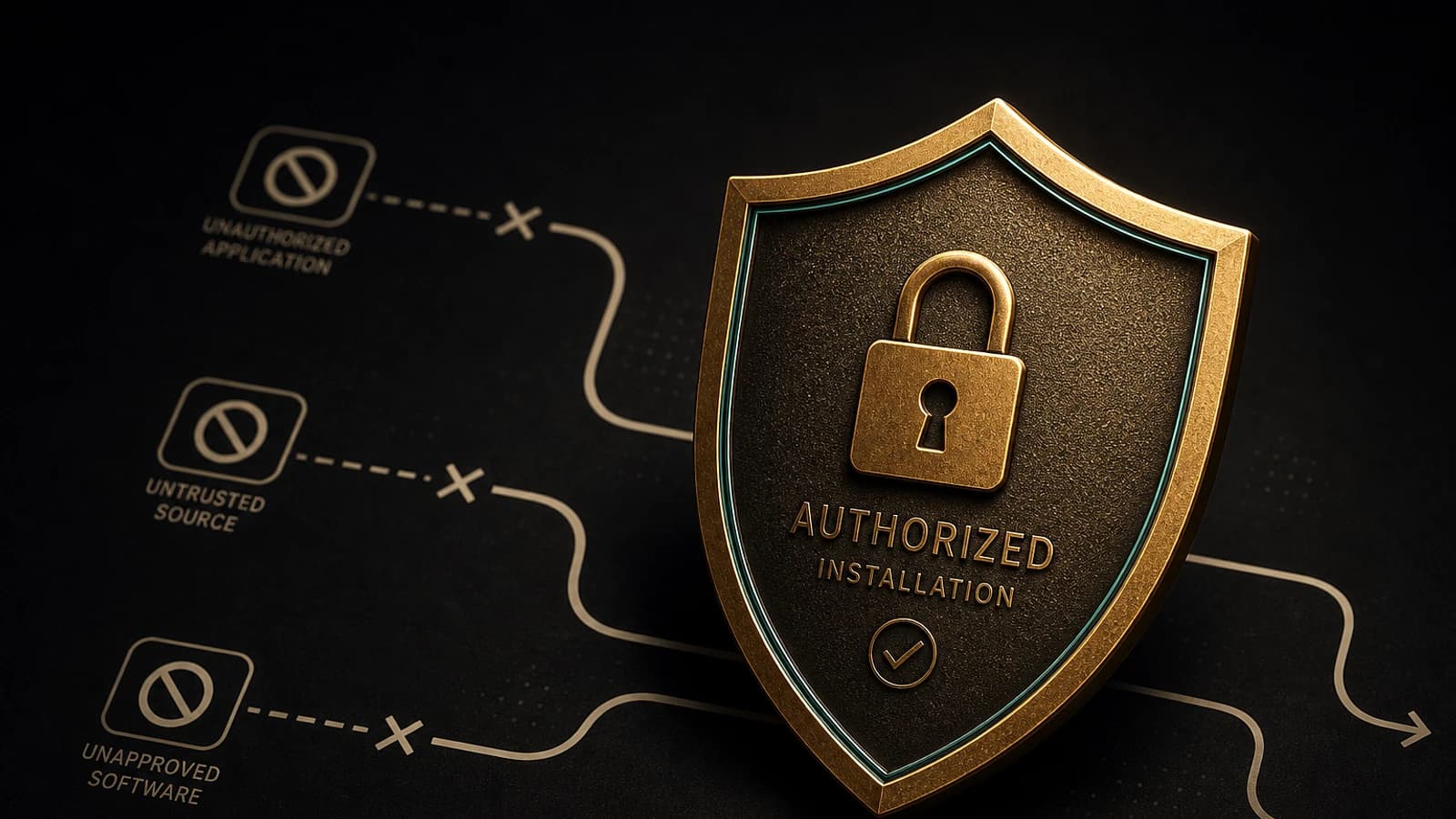
Managing software installations is a major security challenge in modern Windows environments. Installation programs frequently attempt to obtain elevated privileges, creating opportunities for the introduction of unauthorized software or malicious components.
Microsoft Intune enables organizations to deploy a strategy for detecting installation programs requiring privilege elevation, thereby transforming the installation process into a controlled and auditable mechanism.
Key Principle
This strategy enforces administrative approval before any privileged installation, preventing silent installations and hidden elevation attempts.
Why This Strategy Is Essential
Risks of Uncontrolled Installations
In enterprise environments, the majority of users operate under standard accounts to minimize risks. However, many installers are designed to request dynamic privilege elevation.
Without appropriate controls:
- Installers can attempt privilege escalation
- Users may unknowingly approve risky prompts
- Silent installations introduce unapproved software
- System integrity can be compromised without centralized visibility
Benefits of Controlling Privileged Installations
Applying this strategy provides several advantages:
- Blocking unauthorized installations
- Controlling privilege escalation attempts
- Strengthening endpoint hardening
- Intentional and auditable administrative approval
- Reducing attack surface without impacting productivity
This approach supports least privilege, Zero Trust, and proactive endpoint governance strategies.
Technical Configuration via Windows Policy CSP
CSP Overview
This configuration uses the Windows Policy CSP framework and applies at the device level, ensuring consistent behavior regardless of the logged-in user.
Supported Editions:
- Windows 10 Pro, Enterprise, Education
- Windows 11 Pro, Enterprise, Education
Policy Properties
| Property | Value | Description |
|---|---|---|
| Format | Integer (int) | Data type used |
| Access Type | Add, Delete, Get, Replace | Available operations |
| Default Value | 1 (Enabled) | Recommended configuration |
Allowed Values
- 1 (Enabled - Recommended): Windows actively detects installers requiring administrative privileges and blocks silent execution
- 0 (Disabled - Not Recommended): Installers can proceed without strict detection controls
Recommendation
Maintain this configuration enabled applies a least-access model by default that significantly reduces endpoint risks.
Configuration Guide via Intune Settings Catalog
Creating the Configuration Profile
Access Intune Administration
Log in to the Microsoft Intune administration center and navigate to:
- Devices → Windows → Configuration
- Click + Create a policy
Select Profile Type
In the Create a profile pane:
- Platform: Windows 10 and later
- Profile type: Settings Catalog
- Click Create
Define Profile Details
Configure the following fields:
- Name:
WIN – Endpoint Hardening – Privileged Installation Restrictions - Description:
This policy strengthens endpoint security by requiring administrative credentials for applications requesting elevated permissions.
Configuring the Security Setting
Open Settings Selector
Click Add settings to open the selection panel.
Search for Setting
Use the search field and type:
Detect Application Installations and Prompt for Elevation
Select UAC Control
In the results:
- Select the Local Policies Security Options category
- Choose: User Account Control: Detect Application Installations And Prompt For Elevation
- Set the value to Enabled
Assignment and Deployment
Configure Scope Tags
Scope tags control who can view and manage this policy. Keep the Default tag for most environments.
Assign to Target Groups
In the Assignments tab:
- Click Add groups under Included groups
- Search and select the appropriate test group
- Verify that the group status is Active
Final Review
Validate all settings before deployment:
- Policy name and description
- Security setting configuration
- Group assignments
- Scope tags
Monitoring and Validating Deployment
Checking Status via Intune Console
To verify deployment results:
- Navigate to Devices → Configuration profiles
- Locate the created policy
- Examine deployment metrics
Status Indicators:
- Succeeded: Policy applied successfully
- In progress: Processing ongoing or device not synced
- Error: Failure requiring investigation
- Not applicable: Device not compatible
Sync Delay
Intune may take up to 8 hours to automatically deliver configuration profiles, but deployment is often faster.
Client-Side Verification via Event Viewer
For local validation on the target device:
Open Event Viewer
Access Applications and Services Logs → Microsoft → Windows → DeviceManagement-Enterprise-Diagnostics-Provider → Admin
Filter Events
Search for Event ID 813 or Event ID 814 which indicate successful processing of Intune configuration policies.
Verify Details
Open the event details to confirm that the User Account Control: Detect Application Installations And Prompt For Elevation policy has been applied successfully.
PowerShell Scripts for Validation
Checking UAC Policy Status
1# Check UAC configuration for installation detection2$regPath = "HKLM:\SOFTWARE\Microsoft\Windows\CurrentVersion\Policies\System"3$regName = "EnableInstallerDetection"4 5try {6 $value = Get-ItemProperty -Path $regPath -Name $regName -ErrorAction Stop7 if ($value.EnableInstallerDetection -eq 1) {8 Write-Host "✓ Privileged installation detection: ENABLED" -ForegroundColor Green9 } else {10 Write-Host "✗ Privileged installation detection: DISABLED" -ForegroundColor Red11 }12} catch {13 Write-Host "⚠ Unable to verify UAC configuration" -ForegroundColor Yellow14}Auditing Intune Synchronization Events
1# Search for recent Intune sync events2$events = Get-WinEvent -FilterHashtable @{3 LogName = 'Microsoft-Windows-DeviceManagement-Enterprise-Diagnostics-Provider/Admin'4 ID = 813, 8145 StartTime = (Get-Date).AddDays(-1)6}7 8if ($events) {9 Write-Host "Recent Intune synchronizations detected:" -ForegroundColor Cyan10 $events | Select-Object TimeCreated, Id, LevelDisplayName | Format-Table -AutoSize11} else {12 Write-Host "No recent synchronization events found" -ForegroundColor Yellow13}Impact on Endpoint Security
Mitigated Attack Vectors
Uncontrolled application installation is one of the most common entry points for enterprise risks. Attackers frequently attempt to:
- Deliver malware disguised as legitimate installers
- Trigger elevation prompts to gain administrative access
- Deploy software silently via privilege escalation techniques
- Modify system components without centralized visibility
Strengthening Provided by the Strategy
By applying privileged installation detection:
- Intentional Control: Elevated installation activity becomes intentional and controlled
- Blocking Silent Attempts: Silent installation attempts are blocked
- Reducing Escalation Vectors: Privilege escalation vectors are reduced
- Mandatory Administrative Approval: Administrative approval becomes mandatory
- Enforcing Least Privilege: The principle of least privilege is enforced at the operating system level
Fundamental Principle
Security hardening doesn't always require complex architectures. A single well-governed configuration can eliminate an entire category of risks.
Technical Terms Glossary
CSP (Configuration Service Provider): Programmatic interface enabling Windows settings configuration through MDM solutions like Intune.
Settings Catalog: Modern Intune interface enabling granular configuration of Windows settings through a CSP-based approach.
UAC (User Account Control): Windows security feature that requests confirmation or credentials before authorizing actions requiring administrative privileges.
Privilege Escalation: Process by which a user or application obtains access rights superior to those normally granted.
Event ID 813/814: Windows event identifiers indicating successful processing of MDM configuration policies.
Useful Links and Official Documentation
Intune Configuration and Policies
- Create a policy with Settings Catalog - Detailed guide for creating and managing Settings Catalog policies
- Device configuration profiles in Intune - Overview of how configuration profiles work
Windows Security Settings and CSP Reference
- User Account Control (UAC) Settings and Configuration - Official Windows documentation on UAC policies
- Policy CSP - LocalPoliciesSecurityOptions - Complete technical reference of security settings
Policy Monitoring and Troubleshooting
- View device configuration policies with Microsoft Intune - Guide for verifying assignment status and interpreting deployment reports
- Troubleshoot policies and profiles in Microsoft Intune - Tips for resolving common policy application issues