
Introduction
Managing security groups and associated parameters is at the heart of security in Entra ID. Recently, Microsoft introduced new features that enhance control capabilities through settings models for security groups. These features include:
- Support for Purview container labels.
- Guest access control for security groups.
This guide will help you discover these new features and how to configure them.
Understanding settings models for security groups
To facilitate security group management, two directory settings templates were introduced:
- Group.Security (ID: d209f6fa-3839-4d70-b83f-60b1c64d0e8f): global configuration for security groups.
- Group.Security.Policies (ID: 7e0abea2-5c20-405f-9658-bfc9a523fd49): configuration specific to a group.
1Get-MgGroupSettingTemplateGroupSettingTemplate | ? {$_.DisplayName -like "Group.Security*"} | select *These templates integrate the following parameters:
| Parameter name | Description | Type |
|---|---|---|
| AllowToAddGuests | Indicates whether guests are allowed. | System.Boolean |
| EnableMIPLabels | Indicates whether Purview labels are enabled. | System.Boolean |
How to configure these parameters?
The operation is performed via PowerShell cmdlets or the Graph API. Here is an example:
Connecting to Graph
Connect with the necessary permissions.
1Connect-MgGraph -Scopes "GroupSettings.ReadWrite.All"Checking for an existing object
Use the template ID to check if it already exists.
1$res = Get-MgGroupSetting | ? {$_.TemplateId -eq "d209f6fa-3839-4d70-b83f-60b1c64d0e8f"}Creating or updating the object
Create or update global parameters.
1# Updating an existing object2if ($res) { Update-MgGroupSetting -GroupSettingId $res.Id -Values (@{'name'='AllowToAddGuests';'value'='false'}) }3 4# Creating a new object5New-MgGroupSetting -TemplateId d209f6fa-3839-4d70-b83f-60b1c64d0e8f -Values (@{'name'='AllowToAddGuests';'value'='false'})Warning
If a group is already associated with a container label, certain modifications may fail with an error message related to label restrictions.
Support for sensitivity labels for security groups
Purview labels allow you to control guest access and secure groups. However, their activation is limited to global configurations and requires the following steps:
Enabling Purview labels
Configuring the EnableMIPLabels parameter
Use PowerShell cmdlets to enable this feature globally.
1Connect-MgGraph -Scopes "GroupSettings.ReadWrite.All"2 3$res = Get-MgGroupSetting | ? {$_.TemplateId -eq "d209f6fa-3839-4d70-b83f-60b1c64d0e8f"}4if ($res) { Update-MgGroupSetting -GroupSettingId $res.Id -Values (@{'name'='EnableMIPLabels';'value'='true'}) }Running label synchronization
Synchronize Purview labels with Entra ID.
1Execute-AzureADLabelSyncAssigning labels to an existing group
Direct assignment of a label to a group can be done via PowerShell or the Graph API. For example:
1Connect-MgGraph -Scopes "Group.ManageProtection.All"2 3# Label assignment4Update-MgGroup -GroupId c20a48cc-3931-47e7-95fd-911224c600bb -AssignedLabels @{labelId = "97de4155-a502-43c4-bf15-51cd8447c07e"}1PATCH https://graph.microsoft.com/v1.0/groups/37e85861-5e4e-4670-9dfd-07e22a6787792{3 "assignedLabels": [4 {5 "labelId": "97de4155-a502-43c4-bf15-51cd8447c07e"6 }7 ]8}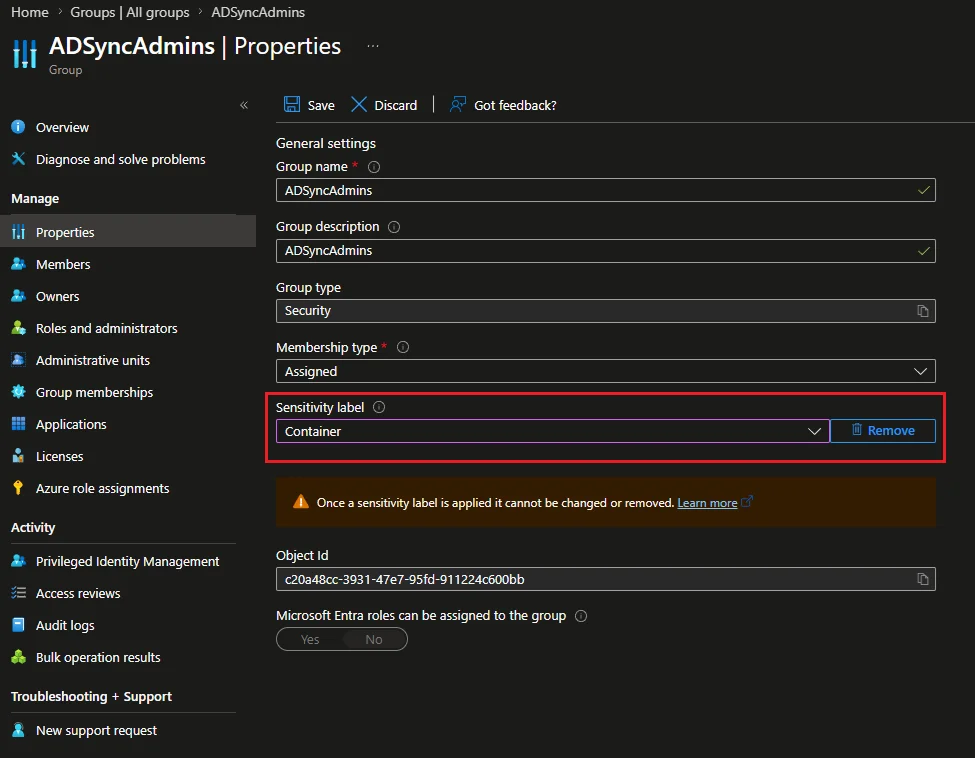
Good to know
Once a label is assigned to a group, it cannot be modified or deleted, whether via the user interface or API methods.
Conclusion
These new Entra ID features provide IT professionals with more granular control over access management and group security. Whether through global or specific parameters, or through Purview labels, each method brings flexibility and robustness to administration.
In the next article, we will explore the restrictions related to using settings and labels in the service.