Introduction
Data Loss Prevention (DLP) is an essential tool within the Microsoft Purview ecosystem to ensure the protection of sensitive files in your organization. A new feature, the "Move to Quarantine" action, introduced for SharePoint Online and OneDrive, enables improved management of policy violations by securing affected files in an isolated location.
In this article, we will explore the key aspects of this new feature and best practices for its implementation.
What is the "Move to Quarantine" Action?
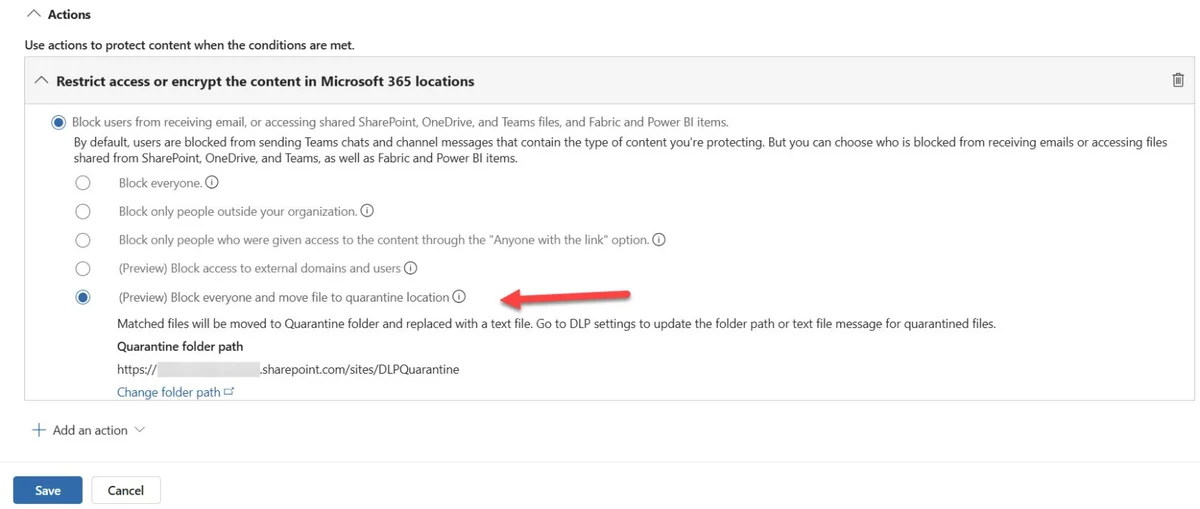
The "Move to Quarantine" feature is now available in preview and is expected to reach general availability in June 2026. When a file violates a DLP policy, this option allows you to automatically move the file to a dedicated secure SharePoint Online site (called a "quarantine location"), where it can be analyzed.
Quarantine Mechanism
Here's how it works:
- In case of a DLP policy violation, the original file is isolated in the quarantine site.
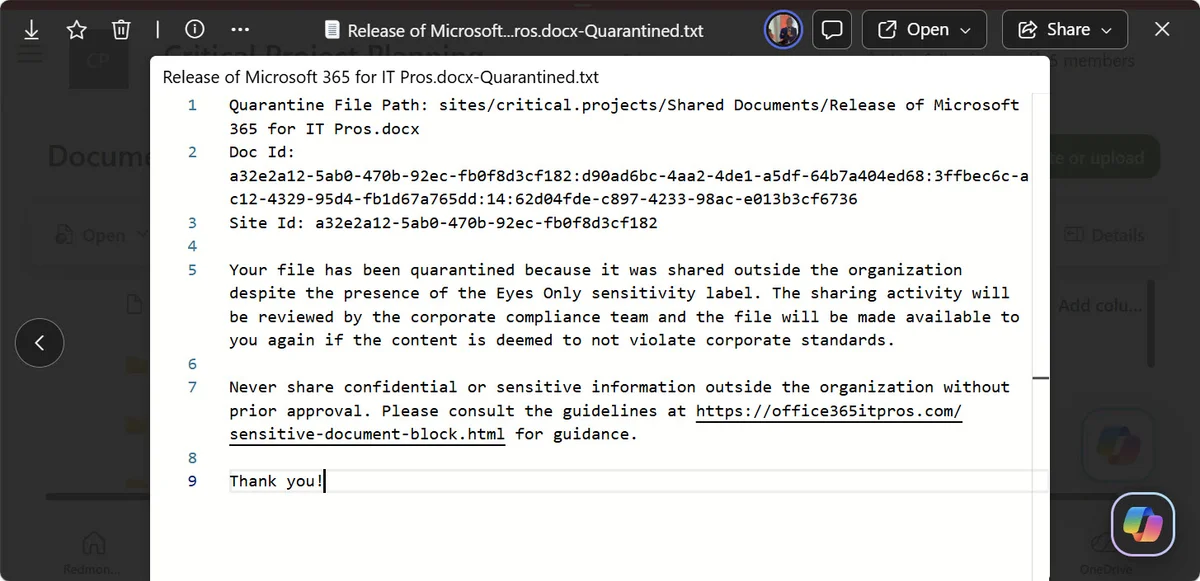
- A replacement file, called a "tombstone file", replaces the file in its original location. This file contains a text message explaining the reason for quarantine and the steps to follow to dispute the action.
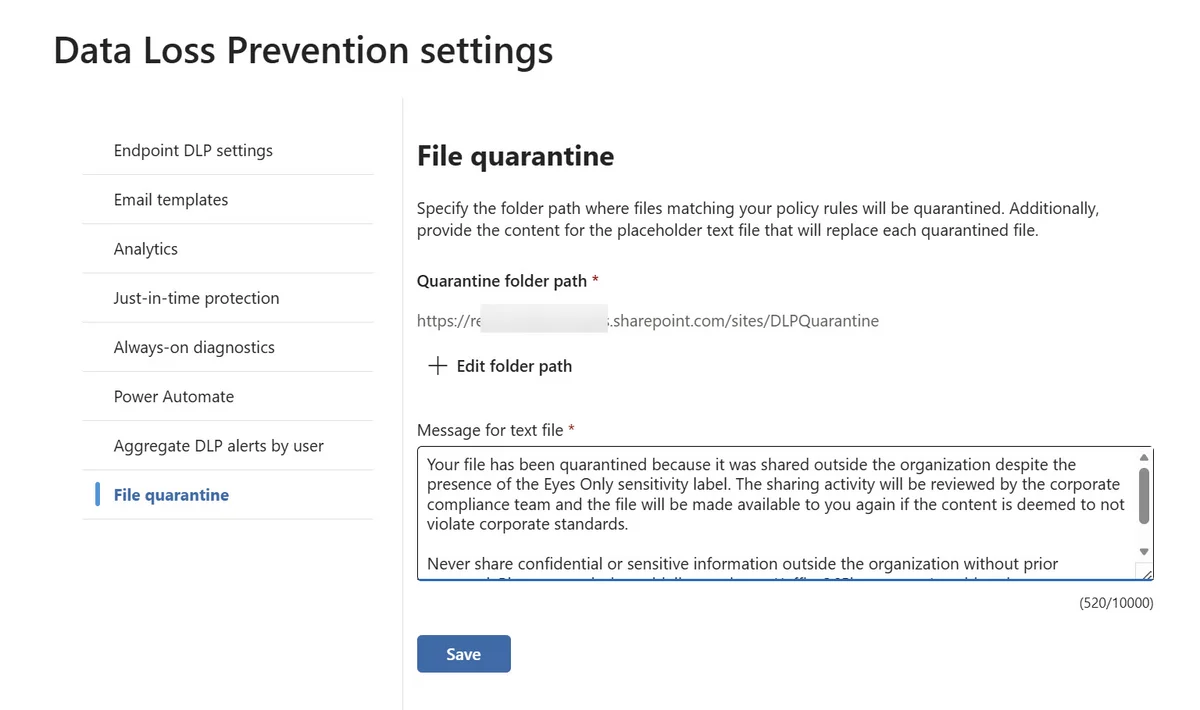
- The tombstone file text and quarantine location are configurable via the Purview portal.
Good to Know
The tombstone file is created from the text defined in the DLP settings. The naming convention includes the original file name followed by "-Quarantined.txt".
Configuring the Quarantine Site
The quarantine location must be a dedicated SharePoint Online site, ideally reserved for compliance teams. This site is automatically excluded from DLP scans to prevent other files from being detected by mistake.
File Structure in the Quarantine Location
In the default document library of the quarantine site, files are organized as follows:
- A "Sites" folder groups violations by site.
- Inside, you will find the original file structure and moved files, for example:
1Sites -> Important Documents -> Shared Documents -> Example.xlsxOnly files created or modified after the DLP policy is published are subject to this action. If you use the on-demand classification service, older files can also be detected and moved.
Post-Quarantine Analysis Process
One of the limitations of this new feature is that processing of quarantined files is not automatic. Here is the typical process:
Violation Notification
Compliance teams are alerted via a DLP notification or audit log regarding the violation.
File Analysis
Investigators manually examine files in the quarantine site to determine whether the violation is justified or if it represents a false positive.
Actions Following Analysis
In case of a false positive, the file can be restored to its original location. This requires manual action by an administrator.
Attention
Restoring a file deletes previous versions and sharing permissions are not automatically restored. Remember to adjust these settings after restoration.
Points to Consider Before Deployment
This feature adds a powerful tool to compliance teams, but it also implies significant operational burden. Here are some questions to evaluate:
- How to restrict access to the quarantine site?
- What process should be followed to notify and analyze files?
- How to manage file restorations?
Tip
Train your teams to use audit logs and DLP alerts to accelerate the processing of quarantined files.
Conclusion
The "Move to Quarantine" action for Microsoft Purview DLP represents a significant advance in managing data violations. However, careful deployment, a dedicated site structure, and team training are essential to fully leverage this new feature.