
Introduction: Towards Granular Control of External Sharing in Microsoft 365
Managing external sharing in Microsoft 365 has long relied on global controls at the tenant or SharePoint site level. With the growing demand for targeted collaboration, this monolithic approach is reaching its limits. Microsoft addresses this challenge by introducing two new actions within the Data Loss Prevention (DLP) policies of Microsoft Purview, referenced under message center MC1338823 and Roadmap item #557191, under the title Block external domain or user access for SharePoint and OneDrive.
These new actions, currently in preview, allow action at the item level (file), providing much finer control than existing sharing settings.
Availability
This feature is currently in preview and undergoing progressive deployment. It is referenced under Roadmap item #557191 and message center MC1338823. General availability (GA) is expected in the coming weeks.
Scope of Application: SPO/ODFB DLP Policies Only
Before proceeding further, it is essential to understand the scope in which these new actions operate. The parent action Restrict access or encrypt the content in Microsoft 365 locations exposes the new controls only when the DLP policy is scoped exclusively to SharePoint Online (SPO) and/or OneDrive for Business (ODFB).
This concretely means that:
- Multi-service DLP policies (Exchange + SPO, for example) will not display these new options.
- You will need to either create a new DLP policy dedicated to SPO/ODFB or modify an existing policy limited to these workloads.
- Internal users cannot be blocked by these actions — only external access is affected.
The Two New Actions Available
Once the policy is properly scoped, two new actions appear when configuring rules:
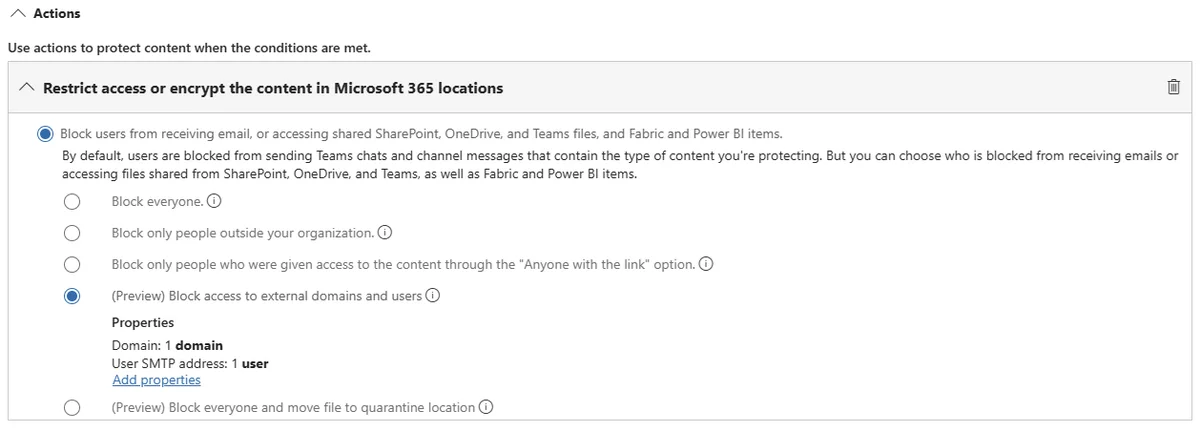
Action 1: Block access to external domains and users
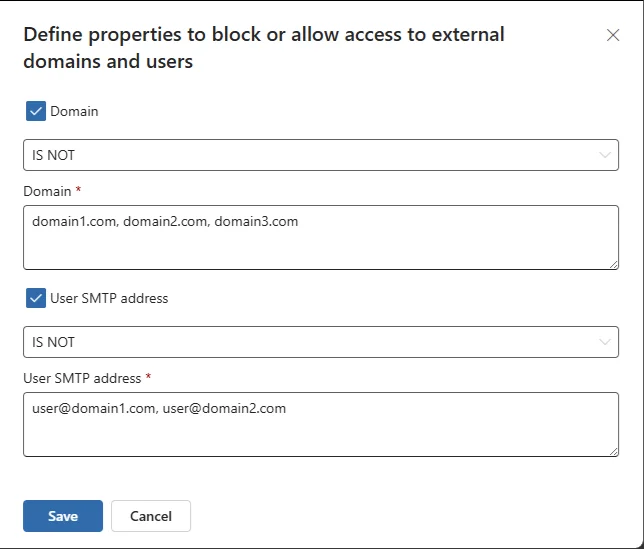
This first action allows you to restrict file sharing by targeting specific external domains and/or individual SMTP addresses. It offers two modes of operation:
- Blocklist mode (IS): listed domains and users are denied access.
- Allowlist mode (IS NOT): all external sharing is blocked, except for listed domains and users.
Input Tip
The graphical interface does not clearly indicate that it is possible to enter multiple values. Simply separate entries with commas: domain1.com, domain2.com, user@domain3.com. Note, however, that the same operator (IS or IS NOT) applies to the entire list, whether domains or SMTP addresses.
Action 2: Block everyone and move file to the quarantine location
This second action takes a more radical approach: it revokes all access to the file in question and moves it to a quarantine location defined beforehand. This behavior is analogous to the Admin Quarantine functionality of Microsoft Defender for Cloud Apps.
The quarantine location is configured from:
- Microsoft Purview portal > Settings > Data Loss Prevention settings > File quarantine
- Or directly via the link available in the action configuration.
Attention to Quarantine Site Access
The quarantine location must necessarily be a SharePoint Online site. OneDrive for Business sites are not accepted. Strictly restrict permissions on this site to only administrators and qualified personnel responsible for handling quarantined items.
Step-by-Step Configuration of a DLP Policy with New Actions
Access the Microsoft Purview Portal
Go to https://purview.microsoft.com and navigate to Solutions > Data Loss Prevention > Policies.
Create or Edit a Policy Scoped to SPO/ODFB
Create a new policy or select an existing policy. In the Locations section, make sure to select only SharePoint sites and/or OneDrive accounts. Selecting any other service will hide the new actions.
Configure the Quarantine Location (if necessary)
If you plan to use the quarantine action, configure the location beforehand via Settings > Data Loss Prevention settings > File quarantine. Select a dedicated SPO site and define the replacement text for the quarantined file.
Configure Rules and Select the New Actions
In your rule configuration, under the Restrict access or encrypt the content in Microsoft 365 locations action, select one of the two new options:
- Block access to external domains and users: enter the list of domains/users and choose the IS or IS NOT operator.
- Block everyone and move file to the quarantine location: the pre-configured quarantine location will be automatically selected.
Validate and Deploy the Policy
Finalize the configuration (notifications, simulation mode or enforcement) and publish the policy. Allow for synchronization delays that could take several hours, or even a few days, before the rules are fully operational across all content.
Inspecting Rules via PowerShell
Although creating rules with these new actions is not yet available via PowerShell (the corresponding parameters are not exposed by New-DlpComplianceRule), it is possible to inspect the properties of an existing rule with the following command:
1Get-DlpComplianceRule -Policy "SPO" | Select-Object Quarantine, BlockDomainsOrUsers, BlockDomains, BlockDomainsExcept, BlockUsers, BlockUsersExcept, RestrictAccess, SPMoveToQuarantineLocation, AdvancedRuleExample output:
1Quarantine : False2BlockDomainsOrUsers : True3BlockDomains : {}4BlockDomainsExcept : {contoso.com}5BlockUsers : {}6BlockUsersExcept : {john.doe@contoso.com}7RestrictAccess :8SPMoveToQuarantineLocation : False9AdvancedRule : {10 "Version": "1.0",11 "Condition": {12 "Operator": "And",13 "SubConditions": [14 {15 "ConditionName": "ContentExtensionMatchesWords",16 "Value": [17 "docx",18 "xlsx",19 "pptx",20 "pdf"21 ]22 }23 ]24 }25 }In this example, the rule is triggered when a .docx, .xlsx, .pptx or .pdf file is shared with any external domain or user, except contoso.com and the user john.doe@contoso.com.
Good to Know
As of now, the New-DlpComplianceRule cmdlet does not yet support the parameters BlockDomainsOrUsers, BlockDomains, BlockUsers or SPMoveToQuarantineLocation. Rule creation using these actions must therefore be done exclusively via the Purview portal graphical interface. This limitation should be lifted when the feature reaches general availability.
Behavior on the End User Side
Domain/User Blocking Action
When a user attempts to share a file with a recipient matching the blocking condition, the relevant entries are simply removed from the sharing list without clear notification. If the recipient is part of the authorized entities, sharing proceeds normally.
Quarantine Action
When the quarantine rule is triggered:
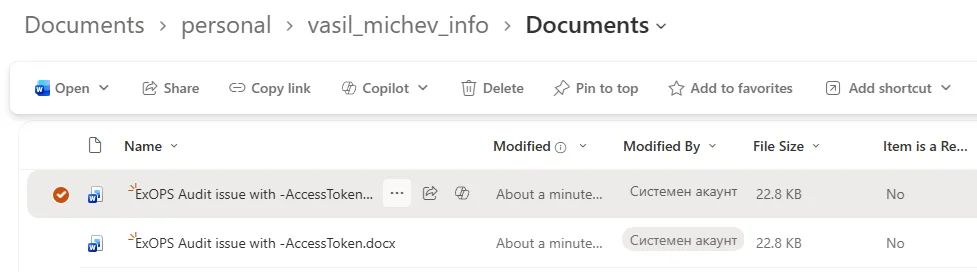
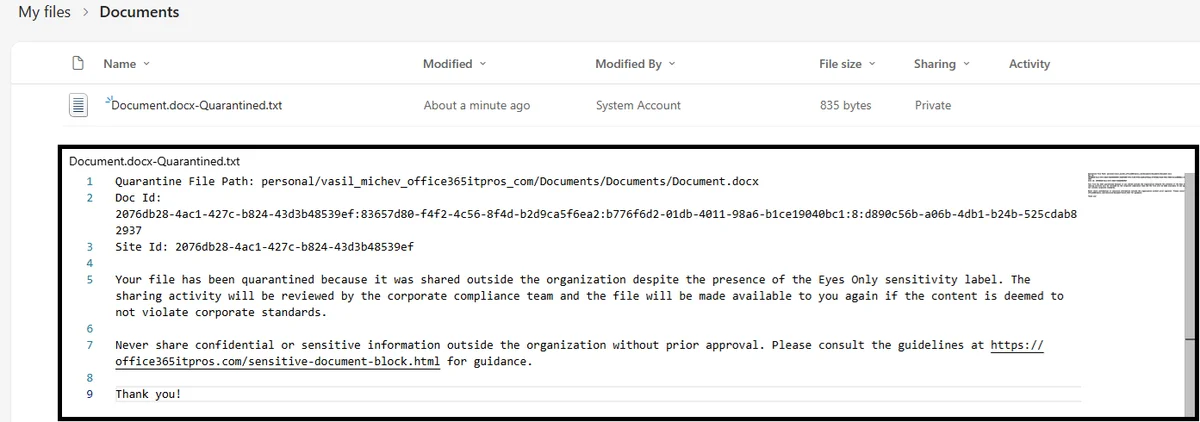
- All access to the file is revoked.
- The file is copied to the quarantine location, in a directory structure reflecting the original path (e.g.,
user_domain_com > Documents). - The original file is replaced with a
.txtfile whose content corresponds to the message configured in the quarantine settings.
Preview Behavior
During the preview phase, some behaviors may not be fully consistent. Testing has shown that the original file could remain in place (with its sharing permissions intact) despite the correct creation of the quarantine copy. This behavior should be standardized at GA.
Absence of Policy Tips and Overrides
It is currently not possible to configure policy tips (notifications in the user interface) or overrides (ability for users to justify and bypass the rule) for these two new actions. This limitation can generate confusion among users, particularly with the quarantine action which may give the impression that files have "disappeared".
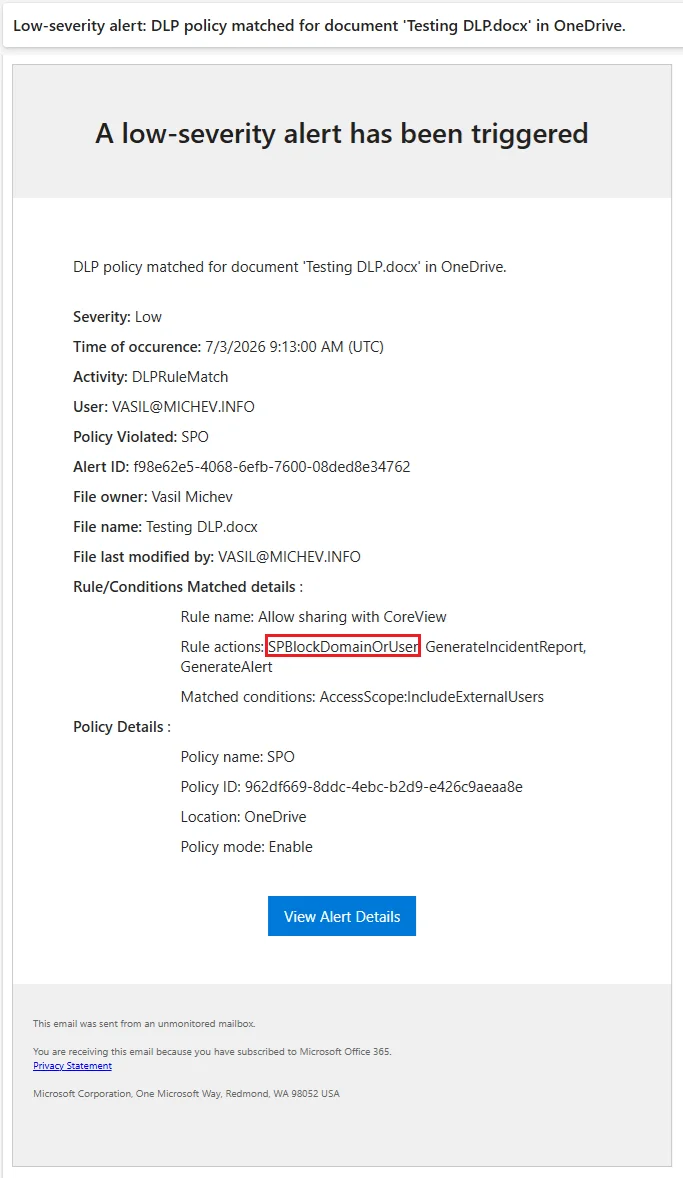
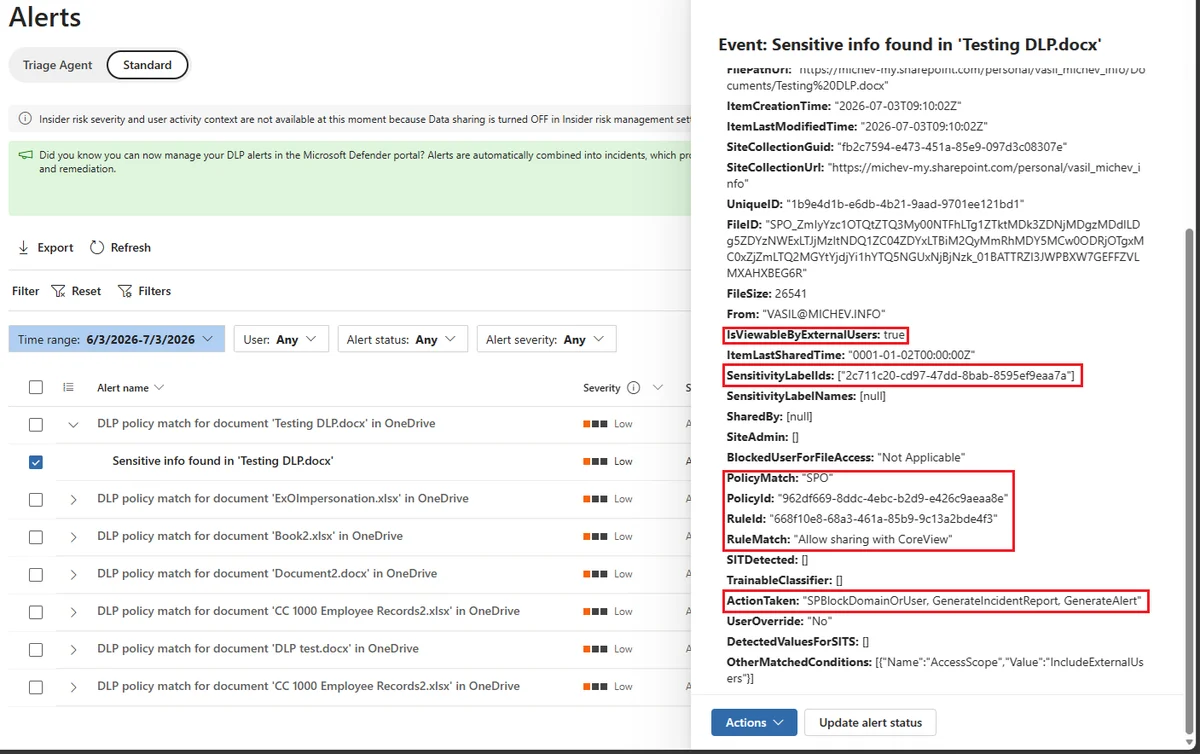
Managing Alerts and Incident Reports
Monitoring policy triggering relies on the same mechanisms as existing DLP policies: alerts in the Purview portal and incident reports by email. The administrator experience therefore remains consistent with existing workflows.
Comparison with Existing Sharing Controls
| Mechanism | Scope | Granularity | Quarantine | User Notifications |
|---|---|---|---|---|
| SharePoint tenant/site sharing controls | Entire tenant or site | Low (global) | No | No |
| Sensitivity Labels with encryption | Per document | High (per user/domain) | No | Partial |
| DLP - Block access (new) | Per file matching the rule | High (domain/user) | No | No (no policy tips) |
| DLP - Quarantine (new) | Per file matching the rule | High | Yes | No (no policy tips) |
Points of Attention and Best Practices
Interaction with Sensitivity Labels
Files protected by sensitivity labels with encryption retain their own permissions logic. Even if a DLP rule allows a domain via the IS NOT condition, the label permissions must explicitly include the domain or address of the recipient for the content to be accessible.
Independence of Controls
The new DLP actions operate independently of external sharing settings at the tenant level and SPO sites. They constitute an additional control layer, allowing you to secure specific files while maintaining open collaboration with certain partners.
Operational Recommendations
- Educate your users before any enforcement mode deployment, particularly for quarantine rules.
- Test in simulation mode (Audit only) before enabling blocking or quarantine actions.
- Restrict access to the quarantine site to a limited group of administrators and compliance officers.
- Document the recovery process for users whose files are quarantined.
- Wait after creating or modifying a policy before validating its behavior — synchronization may require several hours.
Important: Preview Feature
This feature is still in preview. Unexpected behaviors can occur, particularly the failure to replace the original file with the .txt in some tenants. It is strongly discouraged to use it in production without thorough testing and prior communication with end users.
Official References
- Microsoft Purview DLP Documentation
- Configure DLP Policies for SharePoint and OneDrive
- Admin Quarantine in Microsoft Defender for Cloud Apps
- Get-DlpComplianceRule Cmdlet
- SharePoint Online External Sharing Controls
- Microsoft 365 Roadmap #557191
Conclusion
The introduction of these two new DLP actions for SharePoint Online and OneDrive for Business represents a significant advance in granular management of external sharing within Microsoft 365. The ability to block or quarantine specific files based on domain or user criteria fills a real gap compared to existing global controls.
Nevertheless, the lack of support for policy tips and overrides, combined with some inconsistencies observed in preview, invites a gradual and controlled adoption. Monitor general availability announcements and official documentation updates to integrate these controls into your information protection strategy.