Introduction
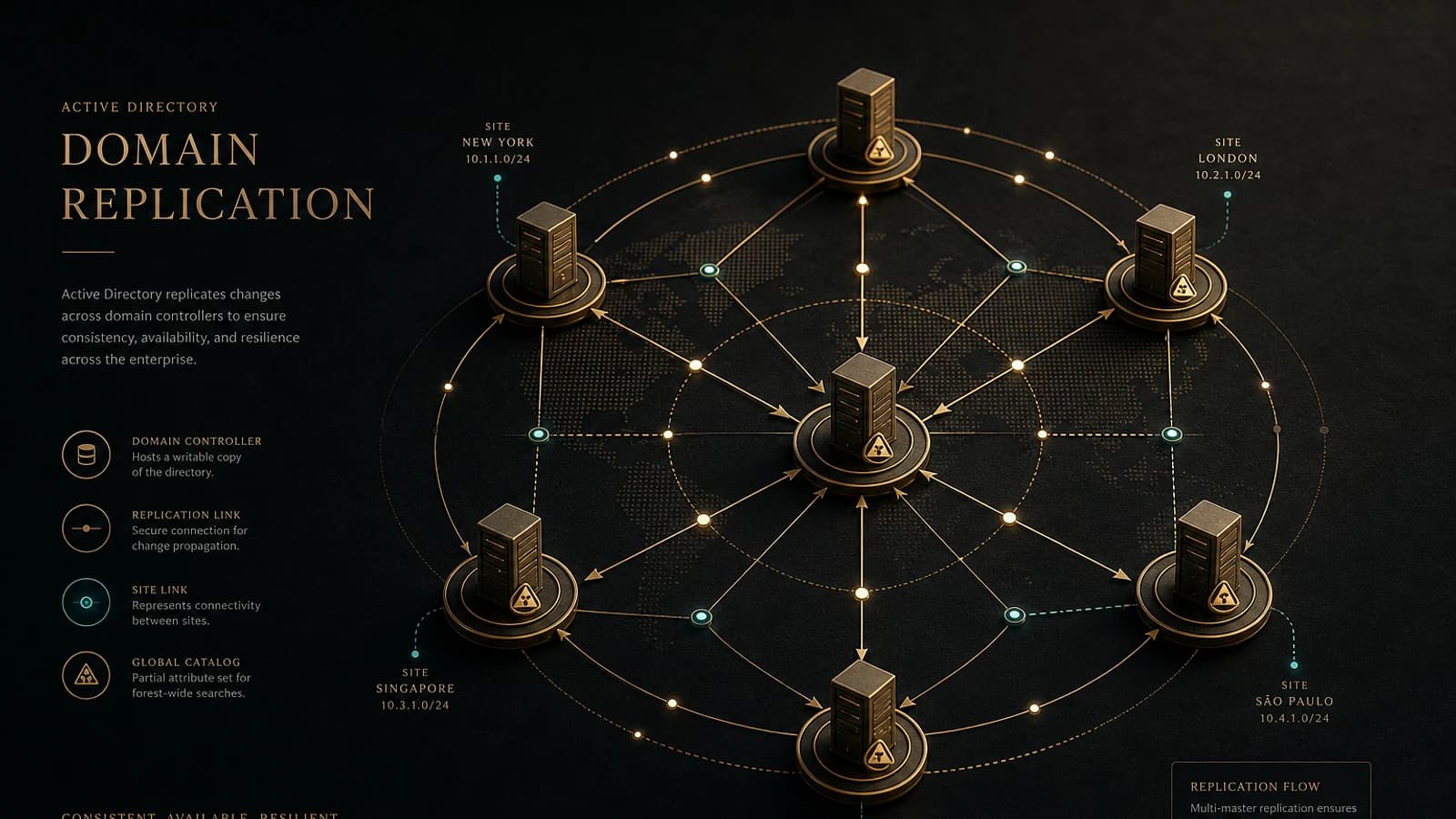
Replication in Active Directory Domain Services (AD DS) is crucial to ensure data consistency across an environment. However, various issues can arise, such as DNS errors, RPC issues, or even topology problems, disrupting normal operations. In this article, we will examine the necessary steps to diagnose and fix Active Directory replication errors using tools such as repadmin, dcdiag, and PowerShell.

Identifying Replication Errors in Active Directory
The first step in resolving a replication error is to collect evidence and identify the scope of the problem. Here are the key steps:
Run a Basic Check
Run the following commands to get a summary of replication issues:
1repadmin /replsummaryThis command provides an overview of domain controllers experiencing replication issues. Assess whether the problem is isolated to a single server or affects multiple sites.
Examine Event Logs
Event logs related to Directory Service can provide additional information on recurring failures. Export these logs for in-depth analysis.
Create a CSV Snapshot
Generate a current state of replication errors in a sortable CSV format:
1mkdir C:\Temp\ADReplication2repadmin /showrepl * /csv > C:\Temp\ADReplication\showrepl.csv3dcdiag /e /test:replications /v > C:\Temp\ADReplication\dcdiag-replications.txtGood to Know
Errors such as 1722, 2087, and 1311 can originate from different layers, including DNS, RPC, or intersite link configuration.
Decoding Common Error Codes
Error codes in Active Directory provide clues about what needs to be fixed. Here is a table to guide you:
| Error Code | Meaning | Diagnostic Tools |
|---|---|---|
| 1722 | RPC server is unreachable | Test-NetConnection, PortQry |
| 2087 | DNS lookup failure | dcdiag, Resolve-DnsName |
| 1311 | KCC topology not valid | repadmin /showism |
Resolving Error 1722: RPC Server Unreachable
An error 1722 indicates that the destination domain controller cannot establish an RPC connection with the source. Run the following tests to verify connectivity:
Validate Name Resolution and Port 135
Test port connectivity and DNS accessibility:
1Resolve-DnsName DC2.contoso.com2Test-NetConnection DC2.contoso.com -Port 135Diagnose Dynamic RPC Ports
Use PortQry to test dynamic ports used by replication:
1portqry -n DC2.contoso.com -e 1352portqry -n DC2.contoso.com -p tcp -r 49152:65535Tip
If DNS resolution works but ports are blocked, collaborate with the network team to adjust firewall rules.
Overcoming Error 2087: DNS Lookup Failure
Error 2087 typically occurs when the destination domain controller cannot resolve the DNS records necessary for replication. Follow these steps:
Step 1: Resolve GUID CNAME
Use the GUID of the source controller to test DNS records:
1Resolve-DnsName $SourceGuid._msdcs.contoso.com -Type CNAME2Resolve-DnsName DC2.contoso.com -Type AStep 2: Re-register Dynamic Records
Restart Netlogon to force re-registration of DNS records:
1Invoke-Command -ComputerName DC2 -ScriptBlock {2 Restart-Service -Name Netlogon3 ipconfig /registerdns4}Step 3: Eliminate Stale Sources
If the problem persists with an invalid controller, perform metadata cleanup with ntdsutil. Consult Microsoft documentation to perform this step.
Proactive Replication Monitoring
To minimize interruptions, set up a daily task to monitor replication:
1$Path = "C:\Reports\ADReplication"2New-Item -ItemType Directory -Path $Path -Force | Out-Null3 4repadmin /showrepl * /csv > "C:\Reports\ADReplication\showrepl-(Get-Date -Format yyyyMMdd).csv"Set up alerts for any desynchronization or delay detected in CSV snapshots.
Conclusion
Resolving replication issues in Active Directory involves identifying the problem layer, capturing detailed evidence, and following a systematic procedure. Always validate results before applying permanent solutions. Make sure to document your fixes to benefit from past events.
Important
Never force replication before resolving the root cause of the problem. This could make the situation worse.