
Introduction to Secure BitLocker Key Export
Managing BitLocker recovery keys in a Microsoft 365 environment requires a secure approach to prevent sensitive data exposure. This article presents an improved version of a PowerShell script that uses SecureString objects to protect keys during export, unlike traditional approaches that display keys in plain text.
Security
BitLocker recovery keys are highly sensitive data. Their plain text exposure represents a major security risk for your organization.
Prerequisites and Permission Configuration
Required Administrative Roles
The script requires execution with an administrator account having appropriate delegated permissions. Consult the official Microsoft documentation for the complete list of supported roles.
Microsoft Graph API Permissions
The script requires specific permissions to function properly:
| Permission | Purpose | Mandatory |
|---|---|---|
| BitLockerKey.Read.All | Reading BitLocker recovery keys | Mandatory |
| Device.Read.All | Detailed device information | Optional |
| User.ReadBasic.All | Device owner resolution | Optional |
Automatic Detection
The script automatically detects available permissions, but may not identify broader scopes like Directory.Read.All. Adapt the code according to your specific needs.
Advanced Script Features
Restricted Management Administrative Unit (RMAU) Handling
This version improves handling of devices added to a Restricted Management Administrative Unit. For these devices, access to BitLocker keys is limited to users with specific permissions on the unit in question, regardless of tenant-wide roles.
Throttling Control
For environments with thousands of saved keys, the script includes a delay mechanism (line 297) to mitigate API rate limiting issues. This value is adjustable based on your needs.
Available Configuration Parameters
Script V2 offers several parameters to customize output:
- IncludeDeviceInfo: Retrieves device details (requires Device.Read.All)
- IncludeDeviceOwner: Adds owner UPN (requires User.ReadBasic.All)
- DeviceReport: Generates device-focused report
- AllowInsecureOutput: Produces plain text output (not recommended)
- InputFile: Decrypts keys from an existing XML file
Practical Usage Examples
Basic key export
1.\GraphSDK_Bitlocker_reportV2.ps1Including device information
1.\GraphSDK_Bitlocker_reportV2.ps1 -IncludeDeviceInfoComplete report with owners
1.\GraphSDK_Bitlocker_reportV2.ps1 -IncludeDeviceInfo -IncludeDeviceOwnerDevice-focused report
1.\GraphSDK_Bitlocker_reportV2.ps1 -DeviceReportSecure Output File Management
Secure XML Format
By default, the script generates an XML file using the native representation of SecureString. This encrypted data is only accessible to the user and device that generated the file.
Key Decryption
To access decrypted key values:
1# Generate report (encrypted keys)2.\GraphSDK_Bitlocker_reportV2.ps1 -DeviceReport3 4# Decrypt from an existing file5.\GraphSDK_Bitlocker_reportV2.ps1 -InputFile .\2026-03-13_12-28-55_BitLockerKeys.xmlThis approach generates CSV and HTML files with decrypted keys without making additional API calls.

Dot-source Function
You can use the Generate-HTMLReport function by dot-sourcing the script for integration into your own workflows.
Interactive HTML Reports
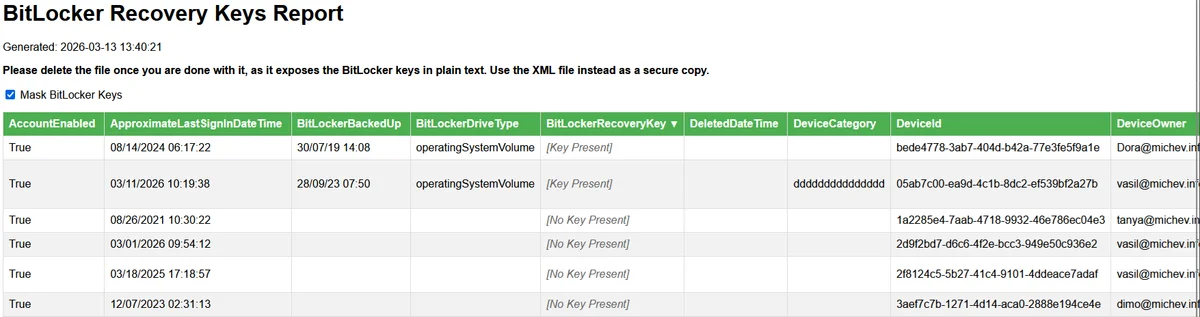
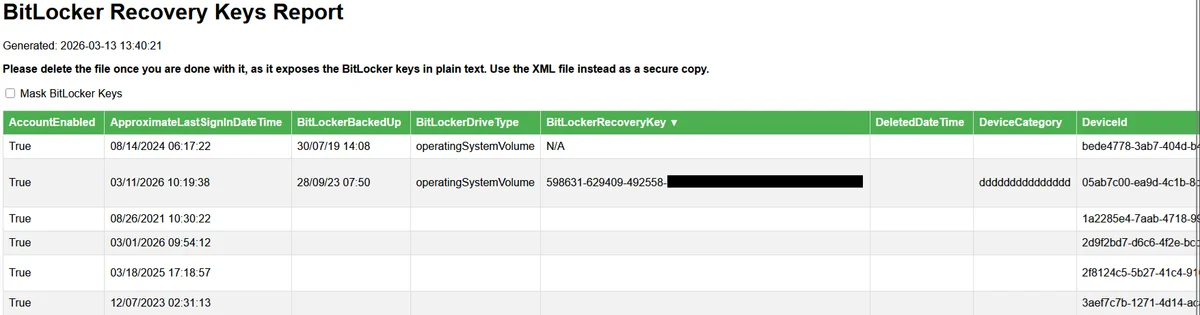
The generated HTML report includes a "Mask BitLocker keys" checkbox enabled by default to hide sensitive values. This feature protects against accidental key viewing.
Script Customization and Extension
Adding Custom Properties
To enrich output with additional properties, modify lines 253-257 of the script. For device-focused report, adjust the excluded properties list (line 310).
Insecure Output Mode
Warning
The -AllowInsecureOutput parameter generates keys in plain text. Use this option only if you have other security measures in place and delete files immediately after use.
Complementary PowerShell Scripts
Graph Permissions Verification
1# Check current permissions2$context = Get-MgContext3if ($context.Scopes -contains "BitLockerKey.Read.All") {4 Write-Host "BitLocker Permissions OK" -ForegroundColor Green5} else {6 Write-Host "Insufficient Permissions" -ForegroundColor Red7}Automatic Temporary File Cleanup
1# Secure deletion of output files2$outputFiles = Get-ChildItem -Path "." -Filter "*BitLockerKeys*"3foreach ($file in $outputFiles) {4 Remove-Item $file.FullName -Force5 Write-Host "File deleted: $($file.Name)" -ForegroundColor Yellow6}Useful Links and References
- Official Microsoft Graph BitLocker API Documentation
- Script GitHub Repository
- Microsoft Graph Permissions Guide
- PowerShell SecureString Documentation
Technical Glossary
BitLocker: Disk encryption technology built into Windows that protects data in case of device theft or loss.
Entra ID: Microsoft's cloud identity and access service, formerly Azure Active Directory.
Microsoft Graph SDK: Software development kit for interacting with Microsoft Graph APIs via PowerShell.
RMAU (Restricted Management Administrative Unit): Administrative unit that limits access to resources to a specific set of administrators.
SecureString: .NET data type that stores sensitive information in encrypted form in memory.
Throttling: API rate limiting mechanism to prevent overloading Microsoft Graph services.