
Introduction
Microsoft Graph offers a powerful API that allows administrators to manage and query Microsoft 365 (M365) group data. However, choosing the appropriate permissions to access group properties and resources can be complex. This article explains in detail key permissions such as Group.Read.All and GroupMember.Read.All, and their implications in various application scenarios.
Good to know
Graph permissions are primarily divided between delegated permissions and application permissions, each suited to specific needs.
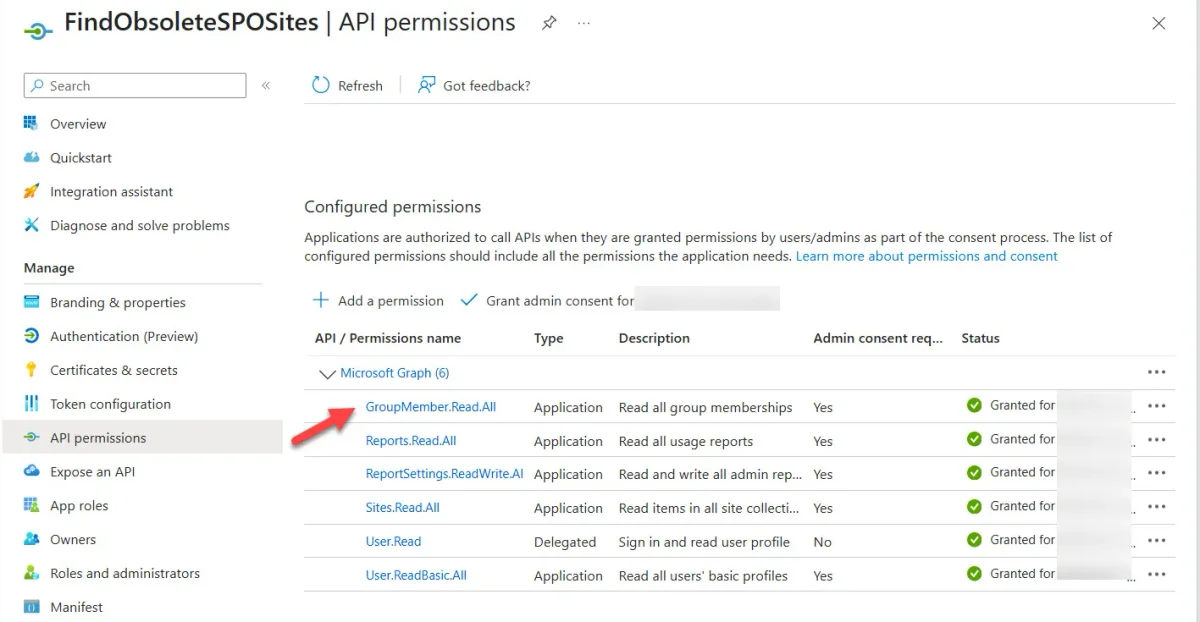
Delegated permissions vs application permissions
When to use Group.Read.All and GroupMember.Read.All
The Group.Read.All permission allows you to read group properties, while GroupMember.Read.All is designed to access basic information such as group members and owners. Here are the main distinctions:
- Group.Read.All: Access to complete group content, including associated resources such as SharePoint files, calendar, and team conversations.
- GroupMember.Read.All: Limited access to basic information, ideal for reporting or audit scenarios.
Caution
Do not combine Group.Read.All and GroupMember.Read.All unless strictly necessary. Their combination adds no additional value.
Delegated access with Group.Read.All
The delegated permission Group.Read.All allows a signed-in user to read all group information to which they have direct access or via an Entra ID administrator role. Here is a PowerShell example to access group details and associated conversations:
1$Group = Get-MgGroup -Filter "displayName eq 'Ultimate Guide to Office 365'" 2[array]$Conversation = Get-MgGroupConversation -GroupId $Group.Id -Top 1 3$Conversation | Format-List Id, LastDeliveredDateTime, Preview, UniqueSendersTip
Use delegated permission in interactive scenarios where the user can access discussions or files of a specific group.
Application permissions: More powerful
When you use Group.Read.All as an application permission, access is global to all Entra ID groups. This grants considerable power but requires rigorous access controls to prevent abuse. This permission does not support group calendars, an important limitation to note.
The minimal nature of GroupMember.Read.All
GroupMember.Read.All is specifically designed to provide:
- The group identifier and display name.
- The list of members, including transitive members.
This permission does not grant access to group resources. It is ideal for scripts or applications that need to answer questions like "Which groups does this user belong to?".
Here is an example to retrieve members with PowerShell:
1[array]$Members = Get-MgGroupMember -GroupId $Group.Id 2$Members | Format-Table Id, DisplayNameRetrieving user information
While GroupMember.Read.All provides a solid foundation for group access, retrieving specific user properties such as display name or email address requires an additional permission, such as User.ReadBasic.All. Without this, only basic information will be exposed:
1$Members.additionalPropertiesImportant
Make sure to add User.ReadBasic.All to your application if you need to access detailed user properties.
Conclusion
Choosing the appropriate Microsoft Graph permissions is based on a precise evaluation of your application's requirements:
- GroupMember.Read.All: For limited access to group composition.
- Group.Read.All: For complete management of group data and resources.
- User.ReadBasic.All: To retrieve specific member details.
Define your needs
Identify whether your application needs access to group resources or only basic information.
Choose permissions
Select permissions with the least privilege model (e.g., start with GroupMember.Read.All).
Apply and test
Configure permissions in Entra ID and test usage scenarios using PowerShell.
Learn more
Explore our other articles on M365 group management and PowerShell script optimization through Microsoft Graph:
Tags: Use these permissions to improve your PowerShell scripts or M365 applications.