The Microsoft Defender for Office 365 Protection & Posture Insights report keeps growing: on November 6, 2026, Microsoft announced a URL Protection insight, a Filtering Overrides insight and wider Go hunt access. The question is what to do with them. This tutorial shows how to generate the report, read it and turn its findings into verifiable hardening actions.
Microsoft introduced this report earlier in 2026 in its initial announcement: an on-demand view, specific to your tenant, of email and collaboration threats, protection effectiveness and the configuration points to strengthen.
Licensing and prerequisites: who can generate the report
Microsoft Learn documentation states that the report requires Defender for Office 365 Plan 2. It covers the last 30 days and a new report can be generated every 24 hours.
30 days
Period covered by the report
Microsoft Learn
24 h
Minimum interval between two generations
Microsoft Learn
60 min
Wait before retrying after a failure
Microsoft Learn
Plan 1 included in E3, but not enough
Since July 1, 2026, Defender for Office 365 Plan 1 has been included in Office 365 E3 and Microsoft 365 E3, according to the Microsoft service description. This does not bring the Plan 2 features: the report remains reserved for Plan 2, for example through Microsoft 365 E5.
Before generating the report
- At least one Defender for Office 365 Plan 2 license assigned in the tenant
- Access to the Microsoft Defender portal with an account allowed to view email and collaboration reports
- Read access to the Microsoft Entra admin center to resolve priority accounts
- A storage location to keep each version of the report
Generate the report in four steps
Generation takes a few minutes for a tenant with Plan 2.
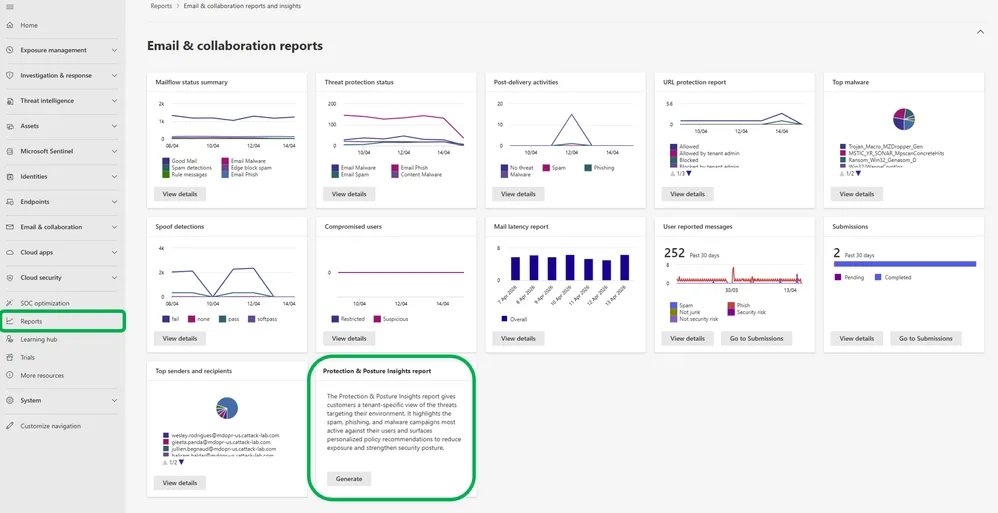
Open the email and collaboration reports
In the Microsoft Defender portal, go to Reports, then Email & collaboration reports. You can also open the Defender portal reports page directly.
Start the generation
On the Protection & Posture Insights report card, select Generate. If generation fails, the documentation requires waiting 60 minutes before retrying.
Open or export the report
The report opens in the Defender portal or downloads as HTML. Printing to PDF is possible for sharing with management or auditors.
Archive the version
The analysis window is 30 days: keep each dated generation so you can compare progress from one hardening cycle to the next.
Reading policy coverage and priority accounts
Policy coverage is based on messages processed by Safe Attachments and Safe Links. According to Microsoft Learn, the threshold used to classify a user is as follows:
| Status | Messages processed | Recommended reading |
|---|---|---|
| Protected | More than 95% | Nothing to fix, track the trend |
| Partially protected | Between 10% and 95% | Check policy assignment and exceptions |
| Not protected | Less than 10% | Priority: verify that the policy actually targets these users |
A partially protected or unprotected user deserves a check of policy assignment. Then cross-reference with the Filtering Overrides insight: an exception may explain why a message escapes processing.
Priority account identities are masked. The report displays Microsoft Entra GUIDs, which must be resolved to find the user.
Copy the GUID from the report, then search for it in the Microsoft Entra admin center to find the matching user.
URL Protection: measure clicks across all channels
Malicious links no longer arrive only by email: they also appear in Teams, Office files and Microsoft 365 Copilot responses, and many look harmless until after delivery. Defender checks links at the time of the click. The new URL Protection insight shows how many clicks were checked, how many attempts to reach malicious sites were blocked, and the breakdown between email, Office apps, Teams and Microsoft 365 Copilot.
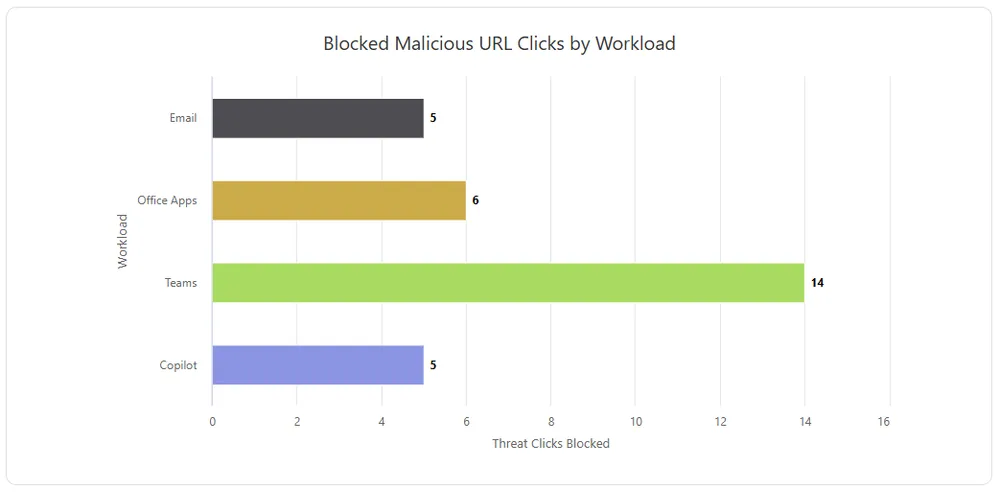
This breakdown is used for prioritization. A channel that concentrates blocks reveals where your users are exposed, and therefore where to focus awareness and the Safe Links policy review. As an illustration: if blocks come mainly from Teams while your internal communication focuses on email phishing, adjust the message.
Filtering Overrides: turn exceptions into a hardening plan
Allow lists and transport rules are sometimes necessary for business continuity, but every exception weakens protection. The Filtering Overrides insight shows how many phishing, malware and spam messages were allowed through by organization-level or user-level exceptions, and which exception types are responsible. It also flags exceptions applied to messages that Defender had already classified as clean: a good sign that they can be removed.
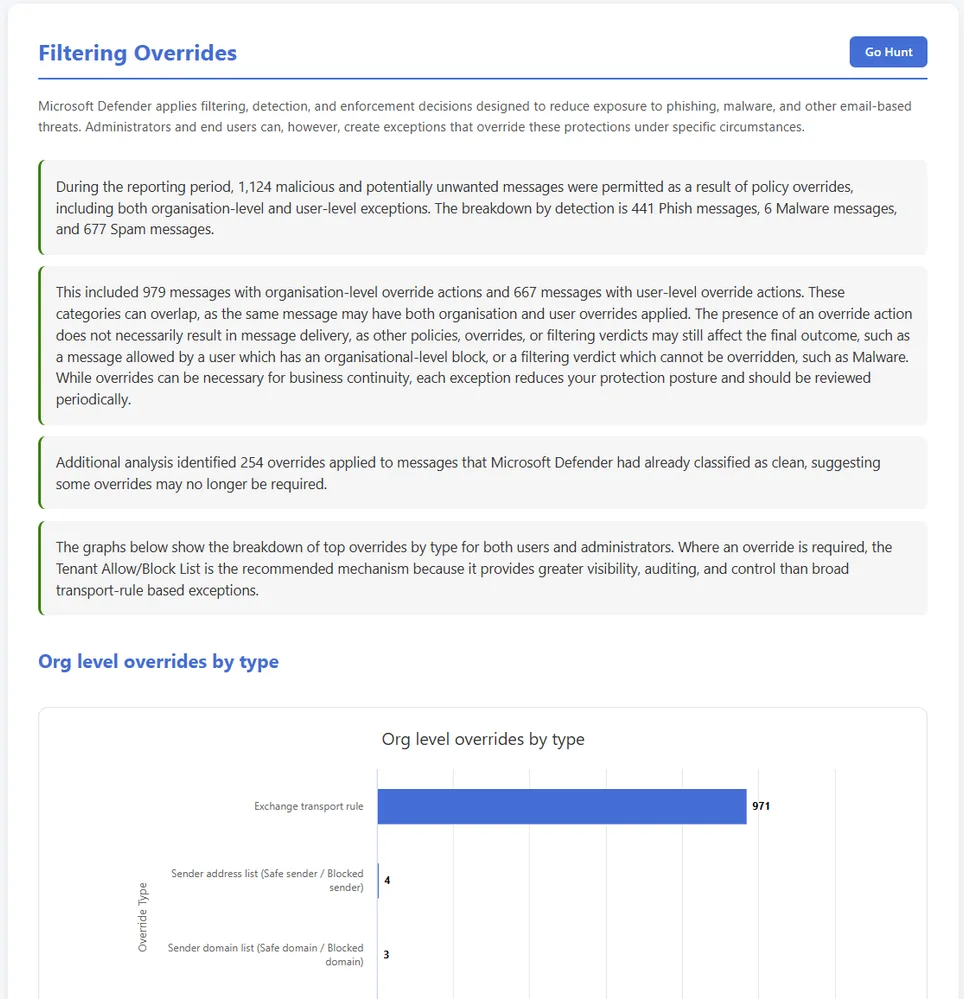
Here is a reading grid that converts each finding into an action. It reflects our recommendation, not a Microsoft prescription.
| Finding in the report | Hardening action | Verification |
|---|---|---|
| Exceptions on messages already classified as clean | Remove the exception, it adds nothing | The corresponding volume drops to zero at the next generation |
| Phish or malware allowed by a broad transport rule | Replace the rule with a targeted Tenant Allow/Block List entry | The exception type disappears from the breakdown |
| Many user exceptions | Identify the owner and justification of each one | Documented and reviewed list of exceptions |
| Allows with no end date | Enforce an expiration on each entry | TABL audit with no unjustified permanent entry |
Why the Tenant Allow/Block List rather than a transport rule
Microsoft recommends the Tenant Allow/Block List (TABL) when an exception is truly required: it offers more visibility, auditing and control. According to Microsoft Learn, allow entries created from submissions expire by default 45 days after their last use, which limits forgotten exceptions. This method is also the one that allows overriding high-confidence malware and phishing verdicts. An entry becomes active in about 5 minutes.
| License | Total limit | Allows | Blocks |
|---|---|---|---|
| Defender for Office 365 Plan 2 | 15,000 entries per category | 5,000 | 10,000 |
| Without Defender for Office 365 | 1,000 entries | 500 | 500 |
Removing a transport rule affects the whole tenant
Removing or disabling a broad transport rule changes mail flow for the entire organization. First identify which legitimate flows it covers, create the replacement TABL entries, wait for them to become active (about 5 minutes), and only then remove the rule.
To cross-check the result, the “Tenant allow types” card on the Defender for Office 365 Overview dashboard complements the insight by helping to spot risky allows.
Go hunt: start from the insight's exact query
The Go hunt button opens Advanced Hunting with the query that feeds the insight, which you can explore and adapt. It is now available on more insights, including URL Protection, Filtering Overrides and Detection Trends. Microsoft Learn documentation states that more queries are being added over time.
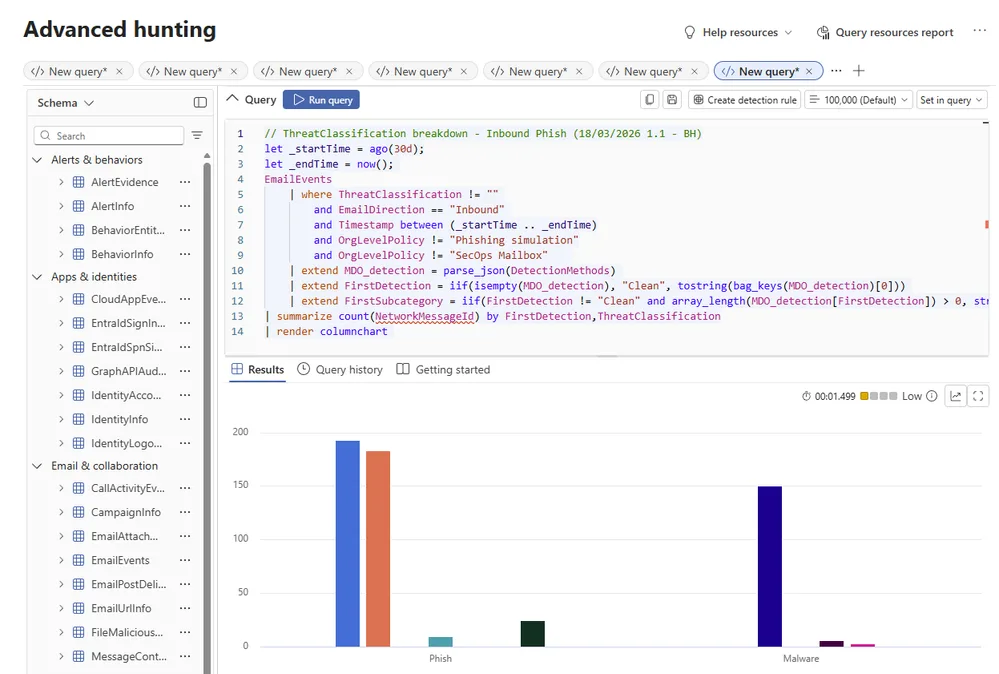
Start from the provided query rather than writing your own: it ensures your results stay consistent with the figure shown in the report. Then save the adapted version (filtered on a domain, a population or a period) to replay it at each cycle.
Implementation
Two read-only scripts cover the steps that require a tool: resolving priority account GUIDs and auditing TABL allows. Neither modifies the tenant.
Prerequisites: PowerShell 7 or Windows PowerShell 5.1, and the modules installed with the following commands.
1# Required modules: Microsoft Graph (users) and Exchange Online2Install-Module Microsoft.Graph.Users -Scope CurrentUser3Install-Module ExchangeOnlineManagement -Scope CurrentUserResolve priority account GUIDs
Minimum permission: the Microsoft Graph delegated scope User.Read.All. For each GUID, the script returns the ID, name, UPN and account status.
1param(2 [Parameter(Mandatory = $true)]3 [string[]]$UserId # Microsoft Entra GUIDs taken from the report4)5 6# Connect with the read-only scope7Connect-MgGraph -Scopes 'User.Read.All' -NoWelcome8 9foreach ($id in $UserId) {10 try {11 # Read the user and the useful properties12 Get-MgUser -UserId $id -Property 'Id,DisplayName,UserPrincipalName,AccountEnabled' |13 Select-Object Id, DisplayName, UserPrincipalName, AccountEnabled14 }15 catch {16 Write-Warning ('GUID not found or access denied: {0}' -f $id)17 }18}Save it as Resolve-PriorityGuid.ps1, then run it with -UserId followed by your comma-separated GUIDs.
Audit Tenant Allow/Block List allows
The script lists URL and sender allow entries, flags those without an expiration date and exports everything to CSV. Use an account with read-only rights on the TABL, following the principle of least privilege.
1# Connect to Exchange Online2Connect-ExchangeOnline -ShowBanner:$false3 4$resultat = foreach ($type in 'Url', 'Sender') {5 # Read only the allow entries of each category6 Get-TenantAllowBlockListItems -ListType $type -Allow |7 Select-Object @{ n = 'Categorie'; e = { $type } }, Value, ExpirationDate, Notes8}9 10# Display sorted by expiration date11$resultat | Sort-Object ExpirationDate | Format-Table -AutoSize12 13# Entries without an expiration date: candidates for review14$sansExpiration = $resultat | Where-Object { -not $_.ExpirationDate }15Write-Host ('{0} allow(s) without expiration out of {1}' -f @($sansExpiration).Count, @($resultat).Count)16 17# Export to track the hardening plan18$resultat | Export-Csv -Path .\tabl-autorisations.csv -NoTypeInformation -Encoding UTF819 20Disconnect-ExchangeOnline -Confirm:$falseVerify the result
Regenerate the report after at least 24 hours and compare it with the archived version: the volume of exceptions responsible for phish or malware getting through should drop, and “Partially protected” or “Not protected” users should decrease. Keep in mind that the window is 30 days: the effects smooth out gradually.
Troubleshooting
| Symptom | Probable cause | Resolution |
|---|---|---|
| The report card is missing or generation is impossible | Defender for Office 365 Plan 2 license not assigned | Check the license assignment: Plan 1 included in E3 is not enough |
| Generation fails | Generation failure on the service side | Wait 60 minutes before retrying |
| Cannot rerun a report | A report was generated less than 24 hours ago | Wait 24 hours between two generations |
| Priority accounts appear as GUIDs | Identities intentionally masked in the report | Resolve the GUIDs in the Entra admin center or with the Graph script |
| A TABL entry has no effect yet | Activation delay of about 5 minutes | Wait a few minutes then retest |
| A TABL allow has disappeared | Default expiration 45 days after last use (entries created from submissions) | Recreate the entry if the need persists, documenting its justification |
Frequently asked questions
Is the report available with Microsoft 365 E3?
No. Since July 1, 2026, Defender for Office 365 Plan 1 has been included in Office 365 E3 and Microsoft 365 E3, but without the Plan 2 features. The Protection & Posture Insights report remains reserved for Plan 2, for example Microsoft 365 E5.
How often can I generate the report?
Once every 24 hours. It covers the last 30 days. If generation fails, the documentation asks you to wait 60 minutes before retrying.
How do I find a priority account displayed as a GUID?
The report masks these identities and displays Microsoft Entra GUIDs. Search for them in the Entra admin center, or query Microsoft Graph with the script in the “Implementation” section.
How many entries does the Tenant Allow/Block List accept?
With Defender for Office 365 Plan 2, up to 15,000 entries per category (5,000 allows and 10,000 blocks). Without Defender for Office 365, the limit is 1,000 entries (500 allows and 500 blocks).
A hardening plan in five actions
Actions to schedule after the first generation
- Generate and archive the report, then note the baseline values (coverage, blocked click volumes, exceptions)
- Resolve priority account GUIDs and check their Safe Links and Safe Attachments coverage
- Run the TABL audit and set an expiration on allows with no end date
- Remove the exceptions flagged on messages already classified as clean, then replace overly broad transport rules with TABL entries
- Regenerate the report after at least 24 hours and compare it with the archived version
If your tenant only has Plan 1, start with the TABL audit and an inventory of your transport rules: they do not depend on the report. If you have Plan 2, tackle Filtering Overrides first, because each exception removed immediately reduces the exposure surface.
To place these settings within the whole suite, see our complete guide to Microsoft 365 Defender components and our article on Microsoft Defender optimization and configuration.
Going further
- Protection & posture insights report on Microsoft Learn: licensing, generation frequency, report sections, coverage calculation and FAQ.
- Allow or block URLs with the Tenant Allow/Block List: creating, expiring and auditing exceptions.
- Defender for Office 365 Overview dashboard: the “Tenant allow types” card, a complement to the Filtering Overrides insight.
- Microsoft Defender: optimization and configuration: the baseline settings to validate before using the report.