Introduction
Managing configurations of a Microsoft 365 tenant represents a major challenge for IT administrators. Unauthorized or unintentional modifications can compromise the security and compliance of the environment. Microsoft Unified Tenant Configuration Management (UTCM) addresses this issue by offering a native solution for monitoring configuration drift.
This feature allows you to capture the desired state of your tenant and automatically detect deviations from this baseline. In this article, we detail the complete procedure for implementing UTCM via PowerShell.
Prerequisites
UTCM is currently in public preview. Some features may evolve before general availability.
Architecture and UTCM Components
UTCM is built around three fundamental components that work together:
Snapshots
Snapshots are point-in-time captures of the state of your Microsoft 365 resources. They can include conditional access policies, Exchange transport rules, or more than 300 different resource types.
Monitors
Monitors function as monitoring engines. They periodically compare the current state of your tenant with a reference snapshot and detect deviations.
Drifts
Drifts represent the differences identified between the current state and the desired state. For example, a change to the display name of a conditional access policy.
Limitations to Know
Each UTCM component has specific limitations documented in the Microsoft Learn documentation on API limits.
Technical Prerequisites
Before starting the implementation, ensure you have the following:
- PowerShell 7 installed on your workstation
- A Global Administrator account for permission assignment
- The appropriate Microsoft Graph scopes
To connect to Microsoft Graph with the necessary permissions:
1Connect-MgGraph -Scopes 'ConfigurationMonitoring.ReadWrite.All'UTCM Service Principal Configuration
UTCM uses a dedicated service principal to access monitored resources. This principal must have appropriate permissions based on the types of resources being monitored.
PowerShell Module Installation
Install the required Microsoft Graph Authentication module:
1Install-Module Microsoft.Graph.AuthenticationConnection with Extended Permissions
Connect to Microsoft Graph with application write permissions:
1Connect-MgGraph -Scopes 'Application.ReadWrite.All'Service Principal Creation
Run the following script to create and configure the UTCM service principal:
1# UTCM Service Principal Creation2$body = @{3 appId = "03b07b79-c5bc-4b5e-9bfa-13acf4a99998"4}5Invoke-MgGraphRequest -Uri "v1.0/servicePrincipals" -Method POST -Body $body6 7# Assignment of Necessary Permissions8$permissions = @('Policy.Read.All', 'Policy.ReadWrite.ConditionalAccess')9$graph = Invoke-MgGraphRequest -Uri "v1.0/servicePrincipals?`$filter=appId eq '00000003-0000-0000-c000-000000000000'" -Method GET -OutputType PSObject | Select -Expand Value10$utcm = Invoke-MgGraphRequest -Uri "v1.0/servicePrincipals?`$filter=appId eq '03b07b79-c5bc-4b5e-9bfa-13acf4a99998'" -Method GET -OutputType PSObject | Select -Expand Value11 12foreach ($requestedPermission in $permissions) {13 $AppRole = $Graph.AppRoles | Where-Object { $_.Value -eq $requestedPermission }14 $body = @{15 appRoleId = $AppRole.Id16 resourceId = $Graph.Id17 principalId = $UTCM.Id18 } | ConvertTo-Json19 20 Invoke-MgGraphRequest -Uri "/v1.0/servicePrincipals/$($UTCM.Id)/appRoleAssignments" -Method POST -Body $body21}Custom Permissions
If you are monitoring other types of resources, adjust the $permissions array accordingly. For example, add 'Policy.Read.AuthenticationMethod' to monitor authentication method policies.
Creating a Reference Snapshot
A snapshot represents the desired state of your configurations. It is crucial to capture it when your resources are in the optimal state.
Conditional Access Policies Snapshot
1$uri = "beta/admin/configurationManagement/configurationSnapshots/createSnapshot"2$body = @{3 displayName = "Baseline Conditional Access"4 description = "Critical production CA policies"5 resources = @(6 "microsoft.entra.conditionalaccesspolicy"7 )8}9Invoke-MgGraphRequest -Uri $uri -Method POST -Body $bodyMulti-Resource Snapshot
To capture multiple resource types simultaneously:
1resources = @(2 "microsoft.entra.conditionalaccesspolicy",3 "microsoft.entra.authenticationmethodpolicy",4 "microsoft.exchange.transportrule"5)Permission Mapping
Each resource type requires specific permissions. Microsoft does not provide a complete public mapping; analysis is sometimes necessary.
Deploying a Configuration Monitor
Once the snapshot is created, configure the monitor to continuously monitor your resources.
1# Retrieval of Snapshot Details2$filter = "displayName eq 'Baseline Conditional Access'"3$uri = "beta/admin/configurationManagement/configurationSnapshotJobs/?`$filter=$filter"4$snapshot = Invoke-MgGraphRequest -Uri $uri -Method GET -OutputType PSObject | Select -Expand Value5$resourceLocation = $snapshot[0].resourceLocation6$resources = Invoke-MgGraphRequest -Uri $resourceLocation -Method GET7$fineResources = $resources | Select displayName, description, resources8 9# Monitor Creation10$uri = "beta/admin/configurationManagement/configurationMonitors"11$body = @{12 displayName = "Conditional Access Production Monitor"13 description = "Continuous monitoring of critical CA policies"14 baseline = @{15 displayName = $fineResources.displayName16 description = $fineResources.description17 resources = ($fineResources.resources | Select-Object -Property displayName, resourceType, properties)18 }19} | ConvertTo-Json -Depth 1020Invoke-MgGraphRequest -Uri $uri -Method POST -Body $bodyMonitoring and Analysis of Results
Checking Monitoring Job Status
Monitors run automatically every 6 hours. To check the results:
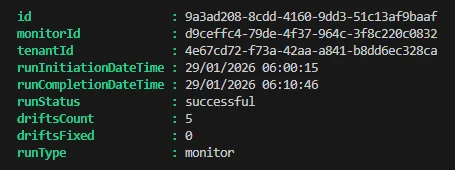
1# Monitor Identification2$filter = "displayName eq 'Conditional Access Production Monitor'"3$uri = "beta/admin/configurationManagement/configurationMonitors/?`$filter=$filter"4$monitorJob = Invoke-MgGraphRequest -Uri $uri -Method GET -OutputType PSObject | Select -Expand Value5 6# Retrieval of Monitoring Results7$filter = "monitorId eq '$($monitorJob[0].id)'"8$uri = "/beta/admin/configurationManagement/configurationMonitoringResults?`$filter=$filter"9$monitorResults = Invoke-MgGraphRequest -Uri $uri -Method GET -OutputType PSObject | Select -expand ValueThe driftsCount property in $monitorResults indicates the number of drifts detected.
Detailed Drift Analysis
When drifts are detected, analyze them in detail:
1$filter = "monitorId eq '$($monitorJob[0].id)'"2$uri = "/beta/admin/configurationManagement/configurationDrifts/?`$filter=$filter"3$configurationDrifts = Invoke-MgGraphRequest -Uri $uri -Method GET -OutputType PSObject | Select -expand Value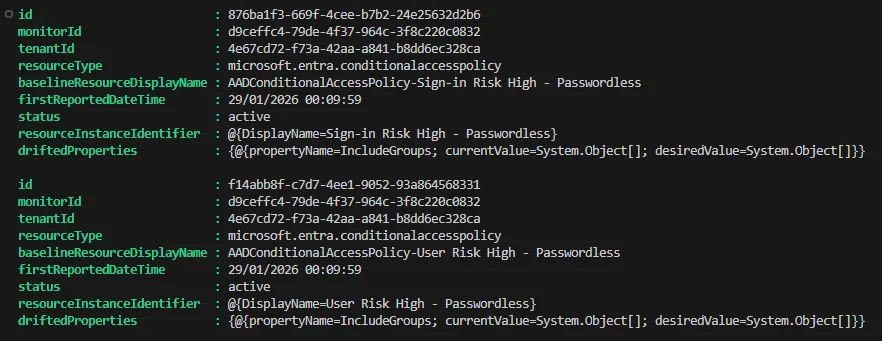
For in-depth analysis, convert the results to JSON:
1$configurationDrifts | ConvertTo-Json -Depth 10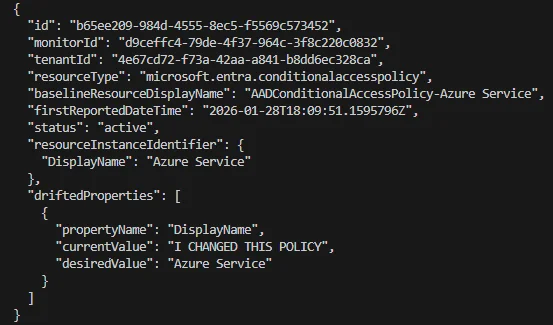
Automation and Integration
Automation Recommendation
Integrate these PowerShell commands into an Azure Automation runbook or Azure Function to automate drift detection and alerting.
For production use, consider:
- Automatic notifications via Microsoft Teams or email
- Integration with Azure Monitor for alerting
- Periodic compliance reports
- Approval workflows for detected changes
Comparison Table of Monitored Resource Types
| Resource Type | Required Permission | Use Case |
|---|---|---|
| microsoft.entra.conditionalaccesspolicy | Policy.ReadWrite.ConditionalAccess | Conditional access policies |
| microsoft.entra.authenticationmethodpolicy | Policy.Read.AuthenticationMethod | Authentication methods |
| microsoft.exchange.transportrule | Mail.ReadWrite | Exchange transport rules |
| microsoft.sharepoint.tenantSettings | SharePointTenantSettings.ReadWrite.All | SharePoint tenant settings |
Conclusion
Unified Tenant Configuration Management represents a significant advancement in managing Microsoft 365 configurations. This native solution enables IT teams to maintain the integrity and compliance of their environment proactively.
Although UTCM is currently exposed only via REST APIs, its integration into automated solutions enables the creation of a robust monitoring system. The initial investment in PowerShell development is offset by the significant reduction in configuration drift risks and the improvement of the overall security posture.
The next step is to integrate these capabilities into your existing operational processes to create a mature and automated Microsoft 365 governance ecosystem.