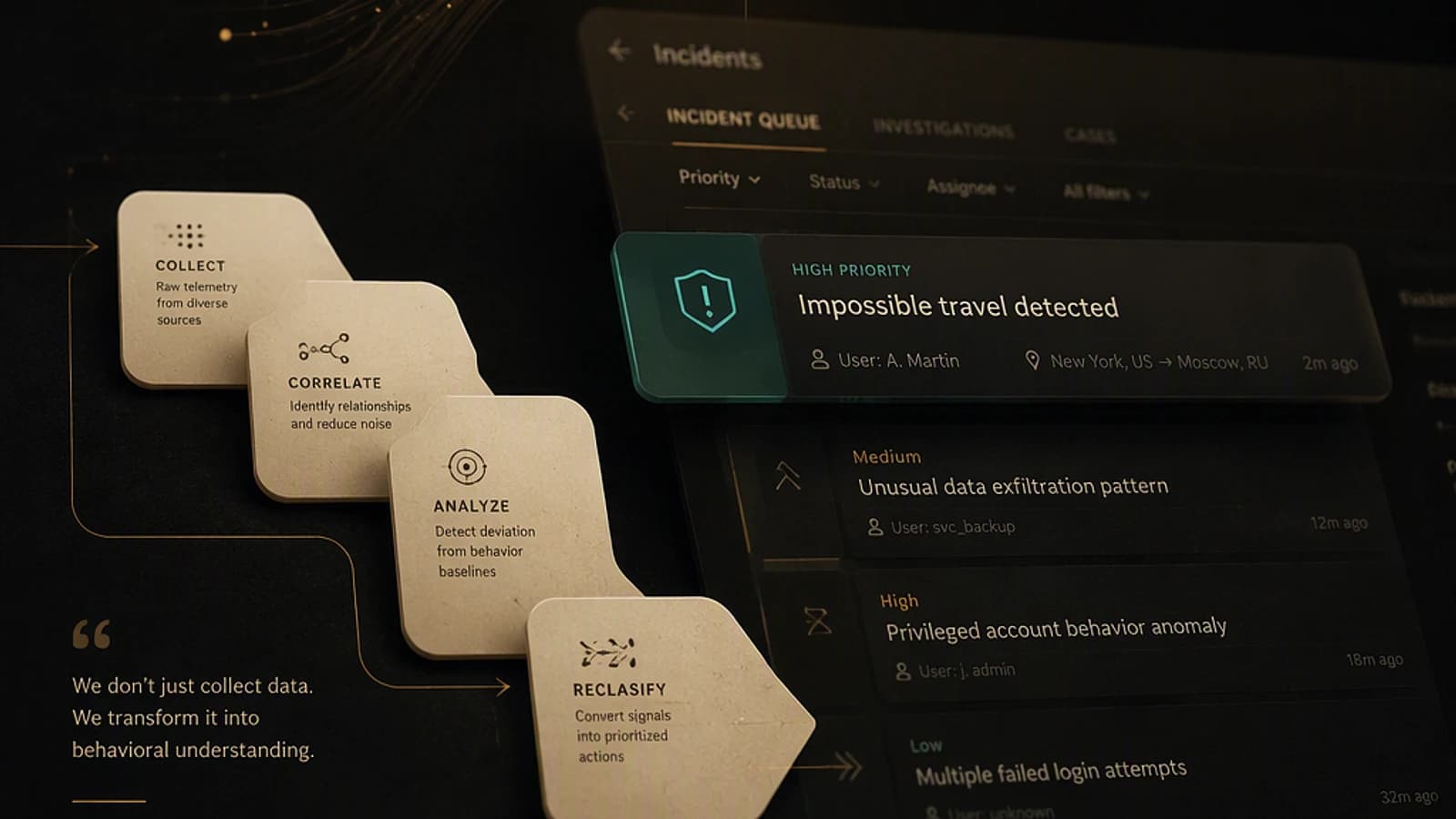
The problem that endpoint DLP cannot solve
Microsoft Purview's endpoint DLP is formidable on managed devices, in managed applications. But there is a well-known blind spot for all security architects: the user who opens a personal browser session, navigates to ChatGPT, Claude, or any unregistered GenAI application, pastes customer data or source code, then presses Enter. No endpoint DLP policy sees this flow. No agent is present to inspect the content before it leaves.
This scenario — called the "unmanaged browser gap" — is precisely what the new Microsoft Purview + Entra Internet Access integration (Global Secure Access) targets. The capability is identified in the Microsoft 365 roadmap under number 566528, with GA expected in phased rollout by late September 2026. Check the current status on Microsoft Learn before any production deployment.
Scope of this article
This article covers exclusively DLP extension at the network level via Entra Internet Access. It does not address: DLP for M365 Copilot, DSPM for AI, Shadow IT via Microsoft Defender for Cloud Apps, or Global Secure Access fundamentals — these topics have already been covered separately.
What has changed: Purview moves to the network level
Previously, Microsoft Purview DLP operated on two main planes:
- Endpoint DLP: inspection at the managed device level, in managed applications (Office, Edge in managed mode, etc.).
- Inline web DLP: inspection in Microsoft Edge with the Purview extension, limited to managed Edge sessions.
With the Purview + Entra Internet Access integration, a third plane enters play: the network level. User traffic is routed through Global Secure Access (Microsoft's SSE client). Purview evaluates the content of HTTP requests — text, prompts, payloads — before they reach the destination. Policy enforcement (allow / block / alert) is applied inline, independently of the browser, application, or API used.
This means that Chrome, Firefox, a desktop application, a Python script calling a public GenAI API — all pass through the same inspection plane if the Global Secure Access client is active on the device.
Inspection flow architecture
Here is how the components articulate in production:
- Global Secure Access client deployed on the endpoint (managed or BYOD with MDM).
- Outbound traffic to target Internet destinations is captured by the traffic forwarding profile (Internet Access traffic forwarding profile).
- Purview DLP evaluates the request content against configured policies (sensitive information types, custom regular expressions, trainable classifiers).
- The configured action is applied inline:
Allow,Block, orAuditwith alert generation. - At-risk events feed Insider Risk Management and surface in Microsoft Defender incidents.
Coverage of unmanaged devices
Network inspection requires that the Global Secure Access client be installed and active. On a completely unmanaged device without agent deployment, coverage remains limited. This point is critical for pure BYOD scenarios without MAM/MDM onboarding policy.
What policies can intercept
The types of content covered by Purview network inspection include:
- PII: names, social security numbers, addresses, dates of birth.
- Financial data: credit card numbers, IBANs, banking data.
- Custom sensitive information types (SIT custom) defined in the Purview portal.
- GenAI prompts containing structured or unstructured classified data.
- Pasted content in web forms, online editors, chat fields.
Configurable target destinations include unmanaged GenAI applications (public ChatGPT, third-party services), consumer cloud storage, web messaging, social networks, and online forms.
Link with Insider Risk Management
Each network DLP inspection event matching a policy generates an actionable signal. These signals are ingested by Microsoft Purview Insider Risk Management and correlated with other behavioral indicators (mass downloads, unusual access, endpoint exfiltrations).
Consolidated incidents appear in two consoles:
- Microsoft Purview portal → Insider Risk Management → Alerts.
- Microsoft Defender → Incidents (via XDR integration).
This allows SOC teams to contextualize a network alert within a larger behavioral sequence, without having to manually correlate logs.
Coexistence with endpoint DLP and inline web policies
One of the most frequent architectural challenges when deploying this new layer is avoiding double policy application and user confusion. Here is the recommended coexistence model:
| Application plane | Scope | Required condition | Recommended usage |
|---|---|---|---|
| Endpoint DLP | Managed apps on managed devices | Purview agent + Intune device | Microsoft 365 Apps, managed Edge, OneDrive |
| Inline web DLP (Edge) | Edge sessions with Purview extension | Edge + extension deployed | Managed browsing, MDA session policies |
| Network DLP (Entra Internet Access) | All Internet traffic via GSA | Global Secure Access client active | Unmanaged browsers, third-party apps, APIs |
The golden rule: scope network policies exclusively to destinations not covered by endpoint DLP. Do not create identical policies on both planes — you would get double alerts and contradictory user experiences.
Configuration: traffic forwarding profile and DLP policy scope
Technical prerequisites
- Microsoft Entra ID P1 license minimum for Global Secure Access; Microsoft Purview with DLP enabled.
- Global Secure Access client deployed via Intune or GPO on target endpoints.
- Minimum role for configuration: Global Secure Access Administrator + Compliance Administrator (principle of least privilege — do not use Global Administrator for routine operations).
- Required PowerShell module: Microsoft.Graph (v2.x recommended) for Graph API operations; ExchangeOnlineManagement v3.x for Purview DLP cmdlets.
Verification of the Global Secure Access client
Before configuring DLP policies, confirm that the client is active and the Internet Access profile is properly applied:
1# Verify the status of the Global Secure Access service on the endpoint2# Run as local administrator on the client workstation3Get-Service -Name "GlobalSecureAccess" | Select-Object Name, Status, StartType4 5# Check the active traffic profile via the GSA diagnostic interface6# Portal path: Entra admin center > Global Secure Access > Connect > Traffic forwarding7# Expected value: Status = Running, StartType = AutomaticCreating a network DLP policy in audit mode (PowerShell)
Capability in phased GA rollout
The cmdlets below correspond to the Purview DLP interface extended to the network. This capability has been in phased GA since late September 2026 (Roadmap 566528). Check availability on your tenant via the Microsoft 365 Roadmap portal before executing these commands.
1# Required module: ExchangeOnlineManagement v3.x2# Install-Module ExchangeOnlineManagement -RequiredVersion 3.4.0 -Scope CurrentUser3 4Connect-IPPSSession -UserPrincipalName admin@contoso.com5 6# Create a DLP policy targeting network interactions (Audit mode)7New-DlpCompliancePolicy `8 -Name "Network-DLP-GenAI-Unmanaged-Audit" `9 -Mode AuditAndNotify `10 -Comment "Network Purview policy - inline inspection via Entra Internet Access - AUDIT ONLY" `11 -Workload "InternetBrowsing"12 13# Create the associated rule: block credit card numbers to unmanaged GenAI apps14New-DlpComplianceRule `15 -Name "Block-CreditCard-GenAI-Network" `16 -Policy "Network-DLP-GenAI-Unmanaged-Audit" `17 -ContentContainsSensitiveInformation @{18 Name = "Credit Card Number";19 minCount = "1";20 minConfidence = "85"21 } `22 -BlockAccess $false `23 -GenerateAlert $true `24 -AlertProperties @{AggregationType = "SimpleAggregation"} `25 -NotifyUser "LastModifier"26 27# Verify policy creation28Get-DlpCompliancePolicy -Identity "Network-DLP-GenAI-Unmanaged-Audit" | 29 Select-Object Name, Mode, Workload, IsValidExpected return value: IsValid = True, Mode = AuditAndNotify, Workload = InternetBrowsing. If IsValid = False, check that the network DLP capability is properly enabled on your tenant.
1# Switch to enforcement mode after audit validation2# WARNING: irreversible action on ongoing user sessions3Set-DlpCompliancePolicy `4 -Identity "Network-DLP-GenAI-Unmanaged-Audit" `5 -Mode Enforce6 7# Confirm the change8Get-DlpCompliancePolicy -Identity "Network-DLP-GenAI-Unmanaged-Audit" | 9 Select-Object Name, Mode, LastModifiedTimeTenant-wide impact
Switching to Enforce mode applies blocking inline immediately for all users in the policy scope. Plan this transition outside production hours and after full validation of the audit phase.
Recommended progressive deployment plan
Audit-first: monitor before enforcing
Deploy all network DLP policies in AuditAndNotify mode for at least 2 weeks. Analyze alerts in the Purview portal (Compliance > Data loss prevention > Activity explorer) to identify false positives and refine confidence thresholds.
Prioritize high-risk GenAI destinations
Identify the top 10 most-used GenAI destinations via Global Secure Access logs (Entra admin center > Global Secure Access > Monitor > Traffic logs). Apply policies in enforcement on these destinations first.
Communicate with users
Before any enforcement, send clear communication explaining that sensitive data will be blocked to unapproved AI tools. Configure a custom user notification message in the DLP rule (NotifyUser + NotifyPolicyTipCustomText).
Progressive enforcement and validation
Enable Enforce mode for pilot user groups (via -ExchangeSenderMemberOf or an Entra ID group scope). Wait 48 hours for complete propagation before expanding scope. DLP policy propagation delay: up to 1 hour after modification.
Production deployment checklist
Before switching to enforcement, validate each point:
- Global Secure Access client deployed and active on all endpoints in scope.
- Internet Access traffic forwarding profile activated and verified in Entra portal.
- Sensitive information types (SIT) validated with representative test data.
- Network DLP policy in audit mode for at least 2 weeks, without critical false positives.
- Top 10 unmanaged GenAI destinations identified and prioritized in rules.
- Endpoint DLP vs network DLP boundaries documented and non-overlapping.
- Insider Risk Management integration confirmed (signals visible in IRM alerts).
- User communications sent and validated by legal/HR teams.
Common pitfalls and troubleshooting
Five mistakes to avoid absolutely
- Enforcing without auditing: without an audit phase, you will block legitimate flows and generate negative user reaction that leads to system workarounds.
- Ignoring endpoint/network overlap: identical policies on both planes generate double alerts and contradictory user experiences. Clearly map scopes.
- Omitting user communication: silent blocking without explicit messaging creates distrust and mass support tickets.
- Treating this as a CASB replacement: Purview network inspection targets DLP content. It does not replace Microsoft Defender for Cloud Apps for SaaS application governance, Shadow IT detection, or session policies.
- Forgetting the unmanaged device limit: without GSA client installed, an unonboarded personal device remains out of scope. This is not a defect — it is an architectural constraint to document and compensate with other controls (Conditional Access, MFA, non-compliant device blocking).
Frequent PowerShell errors
1# Error: "The workload 'InternetBrowsing' is not available on this tenant"2# Cause: Network DLP capability not yet available on your tenant (phased GA).3# Resolution: Check status on Microsoft 365 Roadmap portal (ID 566528).4# Temporary workaround: use Purview portal > DLP > Policies > Create policy5# to check if the network option appears in available workloads.6 7# Error: "Connect-IPPSSession: AuthenticationError"8# Cause: MFA required or token expired.9# Resolution:10Connect-IPPSSession -UserPrincipalName admin@contoso.com -UseRPSSession $falseMicrosoft official references
To implement and maintain this configuration, the following resources are essential:
- Microsoft Learn — Protect sensitive data in transit via Purview and Entra Internet Access
- Microsoft 365 Roadmap — ID 566528
- Microsoft Security Blog — Global Secure Access and DLP
- Global Secure Access documentation — Traffic forwarding profiles
- Insider Risk Management — Policy indicators
Question for your organization
How does your organization currently prevent customer data from reaching an unmanaged AI application from a personal browser? If the answer is "we don't have network controls", this Purview + Entra Internet Access integration is exactly the gap to fill as a priority.