Introduction
The proliferation of AI tools can quickly become a governance issue in enterprise environments. Employees often test new applications, grant consent to browser plugins, and in no time, security teams are faced with a multitude of unauthorized services. This technical article proposes a practical and detailed solution using Microsoft Entra ID, Microsoft Graph, and Microsoft Defender for Cloud Apps to audit and manage these AI applications.
Good to Know
Thanks to Microsoft Entra ID and associated Microsoft tools, you can collect valuable data to analyze suspicious applications and establish a governance strategy.
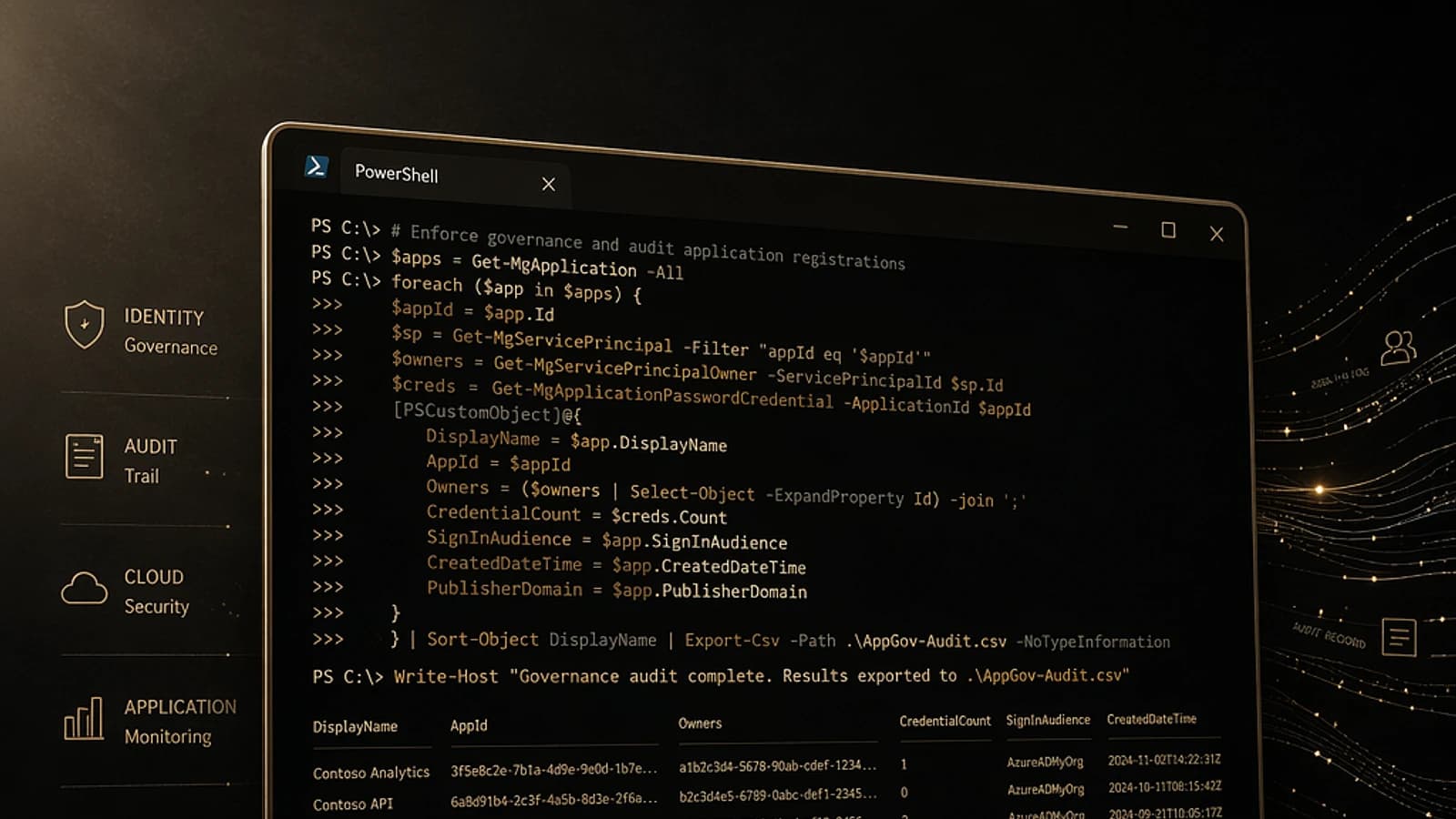
In this guide, you will learn how to create a PowerShell audit to identify AI applications, assess risks, and produce an actionable governance report.
Prerequisites
To follow this tutorial, make sure you have the following:
- PowerShell 7 or Windows PowerShell 5.1.
- Microsoft Graph PowerShell SDK installed.
- A Microsoft Entra account with the necessary permissions to read applications and audit logs.
- Microsoft Graph consent for the required roles described below.
- Optional: Microsoft Defender for Cloud Apps to monitor network activity.
Warning
The scripts and examples presented here are in read-only mode: they do not exclude applications or modify permissions.
Understanding Microsoft Graph Limitations
Microsoft Graph provides a powerful view of AI interactions via Microsoft Entra ID, including:
- Enterprise applications.
- Delegated OAuth permissions.
- Application permissions.
- Recent sign-in activities.
However, Graph cannot capture visits to external AI sites when Microsoft Entra ID is not used. For this, combine Graph data with network telemetry or Microsoft Defender for Cloud Apps CASB capabilities.
Two Analysis Paths
- Identity Path: Analysis of identity objects such as permissions, consents, or sign-ins in Entra ID.
- Network Path: Monitoring of AI destinations accessed without Entra ID involvement.
We will start with the identity path.
Installing and Connecting to the Microsoft Graph SDK
Install the Microsoft Graph PowerShell module and connect with the minimum permissions needed for auditing.
1Install-Module Microsoft.Graph -Scope CurrentUser2 3$Scopes = @(4 'Application.Read.All',5 'Directory.Read.All',6 'AuditLog.Read.All'7)8 9Connect-MgGraph -Scopes $ScopesVerify the connection context to ensure the necessary scopes are applied:
1Get-MgContext | Select-Object Account, TenantId, ScopesCreating an AI Keywords List
To identify AI applications, create a keyword list based on product and vendor names related to AI.
1$ReportPath = Join-Path $HOME 'AI-App-Audit'2New-Item -Path $ReportPath -ItemType Directory -Force | Out-Null3 4$AiKeywords = @(5 'openai', 'chatgpt', 'copilot', 'claude', 'anthropic', 'gemini', 6 'bard', 'perplexity', 'midjourney', 'stability', 'jasper', 7 'notion ai', 'grammarly', 'otter', 'fireflies', 'descript', 'synthesia'8)Tip
Regularly update your keyword list to reflect emerging products and your organization's specific needs.
Identifying AI Applications in Entra ID
Use the keywords to filter applications registered in your tenant.
1$ServicePrincipals = Get-MgServicePrincipal -All -Property @(2 'id', 'appId', 'displayName', 'appOwnerOrganizationId', 3 'accountEnabled', 'createdDateTime', 'publisherName', 4 'servicePrincipalType', 'tags'5)6 7$AiServicePrincipals = foreach ($Sp in $ServicePrincipals) {8 $SearchText = @(9 $Sp.DisplayName, $Sp.PublisherName, $Sp.AppId, ($Sp.Tags -join ' ')10 ) -join ' '11 12 $Matches = $AiKeywords | Where-Object {13 $SearchText -match [regex]::Escape($_)14 }15 16 if ($Matches) {17 [pscustomobject]@{18 DisplayName = $Sp.DisplayName19 PublisherName = $Sp.PublisherName20 AppId = $Sp.AppId21 ObjectId = $Sp.Id22 AccountEnabled = $Sp.AccountEnabled23 CreatedDateTime = $Sp.CreatedDateTime24 ServicePrincipalType = $Sp.ServicePrincipalType25 MatchedKeywords = ($Matches -join ', ')26 }27 }28}29 30$AiServicePrincipals |31 Sort-Object DisplayName |32 Export-Csv -Path (Join-Path $ReportPath 'ai-service-principals.csv') -NoTypeInformationImportant
Collected data must be validated by an administrator before any action. Verify user contexts and permissions of listed applications.
Next Steps
Continue your audit by exploring:
- OAuth delegated permissions to understand access granted to users.
- Application permissions to identify service-level access.
- Recent sign-ins to detect suspicious activities.
Audit delegated permissions
Use Get-MgOauth2PermissionGrant to examine types of delegated consents.
Verify application-level permissions
Apply Invoke-MgGraphRequest to extract assigned application roles.
Analyze recent sign-ins
Query Get-MgAuditLogSignIn with a time filter.
Conclusion
Managing AI applications within Microsoft Entra ID is not just a simple configuration. With PowerShell, you can automate discovery, auditing, and governance using Microsoft Graph data and, if needed, complement this analysis with Defender for Cloud Apps to monitor network interactions.
Adopt a proactive approach by applying these scripts on a regular basis, adjusting keywords, and using generated reports to validate, restrict, or approve AI tools. Thus, you will transform a potential sprawl into a targeted governance opportunity.