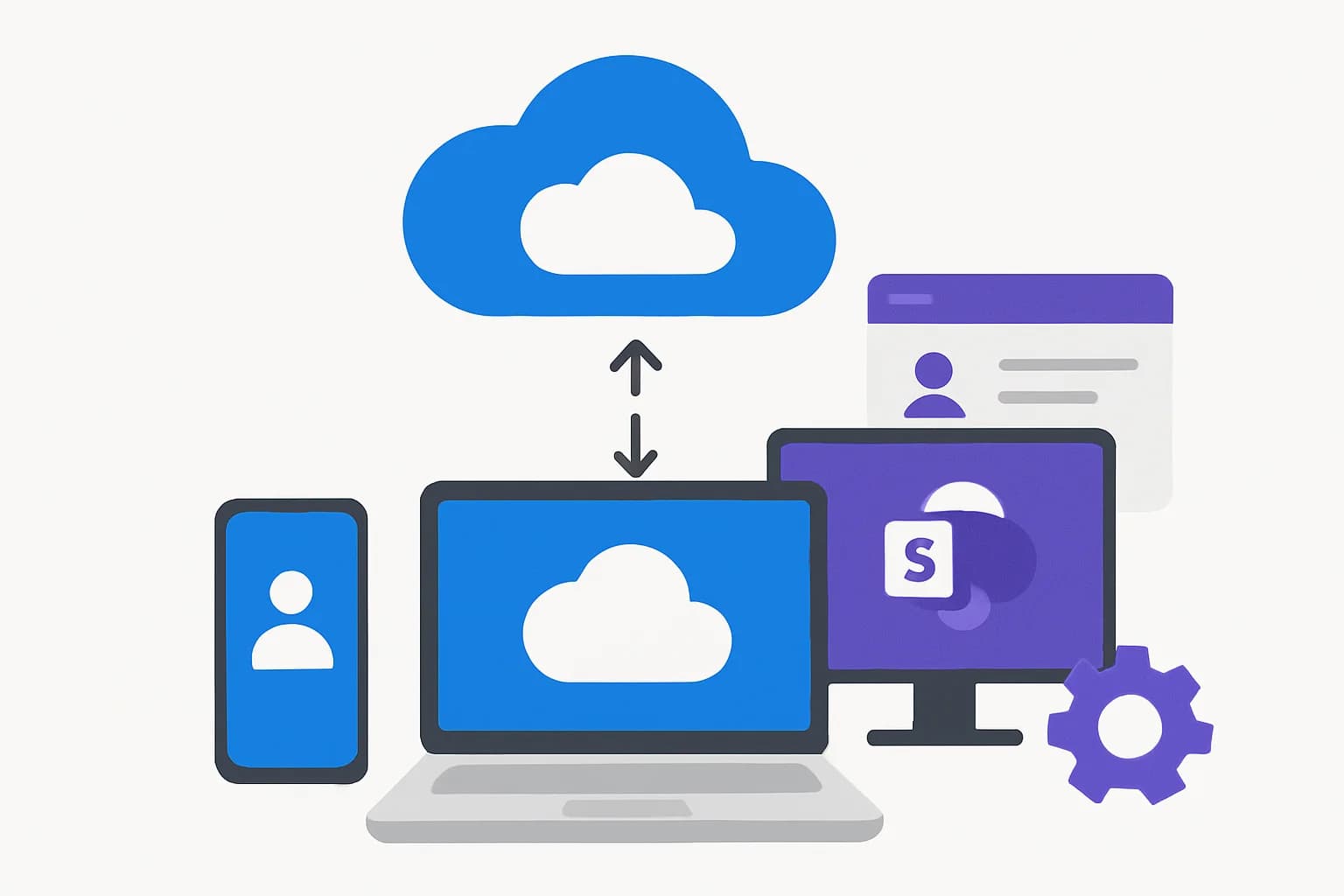
Autopilot Device Preparation (AP-DP) solves the hardware hash problem, but introduces a gap: the device doesn't know which tenant it belongs to during OOBE. Autopilot Device Association precisely fills this void. This article is aimed at Intune architects and engineers seeking to understand the mechanism, its technical components, and what it enables for Windows deployment.
Why Device Association Was Necessary
With Autopilot v1 (Classic Autopilot), the link between a device and a tenant relied on the hardware hash. As long as this hash was imported into Intune, Windows knew from OOBE which tenant it belonged to, and OOBE settings (naming, region, privacy, Wi-Fi, branding) could be applied before any user sign-in.
AP-DP removed this hash dependency — a welcome advance for environments like GCCH where hardware hash is prohibited. But this removal created a blind spot: without the hash, AP-DP has no mechanism to identify the tenant during OOBE. It only activates after user sign-in.
Result: the OOBE Controls introduced for AP-DP — device naming, regional settings, Wi-Fi configuration, branding — are inoperative during OOBE due to lack of tenant context. The framework is in place, but nothing can trigger it.
Autopilot Device Association is designed to close this gap.
Discovery in Windows Insider Preview Build 27686
The feature was first spotted in Windows Insider Preview Build 27686.1000, under the internal name AutoPilotDeviceTagging. It manifested through the appearance of new JavaScript files in the CloudExperienceHost folder, including devicelink-page and devicelink-vm.
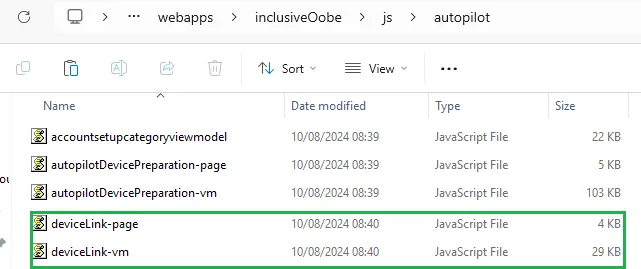
Analysis of these files quickly revealed two key elements:
- A
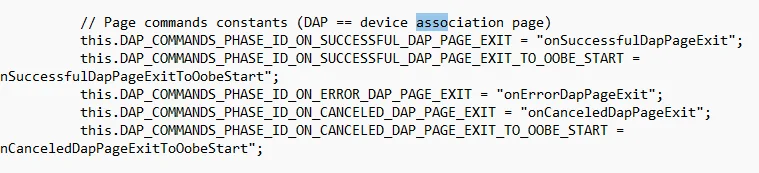
get_devicelinkinfofunction inWindows.Management.Service.dllthat collects the SMBIOS serial number, manufacturer, and model, then encapsulates them in a JSON object. - The acronym DAP for Device Association Page, confirming the official name of the feature.
Microsoft officially presented the feature during session BRK341 at Microsoft Ignite, under "What's New for Windows", Provision section. It appeared on a slide without verbal commentary — which typically indicates code already integrated but not yet finalized.
Technical Mechanism: From SMBIOS to UEFI
The Device Association process relies on four linked steps:
Collecting SMBIOS Information
The get_devicelinkinfo function queries the SMBIOS to extract the serial number, manufacturer, and model. This data is compiled into a JSON object.
Generating a QR Code or CSV Export
The JSON object is converted to a character string, then used to generate a scannable QR code from another device. A manual export alternative is also offered.
Association to the Tenant
Once the QR code is scanned or the file is imported into Intune, a marker named TENANT_DEVICE_LINK is positioned. This marker uses the same GUID as the Autopilot Marker introduced for hardware hash remediation.
Storing the DeviceLinkId in UEFI
The DeviceLinkId generated during association is persisted in a UEFI variable on the device. This persistence ensures that the tenant link survives reinstallation or reset.

Analogy with the Autopilot Marker
The storage of DeviceLinkId in UEFI follows exactly the same logic as the Autopilot_Marker used for hardware hash remediation. The identifier survives system resets, which is essential for a durable tenant link.
OOBE Interface: Two Association Modes
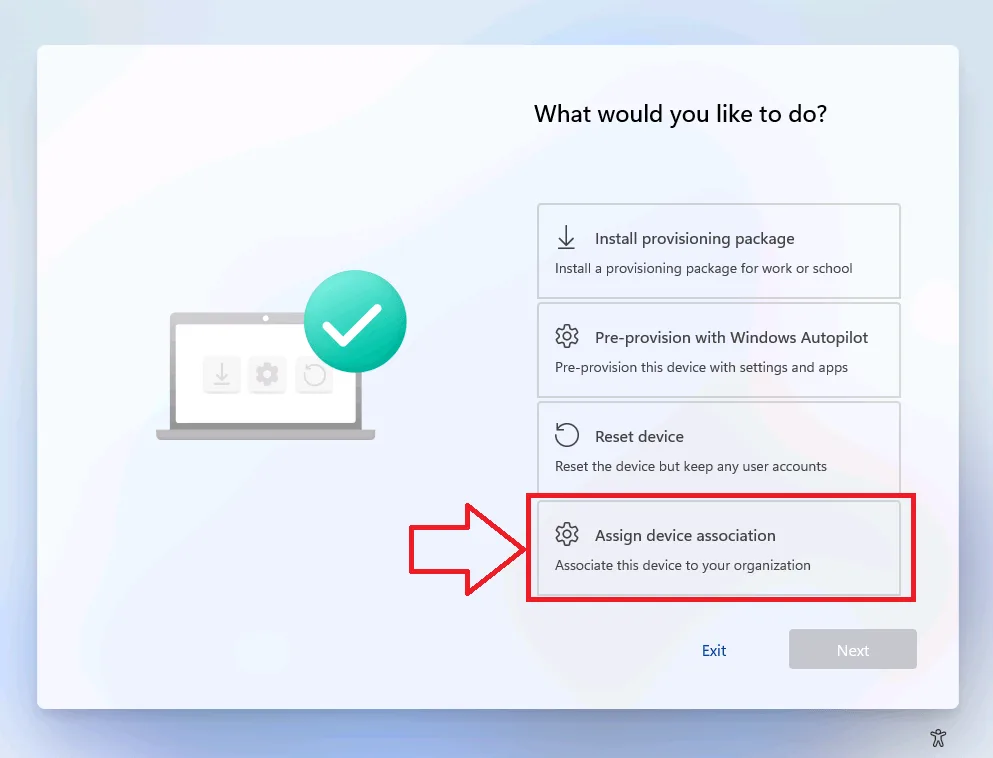
When feature flag 46301882 is enabled, a new Assign Device Association page appears during OOBE. This page offers two methods.
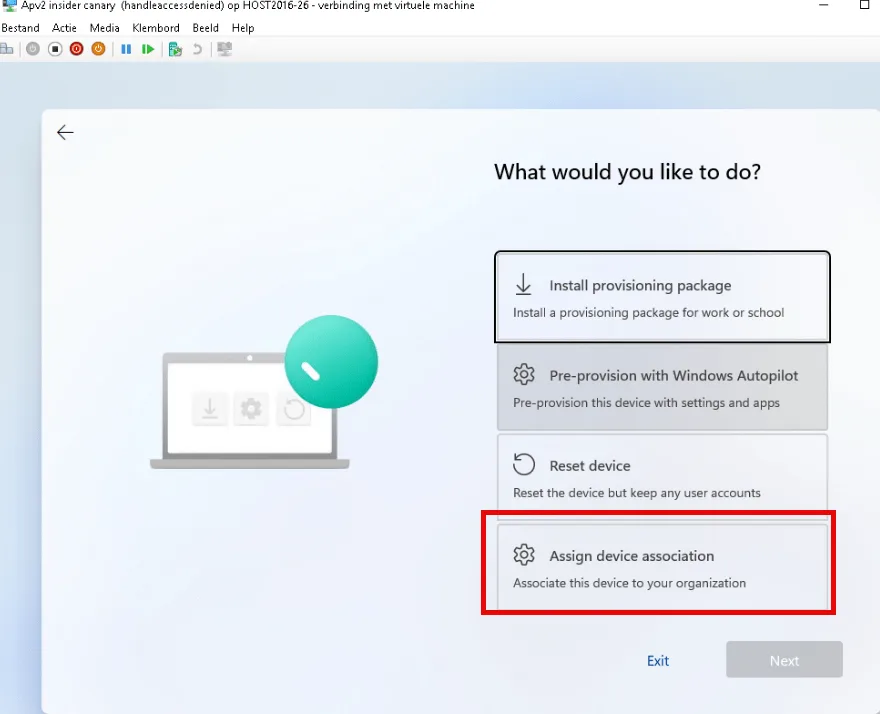
QR Code Scan
A QR code is displayed on the screen of the device being configured. A technician scans this code from another device (likely an Intune app or dedicated portal) to trigger association to the tenant.
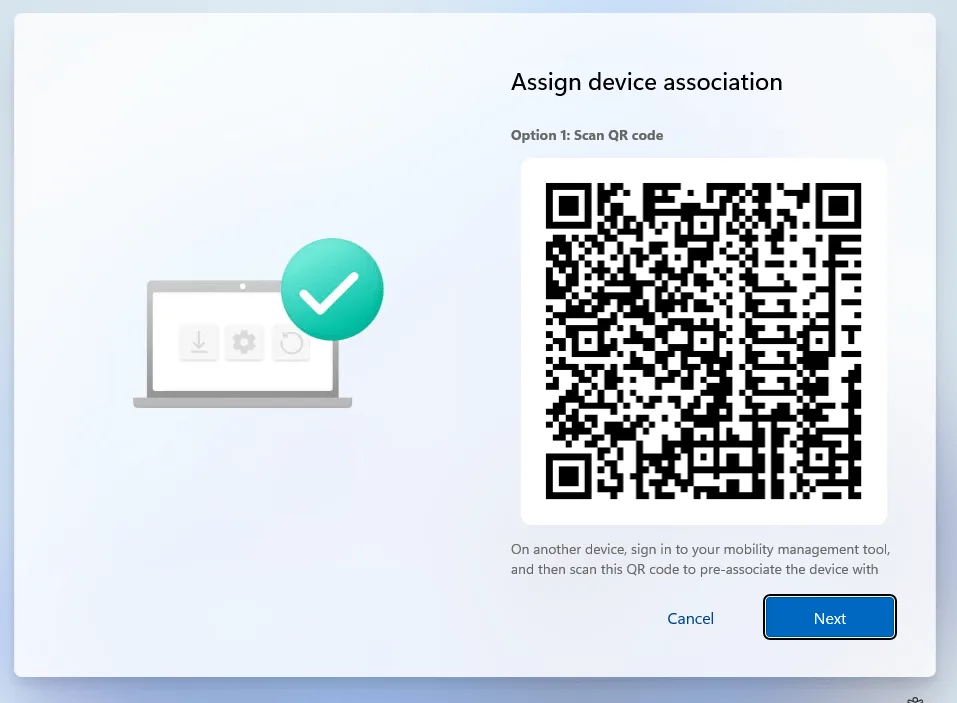
In the current state of Insider builds, the QR code content is hardcoded with the value test datatest datatest — evidence that this method is not yet functional in production.
Manual Device Information Export
The Export Device Information option generates a ZIP file containing MDM logs. This ZIP includes a CSV file (devicelink.csv) with association data encoded in base64.
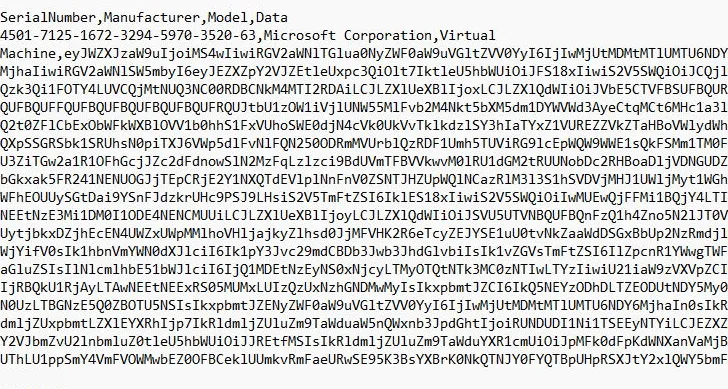
Once decoded, this data matches exactly the JSON structure produced by get_devicelinkinfo: serial number, manufacturer, model, and DeviceLinkId.

This CSV file is intended to be imported into Intune to perform the association manually — a workflow similar to hardware hash import for Classic Autopilot, but without TPM dependency.
Preview Feature
Autopilot Device Association is not yet in general availability (GA). The QR code flow remains non-functional in current builds. No GA date has been announced by Microsoft to date.
What Device Association Enables
Direct impact concerns the OOBE Controls of AP-DP. With the tenant link established before sign-in, Windows has the context needed to download and apply OOBE settings configured in Intune:
- Device naming rules
- Privacy settings
- Regional and language settings
- Wi-Fi settings
- Organizational branding
These are exactly the settings that Classic Autopilot v1 applied via hardware hash. AP-DP made them inoperative during OOBE due to lack of tenant context. Device Association restores this capability without reintroducing hash dependency.
| Criterion | Classic Autopilot (v1) | AP-DP without Device Association | AP-DP with Device Association |
|---|---|---|---|
| Tenant link during OOBE | Yes (via hardware hash) | No | Yes (via QR code or CSV) |
| Hardware hash dependency | Yes | No | No |
| GCCH compatible | No | Yes | Yes |
| OOBE Controls applicable before sign-in | Yes | No | Yes |
| UEFI persistence | No (hash in cloud) | N/A | Yes (DeviceLinkId) |
What to Monitor Before GA
Several points remain to be clarified before this feature can be deployed in production:
- The QR code flow is not functional in current builds. The content is hardcoded for testing purposes.
- CSV import into Intune: the Intune portal does not yet have a dedicated interface for importing
devicelink.csvfiles. This administrative surface remains to be confirmed. - The feature flag
46301882must be enabled on the Windows side for the Device Association page to appear. The mechanism for rolling out this flag in production is not yet documented. - Managing reset devices: since
DeviceLinkIdis stored in UEFI, the impact of UEFI erasure or motherboard replacement on the tenant link must be clarified.
Tip for GCCH Environments
If your organization operates in GCCH and already uses AP-DP, Device Association represents the missing piece to regain an OOBE control level equivalent to Classic Autopilot. Follow the Microsoft 365 roadmap and Message Center for GA availability.
Conclusion and Actions to Anticipate
Autopilot Device Association restores the tenant link during OOBE for AP-DP, without reintroducing hardware hash. This is a structural evolution for organizations that have migrated to AP-DP or that operate in environments where hash is prohibited.
What can be prepared starting now:
- Verify that your AP-DP OOBE Controls profiles are configured in Intune: they will be actionable once Device Association is GA.
- Document the association flow for your field teams: depending on the mode chosen (QR code or CSV), the process involves physical intervention or an import step.
- Test the CSV export flow in a Windows Insider environment to understand the data structure before GA.
- If your organization deploys in GCCH, prioritize monitoring this feature — it removes the main operational blocker for AP-DP in this sovereign cloud.
Once in GA, the Device Association flow should integrate naturally into existing AP-DP deployment procedures, adding an association step before device handover to the user.