Make the right diagnosis before escalating
When a Microsoft 365 service goes down, the visible symptom often masks several possible causes: incorrect DNS record, expired certificate, authentication failure, misconfigured Autodiscover. Manually reviewing each hypothesis takes time — and Microsoft Support will ask you what you've already tested anyway.
The Microsoft Remote Connectivity Analyzer (RCA), accessible at testconnectivity.microsoft.com, is the free tool that structures this first level of diagnosis. Here's what it covers, how to leverage it, and what its limitations are.
What is Remote Connectivity Analyzer?
The RCA is a free web tool, hosted by Microsoft, that runs a series of checks from Microsoft infrastructure — not from your network. This external position is precisely what allows it to simulate the perspective of a remote client or third-party server.
Depending on the test chosen, the RCA validates:
- DNS resolution and DNSSEC/DANE configuration
- Service endpoint accessibility
- TLS configuration and certificate chain
- Authentication and account provisioning
- License and policy prerequisites
Each check returns one of three states: Success, Warning or Failure, accompanied by an explanation and troubleshooting path.
Availability
The RCA is not available for Microsoft 365 Government environments (GCC and GCC High). Before any test, consult the Microsoft 365 Service Health dashboard to rule out a known service incident.
Services diagnosed by RCA
The RCA covers five service areas, plus two cross-functional tools:
- Exchange Online — Outlook connectivity, message flow, DNS
- Exchange Server — external client access, SSL, SMTP
- Microsoft Teams — authentication, Exchange integration, calls, meetings
- Skype for Business Server — remote connectivity and Autodiscover
- Microsoft Copilot — licenses, Teams agents, connectors
- Message Header Analyzer — SMTP header analysis
- Microsoft 365 Network Connectivity Test — network connectivity to M365 endpoints
Available Exchange Online tests
Exchange Online tests cover both DNS configuration and client protocol connectivity.
| Test | Type | Main objective |
|---|---|---|
| DNSSEC and DANE Validation Test | Configuration | Validate DNSSEC certificates via DANE for the domain |
| Exchange Online Custom Domains DNS Connectivity Test | Configuration | Check external DNS settings for message delivery and Outlook connectivity |
| Exchange Online ActiveSync Test | Connectivity | Confirm mobile device connection via Exchange ActiveSync |
| Synchronization, Notification, Availability, and Automatic Replies | Connectivity | Verify Exchange Web Services operations (synchronization, availability, automatic replies) |
| Service Account Access (Developers) | Connectivity | Test EWS impersonation access on a target mailbox |
| Outlook Connectivity | Connectivity | Simulate Outlook connection via RPC over HTTP and MAPI over HTTP |
| Inbound SMTP Email | Connectivity | Verify that an external server can deliver incoming SMTP messages |
| Outbound SMTP Email | Connectivity | Check reverse DNS, Sender ID and RBL lists for an outgoing IP |
| POP Email | Connectivity | Verify POP3 connectivity between client and mailbox |
| IMAP Email | Connectivity | Verify IMAP4 connectivity between client and mailbox |
| Free/Busy | Connectivity | Test availability retrieval between M365 and Exchange on-premises |
| Outlook Mobile Hybrid Modern Authentication Test | Connectivity | Validate Hybrid Modern Authentication configuration for Outlook iOS/Android |
| Mailbox Provisioning Test | Connectivity | Verify mailbox provisioning in Microsoft Entra ID and Exchange Online |
On-premises Exchange Server tests
For on-premises Exchange environments, the RCA reproduces checks on external client access and SSL.
| Test | Type | Main objective |
|---|---|---|
| Exchange Server ActiveSync | Connectivity | Mobile device connection via ActiveSync |
| Synchronization, Notification, Availability, and Automatic Replies | Connectivity | Verification of Exchange Web Services operations |
| Service Account Access (Developers) | Connectivity | EWS impersonation access on a target mailbox |
| Outlook Connectivity | Connectivity | Simulation of Outlook connection (RPC over HTTP / MAPI over HTTP) |
| Inbound SMTP Email | Connectivity | Incoming SMTP delivery from an external server |
| Outbound SMTP Email | Connectivity | Check reverse DNS, Sender ID and RBL for an outgoing IP |
| POP Email | Connectivity | POP3 client-to-mailbox connectivity |
| IMAP Email | Connectivity | IMAP4 client-to-mailbox connectivity |
| Exchange Server SSL Test | Connectivity | Certificate validity, TLS 1.2 compatibility, cipher suites and trust chain |
Available Microsoft Teams tests
The RCA treats Teams as a set of distinct scenarios rather than a monolithic service. Here are the main available tests.
| Test | Scenario covered |
|---|---|
| Teams DNS Connectivity Test | External DNS of custom M365 domain |
| Teams Sign in | Teams client sign-in prerequisites |
| Teams Guest Sign in | Sign in as a guest in an external tenant |
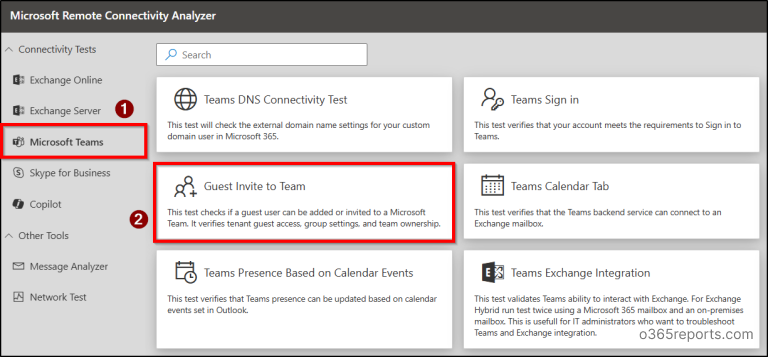
| Guest Invite to Team | Guest invitation: guest access, group settings, team ownership |
| Teams Calendar Tab | Connection of Teams service to Exchange mailbox |
| Teams PSTN Calling Dial Pad | Account configuration for PSTN calls and dial pad display |
| Teams Presence Based on Calendar Events | Update Teams status from Outlook events |
| Teams Exchange Integration | Overall Teams-Exchange integration |
| Teams Meeting Delegation | Schedule Teams meeting on behalf of another user |
| Teams Meeting Recording | Meeting recording prerequisites |
| Teams Channel Meeting | Schedule a channel meeting and M365 group configuration |
| Teams Voicemail | Voicemail access and retrieval from Exchange |
| Teams Android Desk Phone Sign in | Sign in to a Teams Android desk phone |
| Microsoft Teams Rooms Sign in | Sign in to a Microsoft Teams Rooms device |
| Teams Federation and Interoperability | Search and communication with external users |
| Teams Premium Details | Microsoft Teams Premium license prerequisites |
| Teams Shared Channel Add Member | Add a member (including external) to a shared channel |
| Teams Internal User Search | Search for an internal user in Teams |
| Teams Meeting Add-in for Classic Outlook | Teams meeting add-in prerequisites in Classic Outlook |
| External User Meeting Join | Meeting join by external user: federation, lobby, cross-tenant access |
| Team Creation Troubleshooter | User's ability to create a new team |
| Teams Virtual Events | Prerequisites for creating Town Halls or Webinars |
Practical case: troubleshooting a Teams guest invitation
Here's a scenario representative of RCA usage in production.
Situation: a team owner cannot add an external user as a guest. Teams connection works normally, the user is indeed team owner, but the invitation fails systematically.
Prerequisites before running the test
- Use an up-to-date browser: Microsoft Edge, Google Chrome or Mozilla Firefox.
- Allow RCA IP addresses inbound on firewalls and network perimeters involved.
- Have Global Admin rights — required for some service tests.
Required rights
Several RCA tests require authentication with the Global Administrator role. An account with limited rights can cause test failures unrelated to the problem being investigated.
Run the "Guest Invite to Team" test
Open the portal
Go to testconnectivity.microsoft.com from a supported browser.
Select the test
Under the Microsoft Teams category, choose the Guest Invite to Team test.
Enter parameters
Provide the requested information: account authentication and link to the team in question.
Validate the security check
Complete the security check and acknowledgment displayed by the portal.
Launch the diagnostic
Click Perform Test. The RCA runs a series of checks on invitation prerequisites.
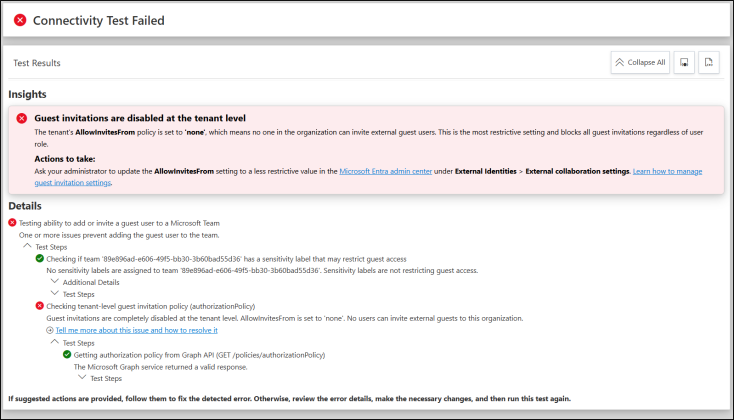
Interpret the results
| Test type | Result | Meaning |
|---|---|---|
| Configuration | Passed | Validation successful |
| Configuration | Did not Pass | Validation partially successful |
| Configuration | Failed | Validation failed |
| Connectivity | Successful | Connectivity test successful |
| Connectivity | Failed | Connectivity test failed |
| Connectivity | Successful with Warnings | Successful, but points warrant checking before concluding |
- All checks pass: invitation prerequisites are met. Direct the investigation toward client-side causes or recent configuration changes.
- Result with warnings: examine the warning detail to determine if it can affect the invitation.
- Failure: apply the RCA's recommendations. A guest access failure points to the tenant's external access settings; an M365 groups failure points to group settings that control guest access.
- Persistent issue without RCA failure: export the result in HTML format and attach it to your support request.
Other useful tests for guest scenarios
- Teams Guest Sign in: the guest was added but cannot sign in.
- External User Meeting Join: the guest cannot join a meeting (federation, lobby, cross-tenant access).
- Teams Shared Channel Add Member: the problem concerns a shared channel rather than a standard team.
Complementary tools integrated into RCA
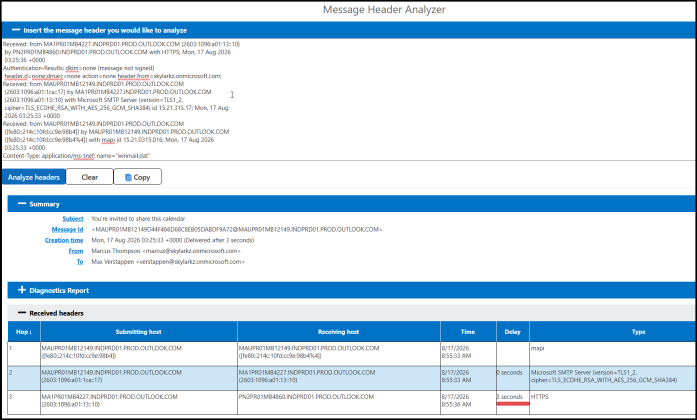
Message Header Analyzer
This tool analyzes the SMTP headers of a message to reconstruct its complete routing path: servers traversed, timestamps, latencies, and authentication indicators (SPF, DKIM, DMARC). Useful for identifying the source of a delivery delay or for verifying that a message claiming to come from Microsoft is authentic.
Microsoft 365 Network Connectivity Test
This tool identifies network connectivity problems between your infrastructure and Microsoft 365 endpoints. It is particularly suited to situations where users at a specific site report slowness or access disruptions to SharePoint, Outlook on the web or the administration center — when a network cause is suspected.
Complementary Teams diagnostics
For Teams issues not covered by the RCA, Microsoft also offers self-service diagnostics for administrators directly in the admin center.
Key takeaways
- The RCA runs its checks from Microsoft infrastructure, which gives it a relevant external perspective for inbound connectivity issues.
- Tests cover Exchange Online, Exchange Server, Teams, Skype for Business Server and Microsoft Copilot, with granular scenarios for each service.
- Results include three states (Success / Warning / Failure) and concrete troubleshooting paths that can be acted upon immediately.
- The tool is not available for GCC and GCC High.
- In case of unexplained failure or persistent problem despite passing checks, the HTML export of the report is useful supporting documentation for Microsoft Support.