
Introduction: SAMI vs UAMI in Azure Automation
When automating Microsoft 365 tasks via Azure Automation, authentication is central to the solution. The most common approach relies on System Assigned Managed Identities (SAMI): simple to configure, they are created and managed automatically by Azure with a direct link to an automation account. However, this exclusive binding is also their main limitation.
In complex environments — multiple automation accounts, multiple Azure subscriptions, or resources such as Logic Apps, Function Apps or virtual machines — User Assigned Managed Identity (UAMI) emerges as a more flexible and robust alternative. Unlike a SAMI, a UAMI is an independent Azure object, reusable across multiple resources, and whose lifecycle is not tied to a specific automation account.
This article details step-by-step configuration of a UAMI, assignment of Microsoft Graph permissions, and its integration into a PowerShell runbook.
Microsoft Documentation
Official documentation on User Assigned Managed Identities is available on Microsoft Learn. It covers all scenarios supported by Azure.
Comparison of SAMI and UAMI
Before proceeding with configuration, it is useful to understand the structural differences between the two types of managed identities.
| Criterion | SAMI (System Assigned) | UAMI (User Assigned) |
|---|---|---|
| Lifecycle | Tied to the automation account | Independent, managed separately |
| Resource sharing | No — exclusive to one resource | Yes — shareable across multiple resources |
| Automatic deletion | Yes, with the parent resource | No — must be deleted manually |
| Configuration complexity | Low | Moderate |
| Ideal for | Simple environments | Multi-account or multi-resource environments |
Creating a User Assigned Managed Identity
Creating a UAMI is done directly from the Azure portal.
Access the Managed Identities section
In the Azure portal, search for Managed Identities in the search bar. Click Create to initialize a new identity.
Configure the identity
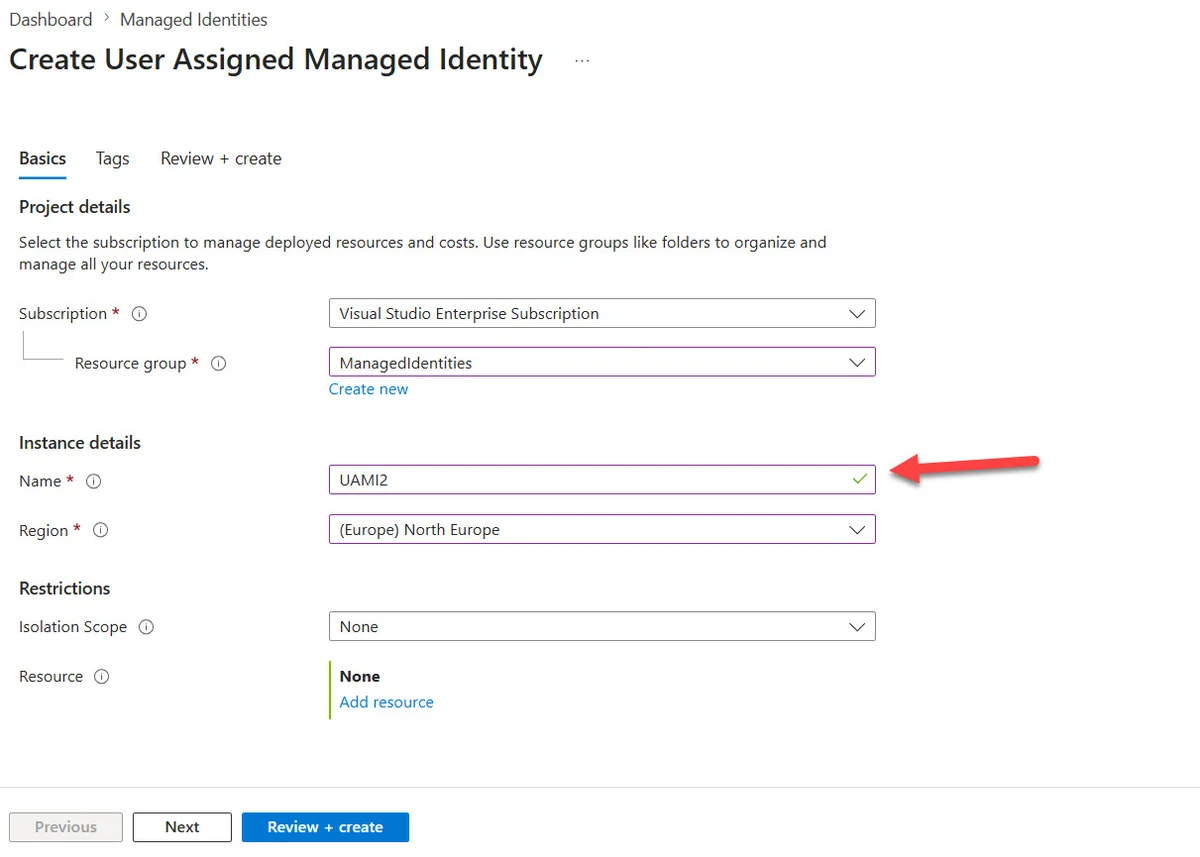
Enter the following information:
- Azure Subscription: select the target subscription
- Resource Group: associate the identity with an existing resource group or create a new one
- Region: choose the appropriate Azure region
- Name: assign an explicit name (e.g.,
UAMI-M365-Automation)
Validate by clicking Review + create, then Create.
Retrieve the identity identifiers
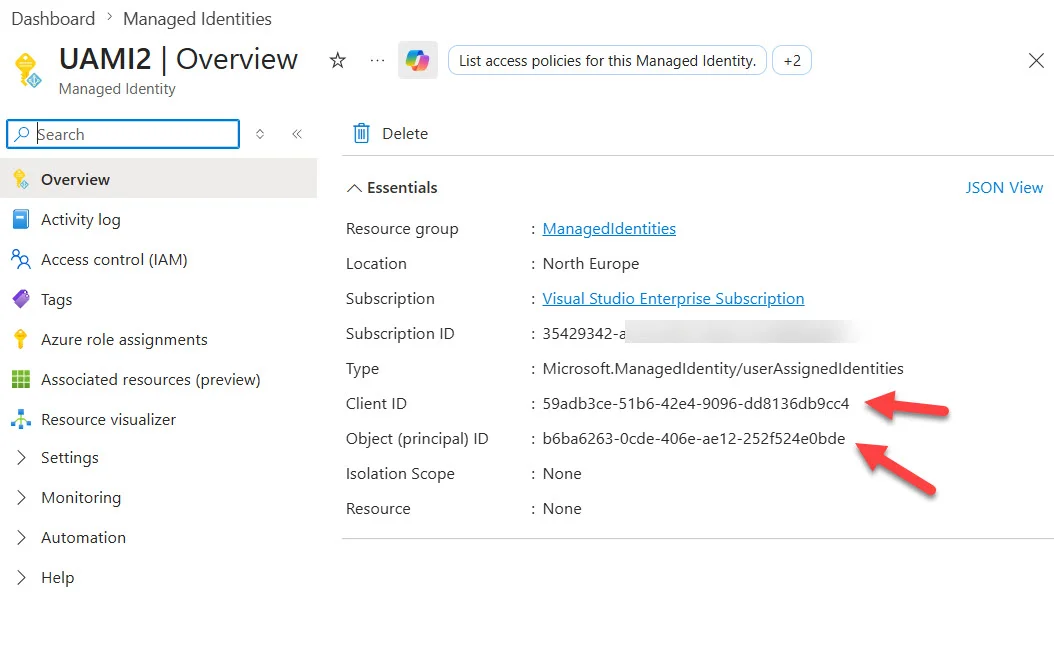
Once created, access the UAMI properties. Note the following two identifiers:
- Client ID: used for authentication in runbooks
- Object ID (Principal ID): used for Graph permission assignment
Tip
Keep the Client ID of your UAMI in an Azure Automation variable (of type String). This facilitates maintenance and avoids hardcoding the identifier in your runbooks.
Assigning Microsoft Graph Permissions to the UAMI
Like any managed identity, a UAMI has a service principal visible in the enterprise applications of the Entra admin center. Assignment of App Roles (application permissions) of the Microsoft Graph API cannot be performed through the Entra graphical interface: it must be done via PowerShell with the Microsoft Graph PowerShell SDK module.
Attention
The Entra admin center interface does not allow assigning application permissions to a managed identity. However, it is possible to view permissions already assigned from the interface.
PowerShell Script for Graph Permission Assignment
The following script illustrates the assignment of AuditLog.Read.All, User.Read.All, and GroupMember.Read.All permissions to a UAMI named UAMI2.
Step 1 — Retrieve service principals
1# Retrieve the service principal of the UAMI2$TargetSP = Get-MgServicePrincipal -Filter "displayName eq 'UAMI2'"3 4# Retrieve the service principal of Microsoft Graph5$GraphApp = Get-MgServicePrincipal -Filter "appId eq '00000003-0000-0000-c000-000000000000'"Step 2 — Define permissions to assign
1$GraphPermissions = @(2 "AuditLog.Read.All",3 "User.Read.All",4 "GroupMember.Read.All"5)Step 3 — Assign App Roles via New-MgServicePrincipalAppRoleAssignment
1ForEach ($GraphPermission in $GraphPermissions) {2 3 $AppRole = $GraphApp.AppRoles | Where-Object {4 $_.Value -eq $GraphPermission -and5 $_.AllowedMemberTypes -contains "Application"6 }7 8 If ($AppRole) {9 Try {10 $Assignment = @{11 PrincipalId = $TargetSP.Id12 ResourceId = $GraphApp.Id13 AppRoleId = $AppRole.Id14 }15 16 $Status = New-MgServicePrincipalAppRoleAssignment `17 -ServicePrincipalId $TargetSP.Id `18 -BodyParameter $Assignment `19 -ErrorAction Stop20 21 Write-Host ("Permission '{0}' assigned to '{1}' successfully." -f $AppRole.DisplayName, $TargetSP.DisplayName)22 }23 Catch {24 Write-Host "Failed to assign permission: $GraphPermission"25 }26 } Else {27 Write-Host "Permission not found in Graph service principal: $GraphPermission"28 }29}Entra Admin Roles
If your runbooks use cmdlets from other PowerShell modules (e.g., Exchange Online Management Module), you must also assign an Entra admin role to the service principal of the UAMI, in addition to Graph permissions. Consult the documentation on Entra roles to identify the appropriate role.
Linking the UAMI to an Azure Automation Account
Unlike a SAMI, a UAMI is not automatically associated with an automation account. This linking step is essential and often forgotten during initial setup.
Open the Azure Automation account
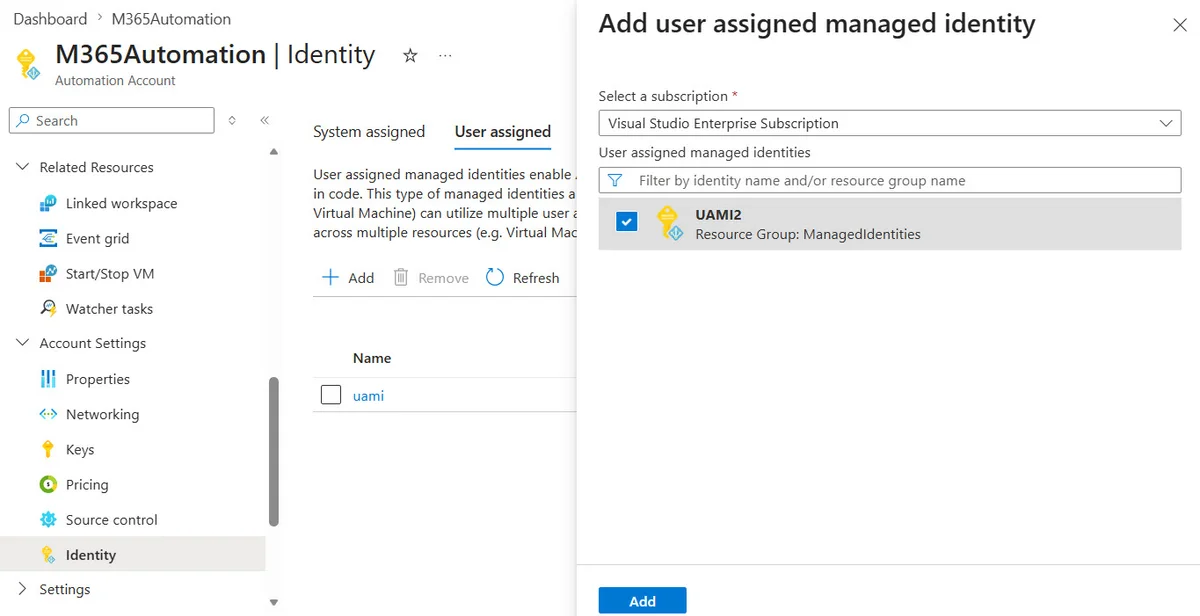
In the Azure portal, navigate to your Azure Automation account and access the Identity section in the left menu.
Access the User Assigned tab
Click the User assigned tab to display UAMIs already linked to the account. If no UAMI is listed, the account currently uses only SAMIs.
Add the UAMI
Click Add, then search for and select the UAMI created previously. Confirm the addition.
Important
Without this linking step, runbook authentication via the UAMI will fail, even if Graph permissions have been correctly assigned. This is the most common error when migrating from SAMI to UAMI.
Authentication in a Runbook with a UAMI
Syntax Difference with a SAMI
Authentication via a SAMI boils down to a single command:
1# Authentication with a SAMI2Connect-MgGraph -IdentityFor a UAMI, it is necessary to specify the Client ID so that Azure identifies which identity to use:
1# Authentication with a UAMI2Connect-MgGraph -Identity -ClientId "<client-id-of-the-uami>"Complete Runbook Example with Dynamic Client ID Retrieval
The recommended approach is to store the Client ID in an Azure Automation variable and retrieve it dynamically via Get-AutomationVariable. This avoids any hardcoding in the script.
1# Retrieve the Client ID from an Azure Automation variable2$UamiAppId = Get-AutomationVariable -Name "UAMIAppId"3 4# Connect to Azure Resource Manager (optional depending on runbook needs)5Connect-AzAccount -Identity -AccountId $UamiAppId6Get-AzContext7 8# Connect to Microsoft Graph via the UAMI9Connect-MgGraph -Identity -ClientId $UamiAppId -NoWelcome10 11Write-Host "Connection to Microsoft Graph established with UAMI: $UamiAppId"12 13# Example usage: retrieve users14Get-MgUser | Select-Object DisplayNameTip
The -NoWelcome parameter suppresses the welcome message from Microsoft Graph PowerShell, which improves log readability in Azure Automation. It is recommended for all production runbooks.
PowerShell Module Compatibility with Managed Identities
Most Microsoft 365 PowerShell modules support authentication via managed identities. Here is a summary:
- ✅ Microsoft Graph PowerShell SDK — full support
- ✅ Az PowerShell — full support
- ✅ Exchange Online Management Module — support via Entra role
- ✅ Microsoft Teams PowerShell — full support
- ⚠️ SharePoint Online PnP PowerShell — partial support, needs testing
- ❌ SharePoint Online Management Shell — not natively supported
Attention
Before migrating an existing runbook to UAMI authentication, systematically test in a non-production environment. Some modules may exhibit unexpected behavior depending on their version.
When to Choose a UAMI Over a SAMI?
The choice between SAMI and UAMI depends mainly on the architecture of your Azure tenant. Here are the criteria to consider:
Choose a SAMI if:
- Your tenant uses a limited number of automation accounts
- Configuration simplicity is a priority
- The identity is not intended to be shared across multiple resources
Choose a UAMI if:
- Multiple automation accounts need to share the same identity
- You use various Azure resources (Logic Apps, Function Apps, VMs)
- You want to decouple the lifecycle of identities from that of resources
- Cost management is distributed across multiple operational units with separate subscriptions