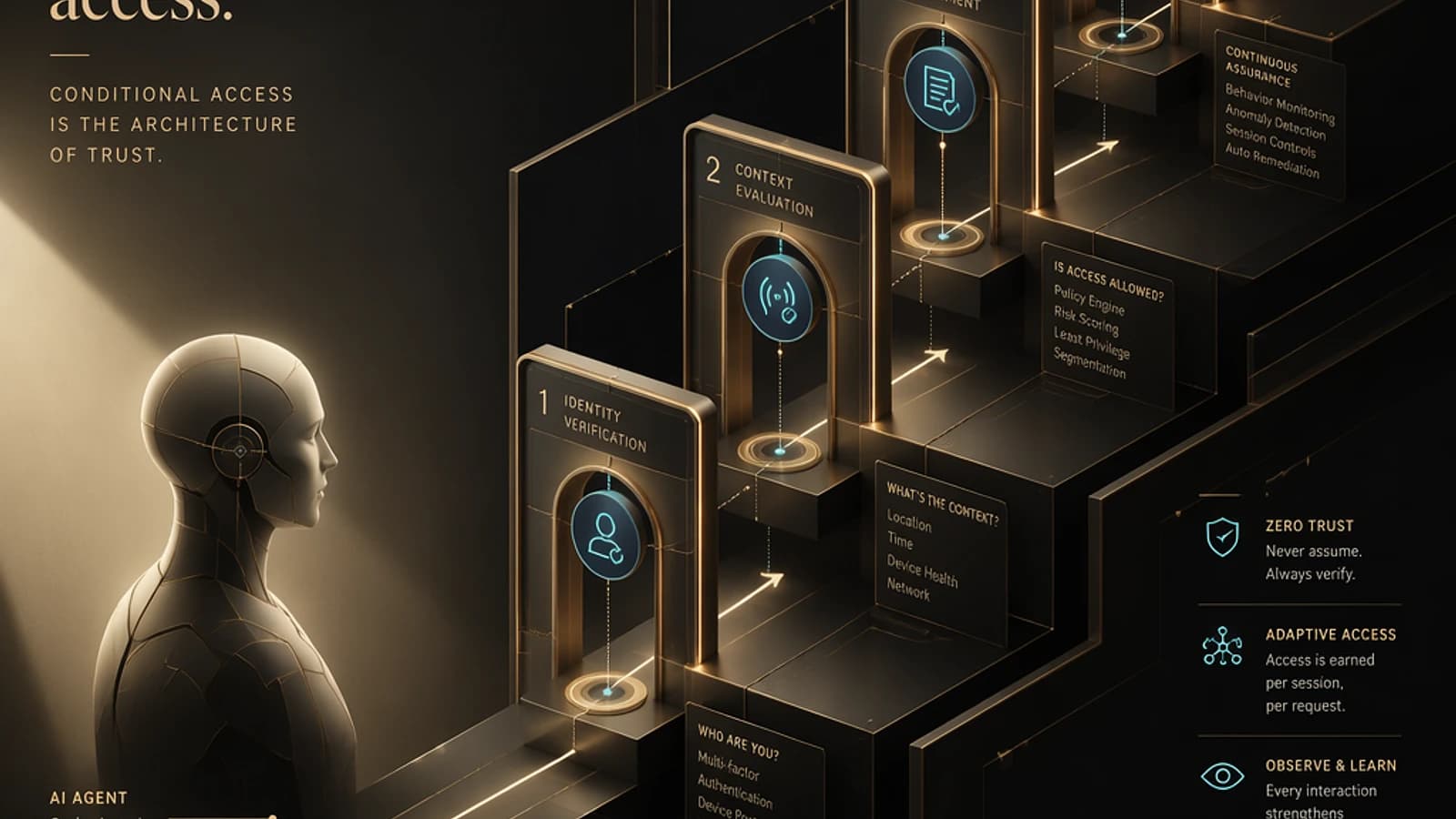
Since August 10, 2026, Microsoft Entra Tenant Governance has been generally available: it continuously compares your tenant configuration to a baseline and flags every deviation. But daily quotas depend on your license, and an undersized monitor fails at creation instead of degrading gracefully. This article gives you the exact limits, the permissions model, a sizing script and an audit of the service principal's rights.
How Tenant Governance detects configuration drift
Tenant Governance relies on four objects: a baseline (the desired state of resources), a monitor that compares it to the actual state, drifts (observed deviations) and snapshots (configuration captures). The Microsoft Learn documentation details these concepts on the Configuration management in Tenant Governance page.
Monitors run by default every six hours, i.e. four times a day, and this frequency is not configurable for now. Tenant Governance only flags drifts: remediation is done in each resource's own administration tool. On the next run, a corrected drift is automatically marked as such.
Another useful point: monitoring results only show the number of drifts. The detail (affected property, expected value, observed value) is read in the drift objects.
What remains in preview
The general availability announced on the Microsoft Entra blog on August 10, 2026 does not cover everything: the new portal experiences for creating a monitor from a snapshot and for checking permissions are still in preview. Since the preview, however, monitor and snapshot limits have increased, especially for ID Governance, Entra Suite and Microsoft E7 licenses.
Quotas: what your license really allows
The configuration resource quota is the first wall you will hit. According to the official licensing page, Entra ID P1 and P2 give you a maximum of 30 monitors and 800 configuration resources per tenant per day. Microsoft Entra ID Governance adds 10 resources per day per eligible license: with 25 licenses, daily capacity rises to 1,050 resources.
800
Configuration resources per tenant per day (P1/P2)
Microsoft Learn
200
Maximum resource instances per monitor baseline
Microsoft Learn (FAQ)
30
Maximum monitors with P1/P2
Microsoft Learn
7 days
Retention period for snapshots and their jobs
Microsoft Learn (FAQ)
| Criterion | Entra ID P1 / P2 | ID Governance |
|---|---|---|
| Maximum monitors | 30 | Limit raised since the preview: see the licensing page |
| Configuration resources per tenant per day | 800 | 800 base + 10 per eligible license |
| Snapshot resources per month | 20,000 | Base capacity, increased per license (35 resources per month for snapshots) |
| Active snapshot jobs | 12 | See the licensing page |
| Instances per monitor baseline | 200 | 200 |
The licensing page now talks about "Basic" and "Premium" capacity: search for these terms if you are comparing against older notes. The 200-instance cap per baseline comes on top of the tenant's daily cap; these are two distinct constraints.
Exceeding a quota makes creation fail
According to the Microsoft Learn FAQ, exceeding the quota makes monitor or snapshot creation fail. There is no degraded mode: size before you create.
A sizing scenario
Illustration: an organization has 25 ID Governance licenses and plans six monitors, each with a baseline of 150 resource instances. If we consider that one instance counts as one configuration resource, the planned total is 900.
- With P1/P2 alone (800 per day), this plan exceeds capacity and creation fails.
- With 25 ID Governance licenses (1,050 per day), it passes, with a margin of 150 resources.
- In both cases, no baseline exceeds 200 instances.
The right reflex is therefore to calculate before creating. The script in the "Implementation" section automates this check.
Permissions: the service principal, not an administrator account
Tenant Governance reads configuration through the Unified Tenant Configuration Management service principal. It is the one that must have read rights on each resource type in the baseline, for monitors and snapshots alike. The rights required to monitor are the same as to capture a snapshot.
This model respects least privilege: you only consent to the Microsoft Graph permissions matching the resources in your snapshot, not to a broad read right on the tenant. The more targeted your baseline, the smaller the consent surface stays.
If a monitor fails for lack of permissions, the documentation is clear: fix the rights before relying on subsequent results. A monitor that could not read a resource does not prove the absence of drift.
Implementation: size, then audit permissions
The two scripts below are read-only: no risk of writing to the tenant, so no simulation mode is needed. They rely only on Microsoft Graph PowerShell SDK cmdlets and on the limits published by Microsoft Learn.
Calculate capacity and validate your baselines
This script needs no module or connection. It calculates daily capacity based on the license, compares it to the total planned instances and flags any breach of the 200-instance-per-baseline cap. Output: a summary and warnings.
1[CmdletBinding()]2param(3 [ValidateSet('P1P2', 'IdGovernance')]4 [string]$Licence = 'IdGovernance',5 [int]$LicencesEligibles = 25,6 [int[]]$InstancesParMoniteur = @(150, 150, 150, 150, 150, 150)7)8 9# Limites publiées par Microsoft Learn (page de licences et FAQ)10$plafondBase = 80011$plafondParBaseline = 20012$maxMoniteursP1P2 = 3013$bonusParLicence = 1014 15# Capacité quotidienne du tenant16$capaciteJour = $plafondBase17if ($Licence -eq 'IdGovernance') {18 $capaciteJour += $bonusParLicence * $LicencesEligibles19}20 21$totalPlanifie = ($InstancesParMoniteur | Measure-Object -Sum).Sum22$anomalies = [System.Collections.Generic.List[string]]::new()23 24# Contrôle 1 : quota quotidien du tenant25if ($totalPlanifie -gt $capaciteJour) {26 $anomalies.Add(('Total planifié {0} > capacité quotidienne {1} : la création échouera.' -f $totalPlanifie, $capaciteJour))27}28 29# Contrôle 2 : plafond par baseline de moniteur30for ($i = 0; $i -lt $InstancesParMoniteur.Count; $i++) {31 if ($InstancesParMoniteur[$i] -gt $plafondParBaseline) {32 $anomalies.Add(('Moniteur {0} : {1} instances > {2} autorisées par baseline.' -f ($i + 1), $InstancesParMoniteur[$i], $plafondParBaseline))33 }34}35 36# Contrôle 3 : nombre de moniteurs (limite P1/P2 uniquement)37if ($Licence -eq 'P1P2' -and $InstancesParMoniteur.Count -gt $maxMoniteursP1P2) {38 $anomalies.Add(('{0} moniteurs planifiés > {1} avec P1/P2.' -f $InstancesParMoniteur.Count, $maxMoniteursP1P2))39}40 41[pscustomobject]@{42 Licence = $Licence43 CapaciteQuotidienne = $capaciteJour44 TotalPlanifie = $totalPlanifie45 Marge = $capaciteJour - $totalPlanifie46 NombreMoniteurs = $InstancesParMoniteur.Count47} | Format-List48 49if ($anomalies.Count -gt 0) {50 $anomalies | ForEach-Object { Write-Warning $_ }51} else {52 Write-Host 'Dimensionnement compatible avec les limites publiées.' -ForegroundColor Green53}Audit the service principal's permissions
Prerequisites: the Microsoft.Graph.Authentication and Microsoft.Graph.Applications modules of the Microsoft Graph PowerShell SDK, installed with Install-Module Microsoft.Graph.Authentication, Microsoft.Graph.Applications -Scope CurrentUser. Minimum delegated permission: Application.Read.All, with an account holding a read role on applications. The script lists the application permissions granted to the service principal, so that you can compare them against the resource types in your baseline.
1#Requires -Modules Microsoft.Graph.Authentication, Microsoft.Graph.Applications2 3# Connexion avec le scope de lecture minimal4Connect-MgGraph -Scopes 'Application.Read.All' -NoWelcome5 6$nomSp = 'Unified Tenant Configuration Management'7$sp = Get-MgServicePrincipal -Filter "displayName eq '$nomSp'" -ErrorAction Stop | Select-Object -First 18 9if (-not $sp) {10 Write-Warning ('Service principal {0} introuvable dans ce tenant.' -f $nomSp)11 return12}13 14# Permissions d'application accordées à ce service principal15$affectations = Get-MgServicePrincipalAppRoleAssignment -ServicePrincipalId $sp.Id -All16 17$rapport = foreach ($a in $affectations) {18 # Résolution du nom lisible de chaque permission19 $ressource = Get-MgServicePrincipal -ServicePrincipalId $a.ResourceId20 $role = $ressource.AppRoles | Where-Object { $_.Id -eq $a.AppRoleId }21 [pscustomobject]@{22 Ressource = $a.ResourceDisplayName23 Permission = $role.Value24 AccordeLe = $a.CreatedDateTime25 }26}27 28if ($rapport) {29 $rapport | Sort-Object Ressource, Permission | Format-Table -AutoSize30} else {31 Write-Warning 'Aucune permission d''application accordée : les moniteurs échoueront.'32}To verify the result on the product side, check that after the monitor's first run (up to six hours of waiting with the default cycle) the results do not report a permission failure.
Pitfalls: ephemeral snapshots, conflicting baselines, API
Several behaviors surprise people in production. The first three come from the Microsoft Learn FAQ, the last from Michev's (MVP) hands-on experience.
- Snapshots and their jobs are deleted after 7 days. Download or store them before that deadline.
- Two monitors must not define different states for the same resource. Each one evaluates drift separately, leading to contradictory results. Define a single desired state per resource.
- A monitor without permissions tells you nothing reliable: fix the rights before interpreting the results.
- To govern other tenants, you must enable the governance invitation setting, which is disabled by default. On the API side, a
200 OKresponse to a relationship request often corresponds to a failure: only a201indicates success. This Michev post is about six months old as of October 10, 2026 and the interface has evolved since, as has the observation that monitor configuration remains basic compared to the features of tenant configuration management.
| Symptom | Likely cause | Resolution |
|---|---|---|
| Monitor or snapshot creation fails | Daily quota (800 + ID Governance bonus) or 200-instance-per-baseline cap exceeded | Reduce the scope or spread the resources; recalculate with the sizing script |
| The monitor fails at runtime | The Unified Tenant Configuration Management service principal lacks read rights on a resource type in the baseline | Audit the permissions, grant the missing rights, do not rely on subsequent results until corrected |
| Contradictory results for the same resource | Two monitors define different desired states | Keep only one desired state per resource |
| The snapshot disappeared | Automatic deletion after 7 days | Download or store the snapshot before the deadline |
| The result only shows a number of drifts | The monitoring result only contains the counter | Consult the drift objects for the detail |
| Relationship request returns 200 OK, but nothing happens | A 200 often corresponds to a failure (Michev's feedback) | Check that the response is a 201; enable the governance invitation setting on the target tenant |
Frequently asked questions
Which license is needed to use Tenant Governance?
Entra ID P1 and P2 give you 30 monitors and 800 configuration resources per tenant per day. ID Governance adds 10 resources per day per eligible license. Limits have also increased since the preview for ID Governance, Entra Suite and Microsoft E7; the licensing page is authoritative for the exact values.
Can the monitor run frequency be changed?
No, not for now. Monitors run by default every six hours, i.e. four times a day, and this frequency is not configurable.
Does Tenant Governance automatically fix drifts?
No. It only flags them. Remediation is done in each resource's own administration tool, and the monitor's next run marks the drift as corrected.
What happens if I exceed the quota?
Monitor or snapshot creation fails. It is neither degraded nor partially applied.
Where to start
Start small: a baseline targeted at critical resources, well below 200 instances, rather than an exhaustive scope that will saturate the quota. If you are on P1/P2 alone and your plan exceeds 800 resources per day, weigh reducing the scope against adding ID Governance licenses.
Before and after going live
- Calculate daily capacity and the total planned instances with the sizing script
- Check that no baseline exceeds 200 instances
- Audit the permissions of the Unified Tenant Configuration Management service principal
- Define a single desired state per resource across all monitors
- Plan the download of snapshots before the 7-day deadline
- Check at the first run cycle (six hours) that there is no permission failure
- Consult the drift objects, not just the counter
To go further, see our analysis of the general availability of Microsoft Entra Tenant Governance, our guide Microsoft Tenant Governance: introduction and configurations and our article on multi-tenant drift detection with Microsoft Entra.
Further reading
- Licensing for Microsoft Entra Tenant Governance: the table of limits per license, with calculation examples.
- Configuration management in Tenant Governance: the concepts of baseline, monitor, drift and snapshot, and the permission prerequisites.
- Microsoft Entra Tenant Governance FAQ: limits, run frequency and conflicting baselines.
- Introduction to Microsoft Tenant Governance part 1 (Michev): a hands-on account of governance relationships and API pitfalls.
- Tenant Configuration Management APIs are now generally available: the link between the Microsoft Graph TCM APIs and Tenant Governance.