
Starting in mid-October 2026, the Copilot entry at the very top of the Teams chat list disappears. The only access left is the Copilot app in the app bar. If it is not pinned there, your users will have to look for it in the overflow menu, or will stop using it. This tutorial walks you through auditing your policies, pinning the app, assigning it to the right population, checking the result and troubleshooting the cases that resist.

What changes in Teams in mid-October 2026
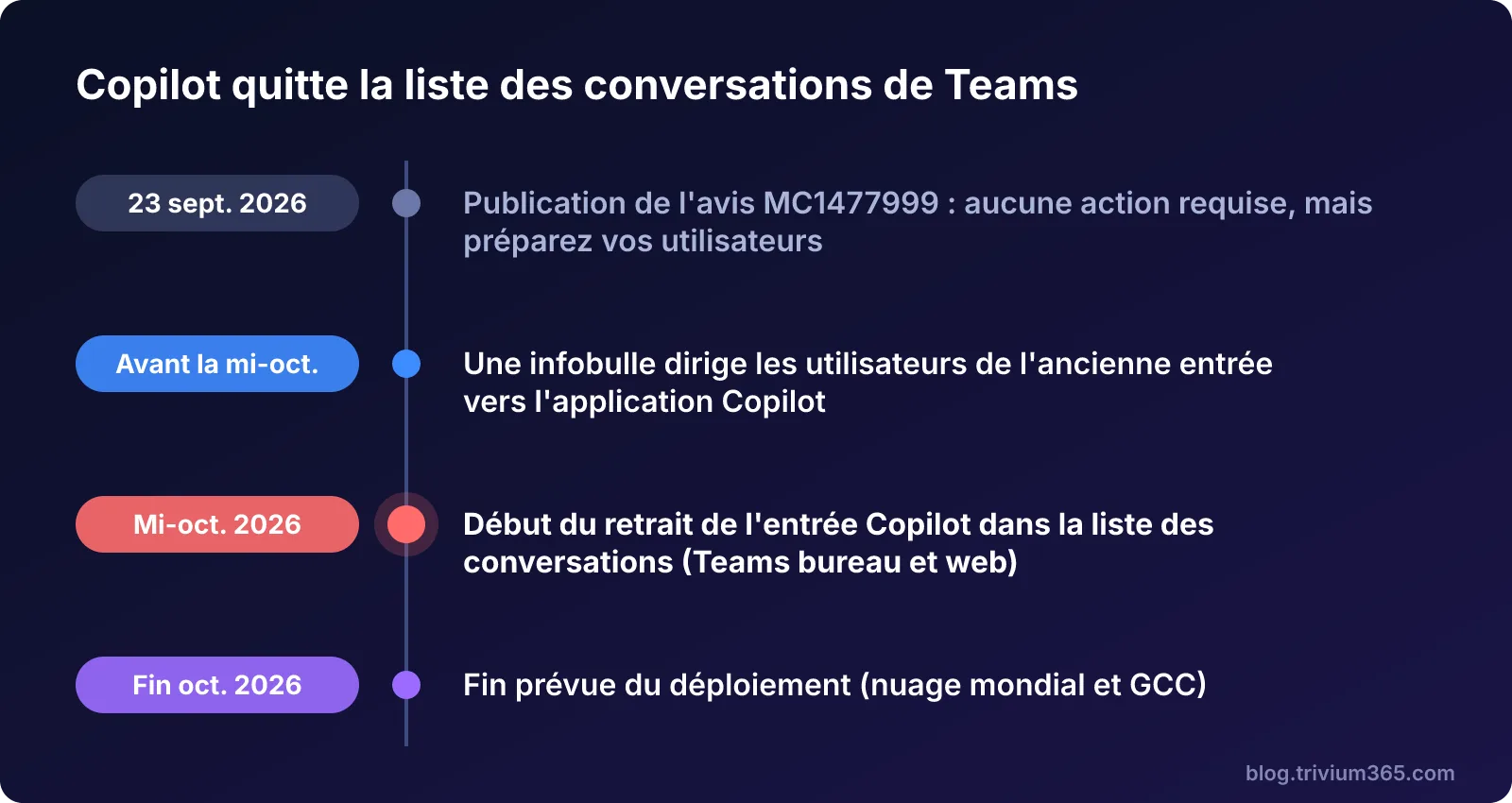
According to Message center notice MC1477999 (published on September 23, 2026), Microsoft is removing the Copilot entry from the Teams chat list. The Copilot app in the app bar becomes the single access point. The removal applies to Teams for desktop and web; the mobile apps do not change.
Before the removal, a welcome tooltip directs users from the old entry to the Copilot app. Existing conversations, notifications, supported deep links and session continuity keep working: no data is deleted. The change is enabled by Microsoft, with no mandatory tenant setting.
September 23, 2026
Notice MC1477999 published
Microsoft announces the removal of the Copilot entry from the Teams chat list.
Mid-October 2026
Start of the removal
The welcome tooltip appears, then the entry disappears on Teams for desktop and web.
End of October 2026
Expected end of rollout
All affected users have only the Copilot app in the app bar.
Confirm the schedule in your tenant
Our checks could not directly re-read notice MC1477999: the dates and scope (desktop and web, mobile unchanged) must be confirmed in your tenant's Message center. It takes two minutes and avoids communicating a wrong date.

Prerequisites, roles and licenses before touching policies
Pinning Copilot Chat in Teams is managed only through the Teams admin center, using a setup policy ("Setup policy"). The Microsoft Learn documentation specifies that the policy must target users with a Microsoft Entra account, and that Copilot Chat must also be allowed for them.
On the licensing side, the Chat version is available with Microsoft 365 E3/E5/E7, A1/A3/A5, F1/F3, G3/G5, Business Basic/Standard/Premium and Teams Enterprise/Essentials/EEA licenses. The paid Microsoft 365 Copilot license is therefore not required for this procedure.
Before you start
- Teams administrator role at minimum, to edit and assign setup policies
- AI administrator role if you touch the global setting in the Microsoft 365 admin center
- Target users with a Microsoft Entra account and a license eligible for Copilot Chat
- Copilot Chat allowed for these users, through an app permission policy or app-centric management
- A pilot group identified before any change to the global policy
Teams policy or global setting: which one wins?
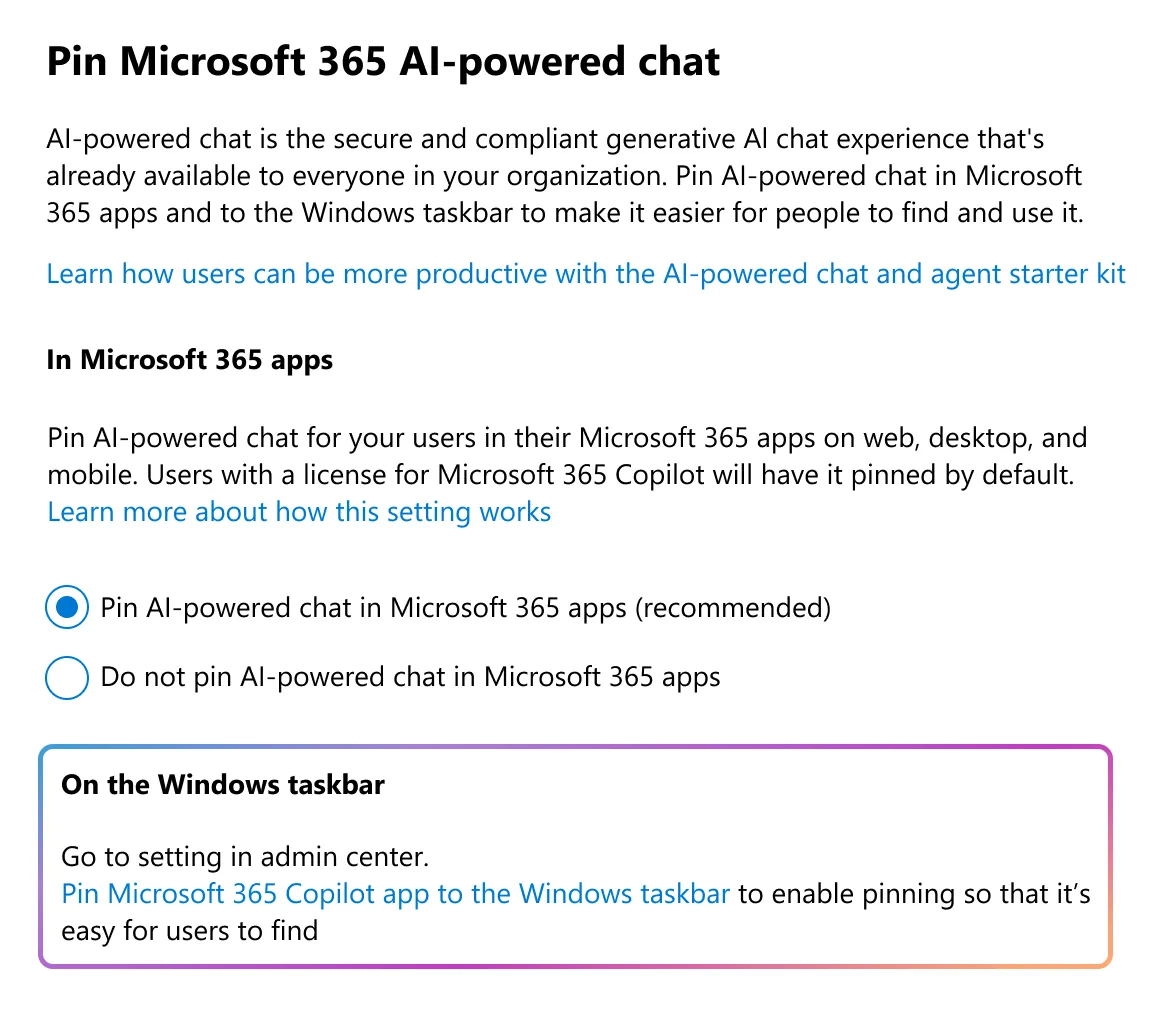
The two settings are cumulative. The Microsoft 365 admin center offers Copilot > Settings > User access > Pin Copilot Chat, which targets the navigation bars of Teams, Outlook and the Copilot app. The Teams setup policy, for its part, sets the position of the app for the users who receive it.
| Global setting | Teams policy pinning Copilot | Documented result |
|---|---|---|
| Pin Copilot | Assigned to the user | Copilot is pinned at the position defined by the policy |
| Pin Copilot | Not assigned | Copilot is pinned at a default position |
| Do not pin | Assigned to the user | Copilot is pinned for that user only |
| Do not pin | Not assigned | No pinning decided by the administrator |
Changes to the global setting take up to 48 hours. For the Teams policy, allow a few hours after a change or an assignment.
A date nuance not to misinterpret
The Learn pinning page mentions two dates in January 2026. The page Manage Microsoft Copilot Chat explains them: for EEA and Switzerland tenants, the setting no longer governs the Copilot app since July 25, 2025; for the others, since January 28, 2026. The global setting therefore mainly concerns Teams and Outlook, which reinforces the value of the Teams setup policy.
Pin the Copilot app step by step
Audit existing policies
In the Teams admin center, open Teams apps > Setup policies. Note which policies already pin the Copilot app and to whom they are assigned. The script in the next section automates this inventory.
Edit the target policy
Open the global policy or a custom policy, then add the Copilot app to the pinned apps and choose its position in the bar.
Check Copilot Chat authorization
Verify that the app permission policy, or app-centric management, allows Copilot Chat for the same users. Without it, pinning produces nothing visible.
Assign the policy to a pilot group
Assign the policy to a small group first, then wait a few hours before validating.
Expand
Once the pilot is validated, extend the assignment to the other groups, or edit the global policy.
The global policy affects the whole tenant
Editing the global setup policy changes the app bar of all users who do not have a custom policy. Always test on a pilot group before touching the global policy.
To assign a test user, there are two equivalent routes:
From the setup policy page in the Teams admin center, use the assign action to users or groups, then select your pilot.
Implementation: audit and assign by script
The script below inventories the setup policies, indicates which ones pin the Copilot app, then assigns a policy to a group. Adding Copilot to the pinned apps is still done in the portal (step 2): the app ID must be looked up in your tenant and passed as a parameter.
- Module:
MicrosoftTeams, installed withInstall-Module MicrosoftTeams -Scope CurrentUser - Minimum permission: Teams administrator role
- Output: a table per policy (Copilot pinned or not, position, number of pinned apps) and, outside simulation, a group assignment
1#Requires -Modules MicrosoftTeams2param(3 [Parameter(Mandatory)][string]$CopilotAppId,4 [string]$PolicyName,5 [string]$GroupId,6 [int]$Rank = 1,7 [bool]$DryRun = $true8)9 10# Connexion à Teams (compte avec le rôle d'administrateur Teams)11Connect-MicrosoftTeams | Out-Null12 13# Relevé de toutes les politiques d'installation et de leurs applications épinglées14$policies = Get-CsTeamsAppSetupPolicy15$rapport = foreach ($p in $policies) {16 $pin = @($p.PinnedAppBarApps | Where-Object { $_.Id -eq $CopilotAppId })17 [pscustomobject]@{18 Politique = $p.Identity19 CopilotEpinglee = ($pin.Count -gt 0)20 Position = if ($pin.Count -gt 0) { $pin[0].Order } else { $null }21 AppsEpinglees = @($p.PinnedAppBarApps).Count22 }23}24$rapport | Format-Table -AutoSize25 26# Sans nom de politique ni groupe, le script s'arrête après l'audit27if (-not $PolicyName -or -not $GroupId) {28 Write-Host 'Audit termine : aucune affectation demandee.'29 return30}31 32# La politique cible doit exister et épingler Copilot33$cible = $rapport | Where-Object { $_.Politique -in @($PolicyName, ('Tag:' + $PolicyName)) } | Select-Object -First 134if (-not $cible) { throw 'Politique introuvable.' }35if (-not $cible.CopilotEpinglee) { throw 'Cette politique ne contient pas Copilot parmi les applications epinglees.' }36 37# Mode simulation par défaut : rien n'est écrit tant que DryRun vaut $true38if ($DryRun) {39 Write-Host ('Simulation : la politique {0} serait affectee au groupe {1}.' -f $PolicyName, $GroupId)40}41else {42 New-CsGroupPolicyAssignment -GroupId $GroupId -PolicyType TeamsAppSetupPolicy -PolicyName $PolicyName -Rank $Rank43 Write-Host 'Affectation envoyee. Comptez quelques heures de propagation.'44}Example call: ./Audit-CopilotPin.ps1 -CopilotAppId '<identifiant>' -PolicyName 'Copilot-Epingle' -GroupId '<GUID du groupe>' -DryRun $false. Run it first without -DryRun $false.
Verify the result and troubleshoot
After the propagation delay, check the effective assignment of a pilot user:
1Get-CsUserPolicyAssignment -Identity 'pilote@contoso.com' -PolicyType TeamsAppSetupPolicyThen open Teams for desktop and for web with this account: the Copilot app should appear in the app bar. In parallel, prepare a message to users: the Copilot entry is leaving the chat list, the app is found in the app bar, otherwise in the "…" menu, and previous conversations are kept. Also inform the support team before mid-October, and update guides and screenshots.
| Symptom | Likely cause | Resolution |
|---|---|---|
| Copilot missing from the bar after the change | Propagation delay not elapsed (a few hours for the Teams policy, up to 48 h for the global setting) | Wait, then recheck with Get-CsUserPolicyAssignment |
| Policy edited but no effect | User not covered by the policy, or another assignment takes precedence | Check the user's effective assignment and fix the target |
| App pinned but unusable | Copilot Chat not allowed for the user | Adjust the app permission policy or app-centric management |
| Copilot pinned for some users only | Global setting on Do not pin: only recipients of the Teams policy have it | Extend the assignment or switch the global setting to Pin Copilot |
| A user can no longer find Copilot | They unpinned it themselves, and their choice is respected afterwards | Point them to the overflow menu or to manual re-pinning |
| Nothing changes on mobile | The removal only affects desktop and web | No action: mobile remains unchanged |
Frequently asked questions
Do you need a Microsoft 365 Copilot license to pin Copilot Chat?
No. According to Microsoft Learn, Copilot Chat is available with Microsoft 365 E3, E5, E7, A1, A3, A5, F1, F3, G3, G5, Business Basic, Standard, Premium and Teams Enterprise, Essentials or EEA licenses. The paid Microsoft 365 Copilot license is not required for the Chat version.
Does "Do not pin" prevent using Copilot?
No. This setting does not block access: Copilot Chat remains reachable through the Copilot app or other entry points. To prevent usage, you need an access block separate from simply unpinning.
How long does it take for pinning to become visible?
For a Teams setup policy, allow a few hours after a change or an assignment. For the global setting in the Microsoft 365 admin center, changes can take up to 48 hours.
What happens if a user unpins Copilot?
Their choice is respected in subsequent sessions. They can find the app in the bar's overflow menu or pin it again.
Three actions to keep Copilot visible
Action plan before the end of October 2026
- Confirm notice MC1477999 and its dates in your tenant's Message center
- Audit the setup policies, pin Copilot and assign a pilot group
- Warn the support team, update internal documentation and publish the message to users
- Over two to three weeks, track support requests and Copilot usage in Teams
If your organization manages many custom policies, start with the scripted audit to spot those that do not pin Copilot. If you only have the global policy, pin Copilot there after a successful pilot. An interface that changes often, as shown by our Microsoft Teams news for March 2026, justifies a pinned configuration rather than a habit to relearn.
Going further
- Pin Microsoft Copilot Chat in the Microsoft 365 apps: pinning options, interaction with Teams policies and the 48-hour delay.
- Manage Microsoft Copilot Chat: eligible licenses, dates by region, difference between unpinning and blocking.
- Manage Microsoft Copilot settings in the Microsoft 365 admin center: up-to-date path of the Pin Copilot Chat setting.
- Manage app setup policies in Microsoft Teams: reference on Teams setup policies.
- What's new in Microsoft 365 Copilot: June 2026: to follow the other changes to the Copilot interface.