
A booby-trapped attachment in a Teams conversation does not need to get past your email security: it arrives through the channel your users consider trustworthy. Teams can block messages containing certain extensions before delivery, but the setting applies to the whole tenant and only looks at the extension.
This tutorial walks you through enabling, testing and then bounding this block in a test tenant, before you decide whether to customize the extension list.
How Teams blocks a message before delivery
Weaponizable File Protection scans messages and their attachments before delivery. If it detects an extension associated with malware, it blocks the entire message, text included, and not just the file. The check happens at the tenant's messaging configuration level: there is no per-user policy, as Office 365 for IT Pros points out.
On the sender side, Teams displays a block indicator and a notification along the lines of "This message was blocked because it contains a file type that is not permitted". The user can edit the message, remove the file and send it again.
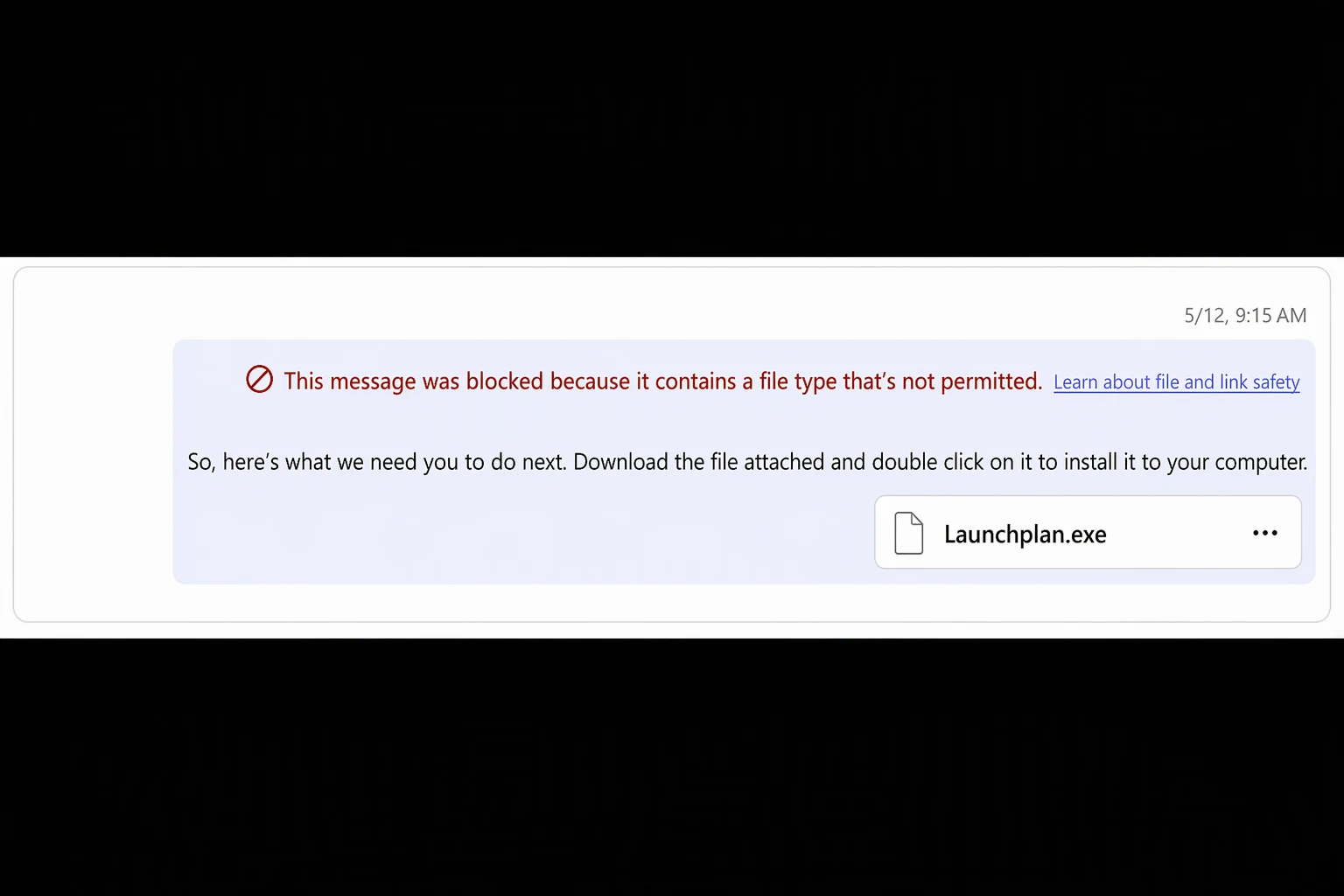
On the recipient side, a block indicator replaces the message: it is impossible to read its content or download the attachment. The notification details depend on the Teams client version.
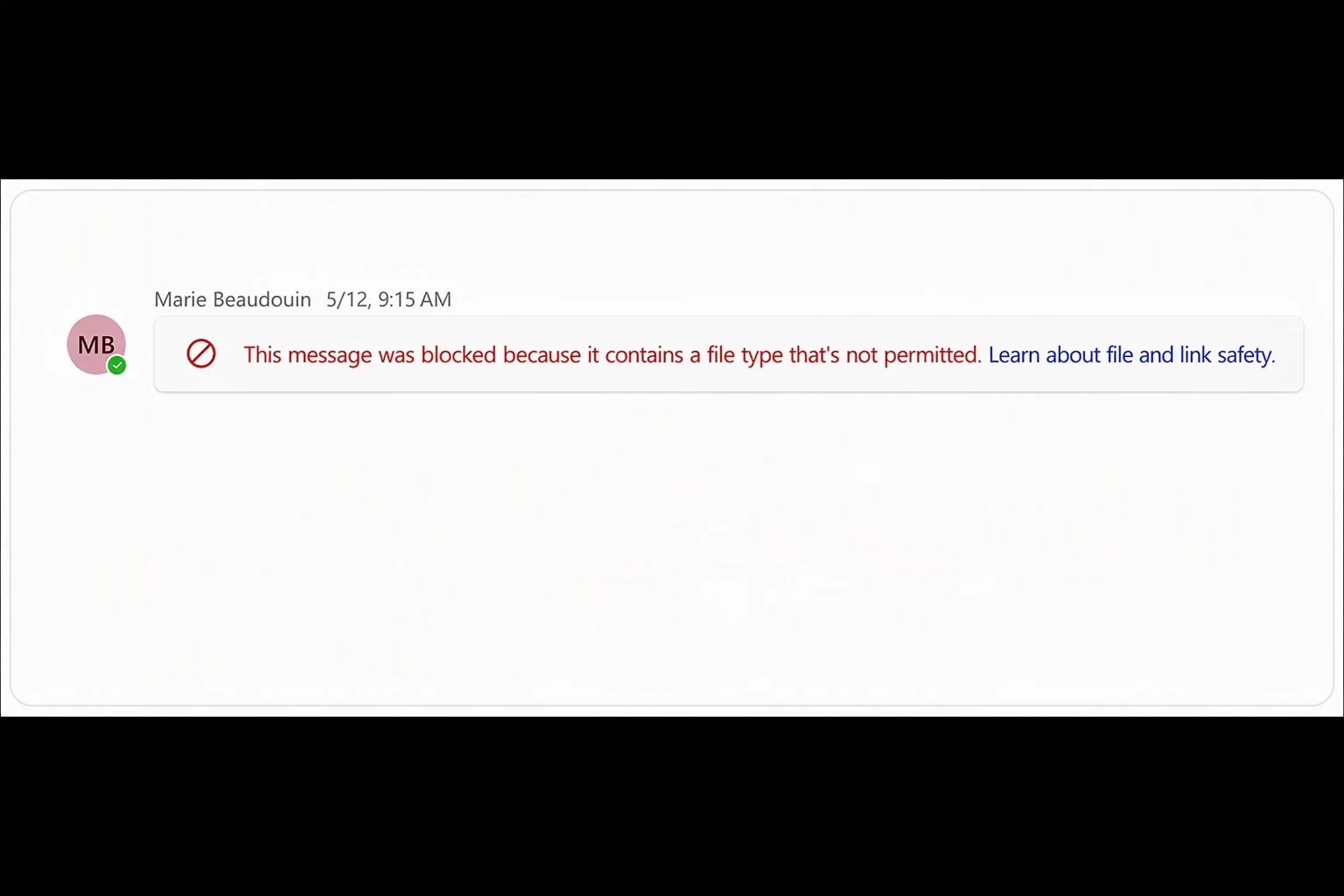
In external collaboration, the block applies to the entire conversation as soon as at least one participating organization has enabled the feature. A message containing a blocked extension is then delivered to no participant, regardless of the sender's organization.
Microsoft's recommended list covers 53 extensions.
Check the tenant's actual state, then enable the block
Do not assume the setting is already active. The default activation announced in MC1148540 has been pushed back to early 2026, and some administrators have seen the setting revert to Off, according to a Microsoft Q&A thread. Since it applies to the whole tenant, a single PowerShell read gives you the actual state.
Prerequisites
- Teams Administrator role (sufficient, preferable to Global Administrator under least privilege)
- Eligible license: Microsoft 365 F1/F3/E3/E5, Entra ID P1/P2, EMS E3/E5 or Office 365 F3
- MicrosoftTeams PowerShell module installed
- Two test accounts to exchange messages in a chat
- A few hours of margin before the first test, to let clients apply the setting
Connect and read the FileTypeCheck value:
1Install-Module -Name MicrosoftTeams -Scope CurrentUser2Connect-MicrosoftTeams3Get-CsTeamsMessagingConfiguration -Identity Global | Select-Object FileTypeCheckThe value Enabled confirms the block is active. Any other value means messages are not scanned. Here is how to enable it, through either the portal or a script.
Open the Teams admin center then Messaging settings > Messaging safety. Microsoft Learn documentation names the setting "Scan messages for file types that are not allowed"; you may also see the label "Weaponizable file protection". Switch it to On and save.
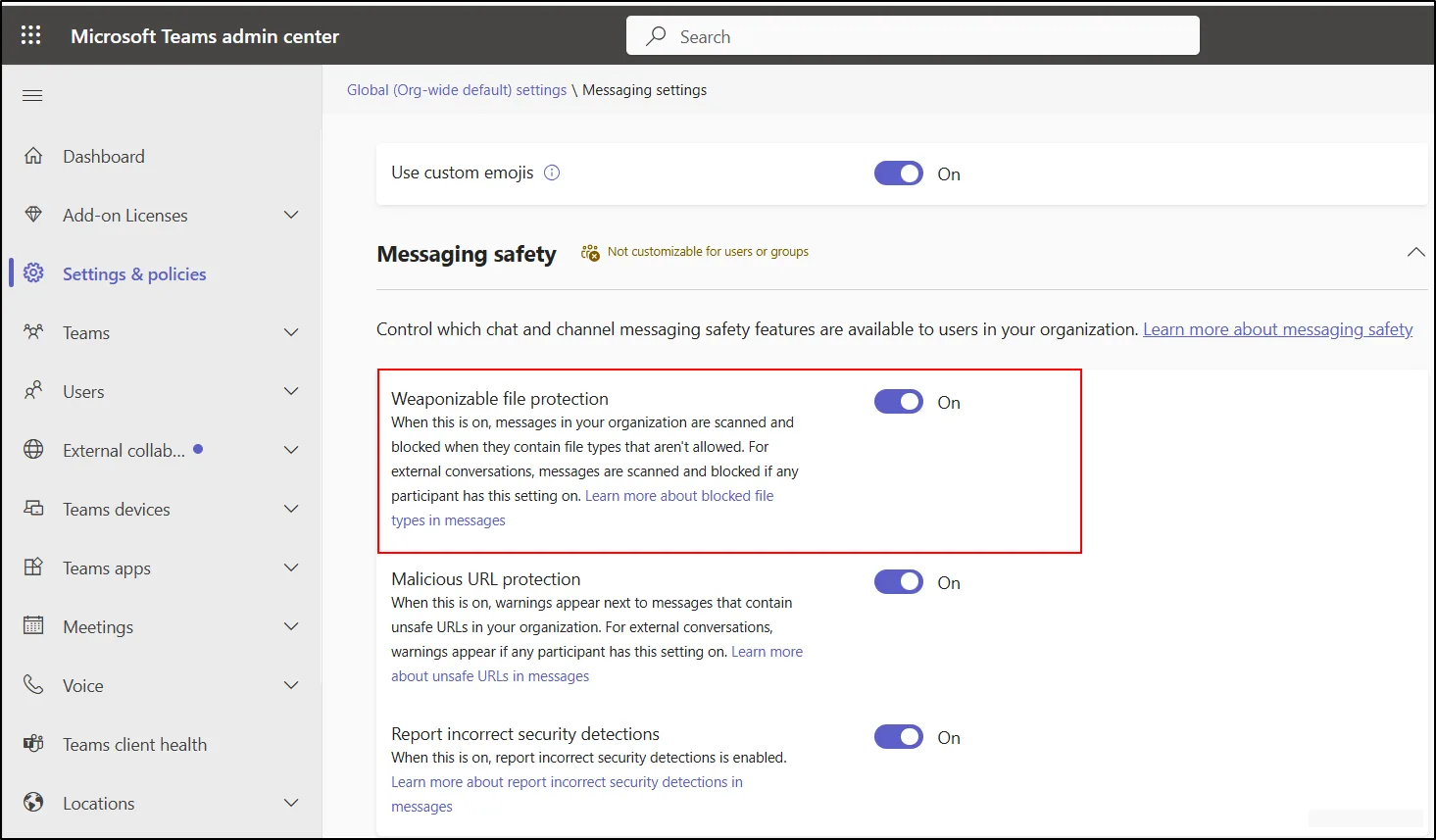
Tenant-wide setting
The block affects all users immediately once propagated, and it blocks the entire message. Validate it in a test tenant first and warn the support team before production.
Customizing the list: what is available, what is rolling out
The list is no longer fixed: the PowerShell reference for Set-CsTeamsMessagingConfiguration exposes FileTypeCustomizationSetting, which accepts MicrosoftRecommendedBlockList or CustomBlockList, and FileTypeBlockList, which contains the extensions. The latter only applies with FileTypeCheck set to Enabled and CustomBlockList. Yet the main Learn page still states that the list is not configurable: it lags behind the reference.
| Criterion | MicrosoftRecommendedBlockList | CustomBlockList |
|---|---|---|
| List content | Microsoft's default list | Extensions entered in FileTypeBlockList |
| List updates | Received automatically | No more automatic updates of the recommended list |
| Prerequisites | FileTypeCheck set to Enabled | FileTypeCheck set to Enabled and CustomBlockList |
| Typical use | Get started quickly with standard protection | Add extensions or restrict office formats |
Timelines differ. The tminus365 October 2026 roundup gives a start in November 2026 and a rollout completion in mid-November. The Microsoft 365 roadmap (item 571298) places it in "November CY2026". A start date of December 2026 is also circulating, but it is probably outdated.
In the portal, the customization option is located under the setting itself: add the extensions one by one, then click Save. It only appears once the rollout reaches your tenant.
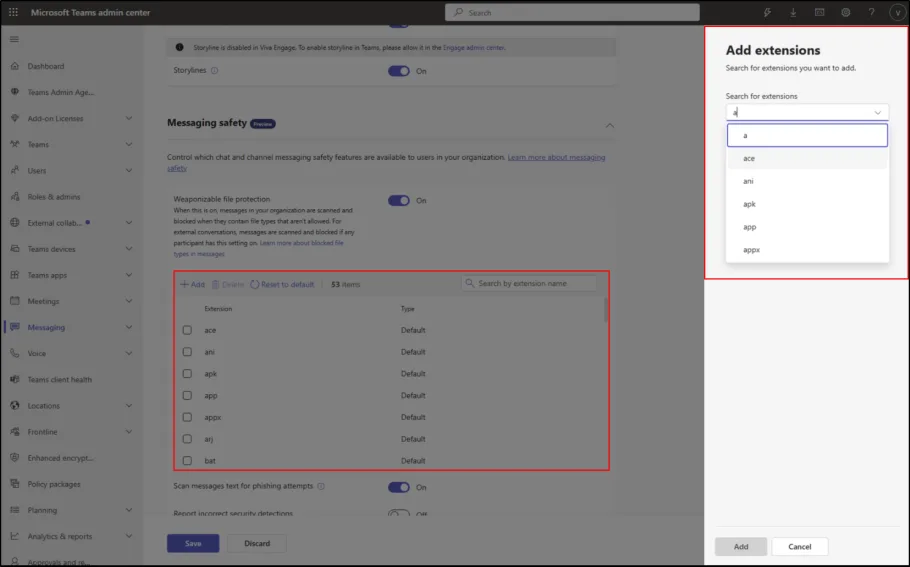
Unavailable in GCC, GCC High and DoD
The FileTypeCustomizationSetting and FileTypeBlockList parameters are not available in these clouds. If you customize the list, your organization uses only that list.
By reasoning, and not from any Microsoft guidance: if you switch to CustomBlockList, start from the default list and then add your extensions, otherwise you remove existing protections.
Testing step by step in a test tenant
The test must prove two things: the block works, and its scope stops at the extension.
Back up the current configuration
Export the current state so you can roll back.
1Get-CsTeamsMessagingConfiguration -Identity Global | ConvertTo-Json -Depth 3 | Out-File -FilePath "$HOME\teams-messaging-backup.json" -Encoding utf8Enable the block and wait
Apply the enable command shown above, then allow a few hours for Teams clients to apply the setting.
Create two harmless test files
The second file has the same content but an unlisted extension.
1New-Item -Path "$HOME\test-blocage.bat" -ItemType File -Value "REM fichier de test inoffensif" -Force2Copy-Item -Path "$HOME\test-blocage.bat" -Destination "$HOME\test-blocage.txt"Send the files between two accounts
In a chat between your two test accounts, send the .bat first. The sender should see the block notification and the recipient the indicator. Then send the .txt: it goes through, because the check only looks at the extension.
Check the configuration state
Read FileTypeCheck again with Get-CsTeamsMessagingConfiguration -Identity Global. Message checking happens at send time, not before.
Implementation: enable the block with an optional custom list
This script enables the check, backs up the previous state and, if you pass -AdditionalExtensions, switches to CustomBlockList starting from the default list. It requires the MicrosoftTeams module (Install-Module -Name MicrosoftTeams -Scope CurrentUser) and the Teams Administrator role. It produces a JSON backup file and displays the final state. The -DryRun parameter displays the values without changing anything.
1#Requires -Modules MicrosoftTeams2[CmdletBinding()]3param(4 [string[]]$AdditionalExtensions = @(),5 [switch]$DryRun6)7 8$ErrorActionPreference = 'Stop'9 10# Liste par défaut recommandée par Microsoft11$defaultList = @(12 'ace','ani','apk','app','appx','arj','bat','cab','cmd','com','deb','dex','dll','docm',13 'elf','exe','hta','img','iso','jar','jnlp','kext','lha','lib','library','lnk','lzh',14 'macho','msc','msi','msix','msp','mst','pif','ppa','ppam','reg','rev','scf','scr','sct',15 'sys','uif','vb','vbe','vbs','vxd','wsc','wsf','wsh','xll','xz','z'16)17 18Connect-MicrosoftTeams | Out-Null19 20# Sauvegarde de la configuration actuelle21$before = Get-CsTeamsMessagingConfiguration -Identity Global22$backupPath = Join-Path -Path $HOME -ChildPath ('teams-messaging-backup-{0:yyyyMMdd-HHmmss}.json' -f (Get-Date))23$before | ConvertTo-Json -Depth 3 | Out-File -FilePath $backupPath -Encoding utf824Write-Host ('Sauvegarde : ' + $backupPath)25 26# Paramètres de base : activation avec la liste recommandée27$params = @{ Identity = 'Global'; FileTypeCheck = 'Enabled' }28 29# Liste personnalisée : défaut + extensions ajoutées, normalisées30if ($AdditionalExtensions.Count -gt 0) {31 $clean = $AdditionalExtensions | ForEach-Object { $_.Trim().TrimStart('.').ToLower() } | Where-Object { $_ }32 $params['FileTypeCustomizationSetting'] = 'CustomBlockList'33 $params['FileTypeBlockList'] = @(($defaultList + $clean) | Select-Object -Unique)34}35 36# Simulation : affichage sans écriture37if ($DryRun) {38 Write-Host 'Mode simulation : aucune modification appliquée.'39 $params.GetEnumerator() | ForEach-Object { Write-Host ('{0} = {1}' -f $_.Key, ($_.Value -join ', ')) }40 return41}42 43Set-CsTeamsMessagingConfiguration @params44 45# Vérification de l'état final46Get-CsTeamsMessagingConfiguration -Identity Global | Select-Object FileTypeCheck, FileTypeCustomizationSetting, FileTypeBlockListFirst run .\Set-TeamsFileBlock.ps1 -AdditionalExtensions 'ps1','js' -DryRun (file name and extensions given as an example), then run it again without -DryRun. If the command rejects FileTypeBlockList, your tenant probably has not yet received the customization, or your module is outdated.
Limits of the block, monitoring and troubleshooting
The block works on the extension only, not on the MIME type or the content: an .exe renamed to .txt gets through. A Microsoft Q&A moderator recommends Microsoft Defender for Office 365, which scans files in SharePoint, OneDrive and Teams, to detect disguised files. To curb leaks of sensitive data, this filter does not replace a DLP strategy: see our guide on DLP blocking of sharing to specific domains or users.
Since August 2026, a "Security detections" report in the Teams admin center groups spoofing, malicious URL and weaponizable file detections. It is located under Analytics & reports > Protection reports and can be exported to CSV with the Thread ID, useful for an eDiscovery investigation.
| Symptom | Likely cause | Resolution |
|---|---|---|
| The setting reverted to Off | Default activation postponed (MC1148540), state to be checked | Read FileTypeCheck again with Get-CsTeamsMessagingConfiguration then re-enable |
| An .exe gets through right after enabling | Clients have not yet applied the setting | Wait a few hours then send a test message again |
| An .exe renamed to .txt gets through | Check limited to the extension | Complement with Defender for Office 365 |
| FileTypeBlockList is rejected | Old module, rollout not reached or GCC, GCC High or DoD cloud | Update the MicrosoftTeams module and check availability |
| The custom list has no effect | FileTypeCheck not set to Enabled or CustomBlockList not defined | Apply both parameters together then read the configuration again |
| A message is blocked although your tenant enabled nothing | A partner in the conversation enabled the protection | Expected behavior: the block covers the whole conversation |
To place this control among the others, read our Teams Security Baseline 2026 and the article on enabling message safety in Microsoft 365.
Where to start
Next actions
- Read
FileTypeCheckon your production tenant, without changing anything - Enable the block in the test tenant and validate the two test files
- Run the script with
-DryRunbefore any custom list - Decide whether the recommended list is enough or whether you switch to
CustomBlockList - Schedule a CSV export of the Security detections report to track blocks
If your organization needs to block office formats or line-of-business extensions, wait until customization appears in your tenant and start from the default list. Otherwise, keep the recommended list to benefit from its automatic updates, and handle disguised files with Defender for Office 365.
Going further
- Weaponizable file protection in Microsoft Teams (Microsoft Learn): how it works, sender and recipient experience, external collaboration and the default list.
- Set-CsTeamsMessagingConfiguration (Microsoft Learn): reference for the FileTypeCheck, FileTypeCustomizationSetting and FileTypeBlockList parameters.
- Teams Weaponized File Protection & Malicious URL Protection (Office 365 for IT Pros): expert analysis with references MC1148540 and MC1148539, a PowerShell example and the limits.
- Security detections report in Microsoft Teams (Microsoft Learn): track and export blocked file detections.
- Weaponizable file detection in Teams (Microsoft Q&A): the limit of extension-based blocking and the Defender for Office 365 option.