Introduction
The technology of virtual assistants, such as Microsoft Copilot, is revolutionizing the way companies manage repetitive tasks on a daily basis. By automating key processes through customized routines, Copilot can act as a true virtual employee. This article explores how to use these routines to increase your productivity, while ensuring the security of your Microsoft 365 and Azure environments.
What is a routine?
In the context of virtual assistants, a routine is an automated task that you configure once to be executed regularly or triggered by a specific event.
Main Features of Copilot: Understanding Routines
The Two Types of Routines
Copilot uses two categories of routines:
- Fixed-trigger routines: These routines are scheduled at specific times, such as an automatic summary of your emails every morning at 9 AM.
- Event-based routines: These activate only when a certain event occurs, for example, when a customer leaves a comment or review online.
These routines work directly on Azure Cloud, which means that once configured, they continue to function even if your computer is turned off.
The Fundamental Elements of a Routine
Each routine consists of three elements:
- Instructions: A natural language description of the task to be performed.
- Workspace: The data or documents needed for the routine to work effectively.
- Connectors: Integrated tools such as Outlook, Microsoft Teams, or Power Platform, which allow Copilot to interact with your digital environment.
Tip
To maximize the effectiveness of routines, make sure to adapt them to your organization's internal rules.
Configuring Your First Routine with Copilot
Steps for an Email Sorting Routine
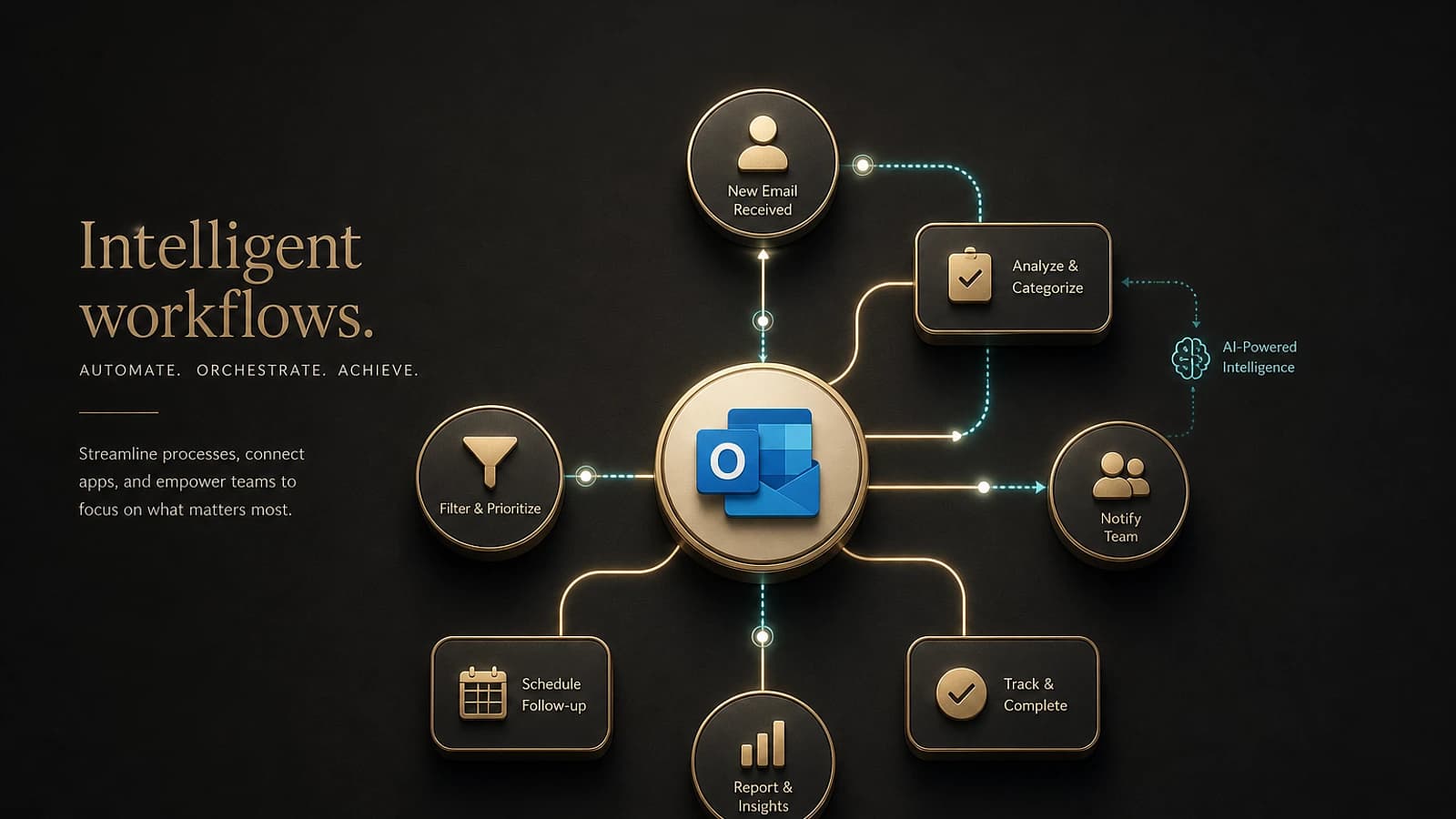
Let's take the example of an automated routine to sort your emails and produce a daily summary. Here are the steps:
Access Copilot
Open the Copilot application in your Microsoft 365 environment.
Define Instructions
Write a clear description, for example: "Read emails received in the last 24 hours, separate newsletters from important emails, mark newsletters as read and summarize important emails."
Configure Connectors
Add the necessary connectors, such as Outlook to analyze your emails and Microsoft Teams to receive the summary.
Test and Launch
Run it manually for the first time to verify the results, then activate daily automation.
Example of Advanced Routine: Content Creation
Another powerful application of Copilot is the automatic creation of visual content for your social networks through integration with Microsoft Designer. Here is an example configuration:
- Trigger event: Find current trends in your industry every week.
- Instruction: Generate multiple visuals ready to publish on LinkedIn.
- Connectors: Designer and Outlook to deliver visuals and notifications.
Good to know
Microsoft Copilot ensures that all accessible data complies with security standards imposed by your Azure tenant.
Implications for M365 and Azure Environment Security
Precautions Around Connectors
When integrating connectors, be sure to:
- Restrict permissions: For example, allow only reading an email, but not sending it.
- Regularly verify permission settings to avoid unnecessary access.
- Enable logging on Azure AD to monitor connector activities in real time.
Protection of Enterprise Data
Microsoft 365 and Azure are designed to comply with the most rigorous security standards. Nevertheless, it is recommended to:
- Configure security groups and "Conditional Access" in Azure AD.
- Educate users not to provide excessive information in their routines.
Warning
Poorly configured automation can lead to data leakage or unauthorized access. Prioritize security in all your configurations.
List of Routines to Optimize Your Time
Here are some ideas to get started with Copilot:
- Morning summary: Priorities for the day and important emails.
- Daily industry monitoring: Summary of latest business or technology news.
- Payment tracking: Automatically follow up on unpaid invoices.
- Customer comment management: Respond professionally to reviews received.
Stacked Routine: Virtual Employee
By combining multiple routines, you can simulate a virtual employee:
- Instant responses to new prospects.
- Daily summary of important activities.
- Automatic invoice reminders.
- Weekly performance analysis.
Warning
Make sure to limit automated actions for critical tasks within your secure environment.
Conclusion
Microsoft Copilot opens new possibilities for automating tasks while respecting your company's security standards. Try first with a simple routine, such as sorting morning emails, and develop progressively. Remember to continue optimizing your configurations, prioritizing security and refining your routines according to your needs.
To explore more use cases, discover our comprehensive guide on secure routine management with Copilot.