Introduction
Microsoft 365 Copilot is revolutionizing professional calendar management with a new automatic rescheduling feature for conflicting events in Outlook. This innovation allows users to delegate conflict resolution to artificial intelligence, optimizing their productivity and time management.
This advanced capability is particularly aimed at professionals facing overcrowded calendars where meeting conflicts constitute a daily challenge. Copilot analyzes your agenda and intelligently reschedules events according to your constraints and preferences.
Availability
This feature is currently available in the new Outlook for Windows and Outlook on the web with Microsoft 365 Copilot.
How Automatic Rescheduling Works
Basic Principle
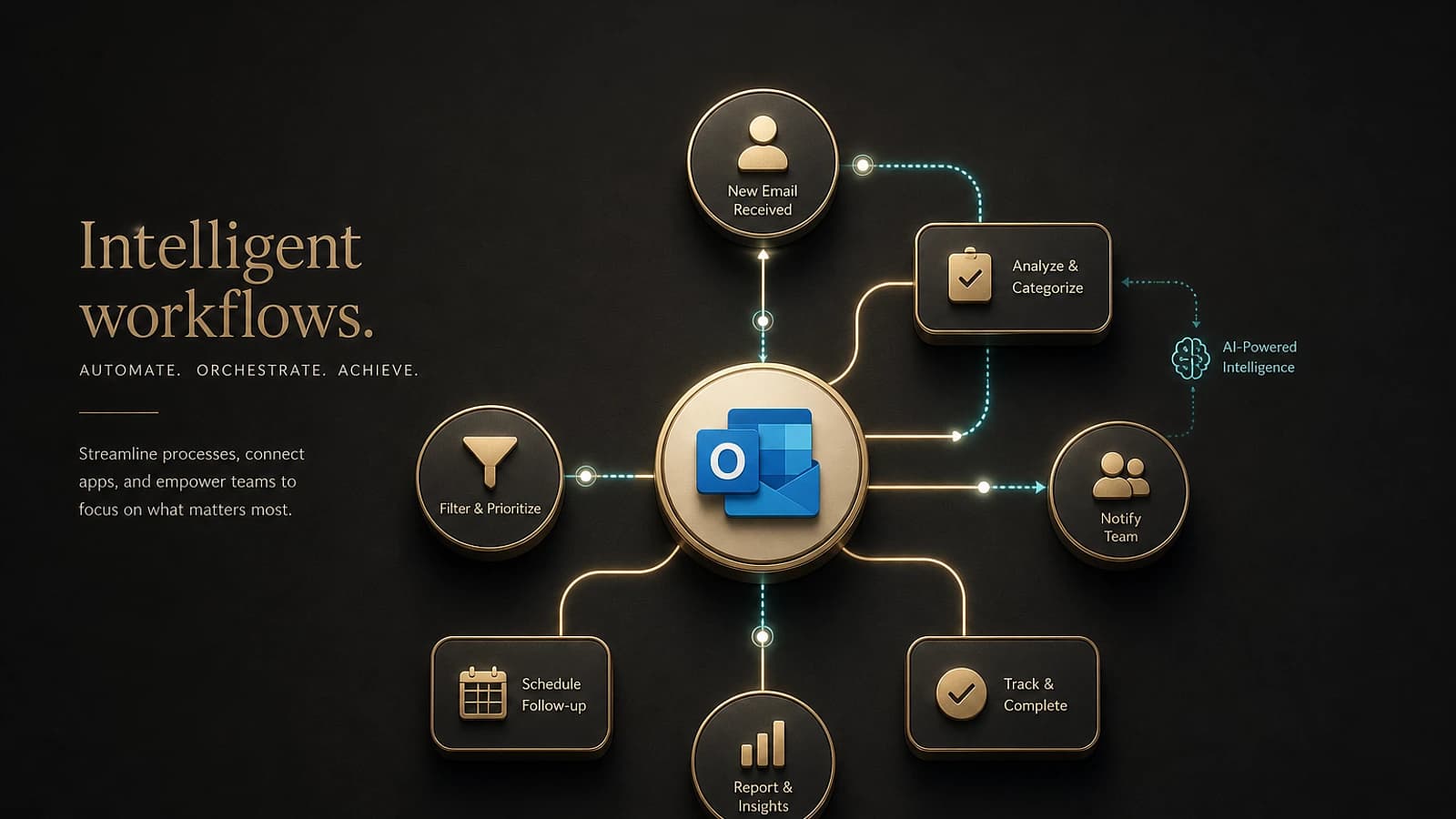
Copilot continuously monitors your calendar and automatically detects scheduling conflicts. When a priority event occurs at the same time as an existing appointment configured for automatic rescheduling, the AI assistant suggests a compatible new time slot.
The algorithm takes into account several parameters:
- Your predefined availability windows
- The status of events (Busy, Out of Office)
- The implicit priority of different types of meetings
- The time constraints you have specified
Typical Use Cases
This feature is particularly effective for:
- Recurring meetings for one-on-one check-ins
- Flexible appointments without strict time constraints
- Personal work slots that can be rescheduled
- Routine interviews with regular frequency
Practical Tip
Favor this option for recurring meetings that don't need a fixed schedule, such as weekly check-ins with your team.
Configuring Automatic Rescheduling
Accessing the Interface
Open new Outlook for Windows or Outlook on the web with your Microsoft 365 Copilot account activated.
Creating or Editing an Event
Select New > Event to create a new event or recurring series. You can also open an existing event to modify it.
Enabling Rescheduling
Enable the "In case of conflict, let Copilot reschedule this event" option by toggling the corresponding switch.
Defining Acceptable Time Slots
In the "Acceptable hours" section, select:
- The days of the week when rescheduling is possible
- The time ranges allowed for moving
- The specific constraints according to your preferences
Important Recommendation
Although this step is optional, defining specific time slots significantly improves the quality of Copilot's proposals.
Benefits of Conflict Automation
Time Optimization
Automated conflict management offers several concrete benefits:
- Quick resolution of overlaps: Immediate elimination of double bookings
- Time savings: Elimination of repetitive manual interventions
- Improved productivity: Automatically organized calendar
- Maintaining user control: Customizable preference settings
Enhanced Collaboration
Automation promotes better team coordination by:
- Reducing last-minute cancellations
- Optimizing the use of shared time slots
- Maintaining consistency of recurring schedules
- Facilitating acceptance of new priority meetings
Automatic Triggering Conditions
Triggering Scenarios
Copilot automatically reschedules your events in two specific situations:
- Accepting a new event that conflicts with an existing appointment configured for rescheduling
- Manually scheduling an event in an already occupied time slot
Eligibility Criteria
Rescheduling applies only to events that have:
- A "Busy" or "Out of Office" status
- An active configuration for automatic rescheduling
- Available alternative slots according to your settings
Important Limitation
Events with "Tentative" status do not trigger automatic rescheduling, even if a conflict is detected.
Current Limitations and Constraints
Functional Restrictions
Several limitations currently govern this feature:
- No delegate support: Assistants cannot configure rescheduling on shared calendars
- Recurring series constraints: Inability to enable the function on a single instance of an existing series
- Instance settings: Acceptable time slots cannot be modified at the level of a particular occurrence
Managing Event Series
For recurring events, the following rules apply:
- Automatic rescheduling must be configured when creating the series
- Once enabled, it can be disabled for specific instances
- Changes to acceptable time slots apply to the entire series
Planned Evolution
Microsoft is actively working on extending these features to lift certain current limitations.
Tracking and Controlling Reschedules
Notifications and Transparency
Copilot maintains complete traceability of its actions:
- Real-time notifications of rescheduling performed
- Accessible history in the Outlook notifications pane
- Ability to review and undo changes
Evolving Settings
You maintain complete control over the system:
- Modification of acceptable time slots at any time
- Temporary or permanent disabling of the function
- Adjustment of preferences as your needs evolve
Impact on Professional Productivity
The integration of this conversational artificial intelligence in calendar management represents a significant advance for optimizing work time. Professionals can now focus on their high-value activities rather than manually resolving scheduling conflicts.
This automation is part of the broader Microsoft 365 Copilot strategy aimed at transforming work habits through generative AI integrated into productivity tools.
Useful Links
- Official Microsoft 365 Copilot Documentation
- New Outlook Configuration Guide
- Advanced Outlook Calendar Management
- Microsoft 365 Copilot Best Practices
Glossary
Copilot: Microsoft intelligent assistant powered by generative AI, integrated into Microsoft 365 applications
Recurring event: Appointment or meeting scheduled according to a defined frequency (weekly, monthly, etc.)
Calendar conflict: Situation where two or more events are scheduled simultaneously on the same calendar
Event status: Availability indicator associated with a calendar slot (Free, Busy, Tentative, Out of Office)
Calendar delegate: User authorized to manage another person's calendar with specific permissions
Event instance: Single occurrence within a series of recurring events
Acceptable time range: Time slots defined by the user as appropriate for automatic rescheduling