With MC1450133, an attacker who holds a password will be able to register a passkey without first having to set up another MFA method: this small hurdle disappears. This tutorial shows how to lock down the "Register security information" action with Conditional Access and a Temporary Access Pass (TAP), first in report-only mode, then in production.
MC1450133 removes a hurdle and opens an attack path
According to message center post MC1450133, Microsoft Entra ID will let users register a passkey or a passwordless sign-in as their first MFA method. Until now, they first had to add another method. That prerequisite was never a real barrier: without a Conditional Access policy targeting the security information registration action, a stolen password was already enough, provided you first registered any method (an authenticator app, for example).
The attack path therefore changes shape, not nature:
- Before: password, then registration of an MFA method, then registration of or upgrade to a passkey.
- After: password, then registration of a passkey.
Microsoft states that no action is required, but recommends reviewing Conditional Access policies on security information registration and considering requiring MFA there. Users enabled for passkeys will be prompted to register one by default, and Security Defaults MFA prompts will adopt this behavior in January-February 2027 (MC1450133 message details).
July 2026
Policies apply to WHfB and Platform SSO
Since July 6, 2026, policies targeting "Register security information" also apply to the registration of Windows Hello for Business and macOS Platform SSO.
September 2026
Passkeys enabled for SMS or voice users
Since September 1, 2026, passkeys are automatically enabled for users enabled for SMS or voice.
November 2026
MC1450133, phase 1
Synced passkeys, Microsoft Entra passkeys on Windows and FIDO2 keys. Starts in early November 2026, expected to finish in early January 2027.
February 2027
MC1450133, phase 2
Windows Hello for Business, macOS Platform SSO, Authenticator passkey and Authenticator passwordless sign-in, through the end of February 2027.
MC1450134, announced in parallel, will make Windows Hello for Business and macOS Platform SSO standalone MFA factors in more scenarios (analysis by Our Cloud Network). The trend is toward smoother registration, and therefore registration that is easier to abuse if nothing protects it.
Prerequisites and permissions before touching production
The tutorial creates an authentication strength and a Conditional Access policy. Both have tenant-wide impact: plan a pilot and an excluded emergency access account.
To gather before you start
- A group containing your break-glass accounts, excluded from every policy.
- A pilot group of a few test users.
- The Temporary Access Pass method enabled in the authentication methods policy for the relevant users.
- A Conditional Access Administrator role for the policy, and a role allowed to manage authentication strengths.
- The
Microsoft.Graph.Identity.SignInsmodule installed (Install-Module Microsoft.Graph.Identity.SignIns -Scope CurrentUser). - A defined TAP issuance process: who issues it, and after what identity verification.
Three safeguards for the Register security information action
In Conditional Access, create one or more policies targeting the Register security information user action. You can combine the three approaches below depending on your context.
| Safeguard | Principle | Watch-out |
|---|---|---|
| TAP authentication strength | Only a Temporary Access Pass (or a phishing-resistant method) allows registration | Never include a weak method |
| Named locations | Block outside trusted or known locations | Users must be in the office or on VPN |
| Compliant device | Block outside managed or compliant devices | Breaks registration if BYOD is allowed |
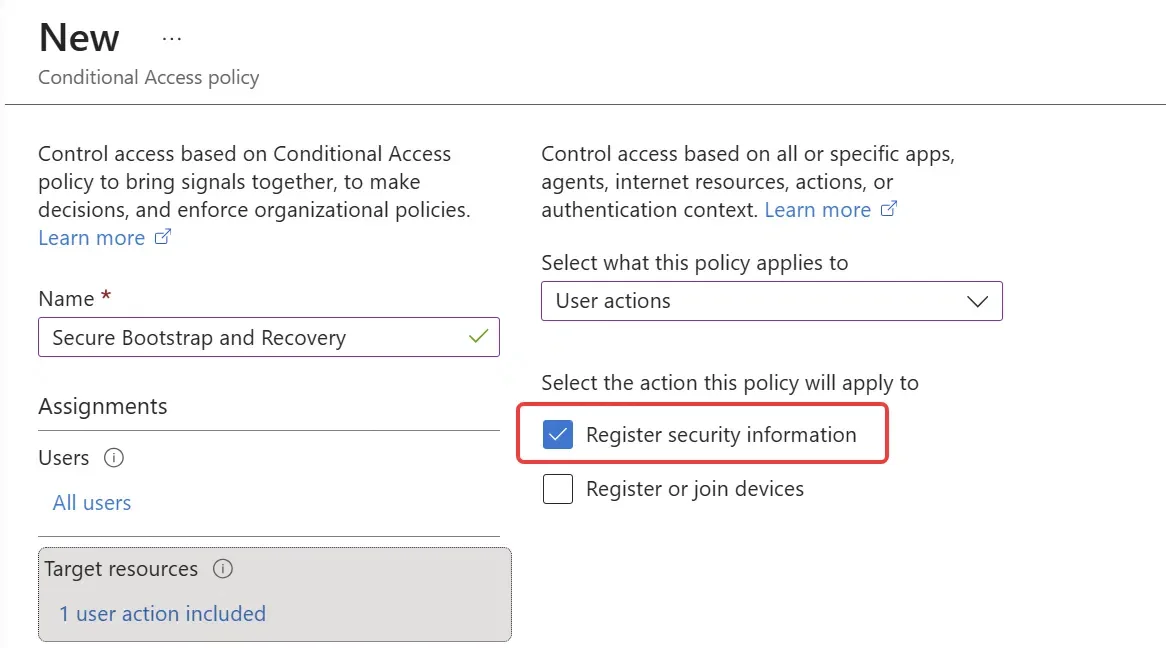
Exclude emergency accounts and test
Exclude your break-glass accounts from all of these policies and validate them first with a small group of users.
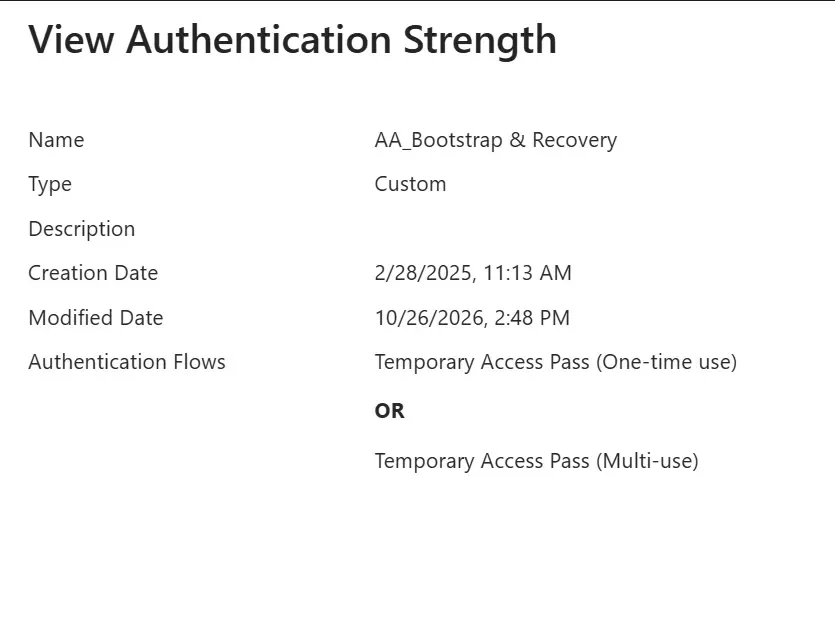
Enforce an authentication strength reserved for bootstrap
Create an authentication strength dedicated to bootstrap and recovery that contains only the Temporary Access Pass. You can add other phishing-resistant methods to it, for example Windows Hello or certificate-based authentication, so that you can register a new passkey with them. Do not put any weak method in it.
Then attach this strength to the policy:
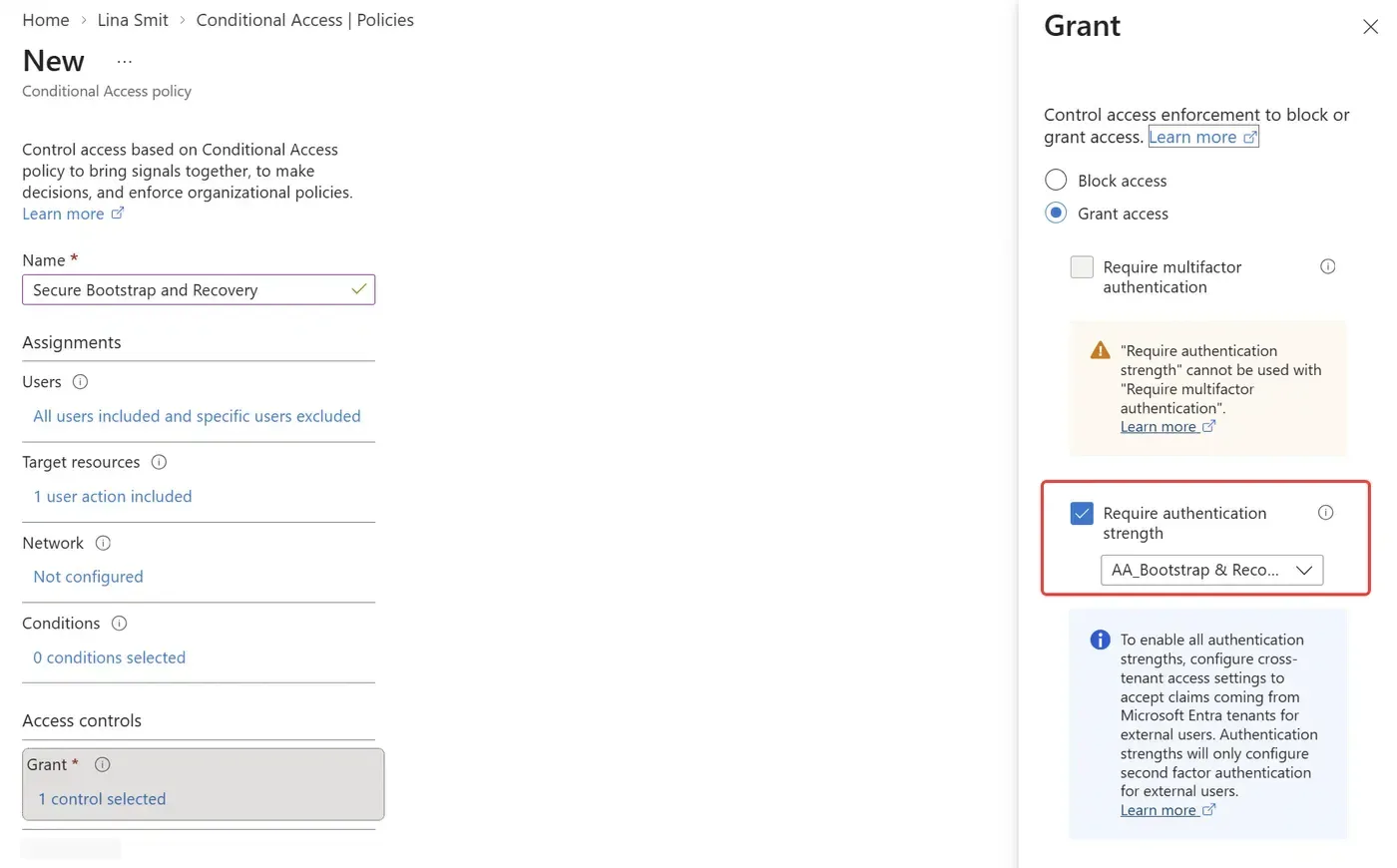
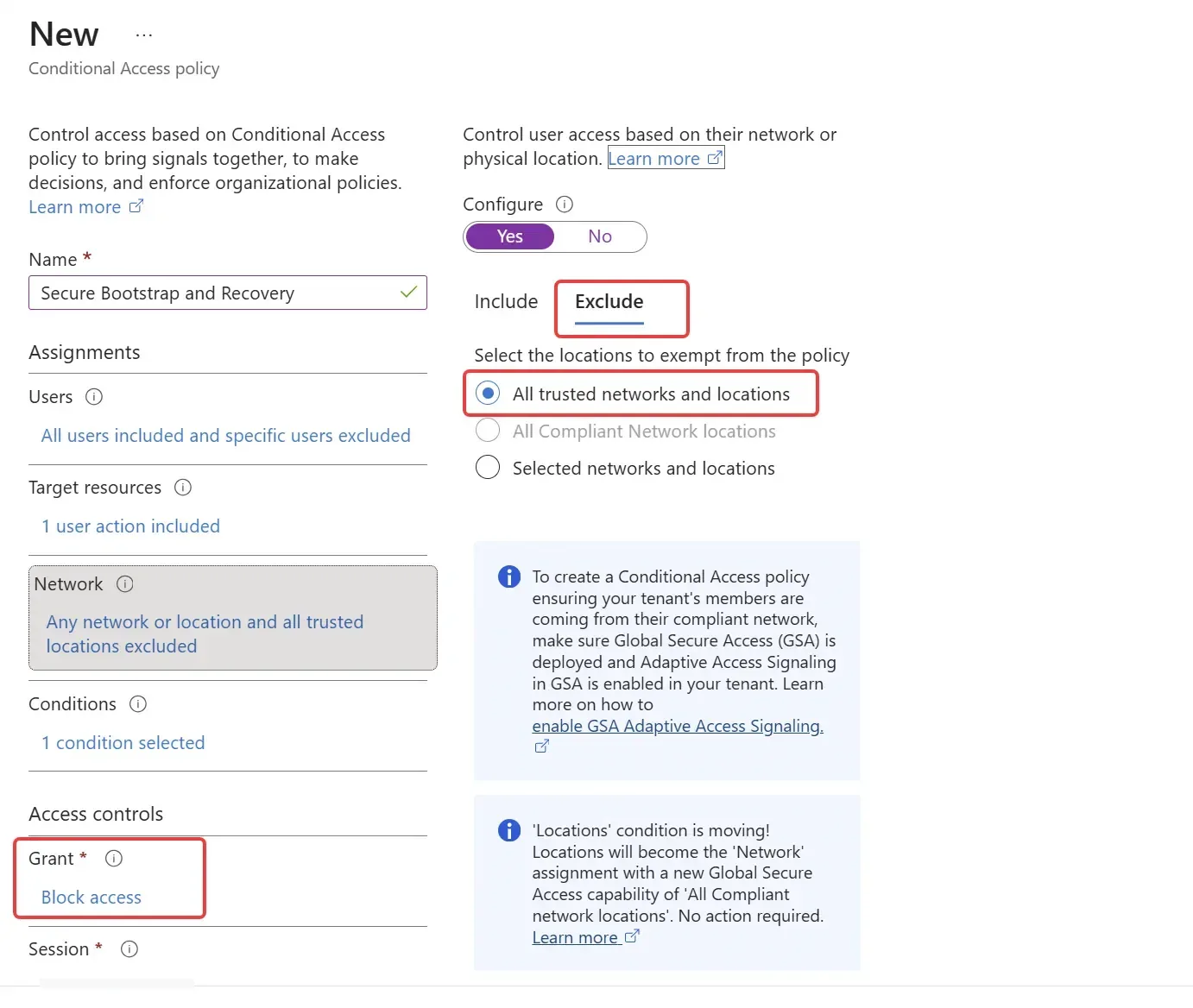
Block outside trusted locations
This policy blocks the action if the user is not in a trusted named location. With Global Secure Access, a compliant network is an alternative. In practice, registering and recovering credentials requires being in the office or connected via VPN.
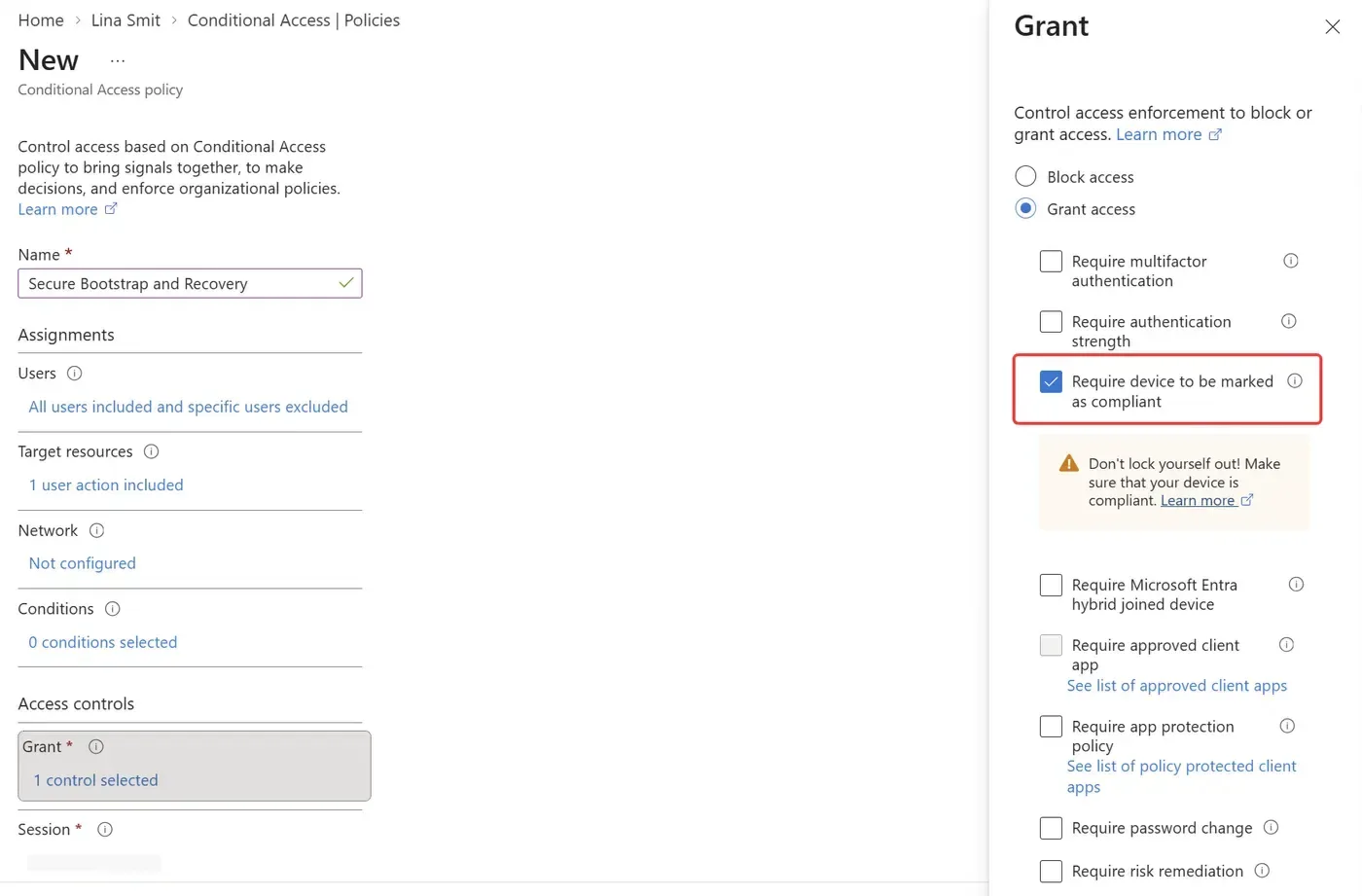
Require a compliant device
Same logic, but the control is based on device compliance: a non-compliant machine can no longer register a passkey. If your organization tolerates BYOD, this policy will break registration for those users.
The mistake to avoid and evaluation pitfalls
The tempting shortcut is to add the TAP to the authentication strength that protects all resources, to solve registration problems in one go. Don't do it: a TAP would then become a key to all of your applications.
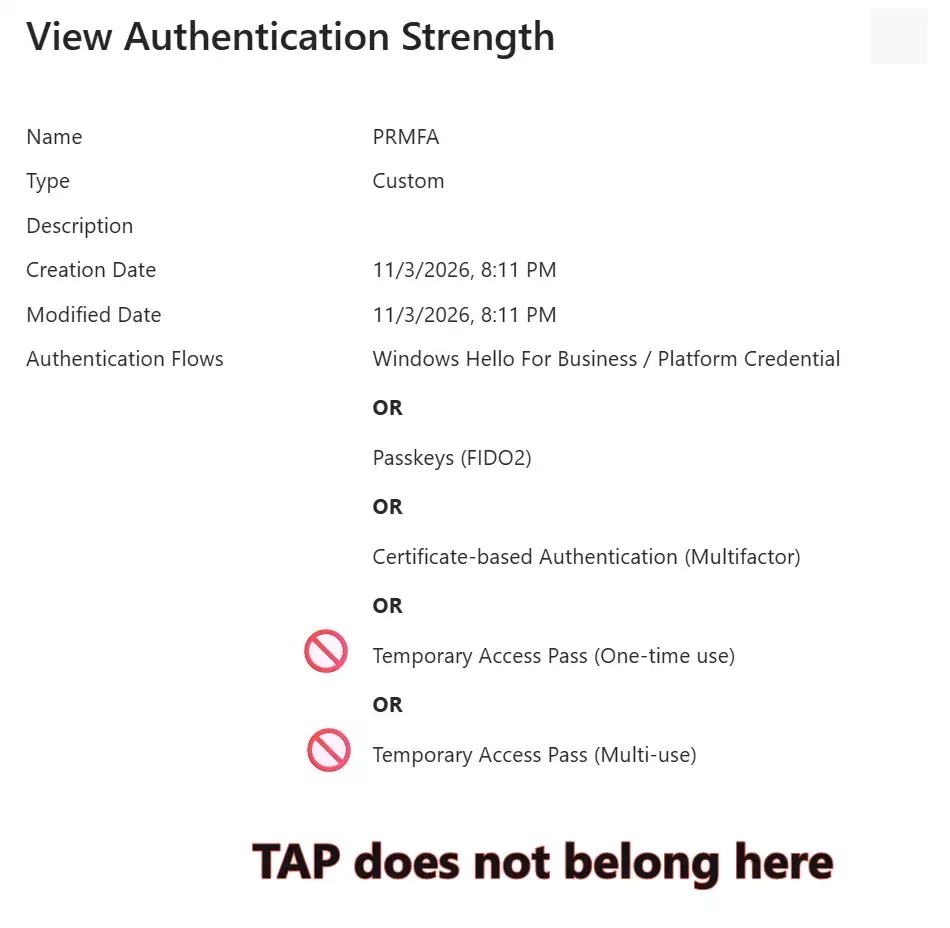
The Microsoft Learn documentation on authentication strengths describes several behaviors worth knowing:
- When several policies target "Register security information", each with its own strength, the user must satisfy all of them.
- These strengths take precedence over those targeting "All resources".
- Some passwordless methods cannot be registered in Interrupt mode: you can end up in a loop where you need a passkey to register one.
Microsoft therefore documents a two-strength pattern: "Bootstrap and recovery" with TAP, and "MFA for sign-in" without TAP.
The 5-minute rule for FIDO2 passkeys
According to the Microsoft Learn documentation on passkeys, registering a passkey (FIDO2) requires a successful MFA within the last 5 minutes, which can conflict with the strengths applied to registration. Documented workarounds: a sign-in frequency of "Every time" on the "Register security info" action, or enabling passkeys for Windows Hello for Business users.
A Microsoft Q&A answer, AI-generated and therefore to be taken with caution, adds a rule for mobile: exclude the "Azure Credential Configuration Endpoint Service" application from the mobile policy, otherwise the upgrade to a passkey in Authenticator is blocked (Microsoft Q&A thread). Validate it in your tenant before rolling it out widely.
Implementation: TAP strength and report-only policy
The flow below follows Microsoft's advice: test in report-only before enforcement.
Create the TAP authentication strength
The script creates the Bootstrap and recovery strength if it does not exist, limited to the two TAP combinations (one-time and multi-use).
Create the policy in report-only
The policy targets the urn:user:registersecurityinfo action, excludes the break-glass group and stays unenforced by default.
Analyze the sign-in logs
Review the report-only result on registration sign-ins before any enforcement.
Switch to enforcement
Run the script again with -Enforce once the effects are under control.
Script prerequisites: Microsoft.Graph.Identity.SignIns module, scopes Policy.ReadWrite.AuthenticationMethod, Policy.ReadWrite.ConditionalAccess and Policy.Read.All. Output: the ID of the strength and of the policy, as well as the state of the latter.
1param(2 [Parameter(Mandatory)][string]$BreakGlassGroupId,3 [string]$PilotGroupId,4 [switch]$Enforce5)6$ErrorActionPreference = 'Stop'7 8# Connexion avec les permissions minimales pour ce scénario9Connect-MgGraph -Scopes 'Policy.ReadWrite.AuthenticationMethod','Policy.ReadWrite.ConditionalAccess','Policy.Read.All' -NoWelcome10 11# 1. Force d'authentification dédiée au bootstrap et à la récupération (TAP uniquement)12$strengthName = 'Bootstrap and recovery'13$strength = Get-MgPolicyAuthenticationStrengthPolicy -All | Where-Object { $_.DisplayName -eq $strengthName }14if (-not $strength) {15 $strength = New-MgPolicyAuthenticationStrengthPolicy `16 -DisplayName $strengthName `17 -Description 'Enregistrement des informations de securite : TAP uniquement' `18 -AllowedCombinations @('temporaryAccessPassOneTime','temporaryAccessPassMultiUse')19}20Write-Host ('Force : ' + $strength.Id)21 22# 2. Etat : report-only par defaut, application seulement avec -Enforce23$state = if ($Enforce) { 'enabled' } else { 'enabledForReportingButNotEnforced' }24 25# 3. Ciblage : pilote si fourni, sinon tous les utilisateurs ; break-glass toujours exclus26$users = @{ IncludeUsers = @('All'); ExcludeGroups = @($BreakGlassGroupId) }27if ($PilotGroupId) {28 $users = @{ IncludeGroups = @($PilotGroupId); ExcludeGroups = @($BreakGlassGroupId) }29}30 31# 4. Stratégie ciblant l'action Register security information32$body = @{33 DisplayName = 'CA - Register security info - TAP only'34 State = $state35 Conditions = @{36 Applications = @{ IncludeUserActions = @('urn:user:registersecurityinfo') }37 Users = $users38 }39 GrantControls = @{40 Operator = 'OR'41 AuthenticationStrength = @{ Id = $strength.Id }42 }43}44$policy = New-MgIdentityConditionalAccessPolicy -BodyParameter $body45Write-Host ('Stratégie : ' + $policy.Id + ' / état : ' + $policy.State)-Enforce applies to the whole tenant
Without $PilotGroupId, the -Enforce parameter requires a TAP from all users to register a method. Check the break-glass group exclusion and the TAP issuance process before using it.
To issue a TAP to a test user (scope UserAuthenticationMethod.ReadWrite.All), use the dedicated cmdlet. The 60-minute lifetime and one-time use are example values to adapt to your policy.
1Connect-MgGraph -Scopes 'UserAuthenticationMethod.ReadWrite.All' -NoWelcome2$params = @{ lifetimeInMinutes = 60; isUsableOnce = $true }3New-MgUserAuthenticationTemporaryAccessPassMethod -UserId 'utilisateur@contoso.com' -BodyParameter $paramsVerify, troubleshoot and manage exceptions
To check the policy state after creation:
1Get-MgIdentityConditionalAccessPolicy -All |2 Where-Object { $_.DisplayName -like 'CA - Register security info*' } |3 Select-Object DisplayName, State, IdThe expected state is enabledForReportingButNotEnforced during the pilot, then enabled. Then test a passkey registration with a pilot user, with and without a TAP.
| Symptom | Likely cause | Resolution |
|---|---|---|
| Loop: a passkey is required to register one | Passwordless strength applied in Interrupt mode | Use the two-strength pattern: Bootstrap and recovery with TAP, MFA for sign-in without TAP |
| The user must satisfy several strengths | Several policies target Register security information | Consolidate the policies: all strengths must be satisfied |
| FIDO2 registration fails despite the strength | No MFA within the last 5 minutes | Sign-in frequency Every time on the action, or passkeys for WHfB users |
| Registration blocked for personal devices | Compliant device policy with BYOD | Provide another path, for example the TAP, or exclude temporarily |
| Upgrade blocked in Authenticator on mobile | Credential configuration application not excluded | Check the exclusion of Azure Credential Configuration Endpoint Service (source to be validated) |
For one-off exceptions, rather than a permanent exclusion, favor PIM for groups: see this post on temporary Conditional Access exclusions with PIM for groups.
Frequently asked questions
Do I need to act on MC1450133?
According to the message center, no action is required. Microsoft nevertheless recommends reviewing Conditional Access policies on security information registration and considering requiring MFA there.
Do my Register security information policies apply to Windows Hello for Business?
Yes, since July 6, 2026, they also apply to the registration of Windows Hello for Business and macOS Platform SSO. Before that date, these flows did not evaluate them.
What happens to users who only have SMS or voice?
Microsoft-provided SMS and voice calls are retired on February 1, 2027, and on July 1, 2027 for Global Administrators and external users. After the applicable date, a user whose only MFA method is SMS or voice must register a passkey at sign-in (blocking prompt).
Can I add the TAP to the strength that protects all resources?
No. The TAP must stay confined to the bootstrap and recovery strength, otherwise it opens access to all of your applications.
Where to start: three decisions to make
Next actions
- Create the break-glass group and the pilot group.
- Deploy the TAP policy in report-only and analyze the sign-in logs.
- Decide whether to add the location or compliant device safeguards depending on your BYOD policy.
- Define who can issue a TAP and after what identity verification.
- Switch to enforcement before the end of MC1450133 phase 1, in early January 2027.
If you allow BYOD, start with the TAP strength alone and leave out the compliant device. If your users are all on managed devices and on site or VPN, combine all three safeguards.
Going further
- Passkeys en entreprise : stratégie et déploiement avec Microsoft Entra ID: frame the overall passkey deployment.
- System-Preferred Authentication : le changement Passkey de septembre: understand the evolution of sign-in prompts.
- Microsoft Entra Passkeys : Enregistrement et Retards Explores: the timelines around registration.
- Protect security info registration with Conditional Access policy: the Microsoft Learn reference documentation.
- FAQ for Microsoft-provided SMS and voice retirement: the SMS and voice retirement schedule.