Microsoft Purview Data Loss Prevention, or DLP, lets you control the data that Microsoft 365 Copilot and Cowork can process, search for on the web or use as sources. As of November 5, 2026, however, some prompt protections remain in preview, and their availability depends on the gradual rollout in each tenant.
This tutorial builds a pilot policy, configures three distinct rules, then checks that they are published without immediately exposing all users.
What DLP actually controls in Cowork
Cowork can draw on the data the user has access to in order to run tasks in Microsoft 365. This ability to act, detailed in our overview of Copilot Cowork, widens the risk: sensitive data may appear in a prompt, be sent to an external search, or serve as a source for a response.
The documentation DLP for Microsoft 365 Copilot and Cowork distinguishes four useful controls:
- Processing prompts blocks the processing of a prompt containing a sensitive information type, or SIT.
- Performing Web Searches prevents web search when the prompt text matches the selected SITs. The prompt is not blocked: Copilot can still answer using the authorized internal sources.
- Accessing knowledge sources excludes from grounding the files and emails carrying certain sensitivity labels. Their name may nevertheless remain visible as a reference.
- The condition Email is received from > External users, combined with Prevent Copilot from processing content, excludes external messages from grounding, summaries and citations. Only the sender metadata is evaluated, not the message body.
The official name of the location is Microsoft 365 Copilot and Copilot Chat. Some tenants still display Microsoft Copilot, Copilot Chat, and Copilot Cowork: check the label actually offered in your portal before documenting the configuration.
Uploaded attachments are not inspected
Prompt rules only analyze the text typed directly. They do not look for SITs in the content of a file uploaded with the prompt. Only native and custom SITs are supported; trainable classifiers are not.
Pilot tenant prerequisites
To apply the principle of least privilege, preferably use the Purview Data Security AI Admins role group rather than a Microsoft Entra Global Administrator role. Other accepted roles include Purview Compliance Administrator, Purview Compliance Data Administrator, Purview Information Protection Admin and Purview Security Administrator.
For web search protection, Microsoft Security specifies that Microsoft 365 Copilot and Purview DLP licenses are required, the latter being included in E5, E5 Compliance or an equivalent plan. The right to open the Purview portal therefore does not, on its own, prove that all targeted users are eligible.
Before continuing, prepare a pilot group, the SITs to test and at least one document carrying the chosen sensitivity label. The checklist for preparing a Microsoft 365 tenant for Copilot helps check the broader dependencies.
Create a policy limited to the pilot group
Start by searching for Default DLP policy - Protect sensitive M365 Copilot interactions. Microsoft provides this policy in simulation mode: it logs matches but blocks nothing until it is enabled. Remove the SITs unrelated to your risks and add the security team to incident reports to limit false positives.
For this tutorial, create a separate custom policy to isolate the tests.
Open policy creation
Sign in to the Microsoft Purview portal, then open Data Loss Prevention > Policies > Create policy > Enterprise applications & devices.
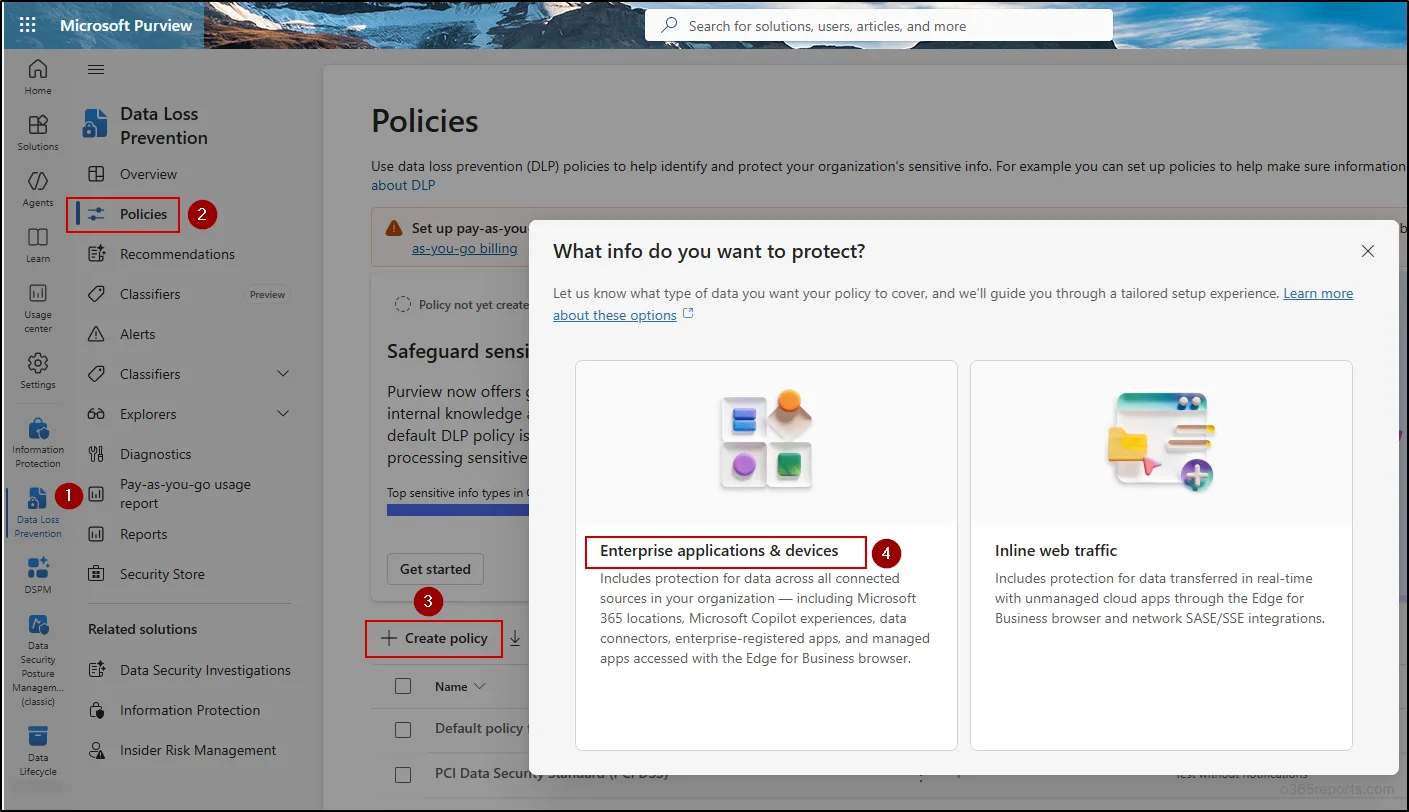
Choose the only compatible template
In Categories, select Custom > Custom policy. Name the policy, for example DLP - Cowork - Pilot. Administrative units can restrict management delegation, but they are optional for this lab.
Select the Copilot location
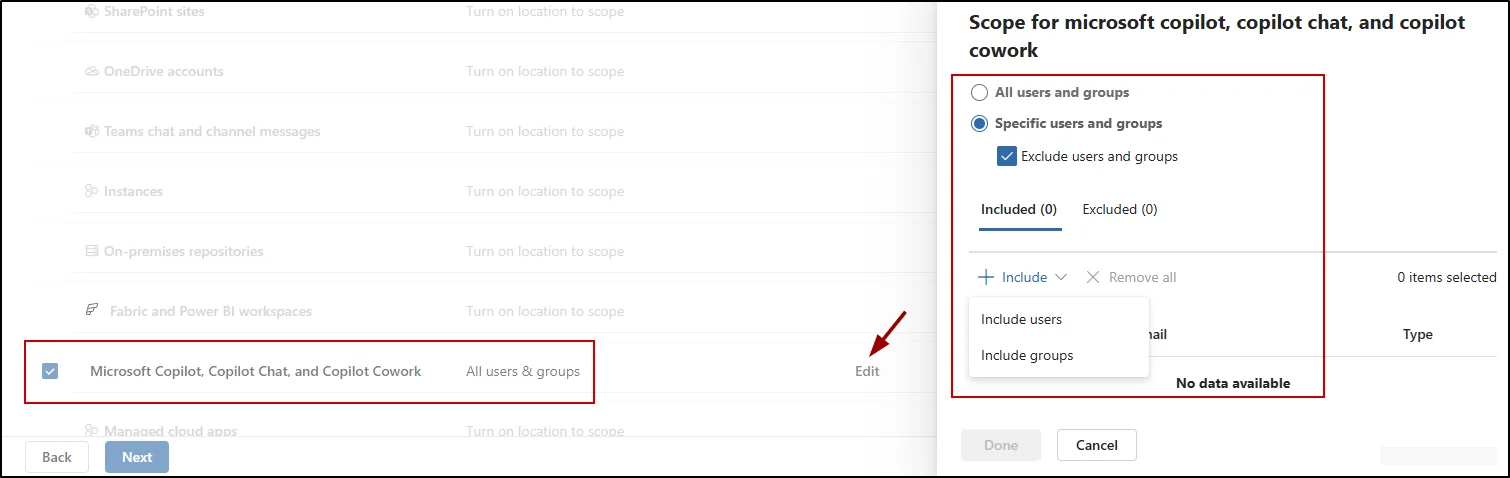
In Choose where to apply the policy, select the Copilot location displayed in your tenant. This choice disables the other locations in this policy: a single policy cannot combine Copilot, Exchange, SharePoint or devices here.
Limit the scope to testers
Select Edit, include only the pilot group, then confirm with Done. This restriction reduces the risk of a false positive affecting the whole organization during qualification.
Move on to advanced rules
Keep Create or customize advanced DLP rules, then select Create rule. The policy will hold three rules, each corresponding to a distinct action.
Configure three independent DLP rules
Conditions based on SITs and those based on sensitivity labels cannot be combined in the same rule. Likewise, Processing prompts and Performing Web Searches must be configured separately.
Block a prompt containing payment data
Let's illustrate the configuration with a fictional company that allows Cowork to prepare customer file summaries but forbids entering card numbers in prompts.
Create the rule DLP Cowork - Block credit cards in prompts, then choose Add condition > Content contains > Sensitive information types. Add Credit Card Number, then configure Restrict Copilot from processing content > Processing prompts.
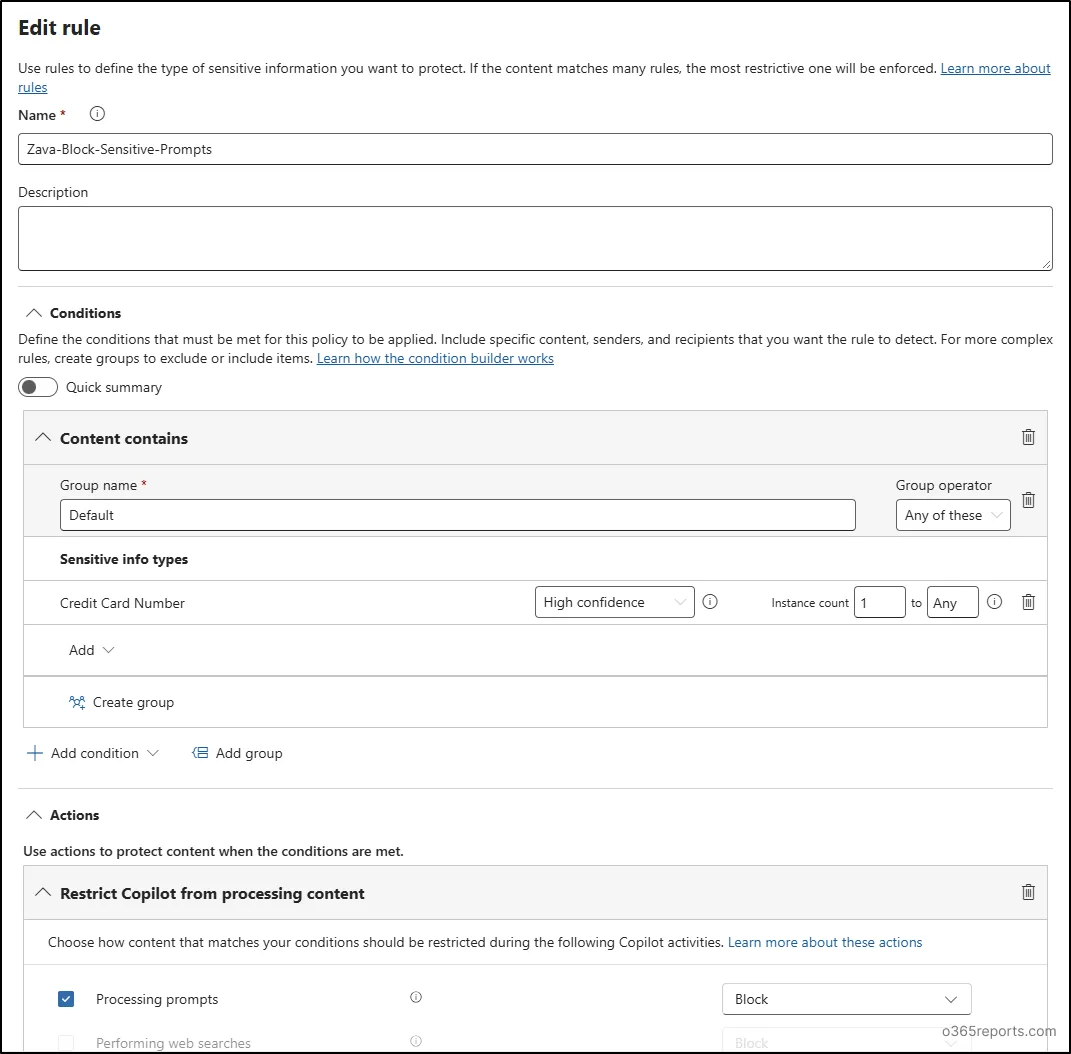
A match must prevent Cowork from processing the prompt and producing the expected response. If the same data also matches a web search rule, blocking prompt processing is the most restrictive control.
Disable web search for an address
Create DLP Cowork - No web with addresses. Add the condition Content contains > Sensitive information types, select All physical Addresses, then choose Restrict Copilot from processing content > Performing Web Searches.
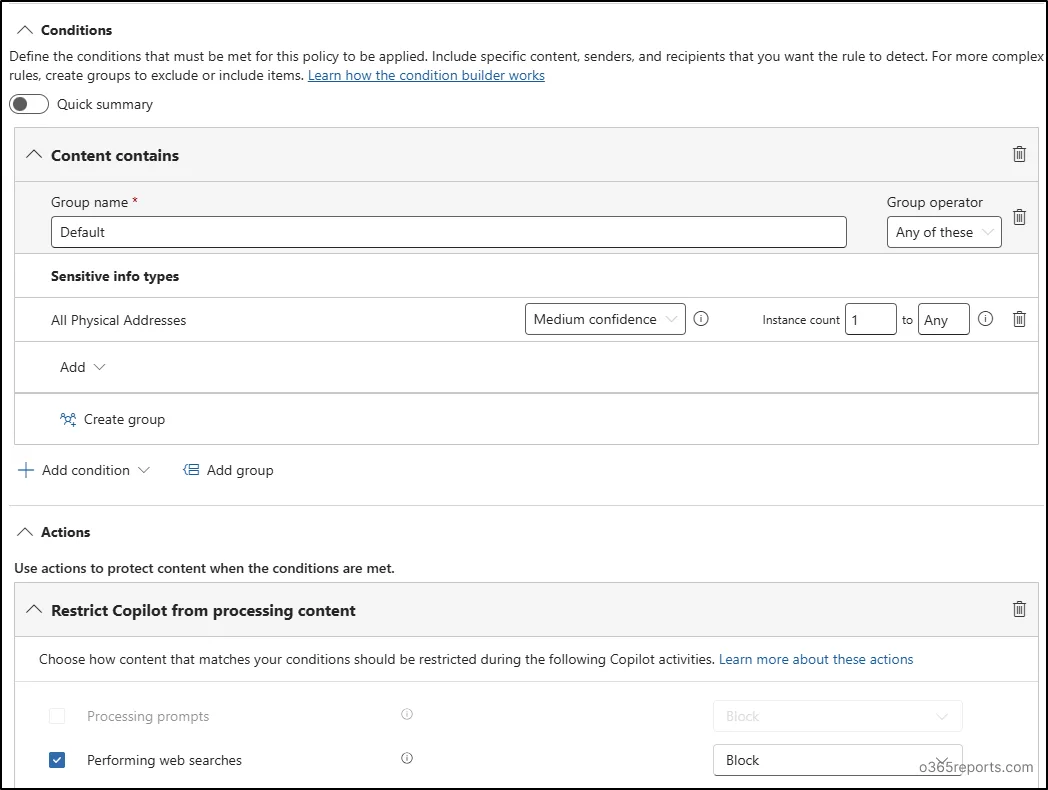
This rule acts as a safety net, regardless of the general web search configuration. It does not cancel the prompt: Cowork can respond with the Microsoft 365 data the user already has access to. Microsoft therefore recommends combining it with the administrative web search controls rather than treating it as a replacement for them.
Exclude sources carrying a sensitive label
Create DLP Cowork - Exclude sensitive labels, then choose Content contains > Sensitivity labels. Select the labels whose content must not feed responses.
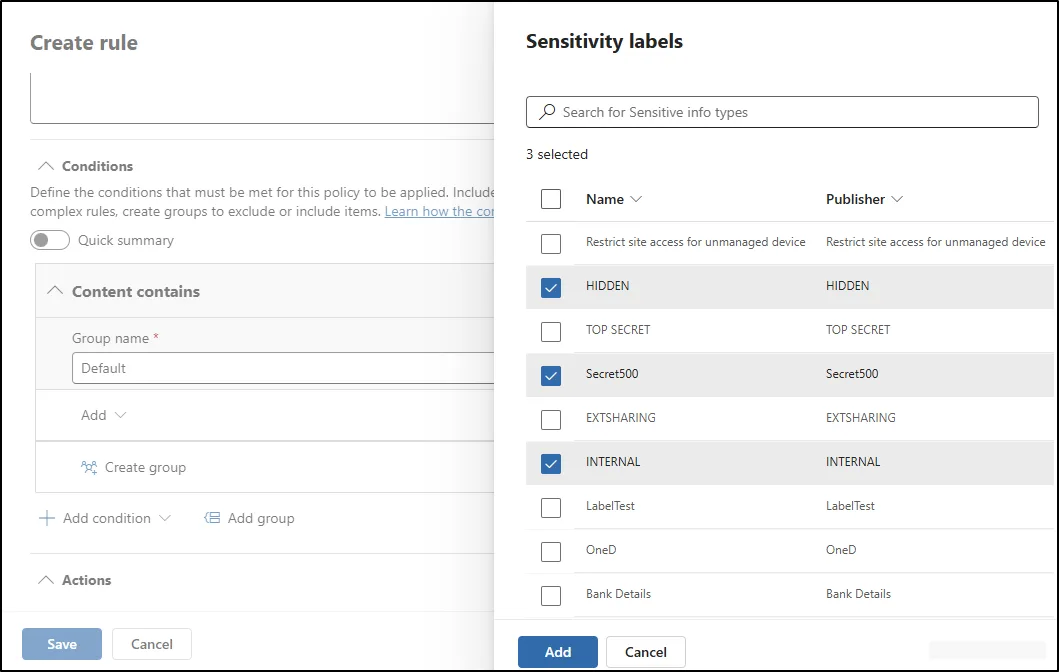
Then configure Restrict Copilot from processing content > Accessing knowledge sources. This action appears only when the condition is based on sensitivity labels, not on SITs.
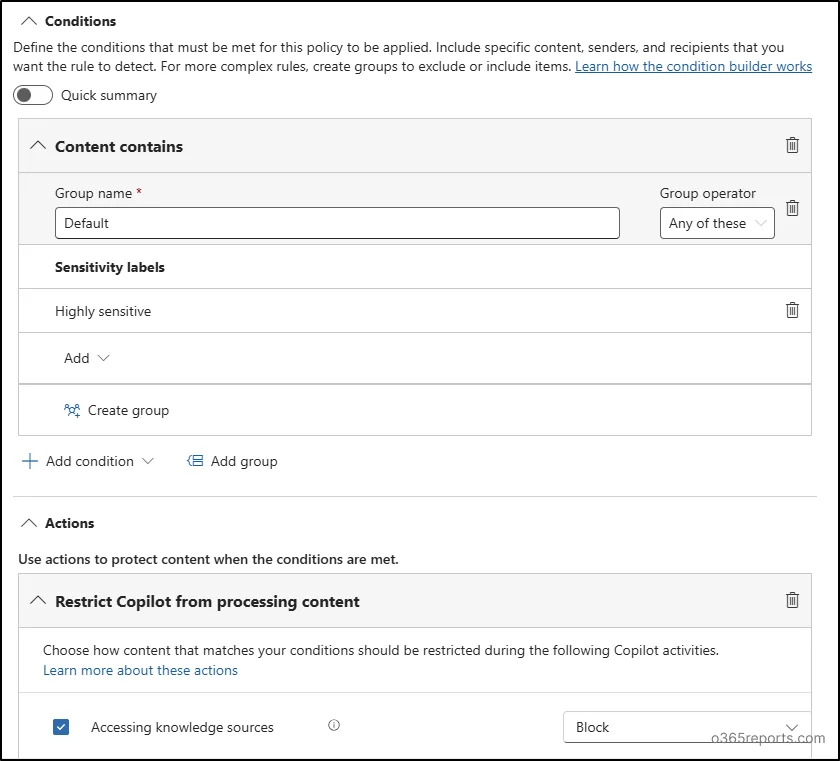
Save the three rules and check that they appear in the same policy.
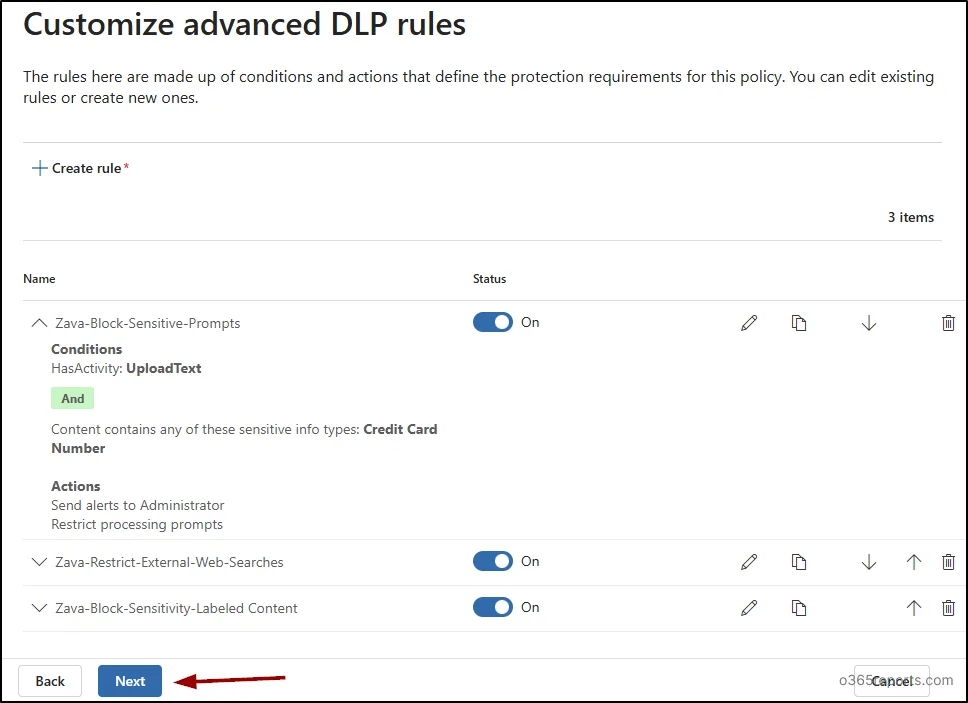
Finish with simulation mode, review the summary, then select Submit. The documentation provided does not publish a guaranteed propagation time: wait until the policy is visible in the portal and in the PowerShell inventory before interpreting a negative test.
Implementation
Creation is still done in the portal, because labels and preview availability may vary by tenant. PowerShell nonetheless provides a reproducible check of the policy and the number of published rules.
In Data Loss Prevention > Policies, open DLP - Cowork - Pilot. Check the user scope, the Copilot location, the simulation mode and the presence of the three rules before any functional test.
Test the rules before enabling them
Use synthetic data recognized by the SITs, never real information. Each test must be run by a member of the pilot group, then looked up in Activity Explorer and in the configured incident reports.
| Test | Expected result | Check |
|---|---|---|
| Credit Card Number SIT in the text | Prompt not processed | DLP event and no response |
| Physical address in the text | No web search, internal response possible | Sources used in the response |
| Document carrying a targeted label | Content excluded from grounding | Response without information from the document |
| Uploaded file containing a SIT | Not blocked by the prompt rule alone | Validation of the documented limit |
Checks after publication
- The policy appears in the portal and in the PowerShell export
- The three rules are enabled in the policy in simulation mode
- The tester belongs to the included group and is not excluded elsewhere
- Events are visible in Activity Explorer
- Incident reports reach the security team
- SITs generating false positives are removed before activation
Troubleshooting unexpected blocks
| Symptom | Likely cause | Resolution |
|---|---|---|
| The sensitive prompt produces a response | Performing Web Searches action instead of Processing prompts | Edit the rule and select Processing prompts |
| The prompt rule never triggers | Preview not rolled out to the tenant | Check availability in the portal then open a support case |
| Accessing knowledge sources is missing | Condition based on a SIT | Create a separate rule based on Sensitivity labels |
| Web search is blocked but the prompt continues | Normal behavior of the web rule | Check the internal sources used in the response |
| The uploaded file is not detected | The content of attached files is not inspected | Protect the file with a label and test Accessing knowledge sources |
| Behavior varies between users | Different scope, license or exclusion | Compare group memberships and license assignments |
The feedback published on Microsoft Q&A also recommends checking that no other location is enabled in the policy concerned.
Frequently asked questions
Does an existing Copilot policy also protect Cowork?
Yes. A policy already targeting the Microsoft 365 Copilot and Copilot Chat location also applies to Cowork when that experience is available in the tenant. There is no need to automatically duplicate the policy.
Does DLP inspect the content of a file added to the prompt?
No. SIT-based restrictions inspect the text typed directly in the prompt. For files and emails, use sensitivity labels and the Accessing knowledge sources action.
Does Performing Web Searches block the entire request?
No. This action removes the external search, but Cowork can still respond from the authorized internal sources. Use Processing prompts if the prompt itself must not be processed.
Why does the rule work on one tenant but not on another?
As of November 5, 2026, SIT blocking in prompts remains a preview that is being rolled out gradually. If the scope, action and licenses are correct, check that the rollout has reached the tenant before opening a support case.
Moving from pilot to production
A global activation can interrupt Copilot usage
Do not replace the pilot group with all users before analyzing the simulation events. Overly generic SITs can block legitimate prompts or remove sources the business needs.
Start by fixing the false positives, then widen the scope in waves, then enable the rules one by one. If your organization makes heavy use of external search, keep the web rule as defense in depth and reserve Processing prompts for data whose processing must be prohibited without exception.
Going further
- DLP for Microsoft 365 Copilot and Cowork — official conditions, actions, availability and limits.
- Default Copilot DLP policy — how the simulation mode delivered by Microsoft works.
- DLP and external web search — how it fits with the other web search controls.
- Troubleshooting prompt blocking — recommended checks when a rule does not trigger.
- Microsoft 365 Copilot governance and security — a complementary framework to limit data exposure.