
An auto-labeling policy that runs without errors and labels nothing: this is common, because a missing prerequisite produces no message. Here is an executable diagnostic approach for SharePoint and OneDrive, from the preflight checklist to the simulation test, with a script that gathers evidence before you open a ticket.

How auto-labeling works on the service side
Auto-labeling policies run in the Microsoft 365 service, not in the Office applications. A policy combines a sensitivity label, rules and a scope. It must have completed at least one simulation before it can be turned on. Once active, SharePoint and OneDrive label the matching files at rest, within the tenant's daily cap.
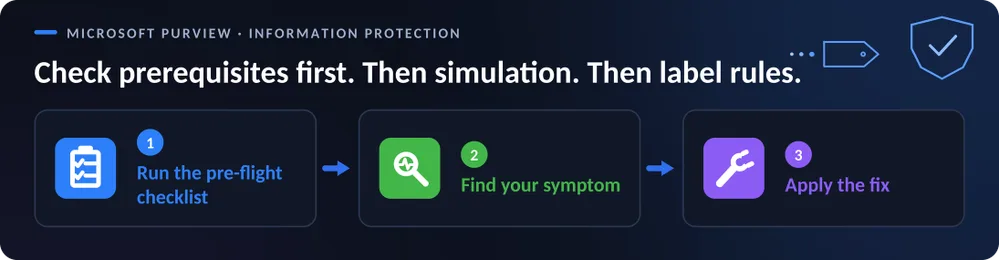
This is the most common route for processing a stock of existing files. When it produces nothing, the cause almost always falls into one of three families: a missing prerequisite, the particular behavior of simulation, or the priority rules between labels.
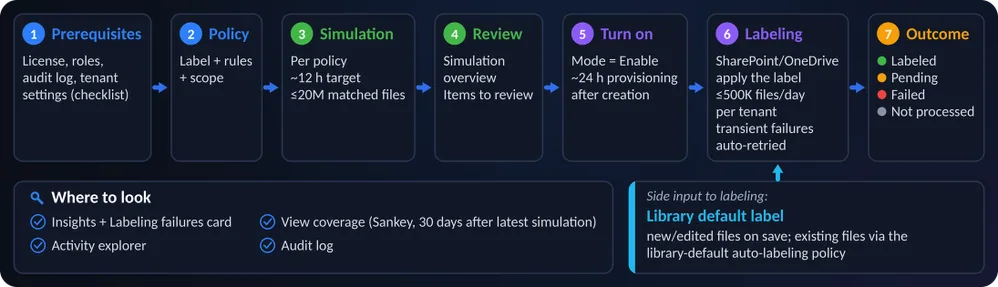
The lifecycle below shows the points where a policy can stall: provisioning, simulation, activation, label application.
This article covers SharePoint and OneDrive. Exchange behaves differently and is not covered here.
Limits as of October 2026
The Microsoft Learn documentation now confirms higher limits than many administrators have in mind. Planning with the old values leads to undersizing or to needlessly splitting policies.
| Setting | October 2026 value | Previous value |
|---|---|---|
| Files labeled per day per tenant | 500,000, shared by all SharePoint and OneDrive policies | 100,000 |
| Auto-labeling policies per tenant | 100 | — |
| SharePoint sites explicitly selected per policy | 1,000 | 100 |
| SharePoint adaptive scope | Up to 50,000 sites, configured in PowerShell (-SharePointAdaptiveScopes) | — |
| Matching files per simulation | 20,000,000 | 4,000,000 |
| OneDrive: users or groups explicitly included or excluded | 100 per policy | — |
| New policy: Turn on, Edit, Delete available | About 24 h after creation | — |
| View coverage report | Available 30 days after the last simulation ends | — |
| Default library label applied to existing files | 1 policy per tenant, 10 sites maximum | — |
Message center item MC1461154 announces the move to 500,000 files per day, and MC1469958 the increase of the simulation to 20 million files. Rollout happens tenant by tenant: if your portal still shows the old values, the wave has not reached you. Other changes follow the same pace: editing an active policy without going back to simulation, filtering by site template, summaries of detected SITs and the 30-day chart of processed files (MC1469958), the per-policy coverage report (MC1456609) and default labels applied to existing files (MC1477181).
The 20,000,000 cap applies only to simulation, not to a policy that is already turned on. Beyond it, activation is impossible: you must reduce the scope and then rerun the simulation.
Preflight checklist: what makes a policy run in a vacuum
The absence of a single one of these items is enough to produce a policy that runs without labeling and without error. The portal does not check, for example, that labels are enabled for SharePoint and OneDrive files.
Preflight before any simulation
- E5/P2-level license: Microsoft 365 E5, E5 Compliance, E5 Information Protection & Governance or AIP P2
- Compliance Administrator or Compliance Data Administrator role (Data Classification Content Viewer to preview matches)
- Auto-labeling page visible in the Microsoft Purview portal (supported region)
- Unified audit log enabled, mandatory for simulation
- Labels enabled for SharePoint and OneDrive files (EnableAIPIntegration = True)
- PDF support enabled if PDFs are in scope (EnableSensitivityLabelforPDF = True)
- Label published to at least one user, scoped to “Files & other data assets”, and not a parent label
- Encrypting label configured with “Assign permissions now”, no expiration, no S/MIME
- OneDrive accounts attached to their users (detached accounts are not supported)
The three tenant settings can be checked in PowerShell. Get-SPOTenant belongs to the SharePoint Online Management Shell module, Get-AdminAuditLogConfig to Exchange Online PowerShell. Replace the example URL with that of your SharePoint admin center.
1# Module requis : Microsoft.Online.SharePoint.PowerShell (Install-Module Microsoft.Online.SharePoint.PowerShell)2Connect-SPOService -Url https://contoso-admin.sharepoint.com3Get-SPOTenant | Format-List EnableAIPIntegration, EnableSensitivityLabelforPDF4 5# Module requis : ExchangeOnlineManagement6Connect-ExchangeOnline7Get-AdminAuditLogConfig | Format-List UnifiedAuditLogIngestionEnabledExpected: all three values set to True. A custom SIT (sensitive information type) created or modified after a file's last modification, or a new SIT that must re-evaluate old files, requires on-demand classification. Without it, those files stay out of the matches.
Enable PDF support
As long as PDF support is disabled, PDFs are skipped without being evaluated: no failure, no error.
In the Microsoft Purview portal, use the “Protect PDFs with Auto-labeling” banner on the auto-labeling page. In a multi-Geo environment, activation is done per geo.
Enabling PDFs consumes your daily quota
Activation applies to the whole tenant and can increase the number of files labeled by your existing policies, and therefore consume more of the 500,000 files per day. Signed PDFs are not supported. Measure the volume of PDFs involved first.
Testing in simulation without falling into traps
Simulation is a search job run in the background, per policy, at a given point in time. It takes into account the label already present on the file but not the other policies. Files modified after the run are missed, and the number of “Matched items” is an estimate based on a sample.
On duration, Learn states a target of 12 hours. Since the increase to 20 million files, expect up to 24 hours in practice. A reliable test procedure comes down to six steps.
Prepare three control files
Place a new file, a modified file and an old unchanged file in a site within the scope. This trio separates a rule defect from a retro-classification defect.
Reduce the scope
Stay under 20,000,000 matches and under 1,000 explicitly selected sites. Only one policy in simulation at a time, with no changes in the portal during the run: an edit mid-run can block the status.
Run and monitor the simulation
Use the script in the next section to read TestModeStatus and LastSimulationCompletionDate. The first results generally arrive within 24 hours; open a case if the matches have not moved 48 to 72 hours after a restart.
Classify old files on demand
Restarting a simulation does not reclassify content. For old files or modified SITs, trigger on-demand classification, then rerun.
Inventory competing policies
List all active policies on the same locations or the same labels, before turning on. This is the only way to anticipate conflicts that simulation does not see.
Turn on
Moving from “Ready to turn on” to “On” requires the Compliance Administrator or Compliance Data Administrator role. Without one of them, the button stays grayed out even after a successful simulation. A duplicated policy always restarts in simulation, even if the source is active.
Simulation can show what activation does not reproduce
Conflicts are resolved at activation. Another active policy that applies a label wins over a policy configured to remove the label, even if the applied label is different. Likewise, a “replace manual label” policy does not replace if another active policy does not have this option.
Implementation: a diagnostic script with simulation mode
This script reads a policy's state (mode, simulation, distribution, progress) and can restart the simulation. It supports -WhatIf: without the -RestartSimulation parameter, it changes nothing.
- Module: ExchangeOnlineManagement 3.9.0 or later (
Install-Module ExchangeOnlineManagement -Scope CurrentUser, orUpdate-Module ExchangeOnlineManagementto update). - Permission: Compliance Administrator or Compliance Data Administrator role, which covers both reading and restarting.
- Output: four blocks displayed on screen (simulation state, distribution, progress, restart confirmation).
If you get the error “Failed to create job. Please close the current PowerShell session and open a new session using Connect-IPPSSession with the -EnableSearchOnlySession flag”, it corresponds exactly to a restart made from an old session. It may appear only after a timeout.
1#Requires -Modules @{ ModuleName = 'ExchangeOnlineManagement'; ModuleVersion = '3.9.0' }2[CmdletBinding(SupportsShouldProcess = $true)]3param(4 # Nom de la policy d'auto-étiquetage à diagnostiquer5 [Parameter(Mandatory = $true)]6 [string]$PolicyName,7 8 # Relance la simulation après le diagnostic (respecte -WhatIf)9 [switch]$RestartSimulation10)11 12# 1. Session limitée à la recherche : évite l'échec de création du job13Connect-IPPSSession -EnableSearchOnlySession14 15# 2. État de la simulation16$policy = Get-AutoSensitivityLabelPolicy -Identity $PolicyName -IncludeTestModeResults $true17if (-not $policy) {18 throw ('Policy introuvable : {0}' -f $PolicyName)19}20Write-Host '--- Simulation ---'21$policy | Select-Object Name, Mode, TestModeStatus, LastSimulationCompletionDate | Format-List22 23# 3. Distribution : le mode doit être Enable pour que l'étiquetage ait lieu24Write-Host '--- Distribution ---'25Get-AutoSensitivityLabelPolicy -Identity $PolicyName -DistributionDetail |26 Format-List Mode, DistributionStatus, DistributionResults27 28# 4. Progression : à étiqueter, étiquetés sur 7 jours, total29Write-Host '--- Progression ---'30Get-AutoSensitivityLabelPolicy -Identity $PolicyName -IncludeProgressFeedback | Format-List31 32# 5. Relance optionnelle, une policy à la fois33if ($RestartSimulation) {34 if ($PSCmdlet.ShouldProcess($PolicyName, 'Relancer la simulation')) {35 Set-AutoSensitivityLabelPolicy -Identity $PolicyName -StartSimulation $true36 Write-Host 'Simulation relancée. Ne modifiez pas la policy dans le portail pendant l''exécution.'37 }38}39 40Disconnect-ExchangeOnline -Confirm:$falseExample call in simulation, with no writes at all:
1.\Test-AutoLabelPolicy.ps1 -PolicyName 'Confidentiel - Finance' -RestartSimulation -WhatIfIf DistributionStatus indicates a failure, Set-AutoSensitivityLabelPolicy -Identity 'Confidentiel - Finance' -RetryDistribution restarts the distribution, one policy at a time and only in that case.
Priority questions are settled with Get-Label. Compare the priority of the target label with that of the label already present, and inspect the encryption actions of a suspect label:
1# Session Connect-IPPSSession standard2Get-Label | Format-Table Name, Guid, Priority3 4$labelName = 'Confidentiel'5Get-Label -Identity $labelName -IncludeDetailedLabelActions | Format-ListTo relabel from an old label to a new one, the interface offers no “current label” condition. Create one policy per match, with the advanced condition “Document property is” and InformationProtectionLabelId equal to the GUID of the source label. The target must have a higher priority than the source; also enable replacement of manual labels if the old one was applied by hand. Simulate first on a small scope, without removing the old label beforehand.
Troubleshooting: from no result to failure codes
Go through the table by symptom, then confirm with the script's cmdlets. For a broader deployment, reading our Microsoft Purview update for September 2026 provides context on product changes.
| Symptom | Probable cause | Resolution |
|---|---|---|
| Auto-labeling page missing or policy cannot be saved | E5/P2 license missing, old portal, missing role or unsupported region | Fix license or role; Get-Command New-AutoSensitivityLabelPolicy confirms the cmdlet is present. The No matching database is available error is transient: retry, open a case after 24 h of persistence |
| Simulation stuck on In progress, with no result or expired | Background search job, policy edited during the run, old PowerShell session | Check TestModeStatus and LastSimulationCompletionDate, restart from a search-only session, one policy at a time |
| Simulation completed with zero matches | Missing prerequisite, scope or rule too strict, files unchanged since the SIT was created, Document property is requires exact values (no regex, the & character may fail) | Go back through the checklist, check the SIT in Content explorer, test with a new file, classify old files on demand then rerun |
| Turn on, Edit or Delete grayed out, no content preview | Provisioning in progress (about 24 h), missing role, more than 20 million matches, Data Classification Content Viewer role missing (Global Admins do not have it by default) | Wait 24 h then refresh, assign the role, reduce the scope and rerun the simulation |
| Policy On but nothing labeled, no failure | Mode not yet Enable, incomplete distribution, label not published, files open or checked out, content out of scope | Read Mode and DistributionStatus, then -IncludeProgressFeedback; check the Insights tab and Activity explorer; wait 24 h, open a case at 48 h if everything is compliant |
| Matching files not labeled after activation | The service could not apply the label, or a user labeled manually | Overview, Labeling failures card, Labeling failures tab, file, Details, Failure reason; check service health if many files share the same code |
| PDFs not labeled | PDF support disabled: PDFs skipped with no failure or error | Get-SPOTenant then Set-SPOTenant -EnableSensitivityLabelforPDF $true; signed PDFs not supported |
| Encrypting label failing or unexpected result | Assign permissions now without mandatory expiration, S/MIME impossible; no headers, footers or watermarks; the RMS issuer is the last modifier | Get-Label with -IncludeDetailedLabelActions, switch to a compliant label; removing an encrypting label removes the encryption |
| Existing label not replaced, or wrongly replaced | Manual label kept unless a dedicated option is set; automatic label replaced only by a higher priority | Compare priorities with Get-Label, check the application mode in Activity explorer, examine overlapping policies |
| Too many false positives | Rule broader than the data: low confidence or low occurrence count, loose AND/OR logic | Sample the matches with their SITs, note confidence and thresholds, combine several SITs, add location or file type conditions, then resimulate |
| Fewer files labeled per day than expected | 500,000 is a shared tenant maximum, not guaranteed; failures reduce throughput; 100,000 until the rollout has reached the tenant | Check the 30-day chart and -IncludeProgressFeedback, handle the dominant failure codes first, gather several days of evidence before a case |
| Site in the adaptive scope but existing files not labeled | Scope membership does not retro-classify files unchanged since the SIT was created | Test a new, a modified and an unchanged file: if only the unchanged one fails, on-demand classification; otherwise open a case |
| Some files never labeled | Only .docx, .pptx, .xlsx and PDF are handled at rest; open files, list item attachments and 0-byte files excluded | By design, no workaround; submit a product request for other formats |
Reading the failure codes completes the diagnosis. They fall into three groups.
- Retried automatically: FileLocked, FileCheckOut, GetTagsFailure, RmsUnavailable, Conflict, Transient, UnauthorizedAccessException, TransientErrorStorageConnection, GenericException, SqlThrottled, Unknown_SPException. No action, unless Unknown_SPException repeats on the same files. Spikes of SqlThrottled, TransientErrorStorageConnection or Unknown_SPException often correspond to a service incident.
- To fix on your side: EncryptedFileNotSupported (remove the password or third-party encryption), DisabledOrUnsupportedLabel (publish or enable the label), InvalidFileName (rename), CancelledByEventHandler (review custom SharePoint event receivers), QuotaExceeded (free up space or raise the quota), UnsupportedFileType (enable PDF support). In the meantime, the file keeps its previous label or stays unlabeled.
- By design: CannotOverrideCurrentLabel (label of equal or higher priority already present), FileNotSupported, FileExtensionNotSupported, ZeroByteFile, DirectoryNotFound, FileNotFound (file deleted or moved after classification). Nothing to fix.
Auto-labeling changes neither Modified, nor Modified By, nor the other dates, whether in simulation or at application. For the labels themselves, see also the formats now supported in SharePoint labels, including OneNote and MP4.
Open the case quickly: diagnostic data is only kept for a limited time. Attach the tenant ID; the policy name and GUID (visible in the portal URL), its mode and the UTC time of activation or last modification; the label's GUID, priority and encryption settings; the rule logic (SITs, classifiers, confidence, counts) and the scope; the latest match count and LastSimulationCompletionDate; the labeled, pending and failed counters over the same window; the failure codes with 3 to 5 file URLs; the output of the script's cmdlets; the result of the service health check; the expected versus observed behavior and the business impact.
Frequently asked questions
Why does the activation button stay grayed out after a successful simulation?
Moving from “Ready to turn on” to “On” requires the Compliance Administrator or Compliance Data Administrator role. Another possible cause is provisioning still in progress, about 24 hours after the policy was created, or a simulation beyond 20,000,000 matching files.
Does restarting the simulation reclassify old files?
No. Restarting a simulation does not reclassify content. For old files or for SITs created or modified after the files' last modification, you must trigger on-demand classification, then rerun the simulation.
Does the 20 million file cap apply to active policies?
No, it applies only to simulation. Beyond it, the policy cannot be turned on: reduce the scope and rerun. For an active policy, the daily cap of 500,000 labeled files per tenant applies, across all policies combined.
Why does the result after activation differ from the simulation?
Simulation evaluates a single policy at a time and ignores the others. Conflicts are resolved at activation, so a competing active policy may win. Files modified after the simulation ran also explain discrepancies.
Does enabling PDF support change quota consumption?
Yes, potentially. Once enabled, existing policies can label more files, which consumes more of the 500,000 daily files. Estimate the volume of PDFs involved before enabling.
Where to start: three checks before the next simulation
Start with what fails silently: audit, labels enabled for SharePoint and OneDrive, PDF support. Then test with three control files on a reduced scope before any widening.
First actions
- Run the tenant checks (EnableAIPIntegration, EnableSensitivityLabelforPDF, UnifiedAuditLogIngestionEnabled)
- Run the diagnostic script with
-WhatIfon the suspect policy - Place a new file, a modified file and an old unchanged file in a site within the scope
- List the active policies on the same locations and compare priorities with
Get-Label - Check in the portal that the limit values match those of your tenant
If you are preparing a tenant for Microsoft 365 Copilot, these checks fit into the technical tenant readiness checklist. If your tenant still shows 100,000 files per day, plan with that value until MC1461154 has reached it.
Going further
- Automatically apply a sensitivity label to Microsoft 365 data: prerequisites, licenses, current limits, simulation and conflicts between policies
- Enable sensitivity labels for files in SharePoint and OneDrive: enabling SharePoint, OneDrive and PDF support, and limits of encrypted files
- Resolve auto-labeling failures in SharePoint and OneDrive files: details of the failure codes
- Default sensitivity labels and policies to protect your data: the auto-labeling policies created by default for new customers, with their 25-day delay before simulation
- Microsoft 365: 5 essential new admin features: the context of the administration changes to follow